How to create a new tenant
Introduction
The Tenants page in Central Administration allows administrators to create and manage tenants in contentACCESS. From this page, you can view all existing tenants, add a new tenant, assign a tenant administrator, and configure tenant-specific settings such as database, globalization, and licensing options.
This page describes the required permissions, the steps to create a new tenant, and the options available afterward for managing an existing tenant.
Prerequisites
Only a user with the Manage tenant and Manage system permissions can create a new tenant. If these permissions are not granted, the + new option is unavailable to the logged-on user.
The default system administrator role contains both of these permissions.
Open the Tenants page
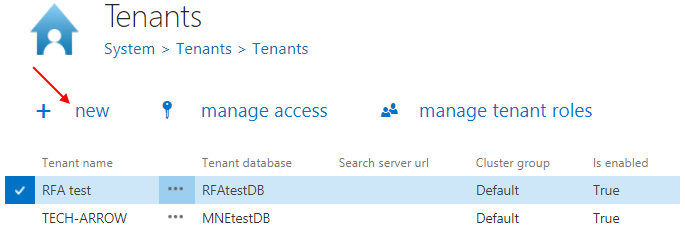
To create a new tenant, open the Tenants page in Central Administration (System → Tenants → Tenants button).
This page displays the list of all tenants present in contentACCESS. If no tenant has been added yet, the list is empty.
To add a new tenant, click + new. The Add new tenant dialog opens.
Configure general tenant settings
In the Add new tenant dialog, configure the following settings:
- Name: The name of the tenant.
- Cluster group: The cluster group to which this tenant will belong, selected from the dropdown list.
- Time zone: The time zone for the tenant, selected from the dropdown list.
- Date format: The date format for the tenant, selected from the dropdown list or specified manually using the Custom date format option.
These settings apply at the tenant level. Click Next to continue.
Note: If a tenant does not have a configuration, or if the user's default tenant is the System tenant, the System's globalization settings are used instead.

Assign a tenant administrator
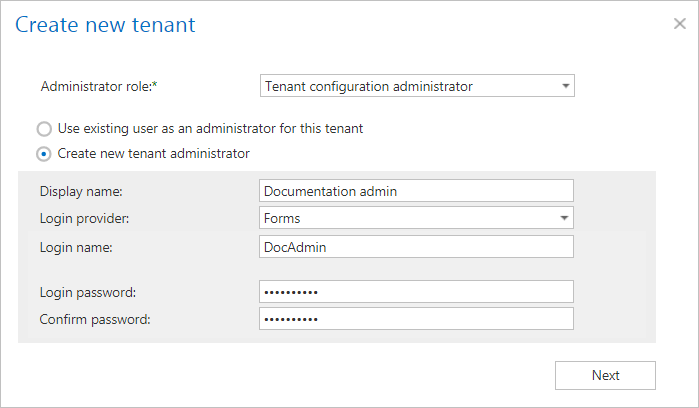
When creating a new tenant, you must assign a user as the tenant administrator. There are two ways to do this.
Use an existing user as administrator
Select the Use existing user as an administrator for this tenant radio button, choose an existing contentACCESS user from the Select user dropdown list, and click Next. This user already has contentACCESS credentials, which they will use to log into contentACCESS Central Administration.

Create a new tenant administrator
Select the Create new tenant administrator radio button, then configure the following:
- Login provider: Select a login provider configuration from the dropdown list (for example, Forms, Windows, etc.). Only a provider configured in Login providers (System tab → Security → Login providers) can be selected here. Forms and Windows are enabled by default.
- Login name: Required for all login provider types.
- Login password: Required only when the Forms login provider type is selected. For Windows, only the login name must be filled in.
Click Next to continue.
Configure the tenant database
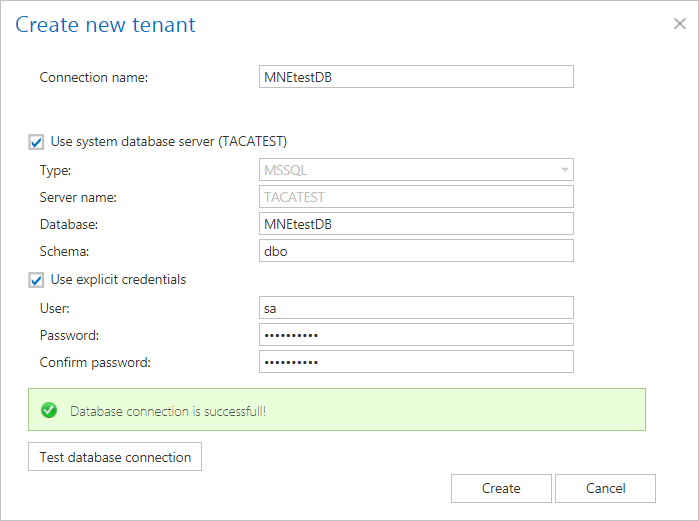
Select whether to create a new database or use an existing one, then click Next.

Specify the required database parameters and test the connection. If the connection is successful, click Create.
Manage an existing tenant
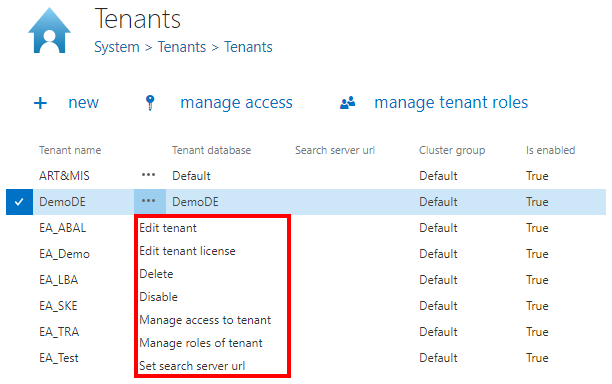
Once created, the tenant appears in the tenant list on the Tenants page. Clicking the ellipsis (…) next to a tenant opens its context menu, which provides the following options:
- Edit the tenant name or tenant license.
- Delete the tenant.
- Disable the tenant.
- Manage access to the tenant (create a new tenant administrator).
- Manage the roles of the tenant (add custom roles available for the selected tenant — see the Roles page for more information).
- Specify the search server URL.