How to edit and disable a tenant
Introduction
The Edit tenant and Disable functions in Central Administration allow administrators to modify a tenant's configuration or temporarily deactivate a tenant. Editing a tenant lets you update its name, cluster group, database, time zone, and date format, while disabling a tenant blocks client application access and suspends its jobs until it is re-enabled.
Edit a tenant
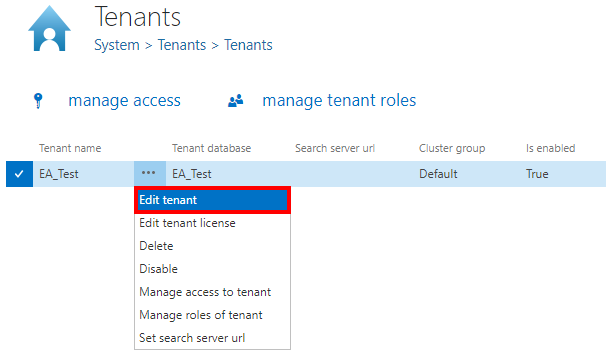
To edit a tenant:
- Click the ellipses next to the tenant to open the context menu.
- Select Edit tenant.
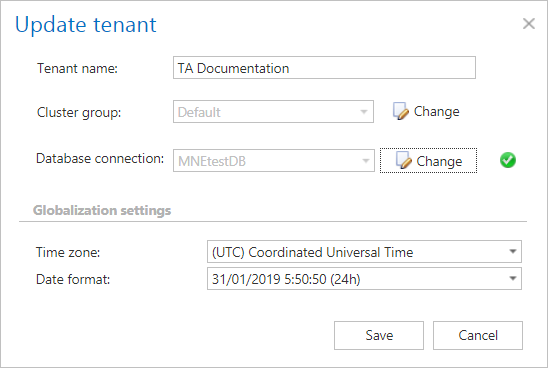
The Update tenant window opens, where you can change the following:
- Tenant name
- Cluster group
- Database
- Time zone
- Date format
If you try to change the Cluster group and/or Database, a warning pop-up window appears.
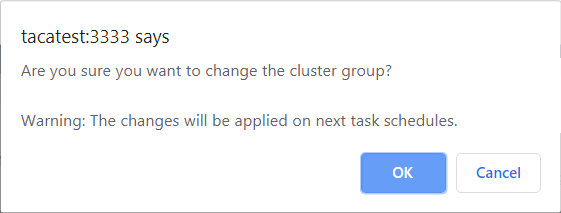 Screenshot: Cluster group change warning.
 Screenshot: Database change warning.
Disable a tenant
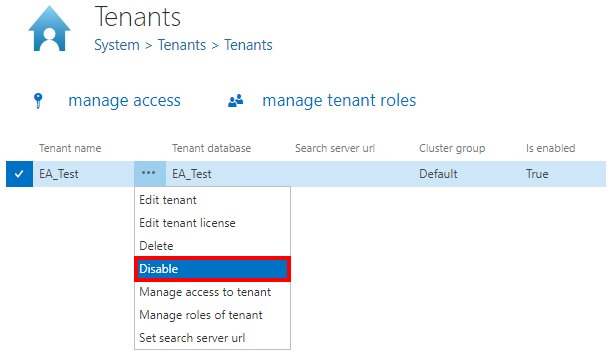
To disable a tenant:
- Click the ellipses next to the tenant to open the context menu.
- Select Disable.
A warning window appears, indicating that the tenant will no longer be accessible by client applications and that its jobs will also be disabled. Click OK to confirm.

Note: To enable the tenant again, select Enable from its context menu.