ThreatTest Job
Introduction
The ThreatTest job, available under ThreatTest ⇒ Jobs ⇒ ThreatTest, allows administrators to configure how reported emails are processed and checked for threats. On this page, you can define the job's schedule, configure the threat-checking method and license, specify the actions to be taken based on the threat status assigned to an email, set up notifications, and control the job's resource usage.
The job's page is divided into the following sections:
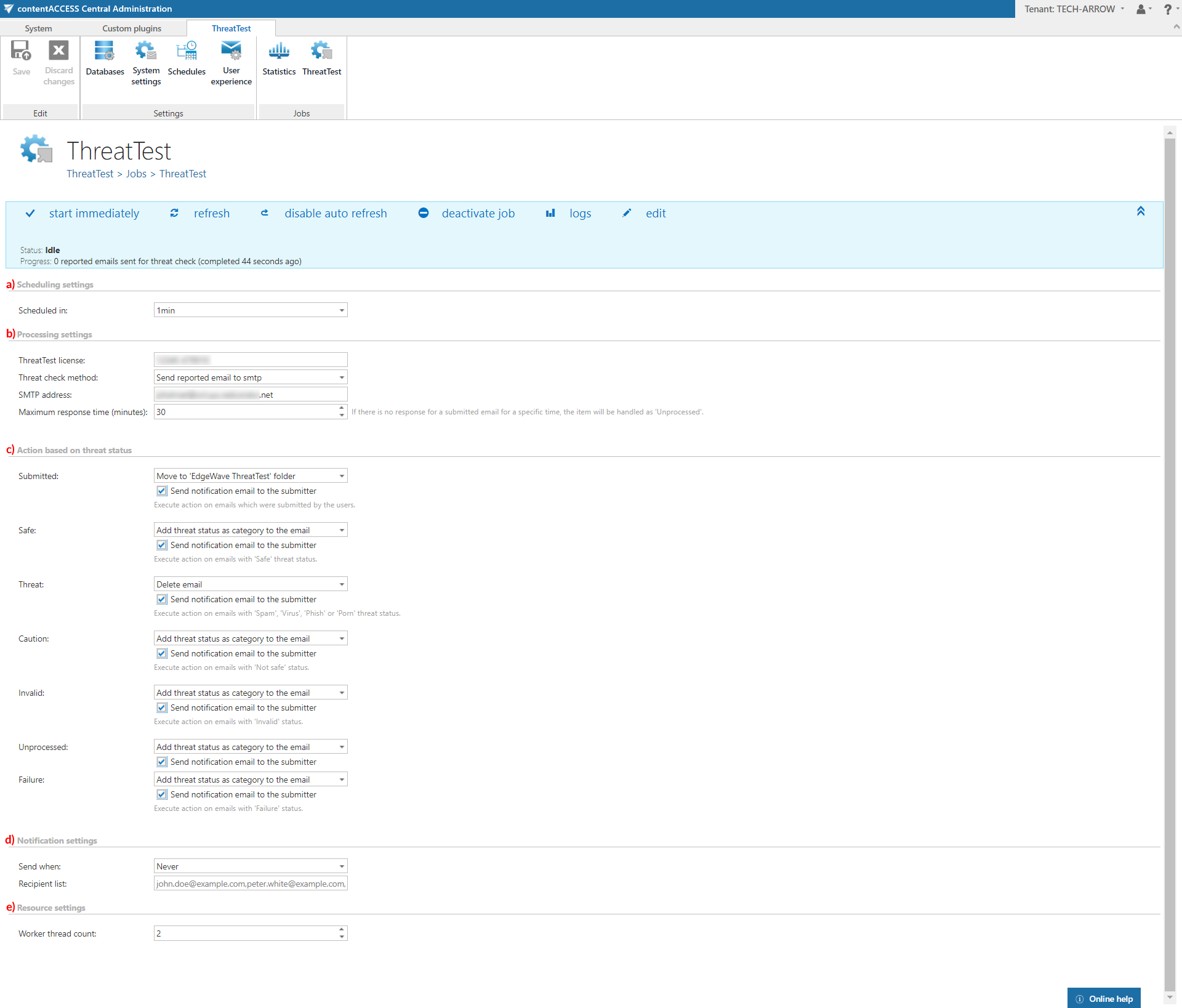
Scheduling settings
In this section, select the running time(s) of the ThreatTest job. You can either select a scheduler from the list or create a new scheduler using the create new… option from the dropdown list.
Note: For the ThreatTest job, it is recommended to set a schedule that starts the job every 1 minute. This option causes the lowest delay in the process.

Processing settings
In this section, enter the ThreatTest license.
From the Threat check method dropdown list, choose one of the following methods to be applied to the emails reported by users:
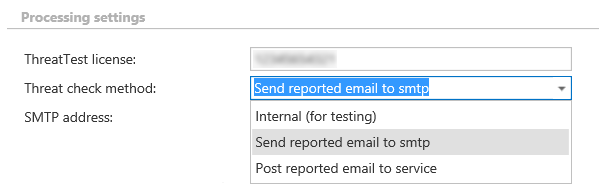
- Send reported email to smtp: Requires you to specify the SMTP address that will process the emails.
- Post reported email to service: Requires you to specify the Service URL address.
Action based on threat status
In this section, select the actions to be executed on emails depending on the status assigned by ThreatTest. The following statuses are possible: Submitted, Safe, Threat, Caution, Invalid, Unprocessed, and Failure.
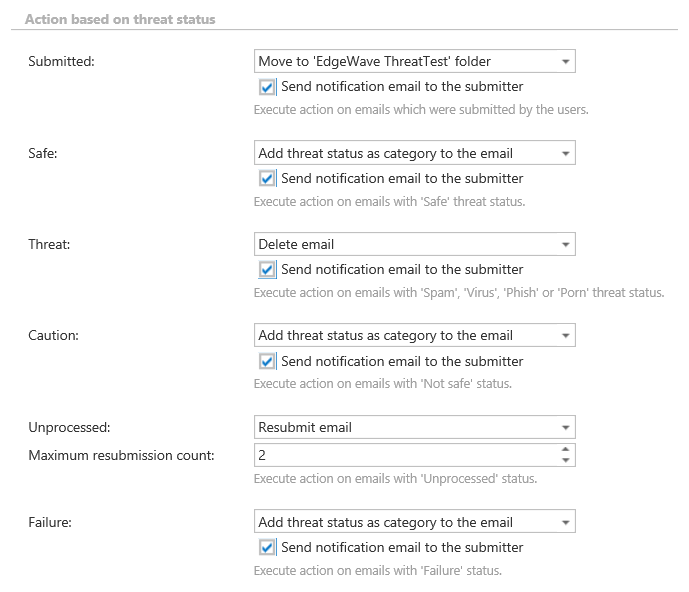
The following actions can be selected for the statuses (not all statuses have all options available):
- No action: No action will be executed on the email.
- Add 'Submitted' category to the email: Available only for the Submitted status; adds the Submitted category to the email.
- Add threat status as category to the email: Adds the assigned threat status as a category to the email.
- Move to 'EdgeWave ThreatTest' folder: Moves the email to the EdgeWave ThreatTest folder in the mailbox.
- Move to custom folder: Moves the email to the folder that you specify.
- Delete email: Deletes the email.
- Resubmit email: Available only for the Unprocessed status; automatically resubmits the email (the resubmission count must be set here).
If the submitters should receive notification emails, select the Send notification email to the submitter checkbox. This can be selected separately for each status.
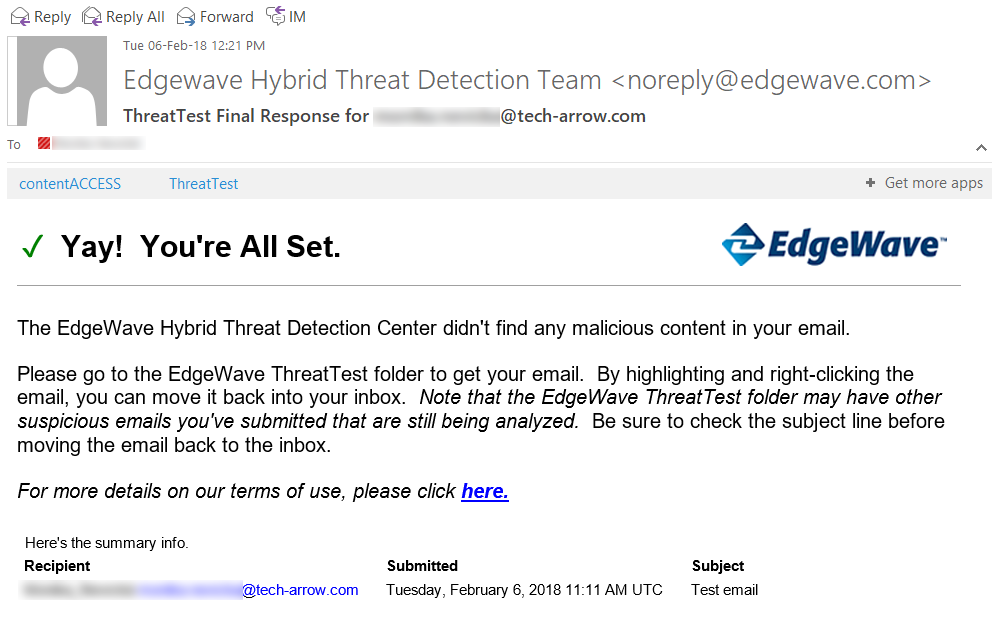 Screenshot: Notification email, when the reported email has been marked as Safe.
Notification settings
In this section, select the cases in which you need to receive notification emails from the ThreatTest job. You can set the notifications to be sent always, never, or only when an error or warning occurred during the job run.
In the Recipient list textbox, enter the email address(es) of the person(s) who will receive these notifications.
Note: Notifications should be used if the administrator does not use the System logs feature.

Resource settings
Set the value that determines how many items will be processed simultaneously by the ThreatTest job.
Note: The recommended value is "2".
