Using ThreatTest App
Introduction
The ThreatTest App is an Outlook add-in that allows users to report suspicious emails to Edgewave ThreatTestLab and view the resulting threat status directly from their mailbox. This page explains how to activate the app and describes the buttons and features available in its interface, including the home screen, statistics, logs, and menu options.
Activate the app
After receiving an activation email, you must activate the app before it can be used.
To activate the app:
- Open the activation email.
- Click the ThreatTest button.
- Click the Activate application button.
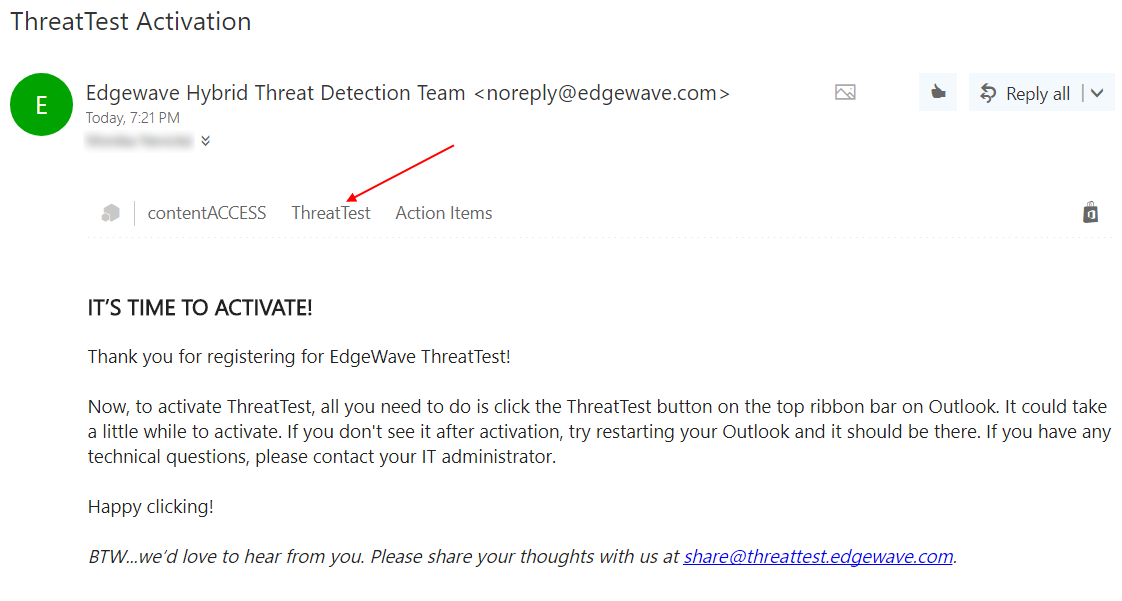
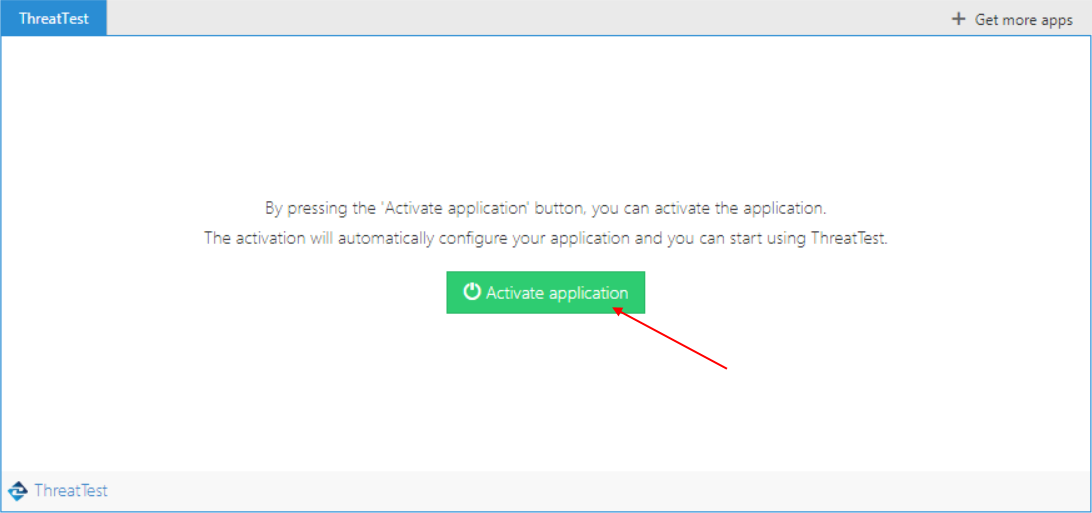
Note: The app may not be visible right away. It may take up to an hour to appear.
App buttons
The app provides the following buttons:
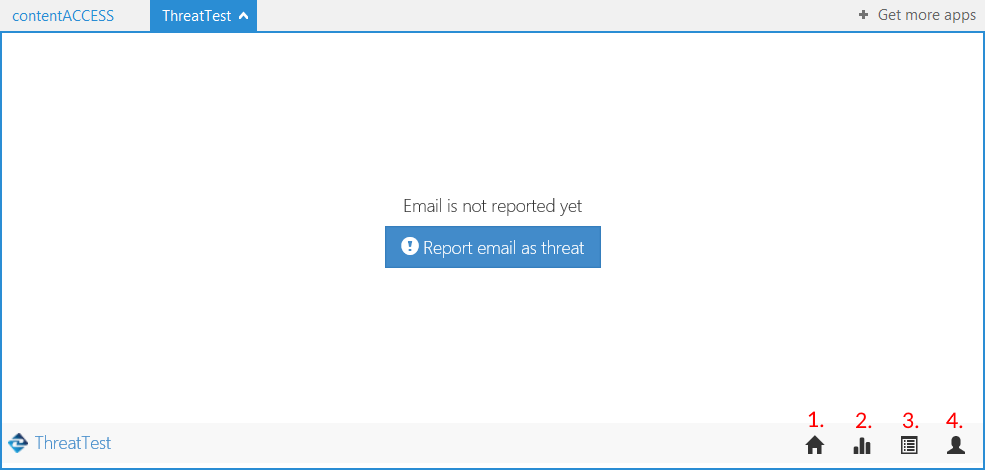
Home button
The Home button redirects you to the home screen, where the current status of the email can be seen. The actions executed on emails based on their threat status are configured in the ThreatTest job.
The following statuses are possible:
- Failure – Edgewave ThreatTestLab returned a Failure threat status for the email, contentACCESS could not forward it to Edgewave ThreatTestLab, or contentACCESS did not receive a result from ThreatTestLab within a specific time (configurable in the ThreatTest job settings).
- Not reported yet – The email was not yet reported using the ThreatTest app.
- Submitted – The email was already submitted, but not processed yet.
- Safe – The email was marked as safe by Edgewave ThreatTestLab.
- Threat – Edgewave ThreatTestLab found malicious content in the email.
- Caution – The email may contain some unsafe or harmful content, but is not necessarily a threat.
- Invalid – The reported email was a forwarded email and not the original.
- Unprocessed – The email was marked as unprocessed by Edgewave ThreatTestLab, but can be resubmitted, even automatically, if configured in the ThreatTest job.
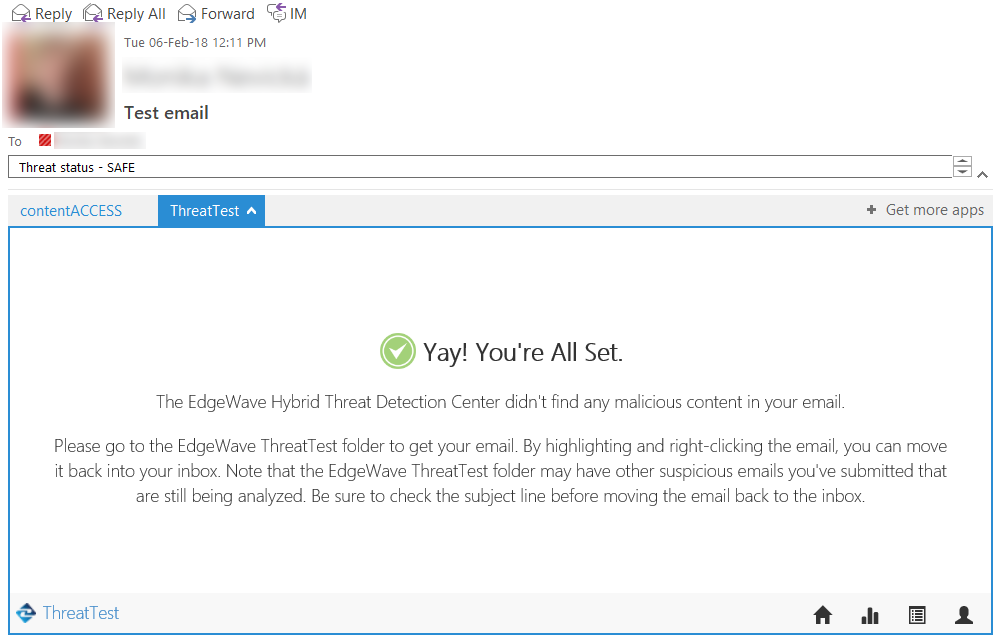 Screenshot: Email marked as safe; threat status category added.
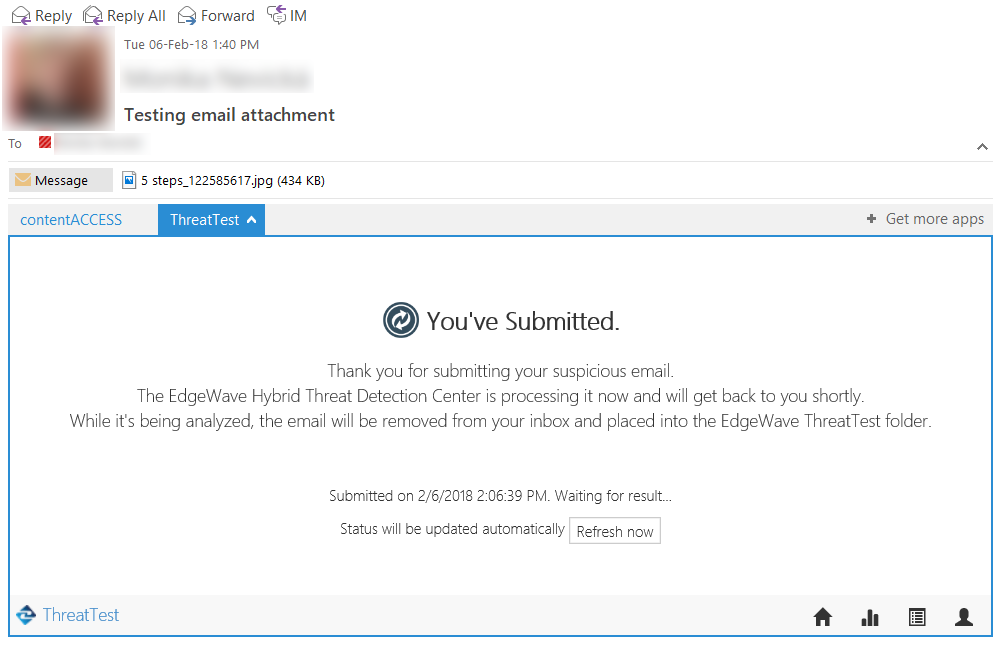 Screenshot: The email was submitted.
Statistics
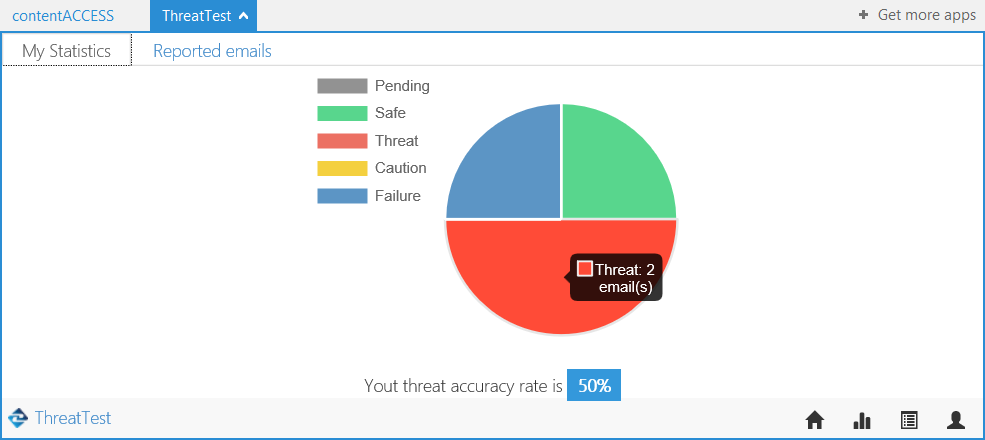
Clicking the Statistics button displays statistics about your reported emails.
On the My statistics tab, a graph shows the reported email data. Placing the cursor over a part of the graph displays a more detailed description.
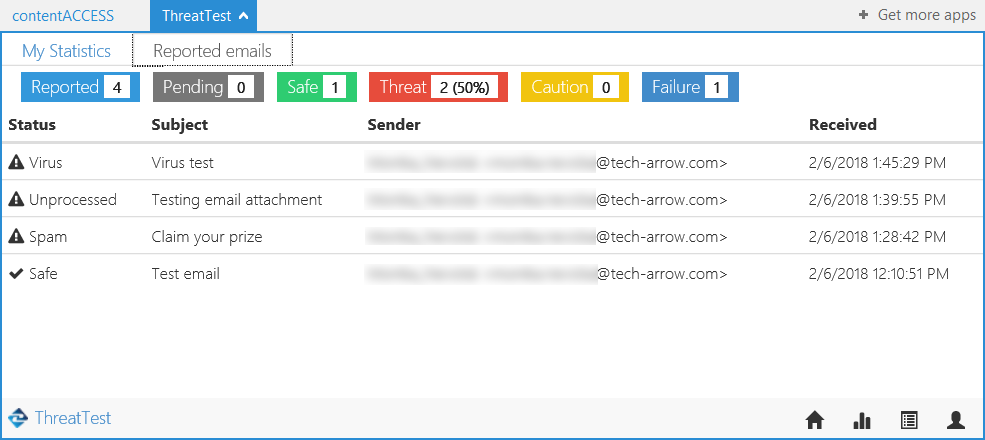
On the Reported emails tab, a list of the reported emails and the count of all statuses is displayed. The list contains the following columns:
- Status: Status assigned by ThreatTestLab.
- Subject: Subject of the reported email.
- Sender: Sender of the reported email.
- Received: The day the reported email was received.
Show logs
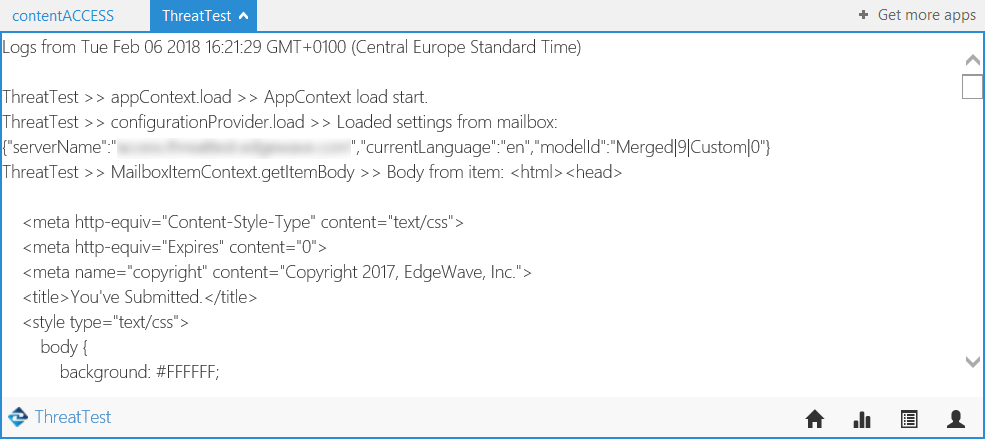
Clicking the Show logs button opens the most recent logs of the application.
Menu
Clicking the Menu button opens the following menu:
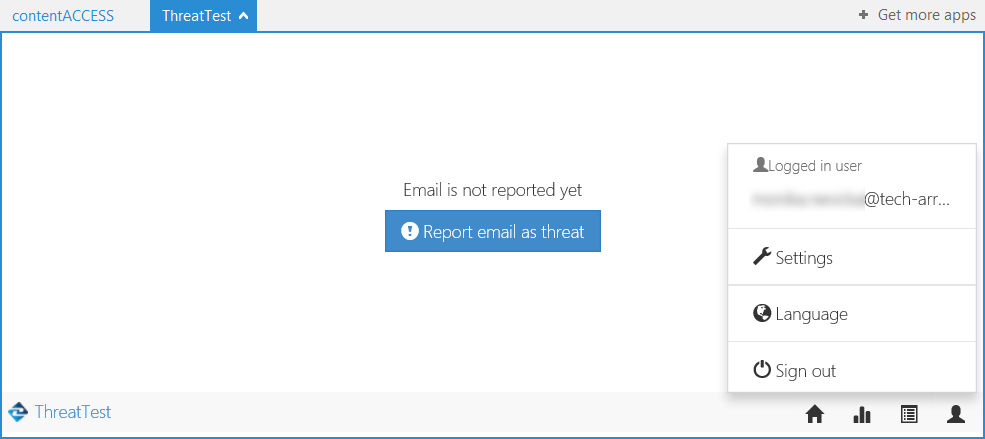
- Logged in user: Shows the user (mailbox) currently using the ThreatTest app.
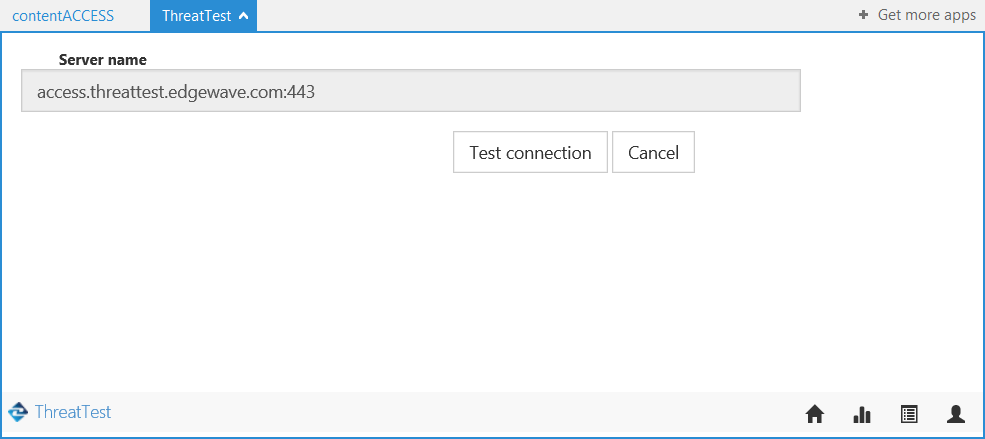
- Settings: Allows you to view and test the connection to the server (the connection configured in the ThreatTest job, under Processing settings).
- Language: Allows the user to change the application language. Currently, only English is available.
- Sign out: Signs out the currently logged-in user (the user using the ThreatTest app).