Active email
Introduction
The Active email page allows you to archive emails directly from Outlook, view the properties of already archived emails, and restore original emails to the user's mailbox.
Archive an email
If the selected email has not been archived, the top section displays the email's subject, sender, recipient, and sent date. The Archive email button is displayed in the middle of the page.
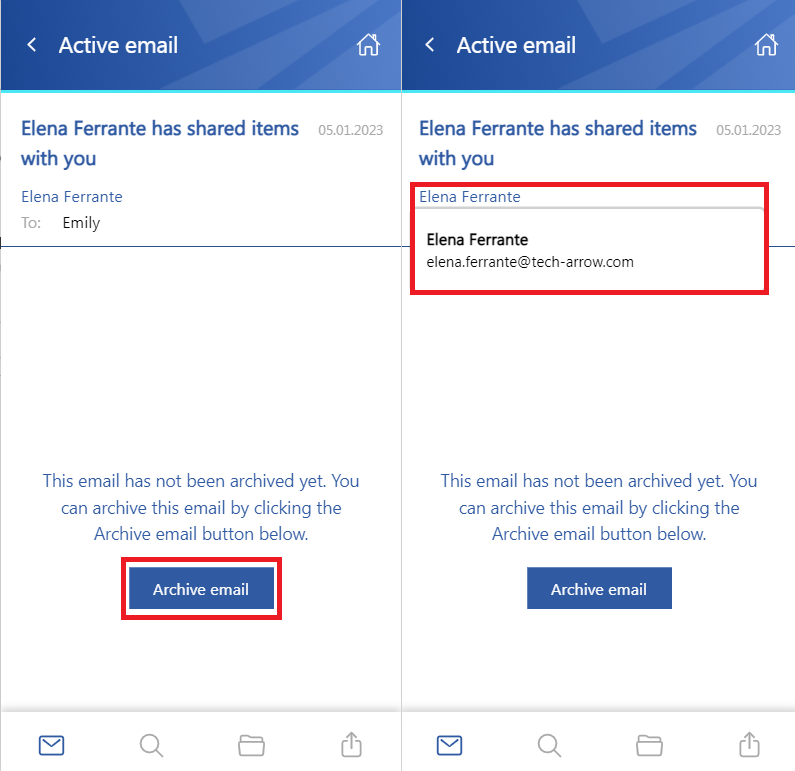
Click Archive email to archive the selected email directly from Outlook. The contentACCESS MailApp uses the shortcut previously configured in Central Administration. For more information, see the Configuration part for administrators section.
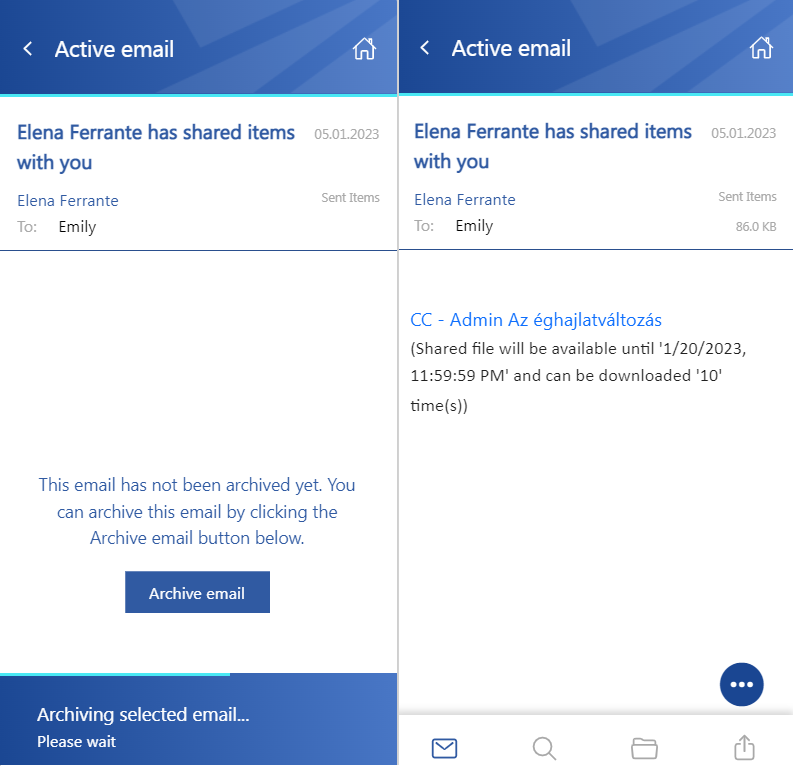
After the email has been archived, its preview is displayed in the app together with its properties.
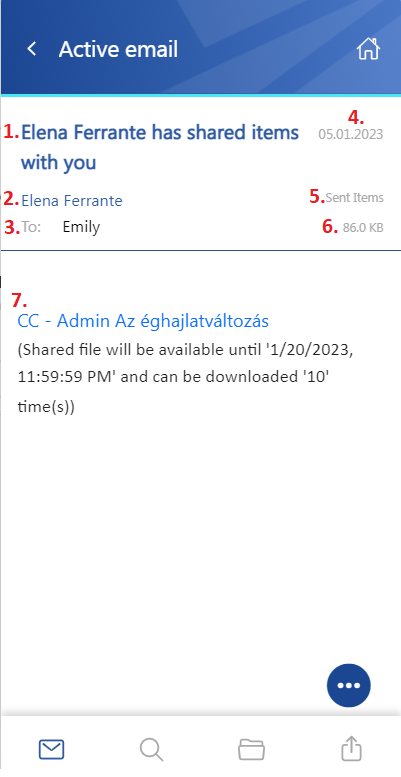
The following properties can be displayed:
- The subject of the email. The title is also displayed in the header.
- The name of the sender.
- Recipients – To, Cc, and Bcc, if the user has permission to view this information. This is typically available to the sender and the Bcc participant.
- The sent date of the email.
- The folder where the email is located.
- The size of the email.
- The body of the email.
Note: The list of properties can vary depending on the email. Other emails may contain categories, attachments, and other properties.
View participant details
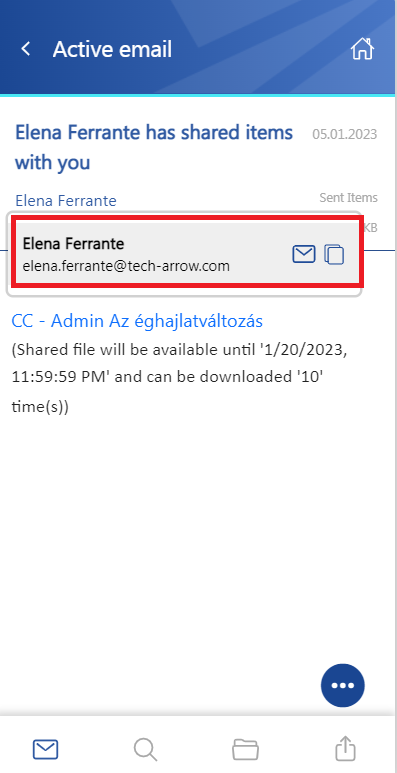
Click a participant's name to display a tooltip containing the participant's full name and email address.
When you hover the cursor over the tooltip, the following actions are available:
- Copy email address and name to clipboard – Copies the participant's email address and name to the clipboard so they can be pasted wherever needed, for example, into Notepad or a new email.
- Start composing an email – Opens a new email and automatically adds the selected participant as the recipient.
Active email context menu
The context menu of an archived email provides the following actions:
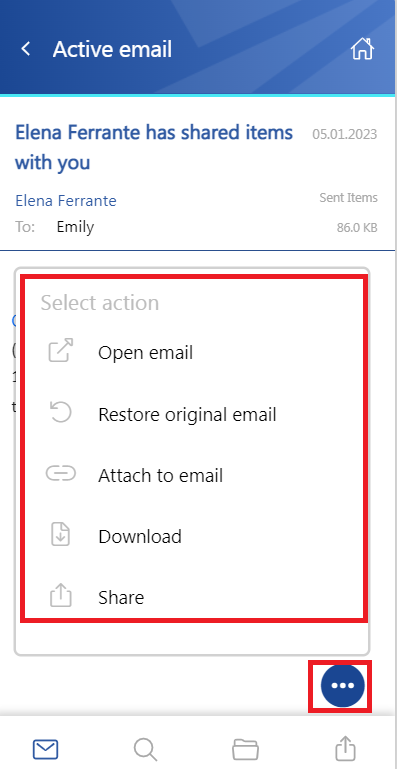
- Open email – Opens the original email in a new pop-up window.
- Restore original email – If the email was archived using a shortcutting type, restores the original email to the user's mailbox.
- Attach to email – Attaches the selected email to a new email and sends it as an attachment.
- Download – Downloads the email to the local machine.
- Share – Shares the email from the context menu. For more information, see the Share page.