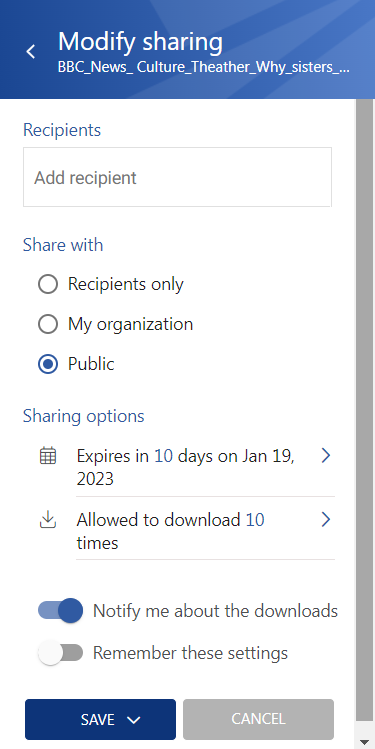
Sharing
Introduction
The Sharing entity allows you to view shared items in the Shared with me and My shares folders, search for shared items, view sharing details and download history, and manage sharing settings.
Sharing entity list view
First, select a folder from the Sharing entity. The following properties are displayed:
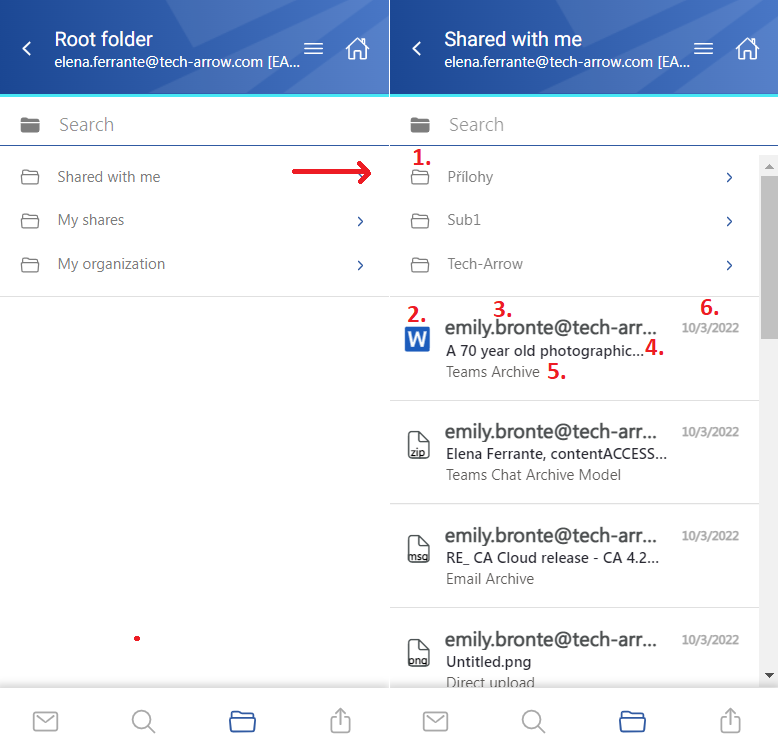
- Items from the selected sharing folder.
- Item preview.
- Sender's email address – the owner of the sharing.
- Item name.
- Origin of the shared item – the entity from which the item was shared.
- Date of the sharing.
Select items
You can select one or multiple files from the list. When one or more items are selected, a toolbar appears with the following actions:
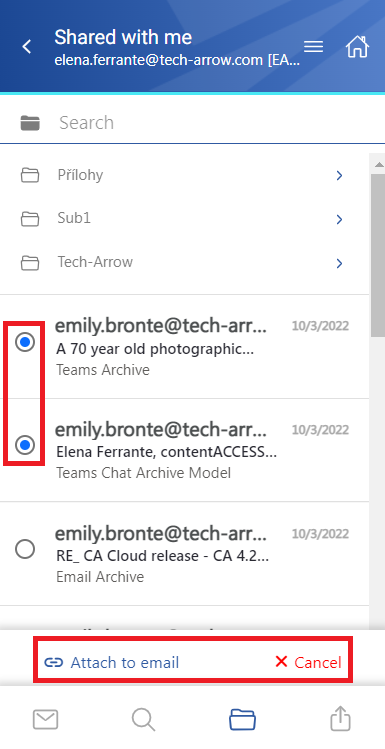
- Attach to email – Attaches the selected file(s) to a new email and sends them to the recipients.
- Cancel – Cancels the operation and removes the selection from the item(s).
Search within the Sharing entity
The Search function is available within the Sharing entity, but it is more limited than the Search page.
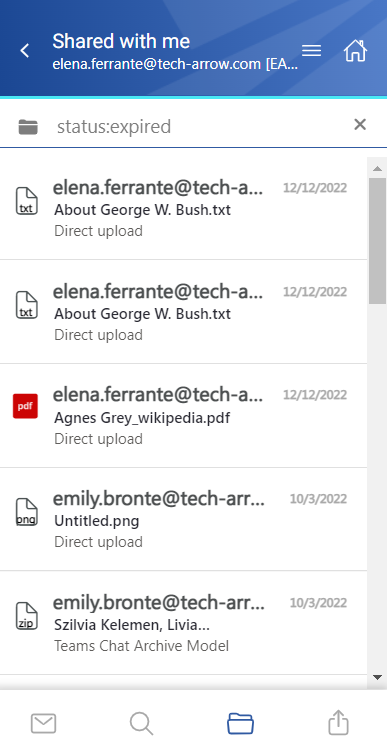
Click the search textbox to filter files from the current folder. Both full-text search and property search are supported, but all queries must be entered manually.
If search suggestions and hit highlighting are enabled in Central Administration, keywords are highlighted and search suggestions are displayed while typing. For more information, see the System chapter in the contentACCESS manual.
View sharing details
Click a file to open its detailed view. The preview content depends on the folder currently selected.
Shared with me
When viewing an item's preview in the Shared with me folder, the following properties are displayed:
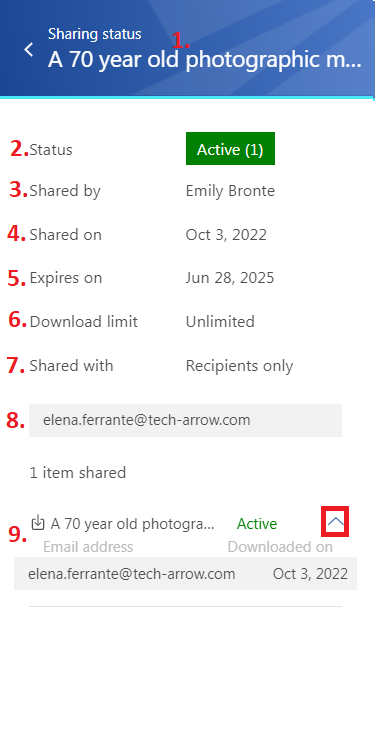
- Title in the header – The name of the shared item.
- Status – The status of the sharing: active, suspended, expired, or unavailable.
- Shared by – The owner of the sharing who shared the item.
- Shared on – The date of the sharing.
- Expires on – The expiration date of the sharing.
- Download limit – The number of times the user is allowed to download the shared item(s).
- Shared with – The audience of the sharing: recipients only, organization, or public.
- Recipients – If the sharing has recipients, their email addresses are listed here.
- Shared item(s) – If the sharing is still active, the download icon is available to the user. Click the arrow to expand the Download history list and check who downloaded the item.
My shares
When viewing an item's preview in the My shares folder, the following properties and controls are available:
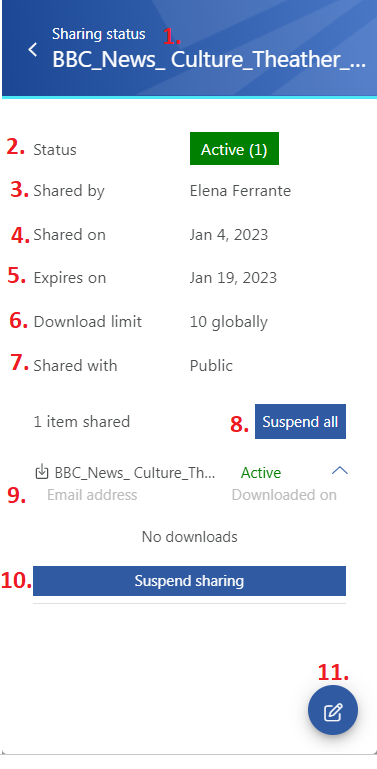
- Title in the header – The name of the shared item.
- Status – The status of the sharing: active, suspended, expired, or unavailable.
- Shared by – The owner of the sharing who shared the item.
- Shared on – The date of the sharing.
- Expires on – The expiration date of the sharing.
- Download limit – The number of times the user is allowed to download the shared item(s).
- Shared with – The audience of the sharing: recipients only, organization, or public.
- Suspend/activate all – If the sharing contains multiple items, suspends or activates the entire sharing.
- Shared item(s) – The download icon is always available to the owner, even if the sharing is suspended, expired, or no longer available. Click the arrow to expand the Download history list and check who downloaded the item.
- Suspend/activate sharing – Changes the status only for the selected item(s), not for the entire sharing. For example, if three items have been shared, the owner can suspend two items while keeping the third available to recipients.
- Modify sharing – Allows the owner to modify the sharing from the preview. Click the button to open the Modify sharing tab. For more information, see the Share page section in the manual.