Teams archive
Introduction
The Teams archive entity allows you to browse archived Teams messages and files, view their details and attachments, search within the current folder, preview files, and perform actions such as downloading, sharing, and attaching items to emails.
Teams archive list view
When viewing a Teams archive entity, the following properties are displayed:
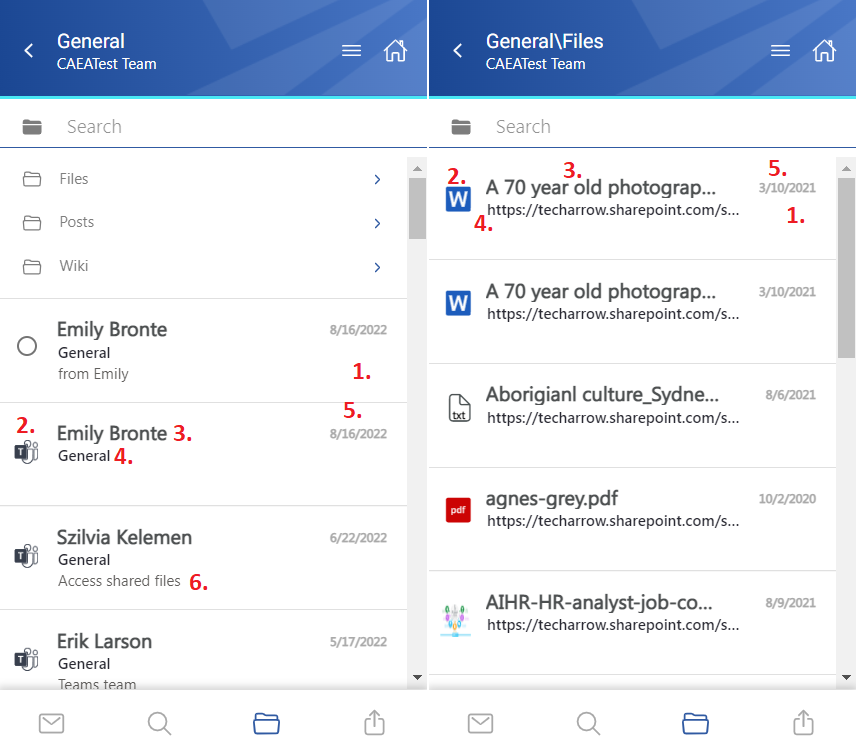
- Flag (primary icon) – indicates inactive items.
- Item preview – displays either a file or a Teams message.
- File name/title in Files and SharePoint data folders, or the name of the message sender.
- Folder/channel/path of the file.
- Date of the last modification of the file.
- Message snippet from the first row of the message.
Select items
You can select one or multiple items from the list. When one or more items are selected, a toolbar appears with the following actions:
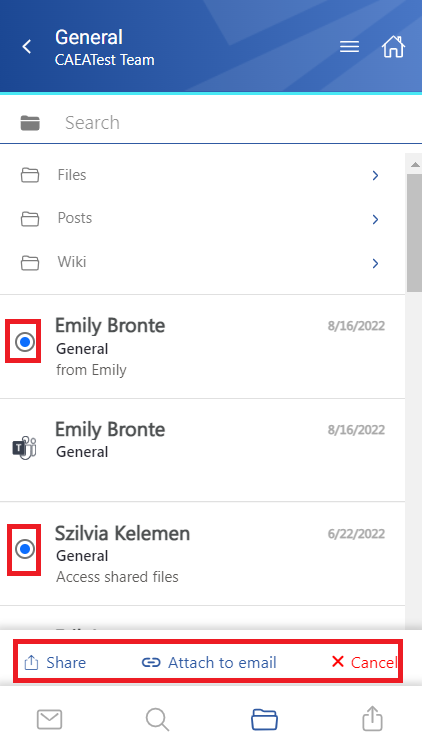
- Share – Shares the selected message(s) from the archive.
- Attach to email – Attaches the selected messages as ZIP files to a new email and sends them to the recipients.
- Cancel – Cancels the operation and removes the selection from the item(s).
Search within the Teams archive entity
The Search function is also available within entities, but it is more limited than the Search page.
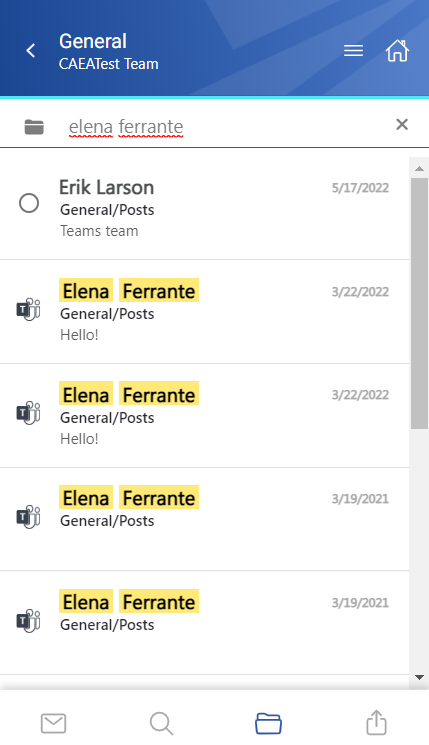
Click the search textbox to filter messages and files from the current folder. Both full-text search and property search are supported, but all queries must be entered manually.
If search suggestions and hit highlighting are enabled in Central Administration, keywords are highlighted and search suggestions are displayed while typing. For more information, see the System chapter in the contentACCESS manual.
View message and file details
Click a message or file to open its detailed view.
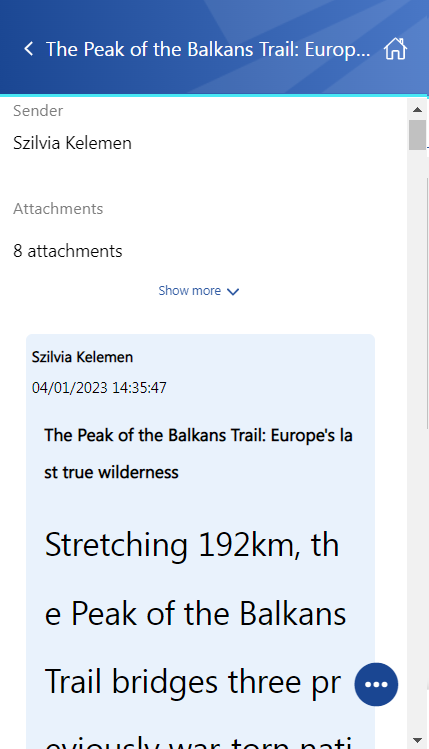
For messages, the available properties include the sender, attachments (if the message has any), and the message itself. Files can be downloaded from the list by clicking the item's title.
Use Show more and Show less to expand or collapse the list of properties.
Preview files
If the Preview service is enabled in Central Administration, files from the Files folder can be previewed through the document icon. For more information, see Item list and item preview.
Click the document icon or select Open from the context menu to open the item's preview in a new browser window.
If you open the preview for the first time after the login session has expired, the login page is displayed first.
From the preview, you can:
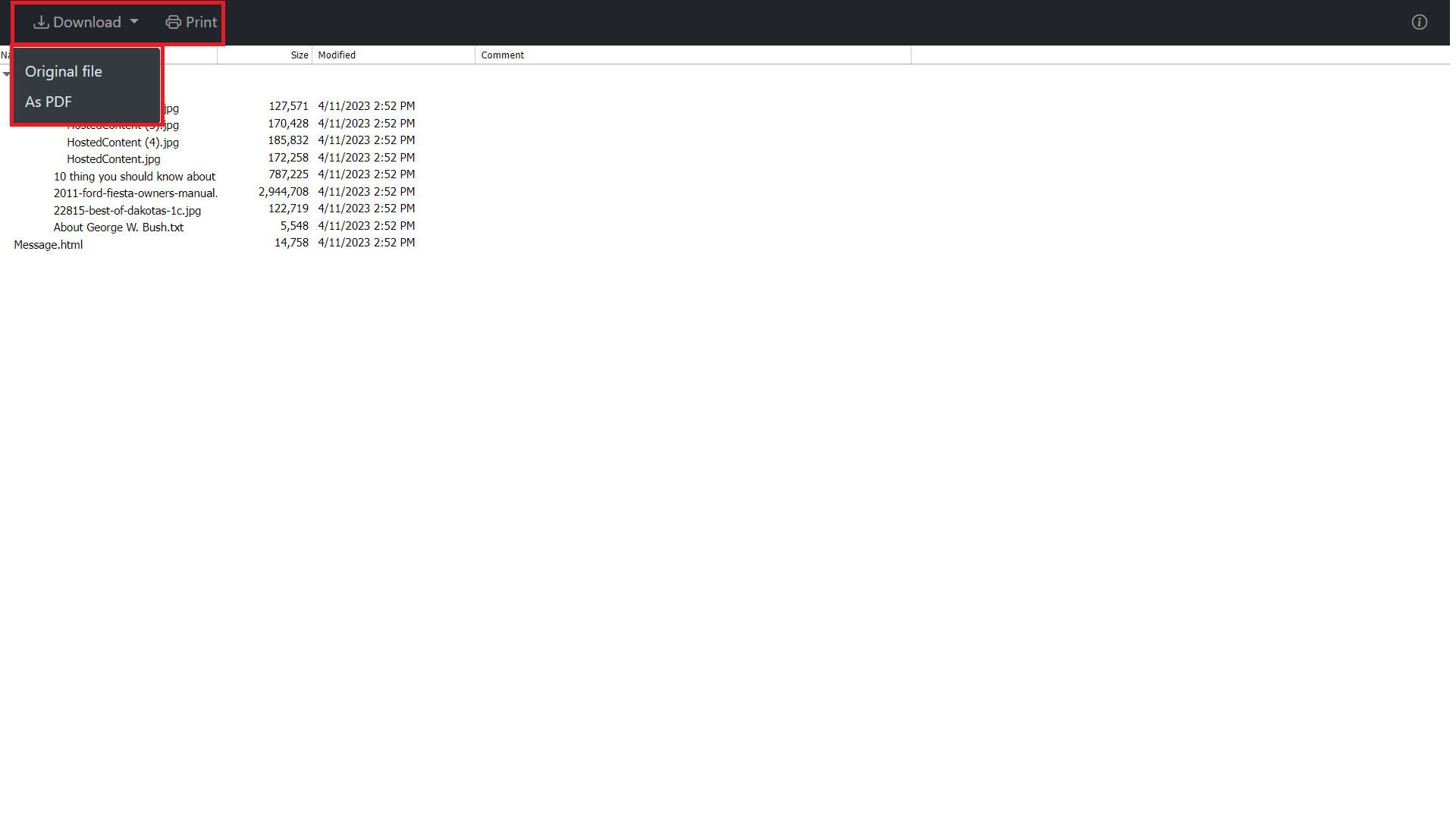
- Download the document as the original file or as a PDF.
- Print the item.
- View limited file information, including the file name and size.
If the message has been shared, a Sharing ribbon appears at the bottom of the page. For more information, see the Share page.
Message and file context menu
The context menu of a message or file provides the following actions:
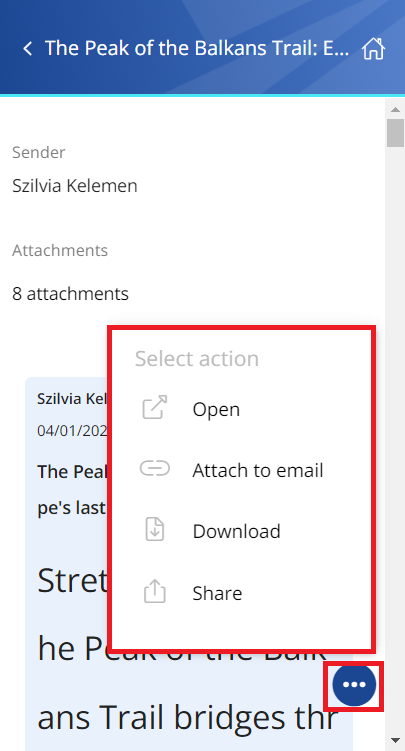
- Open – Opens the item in the browser through the Preview service.
- Attach to email – Attaches the message or file whose preview is open to a new email and sends it as an attachment.
- Download – Downloads the item to the local machine.
- Share – Shares the message or file whose preview is open from the context menu. For more information, see the Share page.