Configuration part for administrators
Introduction
The configuration of contentACCESS MailApp vNext is similar to the configuration of the legacy contentACCESS MailApp. For more information, see the legacy MailApp configuration.
The main difference is that Deploy MailApp vNext must be enabled in Email archive => System settings => General settings before the contentACCESS MailApp vNext can be installed.
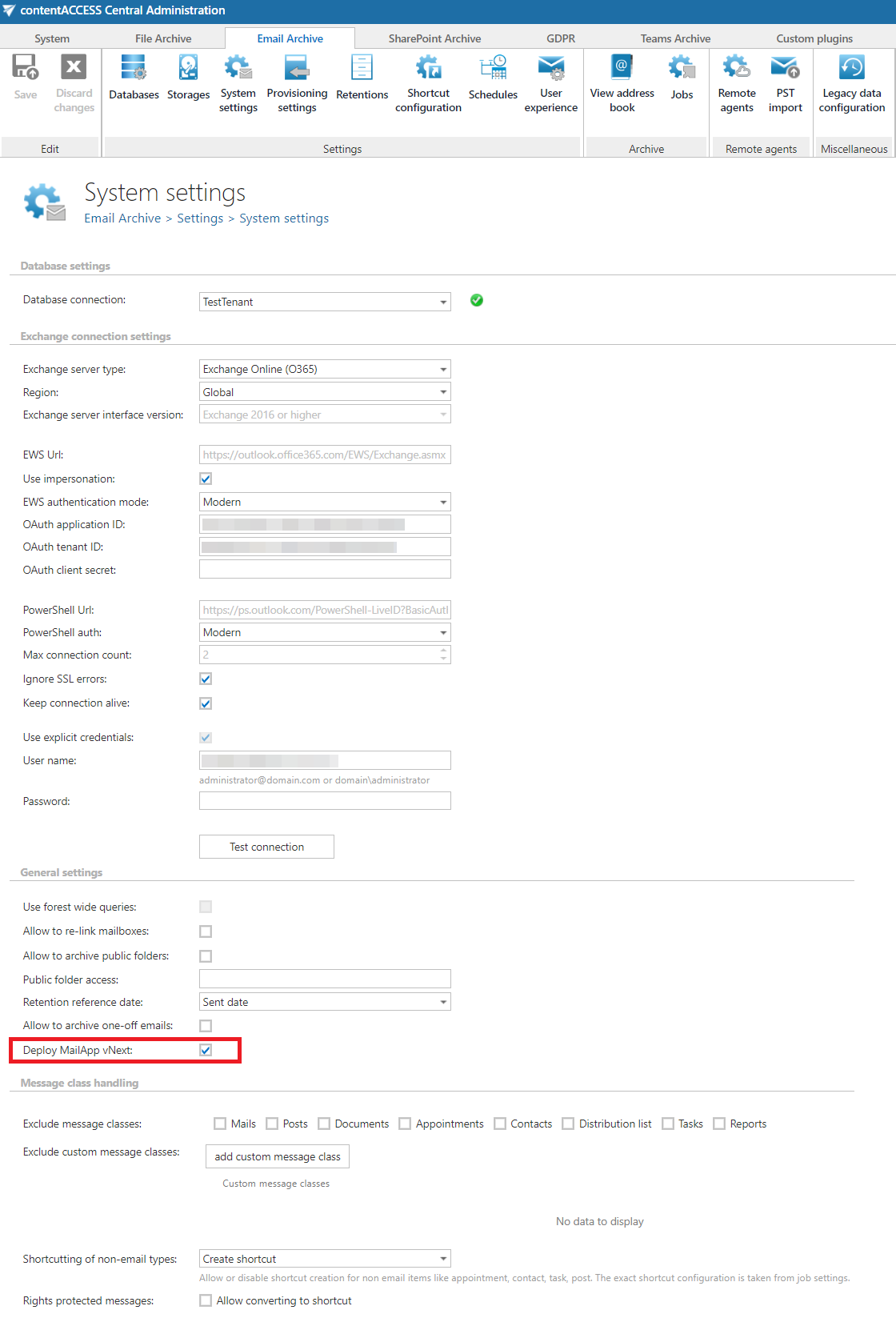
Important: The new contentACCESS MailApp requires WebView2 to run correctly. For more information, see the WebView2 documentation or download WebView2 directly from here.
WebView2 is supported on M365 Outlook and Office 2016, 2019, and 2021. However, Office 2016 and 2019 must fulfill certain conditions to support WebView2. For more information, see this article.
Users who use Office 2016 or 2019 with a volume license must download and install the previous contentACCESS MailApp. The new contentACCESS MailApp vNext works only with retail licenses in Office 2016 and 2019.
Configure contentACCESS MailApp vNext
The administrator must perform the following configurations to enable manual email archiving:
- Configure a shortcut for the contentACCESS MailApp and set it as the default shortcut. For more information, see Shortcuts in email archiving.
- Configure a retention for the contentACCESS MailApp and set it as the default retention. For more information, see Retentions.
- Install the Proxy server with an HTTPS connection.
- Configure an HTTPS-based alias in Central Administration under System => Services => System => External accessibility settings.
- Allow contentACCESS MailApp activation for the required mailboxes, groups, or servers in Central Administration => Address book.
- Run the Email archive Provisioning job to apply the changes.
Allow contentACCESS MailApp activation
To allow contentACCESS MailApp activation, navigate to Email Archive => Archive => View address book on the ribbon.

In the Enable Mail app column, you can see whether contentACCESS MailApp activation is allowed for the selected object, such as a mailbox, group, or server.
By default, objects inherit the contentACCESS MailApp activation setting from their parent. If the parent is set to allow or forbid activation, the child object inherits the same setting.
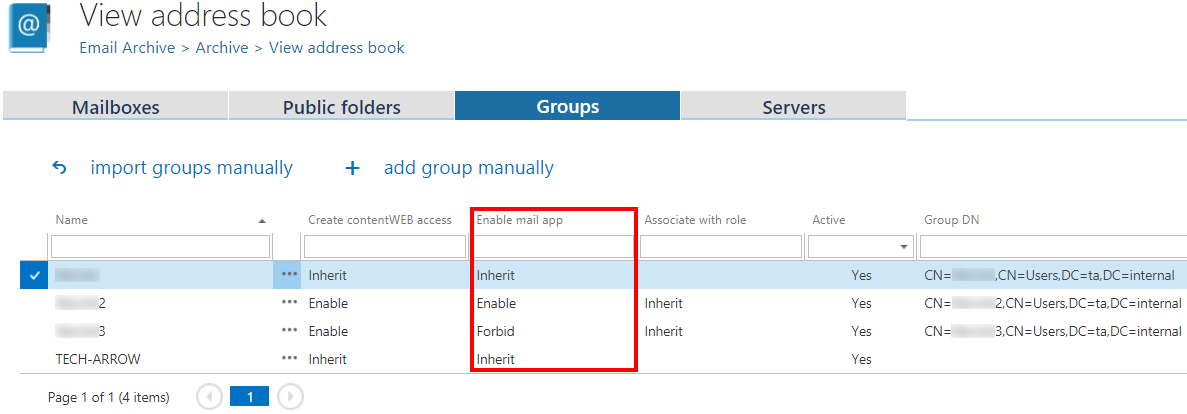
The MailApp activation setting can be configured from the context menu of the selected object:
- Inherit
- Explicitly allow
- Explicitly forbid
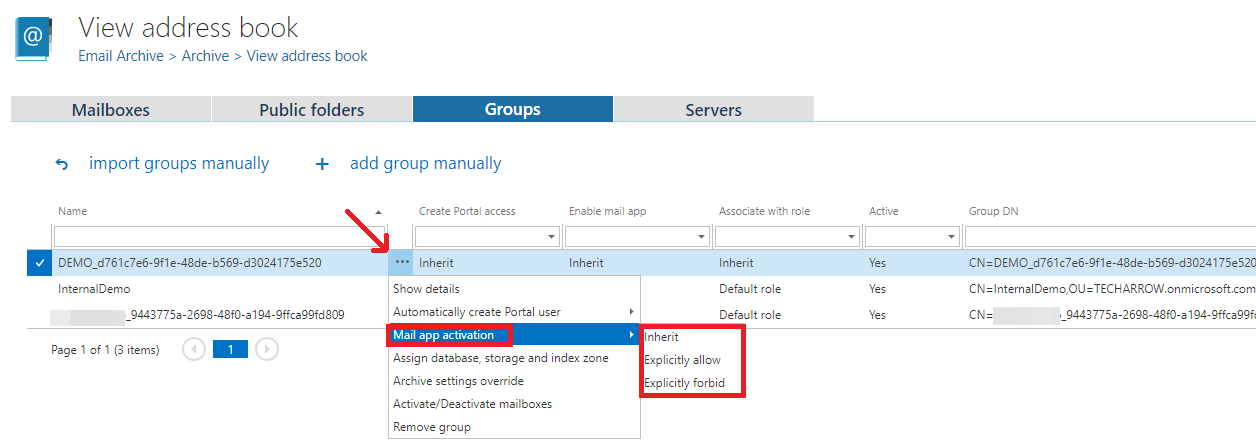
Assign a contentACCESS Portal user role
If you select Explicitly allow, the contentACCESS Portal user role pop-up opens. Specify the contentACCESS Portal user role containing the permissions to be assigned to the contentACCESS Portal user(s).
You can select a custom role from the dropdown list or use the role defined in the Email archive Provisioning job.
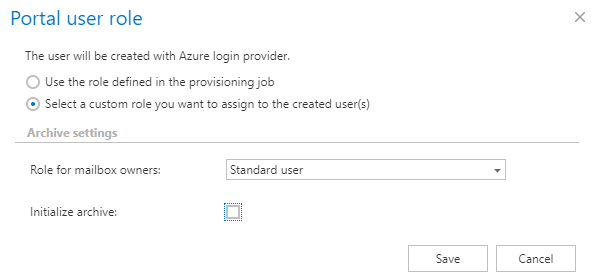
After making the changes, start the Provisioning job to apply them.

When the Provisioning job finishes, the new contentACCESS MailApp vNext version should appear in the user's mailbox.
Note: After the contentACCESS MailApp has been activated, it is recommended to restart Microsoft Outlook.
Verify Exchange access to the MailApp manifest
Important: To successfully install the contentACCESS MailApp, the Exchange server must have access to the contentACCESS server and to the MailApp .xml manifest file.
The manifest files can be accessed using the following links:
https://[SERVERNAME]/contentACCESSWS/Mailapp/Mailapp.xmlhttps://[SERVERNAME]/contentACCESSWS/Mailapp/Mailapp_no_ribbon_button.xml
The administrator should be able to browse these files using the links above without any issues.
Switch back to the legacy contentACCESS MailApp
If you want to configure the legacy contentACCESS MailApp, skip the Deploy MailApp vNext configuration step.
You can also switch from contentACCESS MailApp vNext back to the legacy contentACCESS MailApp:
- Go to Email archive => Archive => View address book => Groups.
- Select the group for which you want to restore the previous version, then select Mail app activation => Explicitly forbid.
- Start the Provisioning job to apply the changes.
- Go to Email archive => System settings => General settings and disable Deploy MailApp vNext.
- Return to View address book => Groups, select Mail app activation => Explicitly allow, and start the Provisioning job to apply the changes.
After the Provisioning job completes, the legacy contentACCESS MailApp will be displayed in the users' mailboxes.