Search page
Introduction
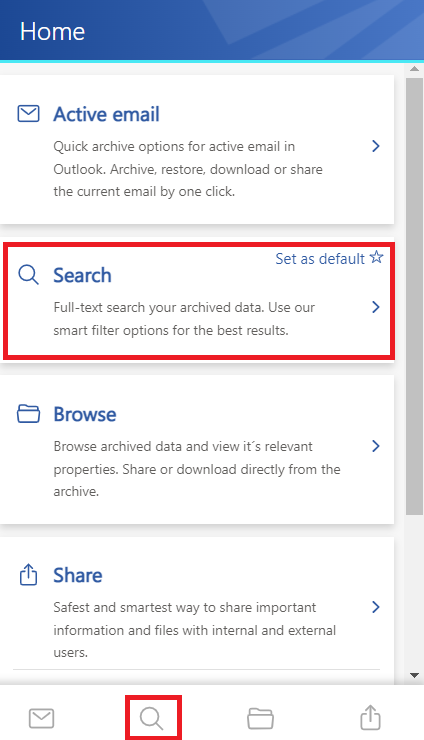
The Search page allows you to search archived data across all available entities. You can access the page from the Home page or by clicking the magnifying glass at the bottom of the page.
Open the Search page
You can open the Search page in either of the following ways:
- Select the Search tab from the list on the Home page.
- Click the magnifying glass at the bottom of the page.
The search function on this page is more extensive than the search available on the Browse page because it can search across all available entities.
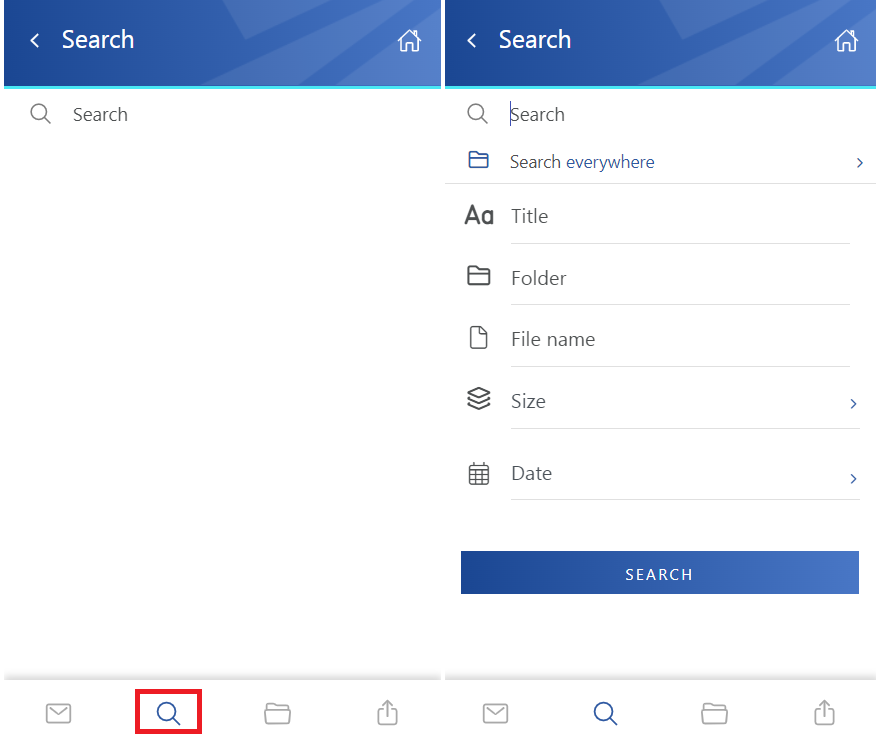
After clicking the search textbox, the most common search properties are displayed.
Select search entities
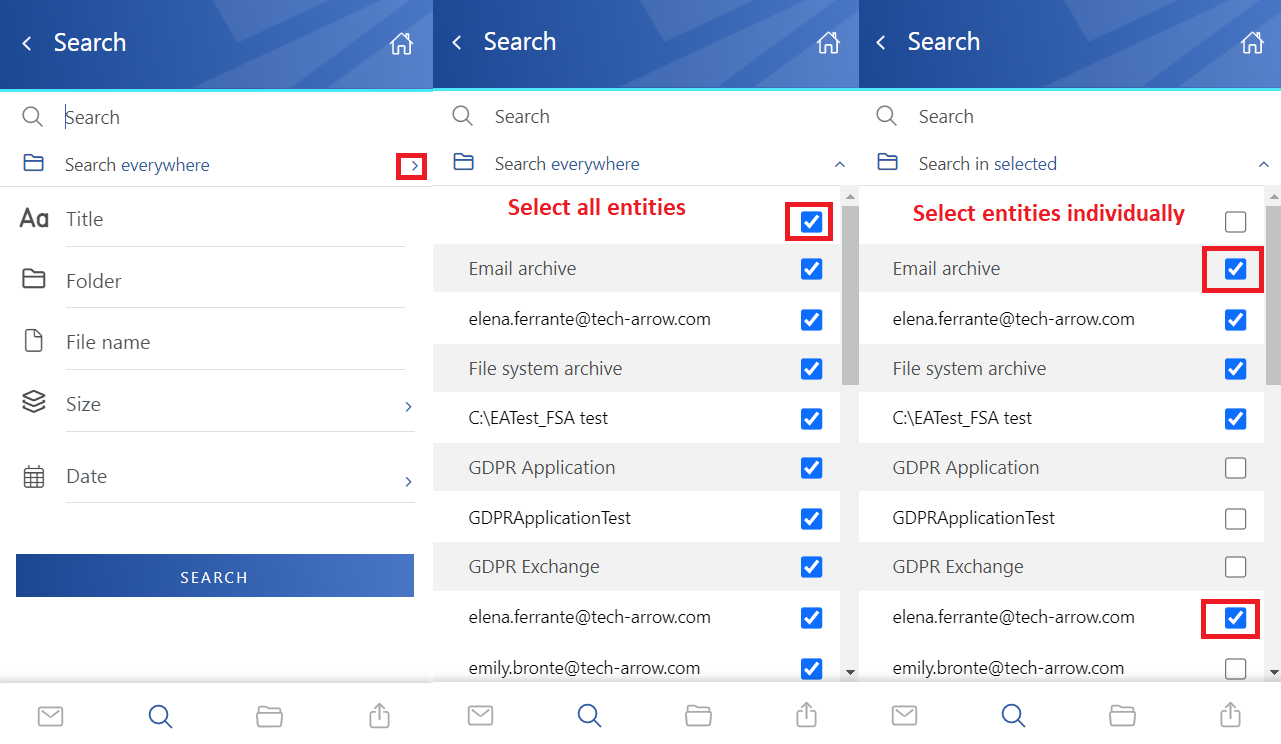
Click the arrow next to Search everywhere to select the entities that should be included in the search.
You can:
- Select all models and entities at once.
- Select individual models or entities.
- Select a model to include all entities belonging to that model. For example, selecting the Email archive model includes all its entities.
- Exclude individual entities by clearing the checkbox next to the entity name.
After selecting the entities, click the same arrow to close the entity list and display the search properties again.
Define a search query
On the Search page, you can specify a search query by selecting one or more search properties and adding keywords.
To define a search query:
- Select a search property.
- Enter the required keyword.
- Click the Plus icon to add the keyword to the search.
- Repeat the steps if you want to add additional search criteria.
- After defining the search criteria, click Search.
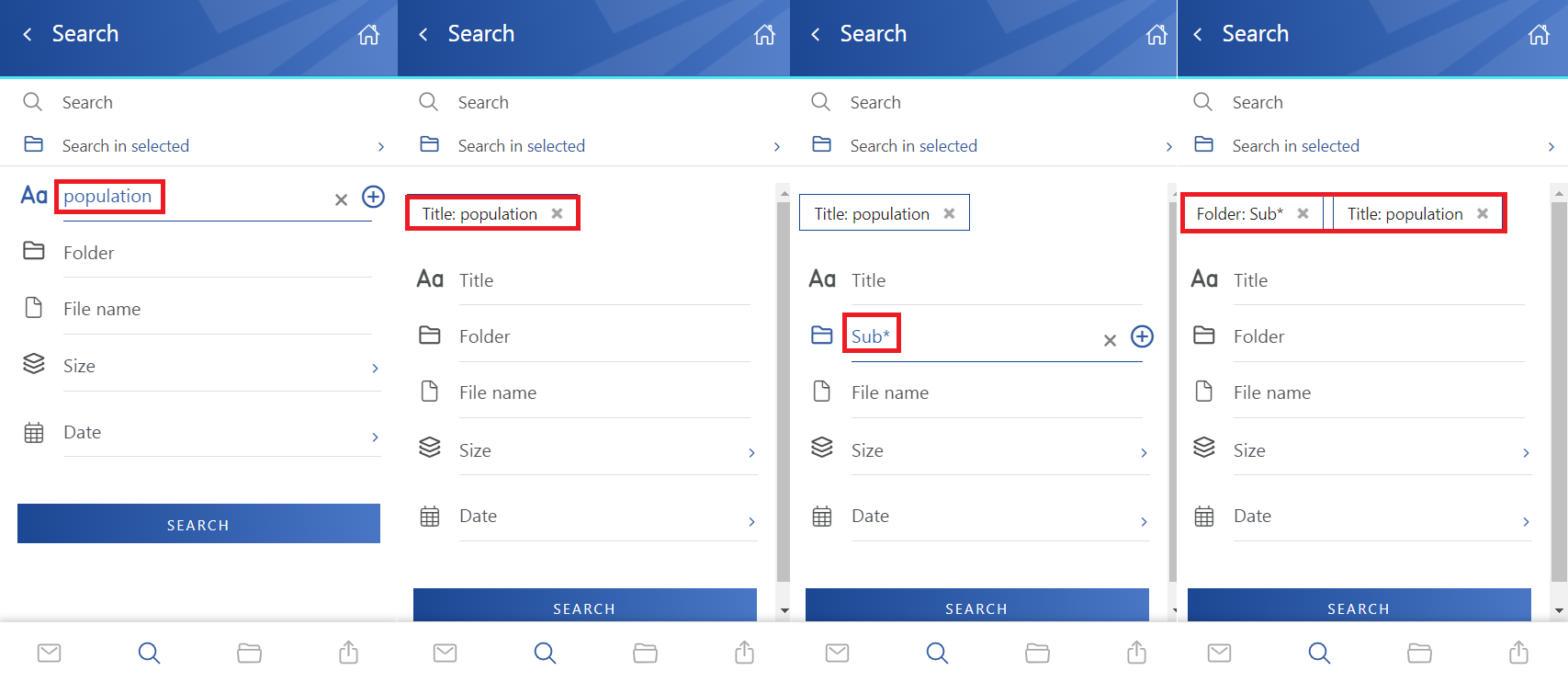
Search query example
For example, the query title:population AND size:<150MB finds files and items where:
- The title contains the word
population(or, in the case of the Teams archive, the message contains the file). - The size is smaller than
150 MB.
If no option is specified, the search field uses the full-text method.
For more information about search queries, see the Search Query Language section of the contentACCESS Portal manual.
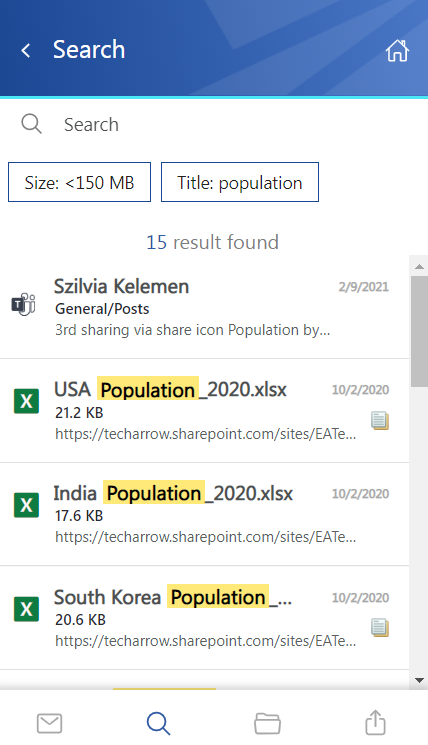
Handle search results
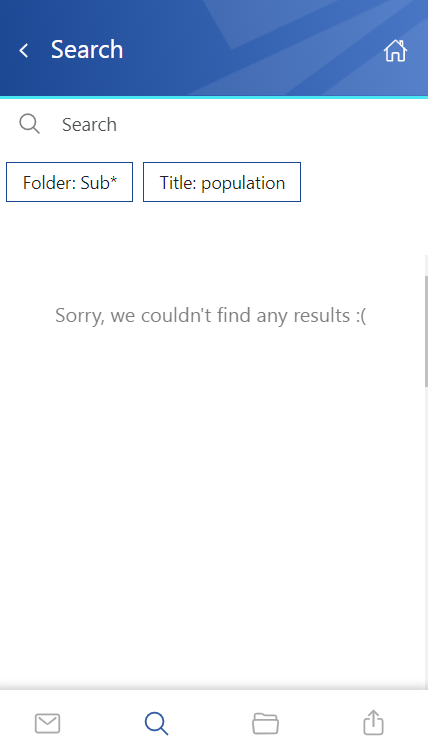
If the entered phrase is not part of any item, an error is displayed. In this case, redefine the search criteria.
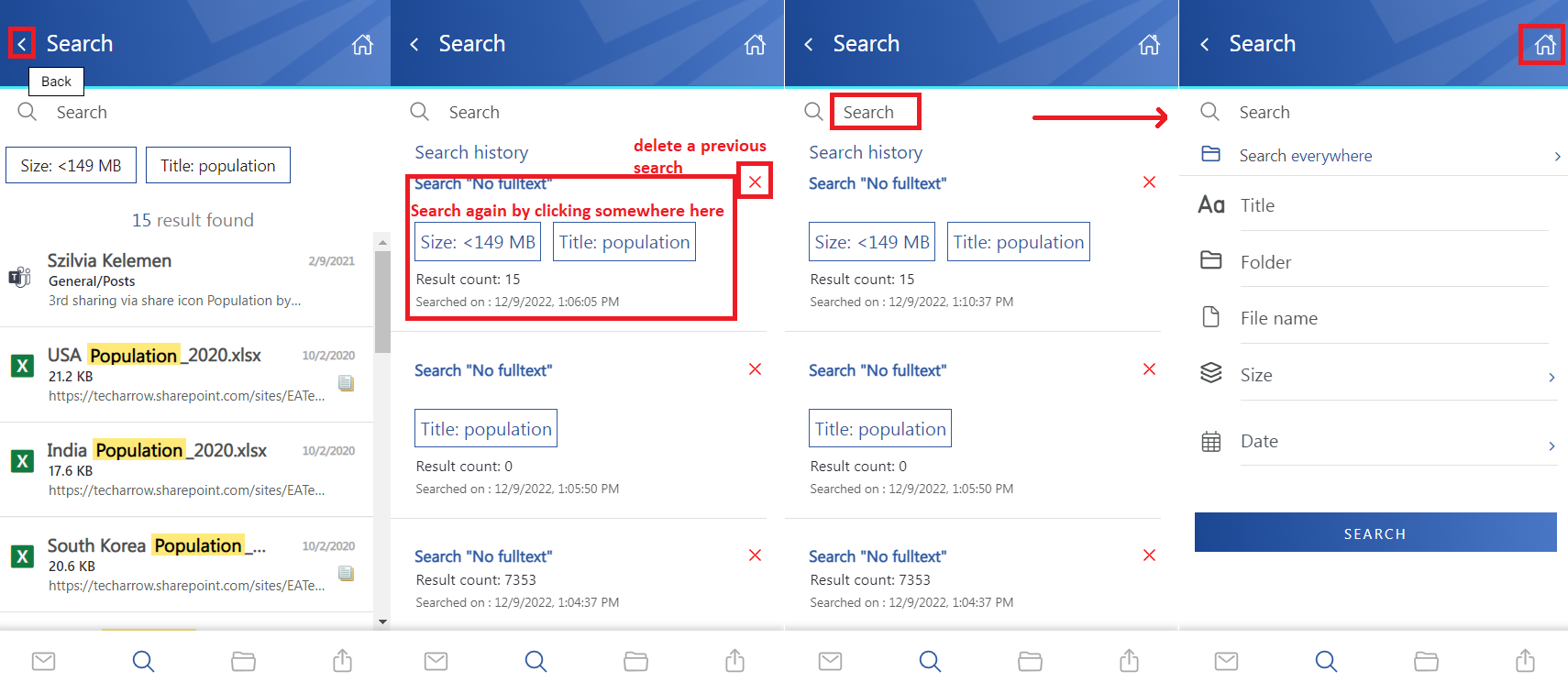
From the search results page, you can return to the Search page, where you can review your search history.
For previous searches, you can:
- Delete a search.
- Run a previous search again by clicking it.
- Specify a new search by clicking the Search textbox and defining new search properties.
You can also return to the Home page from the Search page by clicking the house icon at the top of the page.
Select and manage search results
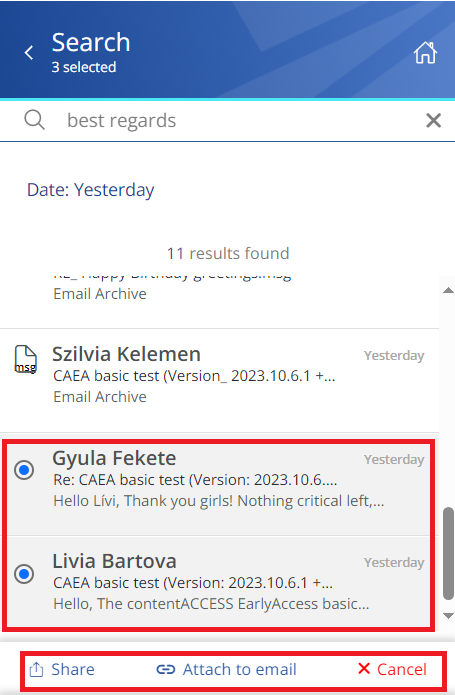
You can select one or multiple results from the list. When one or more items are selected, a toolbar appears with the following actions:
- Share – Shares the selected item(s) from the archive.
- Attach to email – Attaches the selected email(s) to a new email and sends them to the recipients.
- Cancel – Cancels the operation and removes the selection from the email(s).
Note: Item selection is not available for items from the Sharing entity. Shared items cannot be shared or attached to an email.