Share page
Introduction
The Sharing option in contentACCESS MailApp allows you to share archived items with recipients, configure sharing permissions and expiration settings, and manage existing sharings. You can start sharing from the Home, Browse, or Search pages.
Open the Sharing view
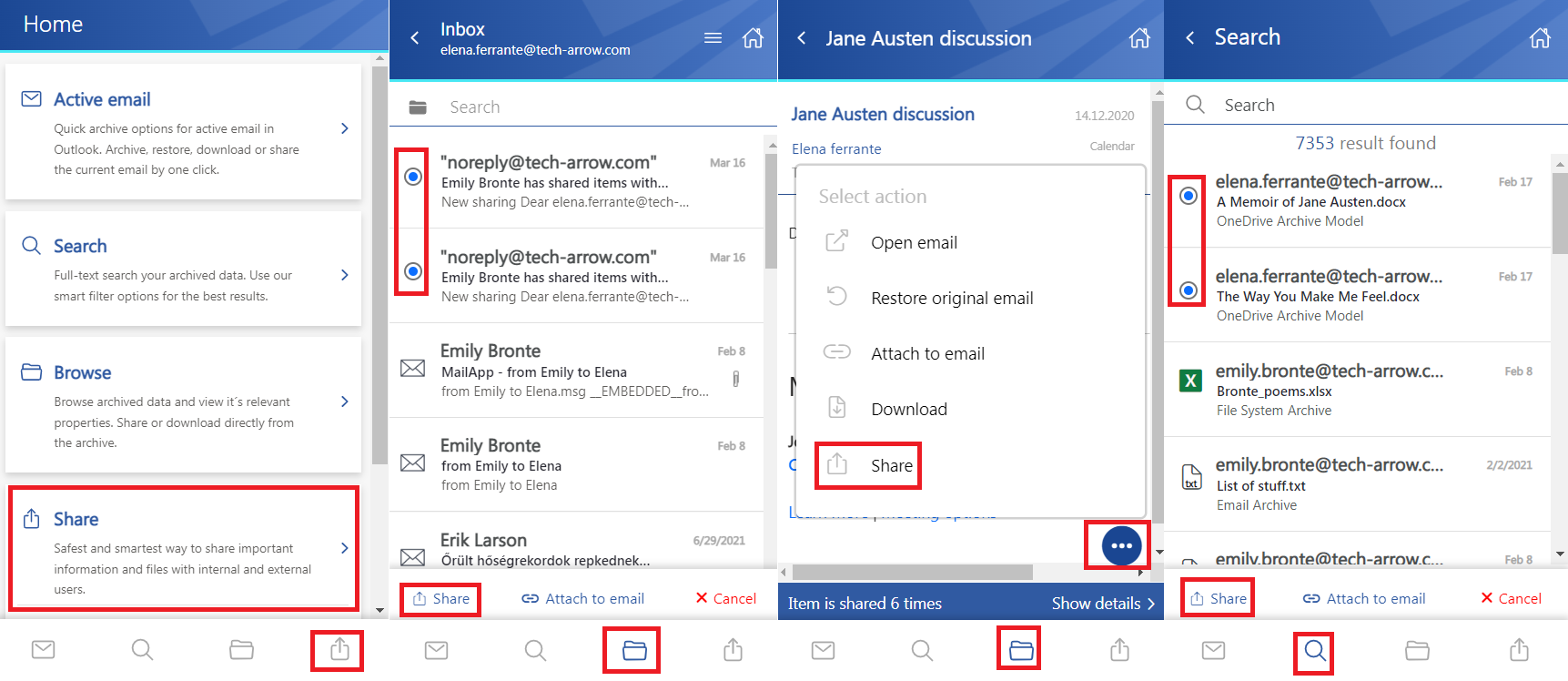
You can access the Sharing view in the following ways:
-
From the Home page:
- Select the Share tab.
- Click the Sharing icon at the bottom of the page.
- Click My shares or Shared with me to open the corresponding folder directly in the Sharing entity.
-
From the Browse page:
- Select one or multiple items from a model or entity and click Share.
- Open an item's preview and select Share from the context menu.
-
From the Search page:
- Select one or multiple items from the search results and click Share.
- Open an item's preview and select Share from the context menu.
Share items from the Sharing view
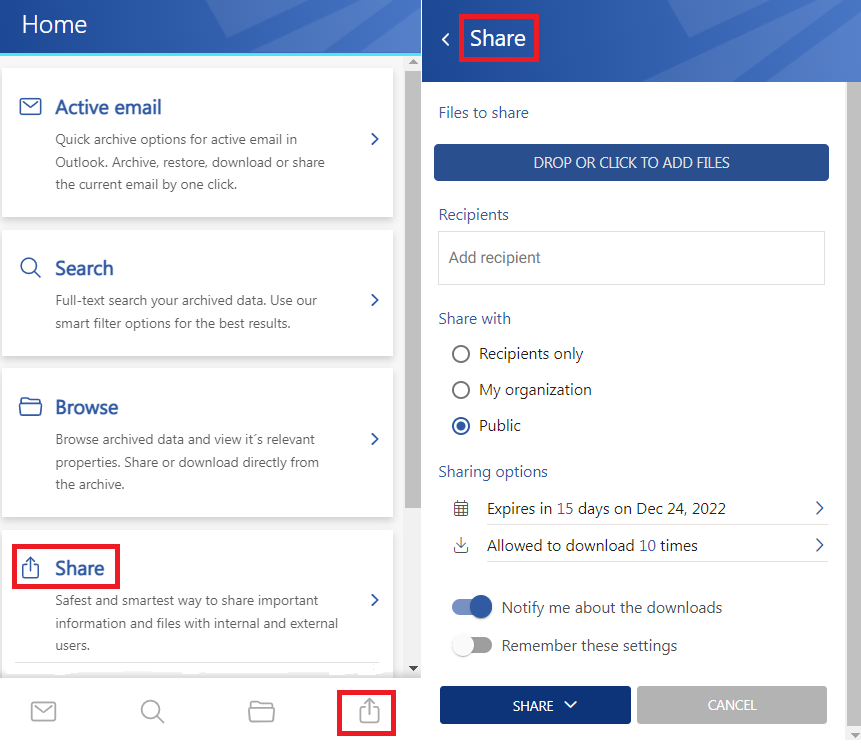
After clicking Share, the Share view opens.
Add files to share
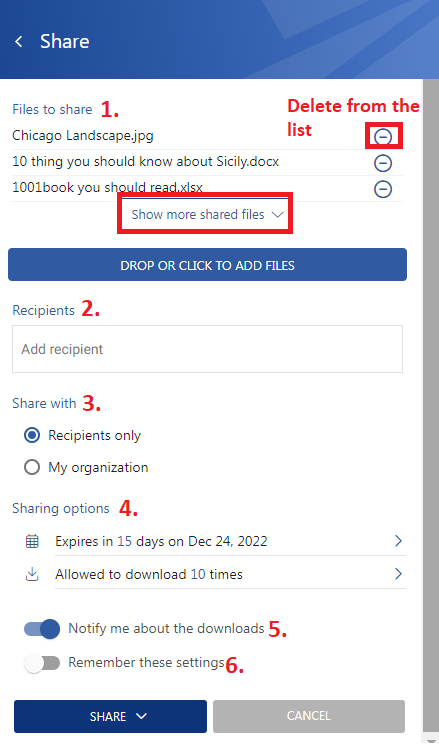
In the Files to share section, you can see the items selected for sharing.
When sharing from the Home page, add items by either:
- Clicking Drop or click to add files and browsing for the required items.
- Dragging and dropping items into the field.
Multiple items can be selected. If multiple items are selected, the Show more shared files button appears and can be used to expand the list of selected items.
To remove an item from the Files to share list, click the delete icon.
Specify recipients
In the Recipients section, specify the users with whom you want to share the items.
Start typing an email address in the Recipients field, then select the required user from the search suggestions.
To remove a recipient, click the X next to the email address.
Configure sharing access
In the Share with section, specify who can access the shared items:
- Recipients only – Only the specified recipients can access the shared items, even if the email containing the link is forwarded.
- My organization – Only people from your organization can access the shared items. The organization is specified in Central Administration => System => Services => Sharing settings.
- Public – Anyone with the link can access the shared items.
Configure sharing options
In the Sharing options section, specify the expiration date of the sharing by selecting a date from the calendar or entering the number of days.
You can also limit the number of downloads or set the download limit to unlimited. The download limit depends on the selected Share with option:
- Recipients only – The download limit applies separately to each recipient.
- My organization – The download limit applies separately to each user.
- Public – The download limit applies to all downloads together.
The following additional options are available:
-
Notify me about the downloads – Sends a notification email to the owner when a user downloads a shared item. The notification contains the following information:
- User who downloaded the item.
- Downloaded file.
- Download time.
- Remaining downloads.
-
Remember these settings – Saves the current sharing settings for future use so that they do not need to be entered again.
Complete or cancel sharing
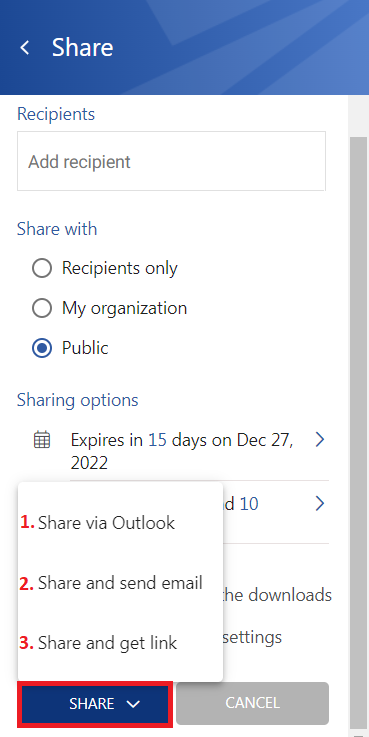
Click Share to finish configuring the sharing or Cancel to cancel the operation.
When you click Share, the following options are available:
- Share via Outlook – Inserts links to the shared files into the body of a new email. The From and To fields are automatically filled with the owner's and recipients' email addresses.
- Share and send email – Allows you to write a message in the Share with contentACCESS window and send it by clicking Send. Links to the shared files are also inserted into the email body. At least one recipient must be specified because the notification email is sent through contentACCESS.
- Share and get link – Opens a pop-up window containing the link to the shared item(s). You can copy the link and send it to the recipients through Teams, paste it into Notepad, or use another method.
Share items from entities and context menus
Sharing is also available from the Browse page, search results on the Search page, and item context menus.
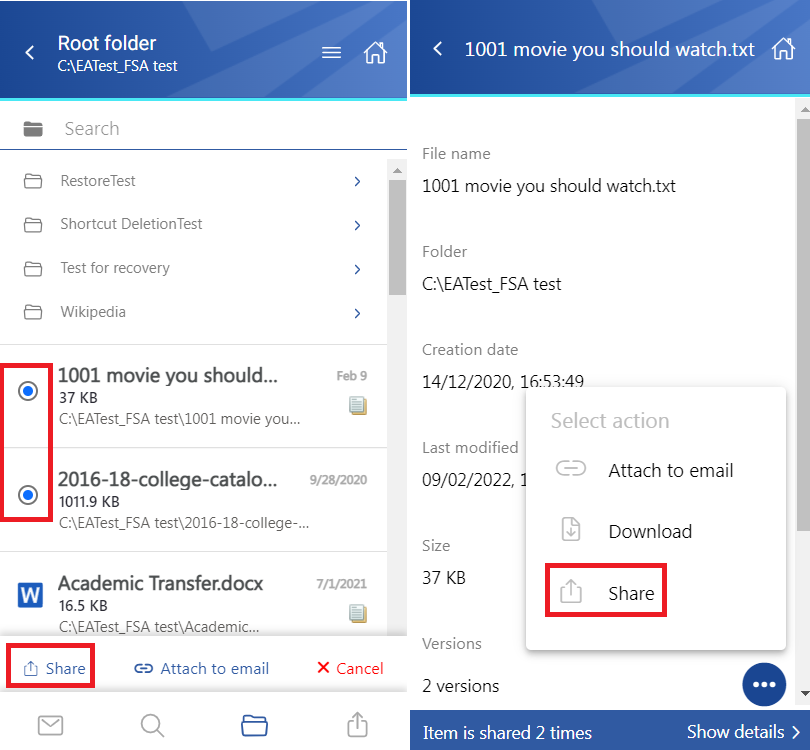
The difference from sharing directly from the Sharing view is that the items are selected from archive models. You can:
- Select one or multiple items from the list and click Share.
- Open an item's preview and select Share from the context menu.
In both cases, the Share view opens, where you can configure the sharing.
Manage existing sharings
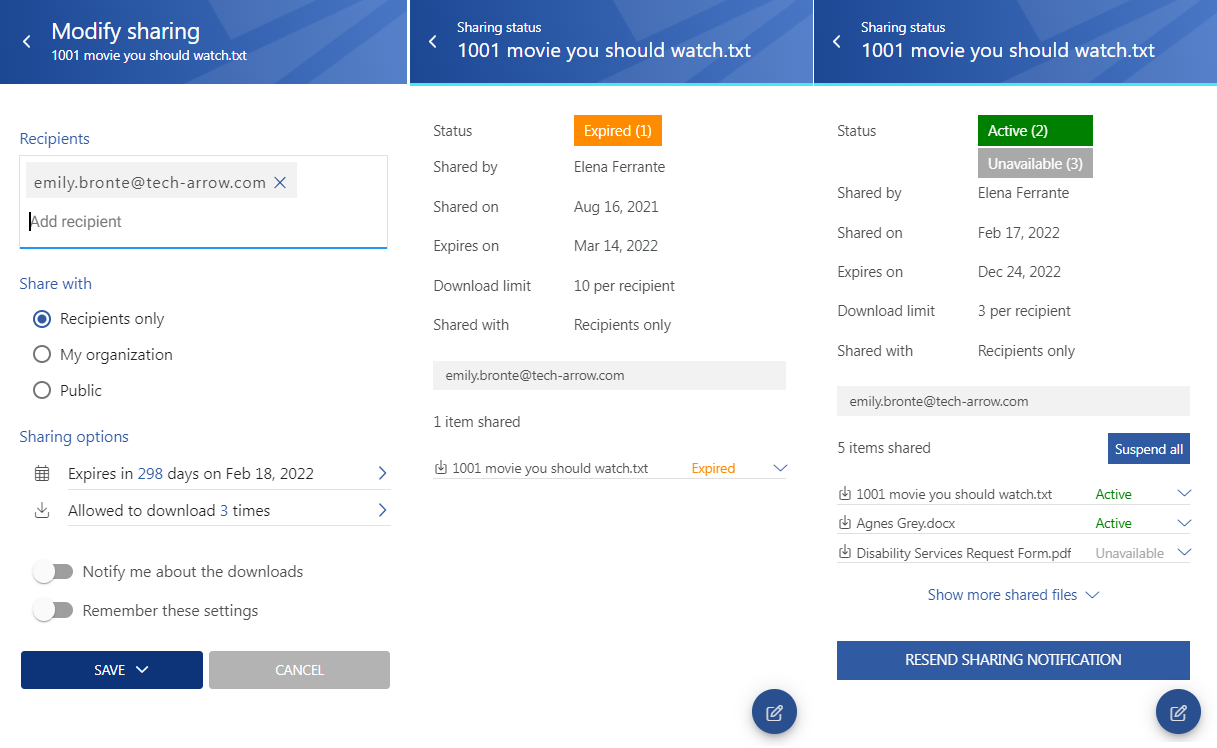
If an item has been shared previously, a Sharing ribbon appears at the bottom of the page. Click Show details to expand the ribbon.
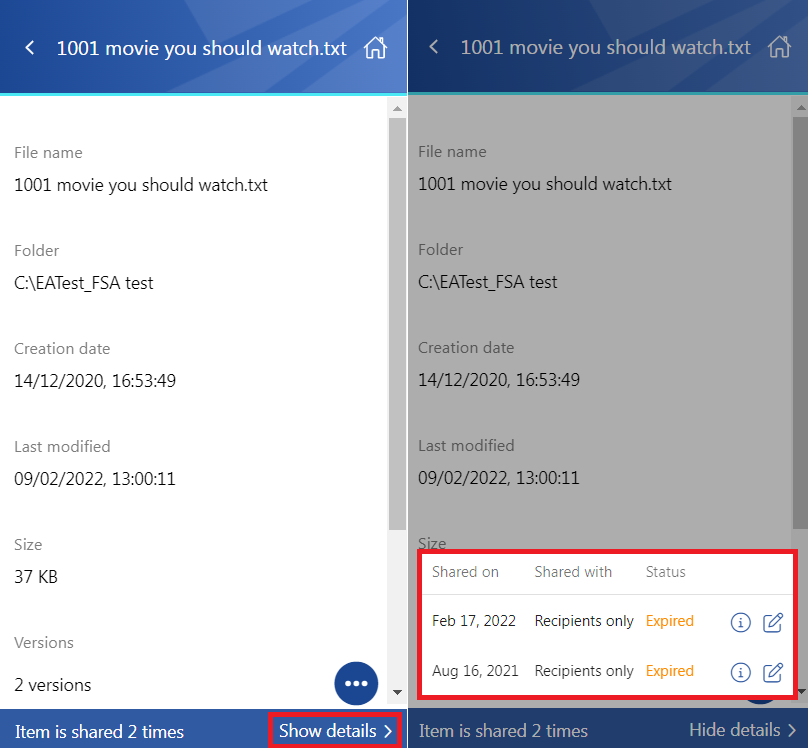
If you have the applicable rights and permissions, you can modify the sharing settings. The modification works according to the same logic as the Modify sharing options in the Sharing entity.
View sharing status
Click Status to open the Sharing status window, where you can check the current status of the sharing.
From the Sharing status window, you can:
- Activate the sharing.
- Suspend the sharing.
- Modify the sharing.
- Click Resend sharing notification to resend the sharing notification.
You can also download shared items from the Sharing status page, depending on your role:
- The owner can download all items regardless of their status, including expired, unavailable, suspended, and active items.
- Recipients can download only active items.
- If shared files are inactive, suspended, or expired, the download icon is not available to the logged-in recipient.