Email archive
Introduction
The Email archive entity allows you to browse archived emails, view their details and attachments, search within the entity, and perform actions such as opening, restoring, downloading, sharing, and attaching emails.
Email archive list view
When viewing an Email archive entity, the following properties are displayed:
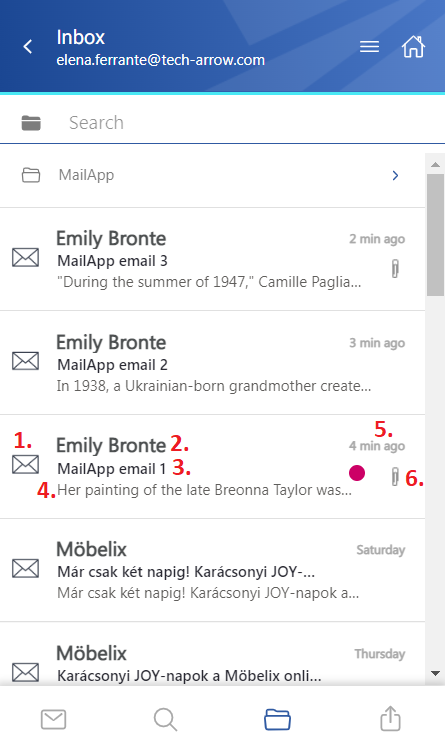
- Email preview
- Email sender's name or email address
- Subject of the email
- Snippet from the email – the first row of the message
- Sent date of the email
- Flag – indicates that the email has an attachment or category, or that the item is inactive (deleted)
Select emails
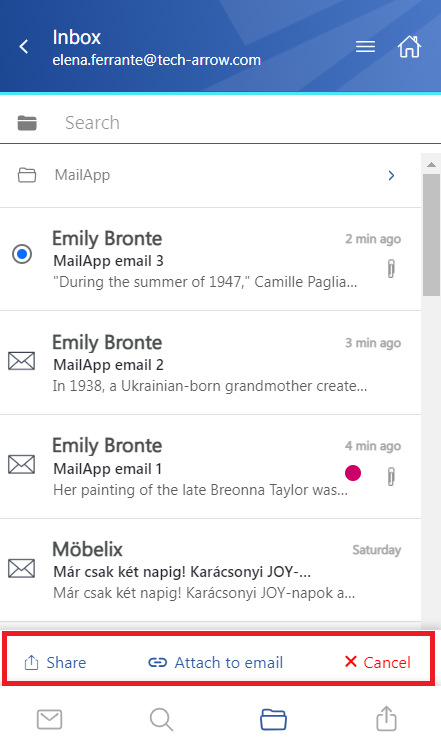
You can select one or multiple emails from the list. When one or more emails are selected, a toolbar appears with the following actions:
- Share – Shares the selected item(s) from the archive.
- Attach to email – Attaches the selected email(s) to a new email and sends them to the recipients.
- Cancel – Cancels the operation and removes the selection.
View email details
Click an email to open its detailed view.
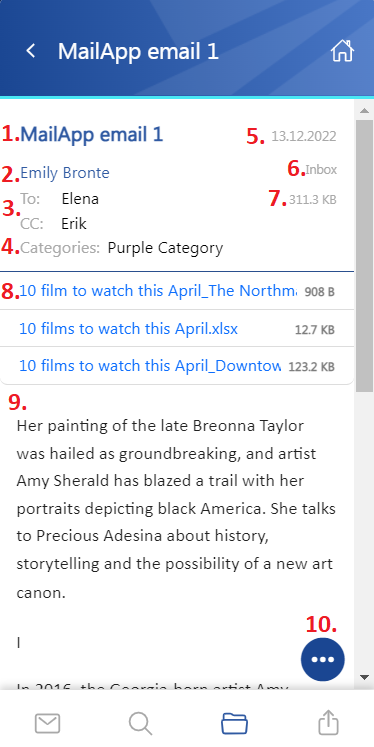
The following information and controls are available:
- The subject of the email. The title is also displayed in the header.
- The name of the sender.
- Recipients – To, Cc, and Bcc, if the user has permission to view this information. This is mostly available to the sender and the Bcc participant.
- Categories – displayed if the email was archived with categories.
- Sent date of the email.
- The folder where the email is located.
- The size of the email.
- Attachment list.
- Body of the email.
- Context menu.
- Home icon – returns to the Home page.
View participant details
Click a participant's name to display a tooltip containing the participant's full name and email address.
When you hover the cursor over the tooltip, the following actions are available:
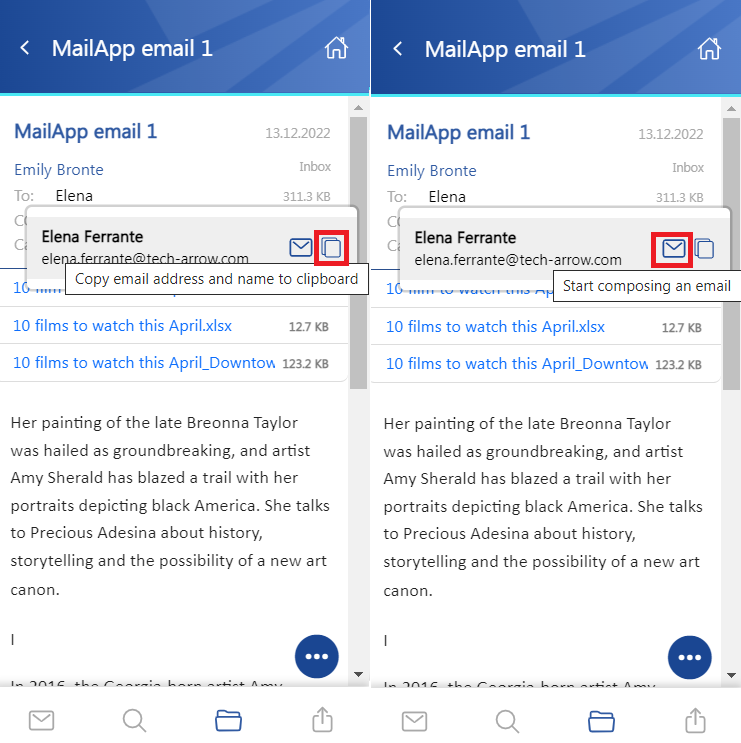
-
Copy email address and name to clipboard – Copies the participant's email address and name to the clipboard so they can be pasted wherever needed, for example, into Notepad or a new email.

-
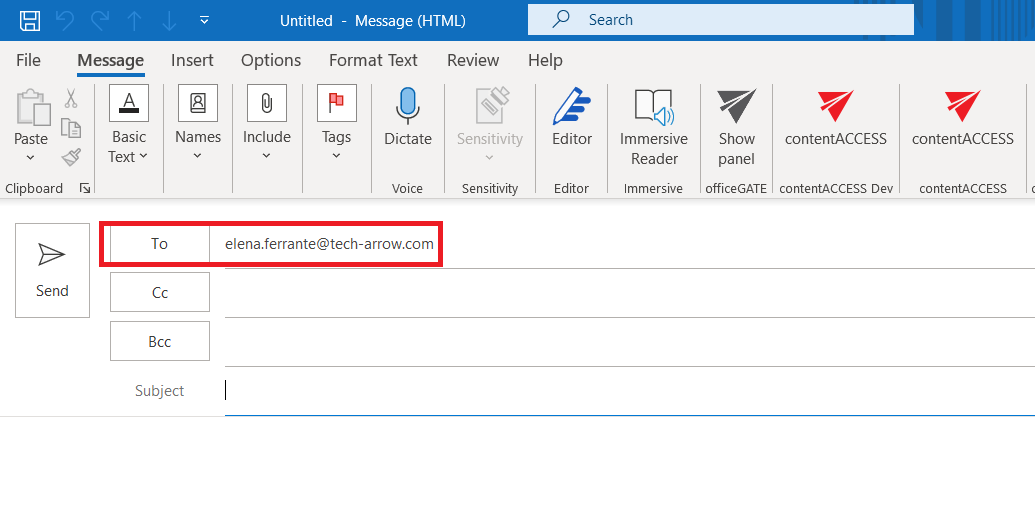
Start composing an email – Opens a new email and automatically adds the selected participant as the recipient.
Work with attachments
In the Attachment(s) section, you can download an attachment by clicking it.
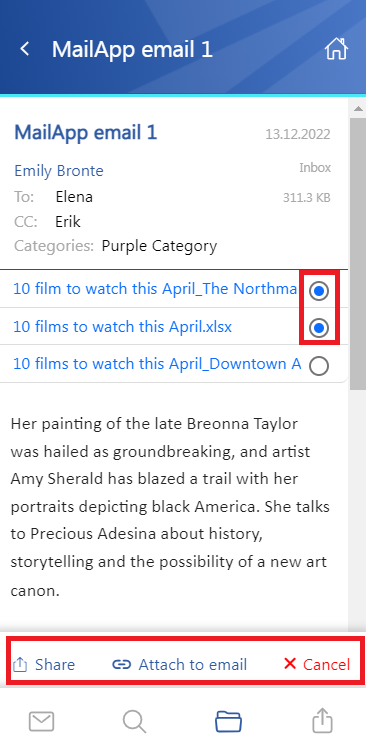
You can also select attachments by moving the cursor over the files. A menu appears at the bottom of the page with the following actions:
- Share – Shares the selected attachment(s).
- Attach to email – Attaches the selected attachment(s) to an email.
- Cancel – Cancels the selection.
Search within the Email archive entity
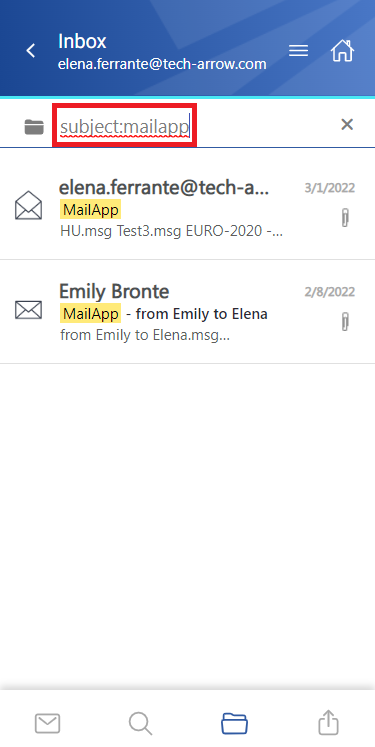
The Search function is also available within entities, but it is more limited than the Search page.
Click the search textbox to filter emails from the current folder. Both full-text search and property search are supported, but all queries must be entered manually.
Email context menu
The context menu of an email provides the following actions:
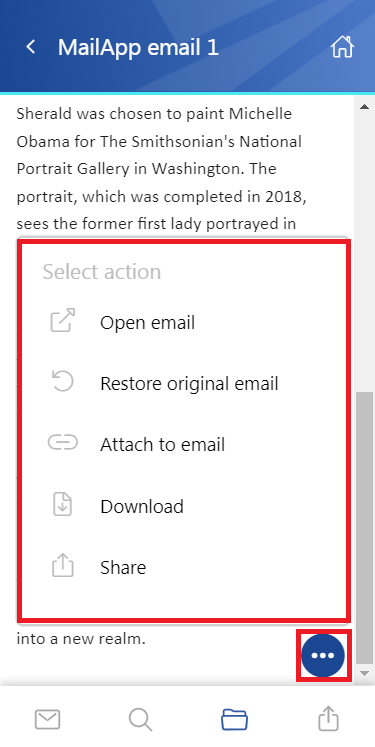
-
Open email – Opens the original email in a new pop-up window.
infoNote: The Open email function is supported only if the mailbox user currently logged in to Outlook is registered in the archive's mailbox tenant. The archive's mailbox is the mailbox in the contentACCESS archive that owns the currently opened email. Otherwise, the app cannot open the original email.
-
Restore original email – If the email was archived using a shortcutting type, restores the original email to the user's mailbox.
-
Attach to email – Attaches the selected email to a new email and sends it as an attachment.
-
Download – Downloads the email to the local machine.
-
Share – Shares the email from the context menu. For more information, see the Share page.
Shared emails
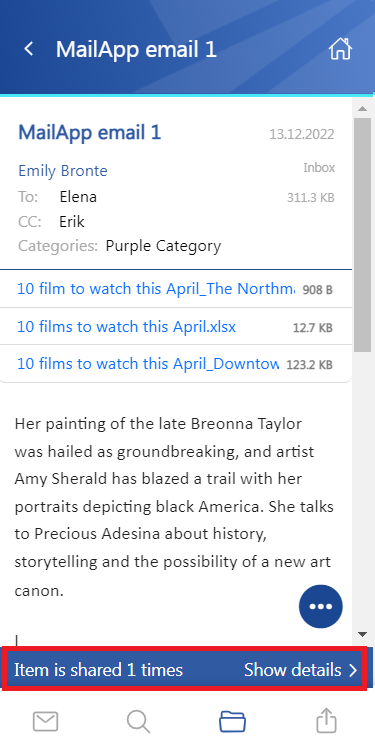
If the email has been shared, a Sharing ribbon appears at the bottom of the page. For more information, see the Share page.