Home page
Introduction
The Home page is the main starting point of contentACCESS MailApp vNext after automatic or manual login. From the Home page, users can access the application's main functions, including archiving and restoring emails, searching and browsing archived data, sharing items, configuring the application, and accessing the manual.
Available pages
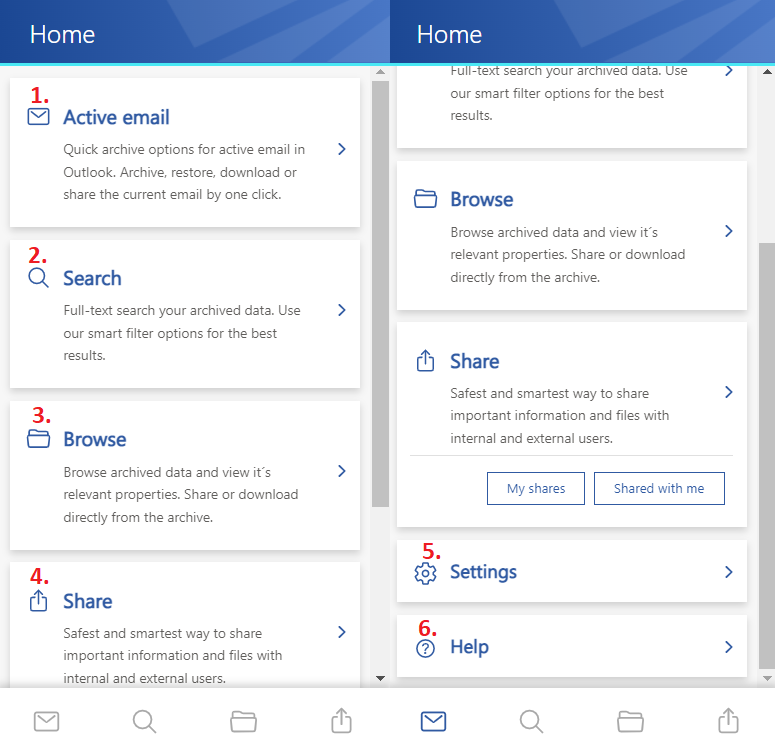
The Home page provides access to the following pages:
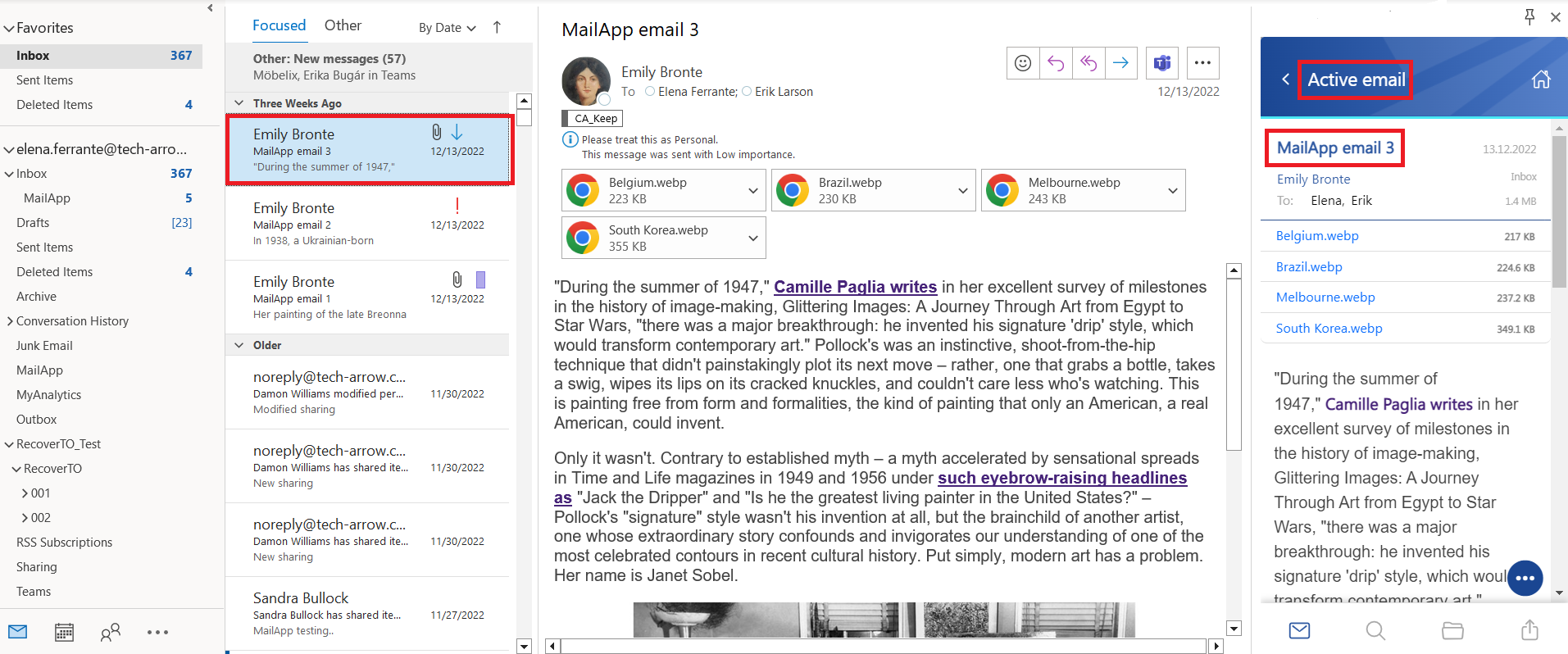
- Active email – Archive emails directly from Outlook, check the properties of an already archived email, or restore the original email.
- Search – Search archived data across all available entities.
- Browse – Browse archived data. By default, the Email archive is opened when you select the tab on the Home page or click the folder icon at the bottom of the page.
- Share – Open the Share view to share items with internal and external users or access your sharing items by clicking My shares or Shared with me. The Share view is also available from the Sharing icon at the bottom of the page.
- Settings – Open the application settings, where you can configure the application, check the current version, change the language or server, and sign out the current user.
- Help – Open the contentACCESS MailApp vNext manual in a browser.
Set a default page
You can set one of the tabs as the default page. The selected page opens automatically the next time you open the app.
To set a default page:
- Move the cursor over the desired tab.
- Click Set as default.
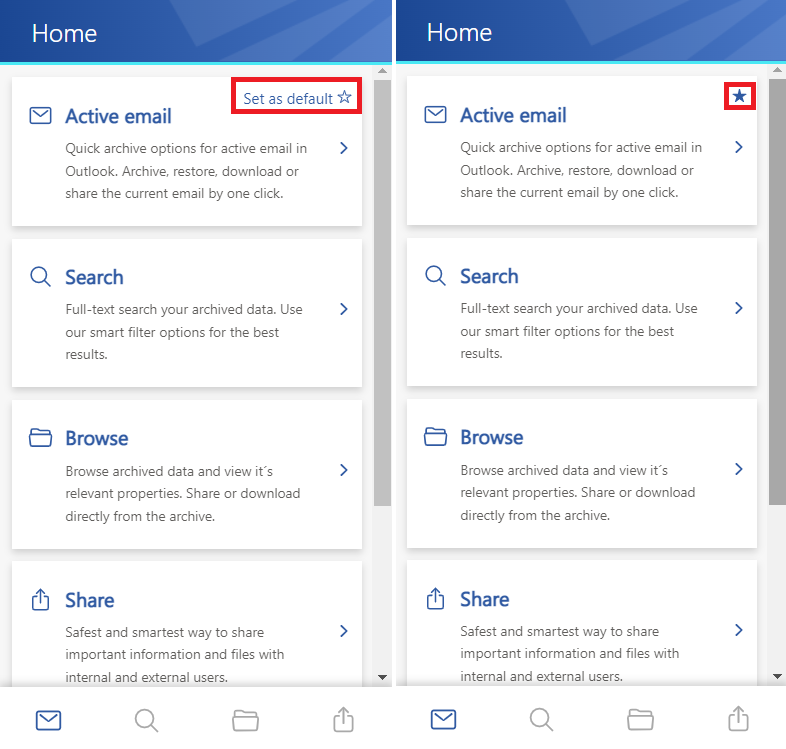
To undo the default setting, click the star icon. The next time you open the app, the Home page opens instead.
Return to the Home page
You can quickly return to the Home page from any other page in the application.
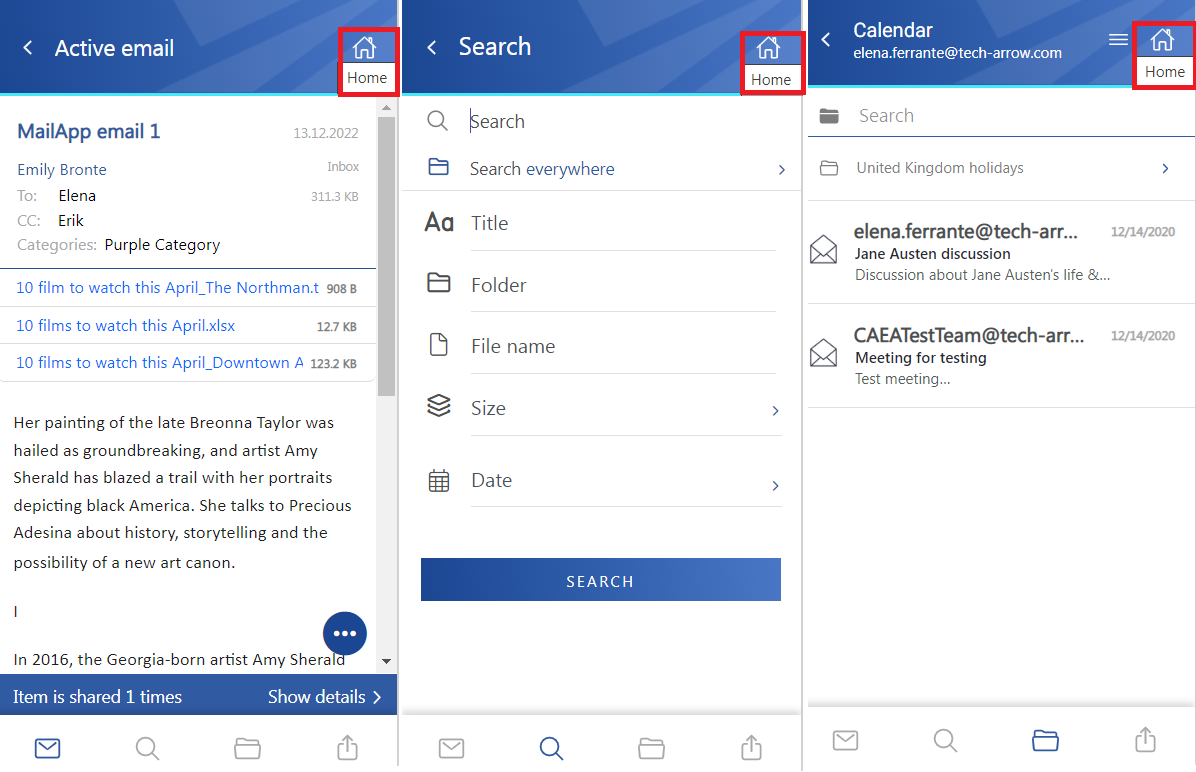
Click the house icon at the top of the page. The Home page opens automatically.