Settings page
Introduction
The Settings page allows users to configure the contentACCESS MailApp application, view the currently logged-in user, change the server and language settings, check the application version, access the documentation, and sign out.
Settings
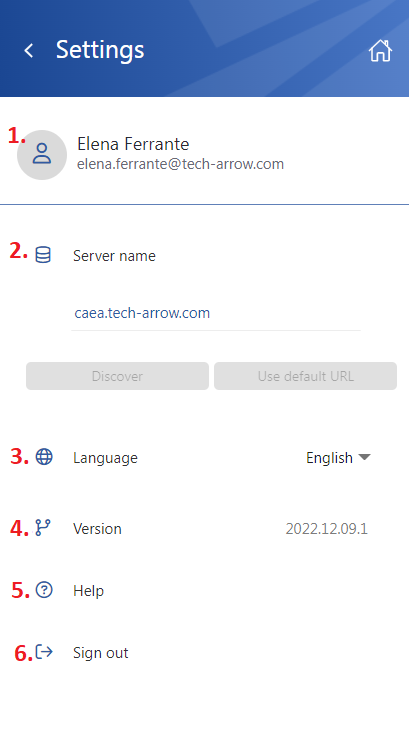
The Settings page provides the following options:
-
Logged-in user – Displays the name and email address of the currently logged-in user.
-
Server name – Displays the currently used server and allows the user to switch to another server.
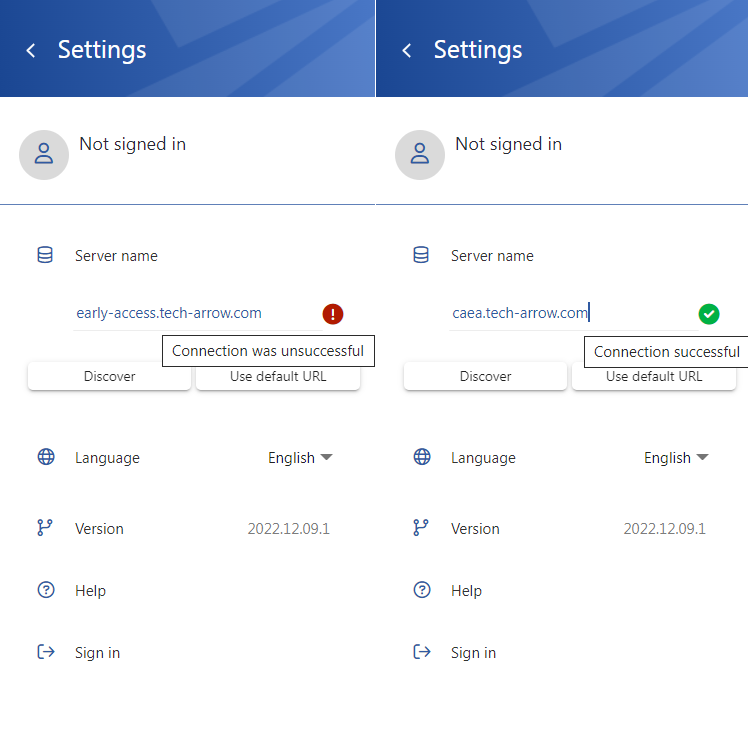
When no user is logged in, the Discover and Use default URL buttons become active:
- Discover – Attempts to locate the contentACCESS URL based on the user's email address.
- Use default URL – Automatically sets the system default URL.
To test the connection, click in the Server name textbox and press Enter. The connection test is available only when no user is signed in. If the connection is successful, a green checkmark is displayed.
-
Language – Allows the user to select the application language. Currently, only English is supported.
-
Version – Displays the current version of the application.
-
Help – Opens the contentACCESS MailApp documentation in a browser.
-
Sign out – Signs the user out of the application. After signing out, the Server name section can be edited, allowing the user to change the server, locate the contentACCESS URL, or set the system default URL. When the user clicks Sign in, the application redirects them to the Login page.