Starting the app and logging in
Introduction
The contentACCESS MailApp vNext can be opened directly from the Microsoft Outlook toolbar. On first launch, the app automatically detects the contentACCESS server associated with the user's mailbox and attempts to authenticate the user.
Open contentACCESS MailApp
Find contentACCESS on the Outlook toolbar and click the icon to open the app.
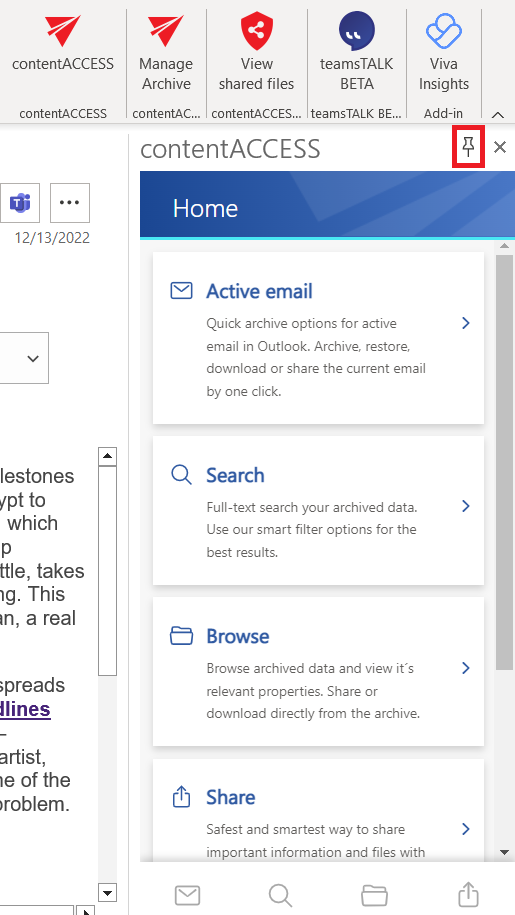
It is recommended to pin the contentACCESS MailApp add-in. When pinned, the app opens automatically the next time you open Outlook and remains visible when you open a different email.
Automatic authentication
When you open contentACCESS MailApp for the first time, the app retrieves the server to which the user with contentACCESS MailApp activation belongs through Exchange.
The server name is automatically entered on the Settings page, and the mailbox owner is automatically authenticated through autologin if the user has an M365 login.
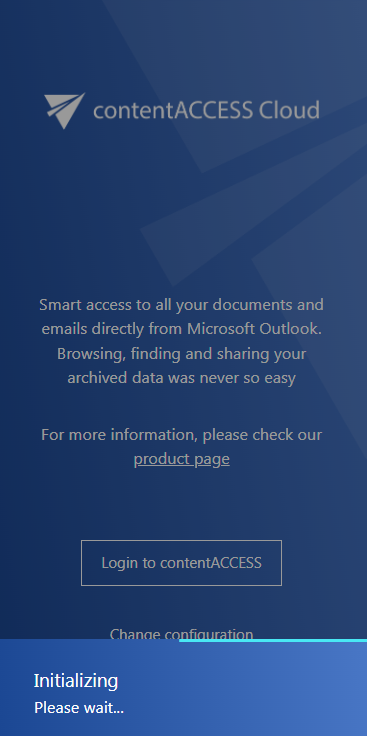
Log in manually
If automatic authentication fails, you can log in to the app using the Login to contentACCESS button.
The login page allows you to authenticate using:
- A contentACCESS account
- An M365 account
- Other external login providers, such as Forms, Windows, and Microsoft account
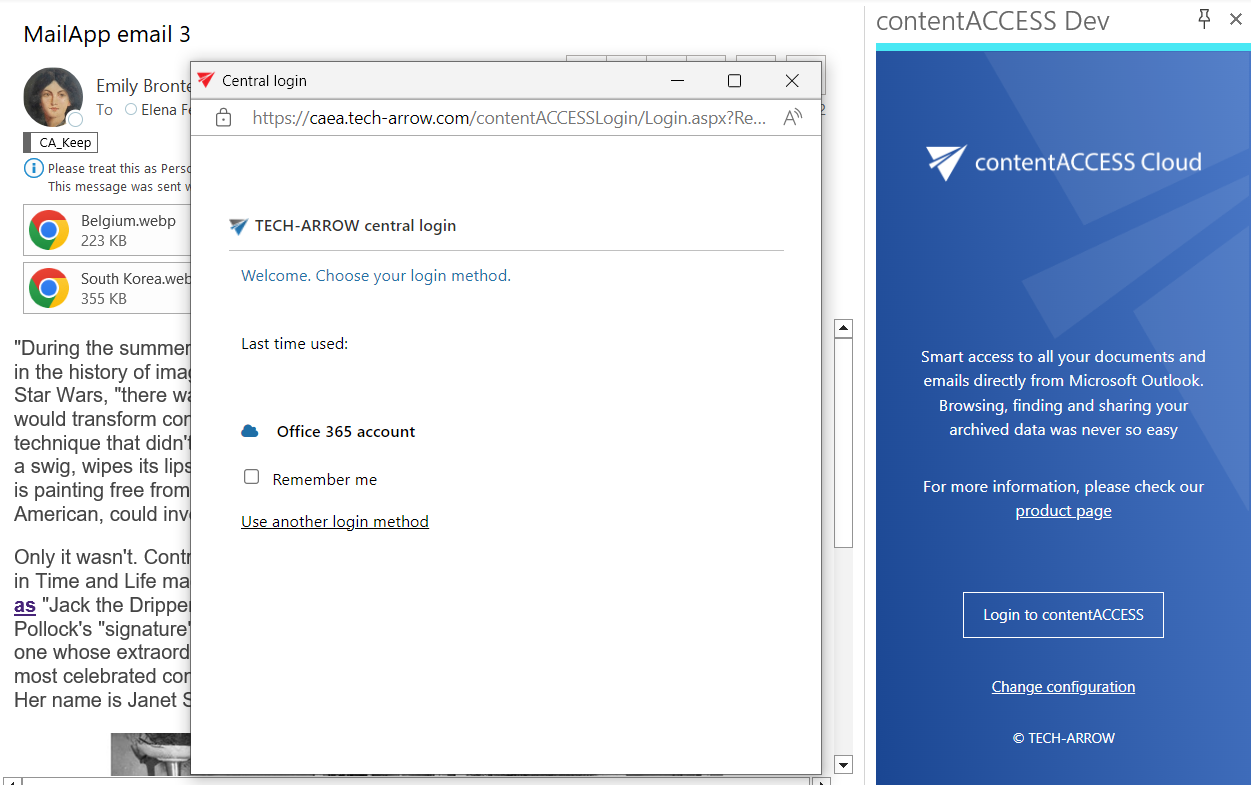
After a successful login, the Home page appears.
Login page actions
The login page also provides the following actions:
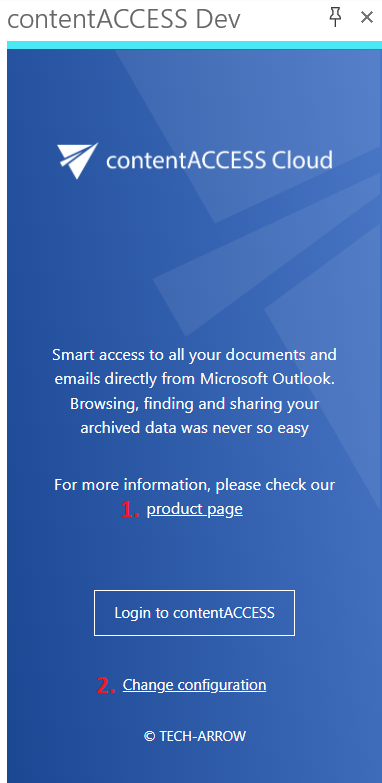
- Visit the product page – Opens the contentACCESS MailApp product page on the TECH-ARROW website.
- Change configuration – Opens the Settings page, where you can enter a different server name or switch to another language.