Configuration part for administrators
Introduction
contentACCESS MailApp allows administrators to configure manual email archiving in Outlook. The configuration requires specific Exchange, Outlook, Proxy, and contentACCESS settings before MailApp can be used.
This page covers the prerequisites for MailApp, the required contentACCESS configuration, MailApp activation for selected mailboxes, groups, or servers, contentACCESS Portal user role assignment, and verification of the MailApp manifest files required for installation.
contentACCESS MailApp prerequisites
The following prerequisites must be met before using contentACCESS MailApp:
- Exchange 2013 or later.
- MS Outlook 2013 or later desktop version or OWA.
- Proxy installed over HTTPS.
- A default shortcut and a default retention must be configured in contentACCESS Central Administration.
- An HTTPS alias must be configured on the System page under System tab => Services group => System button => External accessibility settings.
- The Org Custom Apps, Org Marketplace Apps, and User Options roles must be assigned to the EWS user on the Email archive System settings page, in the EWS settings section. These roles allow an administrator to install and manage custom apps for the organization. For more information, see the Microsoft documentation.
If you want to use contentACCESS MailApp with shared mailboxes, the following additional requirement must be met:
- Office 1.8 API minimum. For supported Exchange and Outlook versions, see the Microsoft documentation, in the Supported API requirement sets column.
The following are not supported by contentACCESS MailApp:
- Public folders.
- Office 365 group folders.
Configure contentACCESS MailApp
Complete the following configurations to enable manual email archiving:
-
Configure a shortcut that contentACCESS MailApp will use and set it as the default shortcut. For more information, see Shortcuts in email archiving.
-
Configure a retention that contentACCESS MailApp will use and set it as the default retention. For more information, see Retentions.
-
Install the Proxy server with an HTTPS connection.
-
Configure an HTTPS-based alias in Central Administration under System => Services => System => External accessibility settings.
-
Allow MailApp activation for the required mailboxes, groups, or servers from Central Administration => Address book.
-
Run the Email archive Provisioning job to apply the changes.
Allow MailApp activation
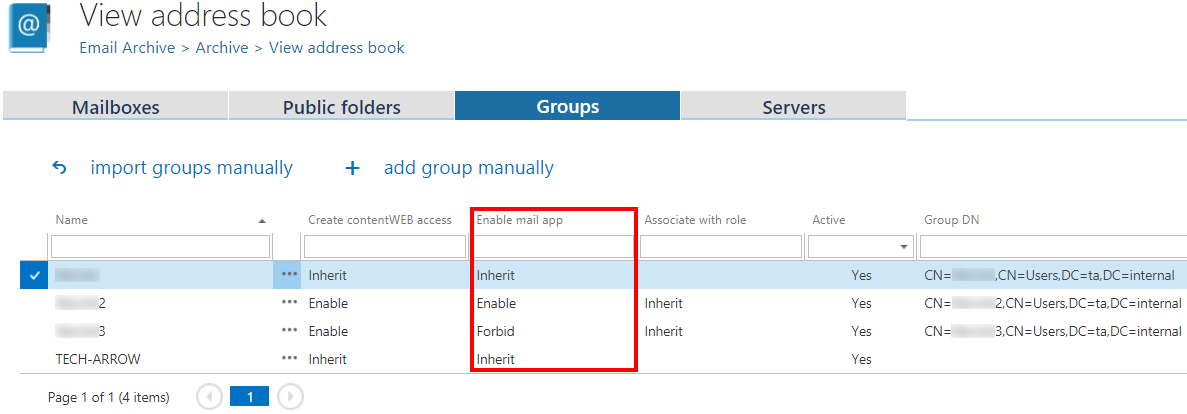
To allow MailApp activation, navigate to Email Archive => Archive => View address book on the ribbon.

The Enable mail app column shows whether MailApp activation is allowed for the selected object, such as a mailbox, group, or server.
By default, objects inherit the MailApp activation setting from their parent. If MailApp activation is allowed or forbidden for the parent, the same setting is inherited by the child object.
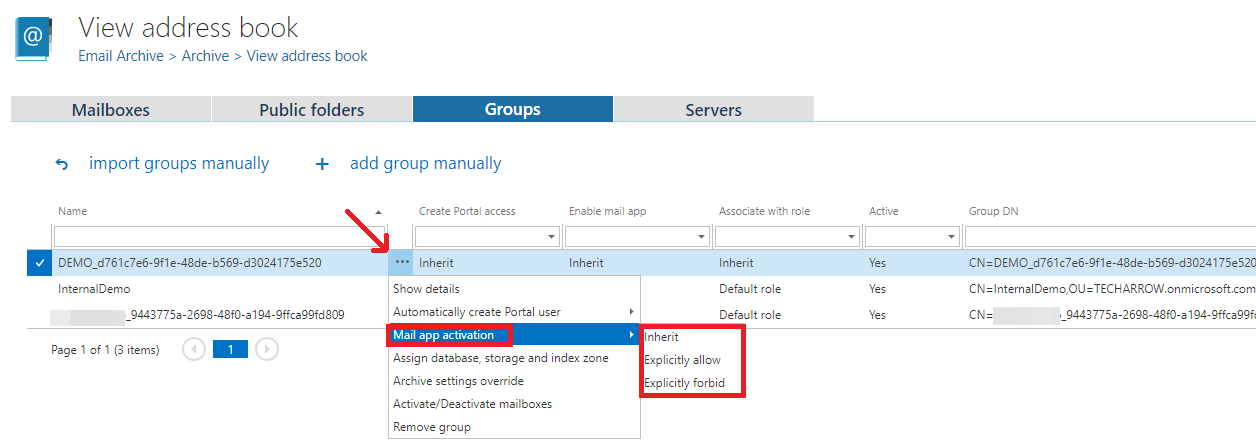
You can set the MailApp activation for the selected object from the context menu to:
- Inherit
- Explicitly allow
- Explicitly forbid
Assign a contentACCESS Portal user role
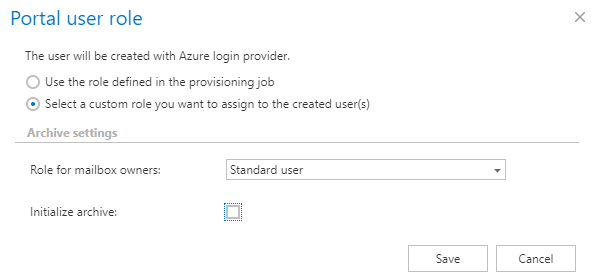
If you select Explicitly allow, the contentACCESS Portal user role pop-up opens.
Specify the contentACCESS Portal user role containing the permissions to be assigned to the contentACCESS Portal user(s). You can select a custom role from the dropdown list or use the role defined in the Email archive Provisioning job.
After making the changes, start the Provisioning job to apply them.

MailApp installation
To successfully install contentACCESS MailApp, the Exchange server must have access to the contentACCESS server and to the MailApp .xml manifest file.
The manifest files can be accessed using the following links:
https://[SERVERNAME]/contentACCESSWS/Mailapp/Mailapp.xmlhttps://[SERVERNAME]/contentACCESSWS/Mailapp/Mailapp_no_ribbon_button.xml
The administrator should be able to browse these files using the links above without any issues.