How to use contentACCESS MailApp – part for the users
Introduction
contentACCESS MailApp allows users to work with archived emails directly in Outlook. Users can manually archive and restore emails, view original emails and download archived attachments, search archived emails, and manage MailApp settings.
Manual email archiving
After contentACCESS MailApp has been activated, it is recommended to restart Outlook.
Open Outlook desktop. If link security is enabled in System, under External accessibility settings, authenticate before using MailApp.
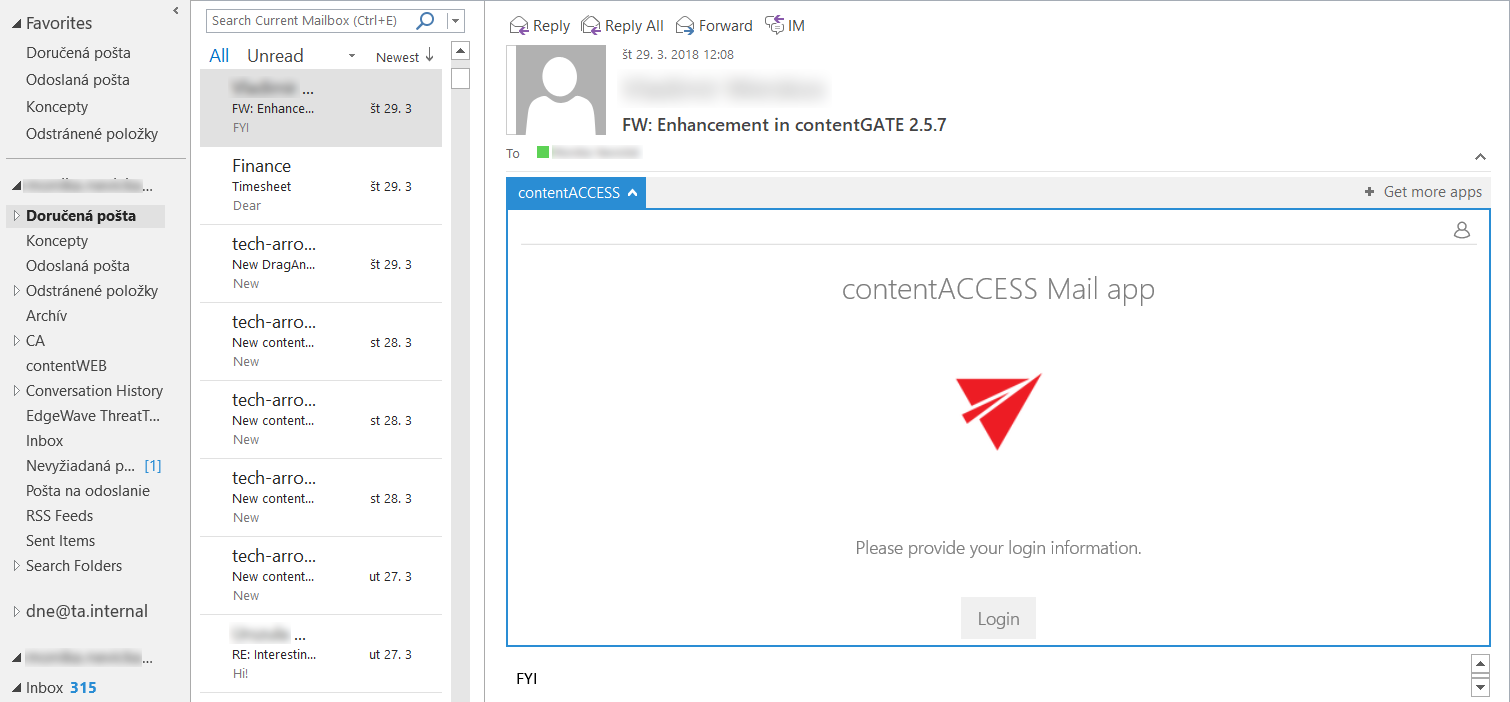
Click Login. A pop-up with the configured Login providers opens.
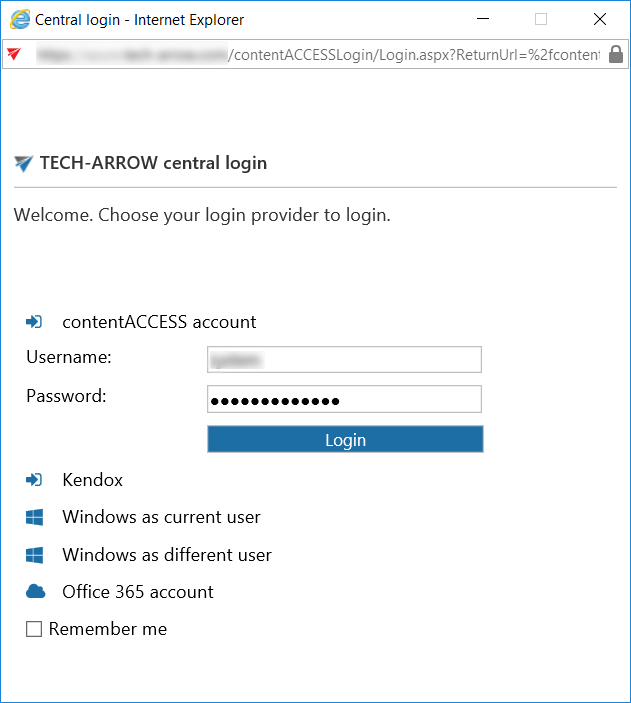
After successfully logging in:
- Select a message, including an attachment, that you want to archive manually.
- In the reading pane, click contentACCESS MailApp.
- Click Archive email.
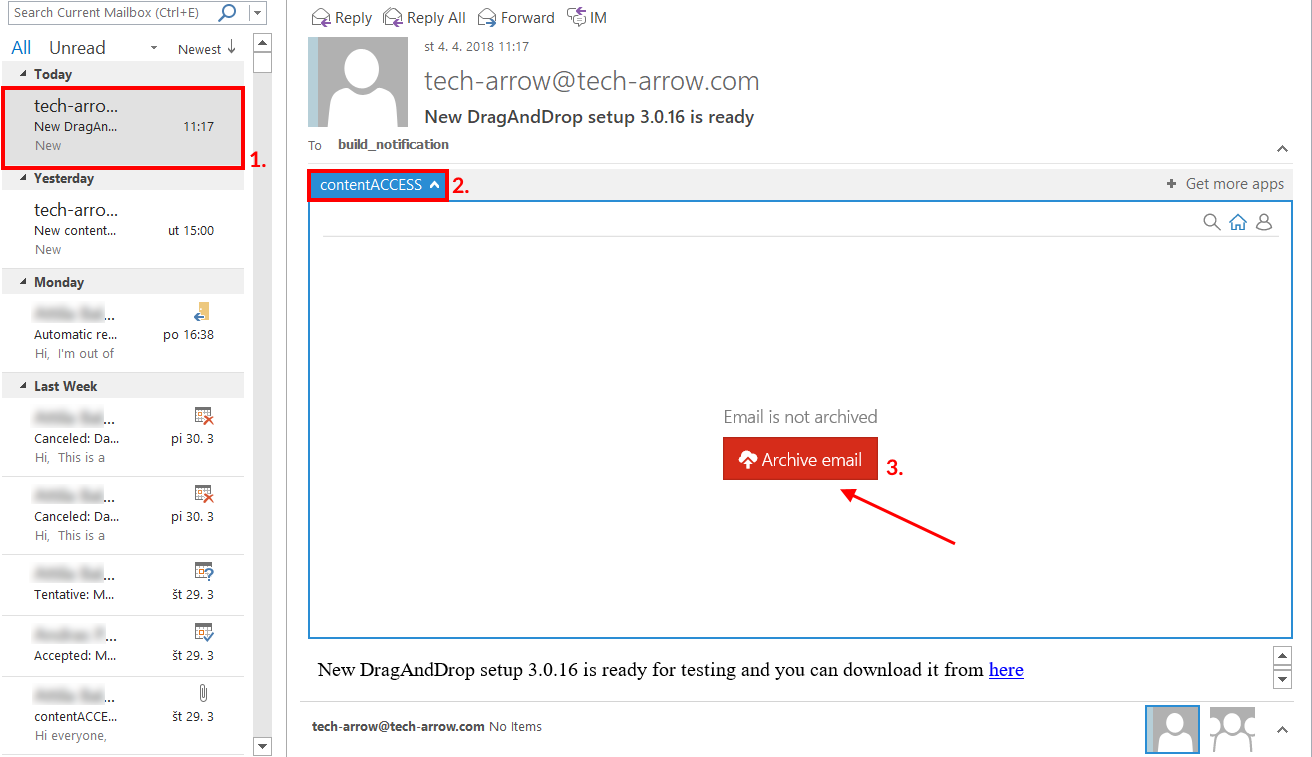
Note: If the email has already been archived, the Show original email and Restore original email options are displayed. An already archived email cannot be archived again.
Manual email archiving uses the default shortcut and retention configured in contentACCESS.
For example, if an HTML shortcut with the green category is set as the default, the email is archived using this shortcut and assigned the green category.
View original emails and download attachments
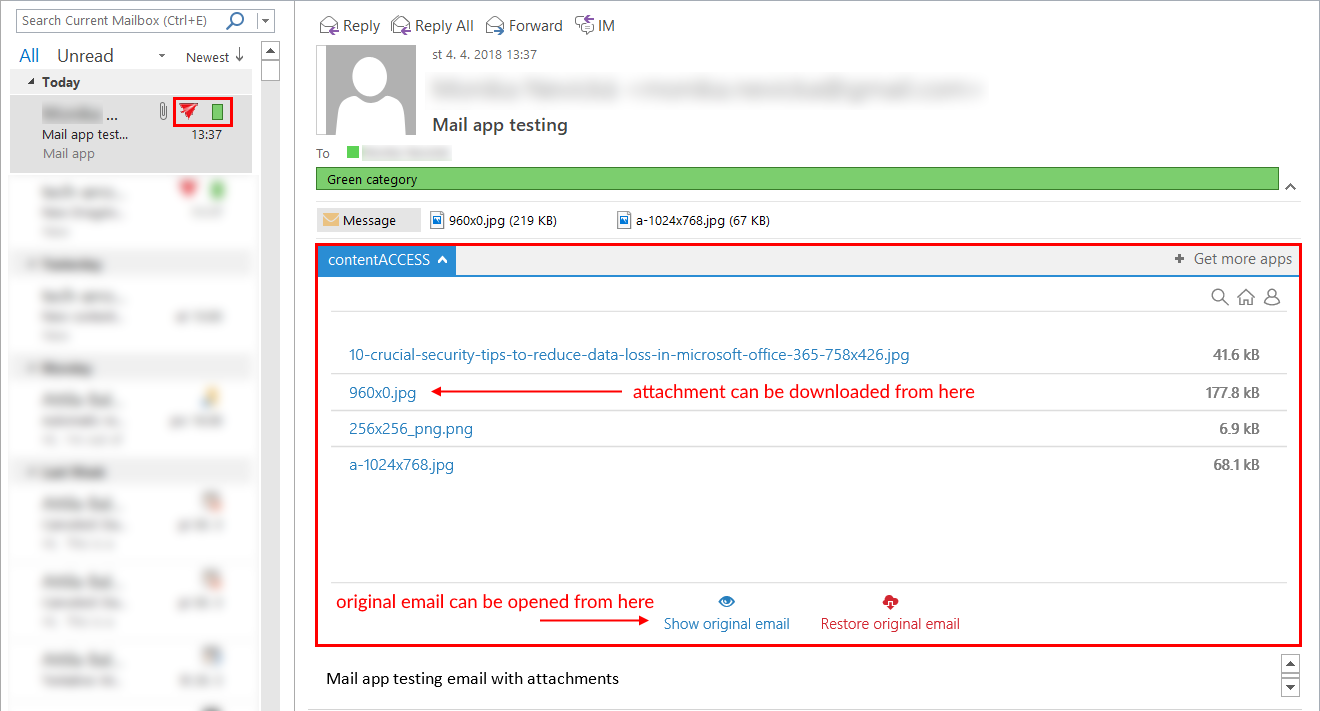
In the reading pane, click contentACCESS MailApp.
To view the original email, click Show original email.
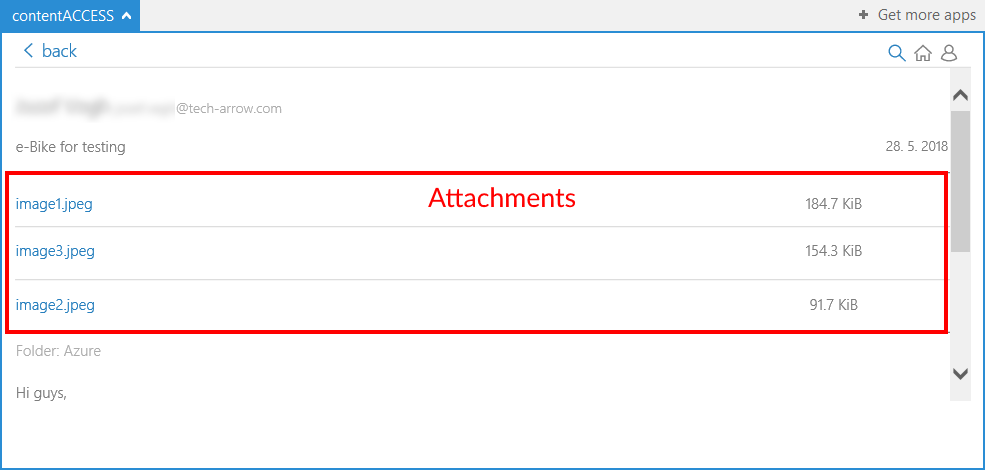
To download an archived attachment, click the attachment in the message. The attachment is downloaded automatically.
Manually restore an email
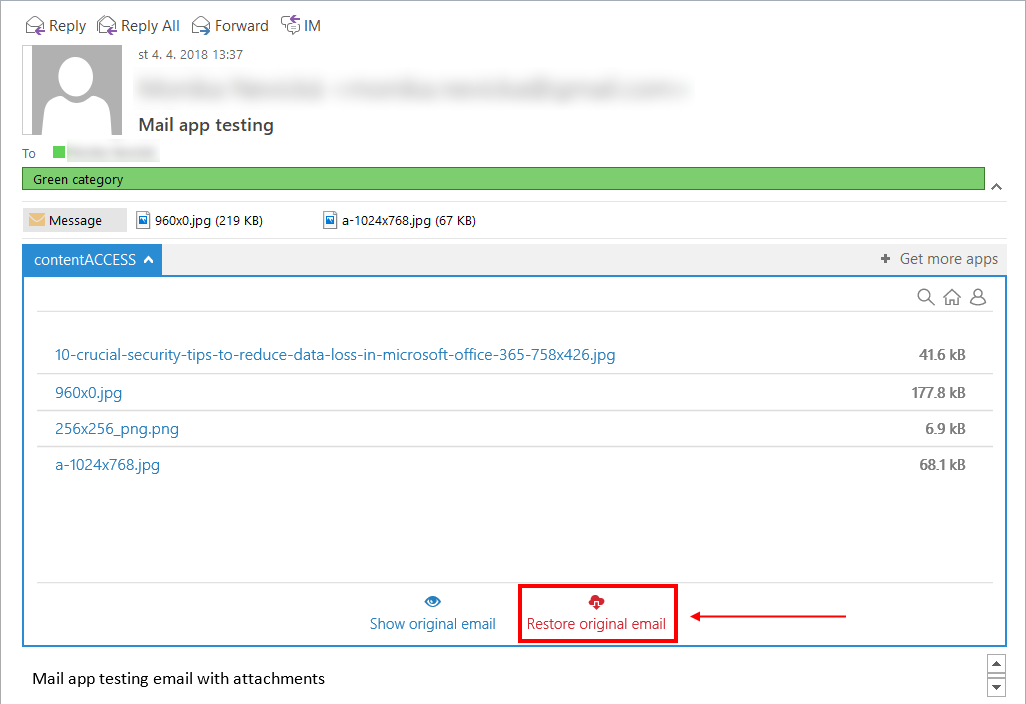
To manually restore an already archived email, click Restore original email in the app.
Important: The Change message class option must be enabled in the HTML shortcut configuration if you want to manually restore emails from shortcuts. Otherwise, contentACCESS MailApp will not be visible in MS Outlook when trying to restore the original email.
Note: The split attachments function is enabled by default in contentACCESS MailApp. This means that the email body and attachments are stored separately.
If an email containing attachments was previously archived by a job with attachment splitting disabled, contentACCESS MailApp in MS Outlook will show 0 attachments.

Search archived emails
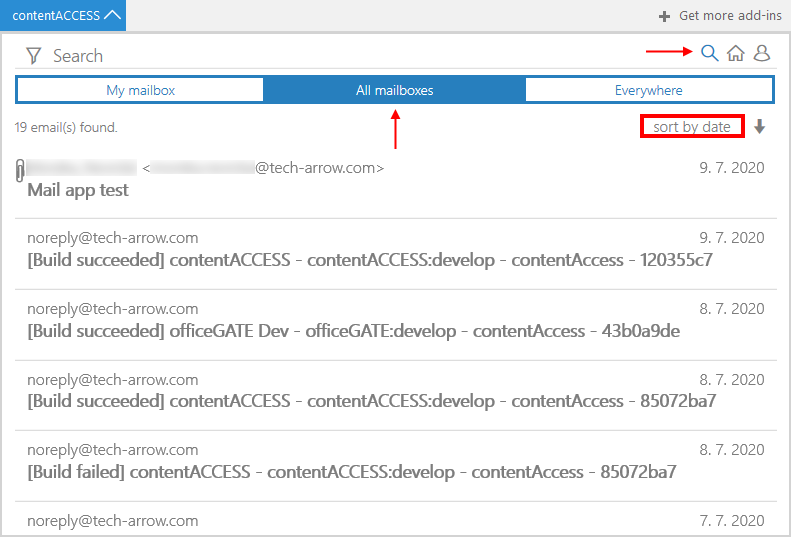
To search the available entities, click the search icon and enter the term you are looking for.
Select the appropriate tab to define where to search:
- Your mailbox – searches only in your mailbox.
- All mailboxes – searches all available mailboxes.
- Everywhere – searches everywhere.
When the Everywhere tab is selected, you can sort the search results by:
- Date
- Title (subject)
- Best match
Search from a shared mailbox
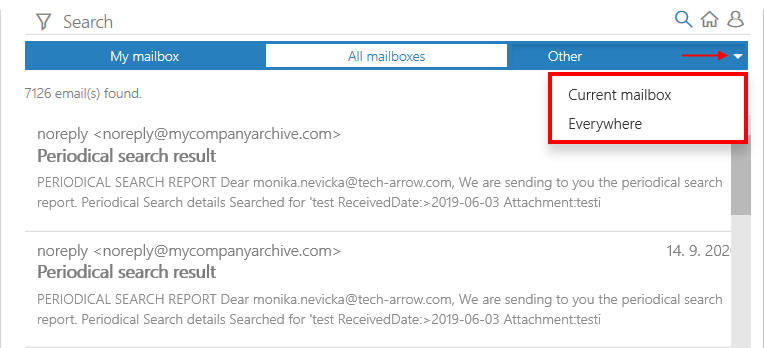
If you start MailApp from a shared mailbox, the Other dropdown option is displayed instead of Everywhere.
The Other dropdown contains the following options:
- Current mailbox – searches the email archive of the shared mailbox.
- Everywhere – searches everywhere, as when MailApp is not used from a shared mailbox.
Filter search results
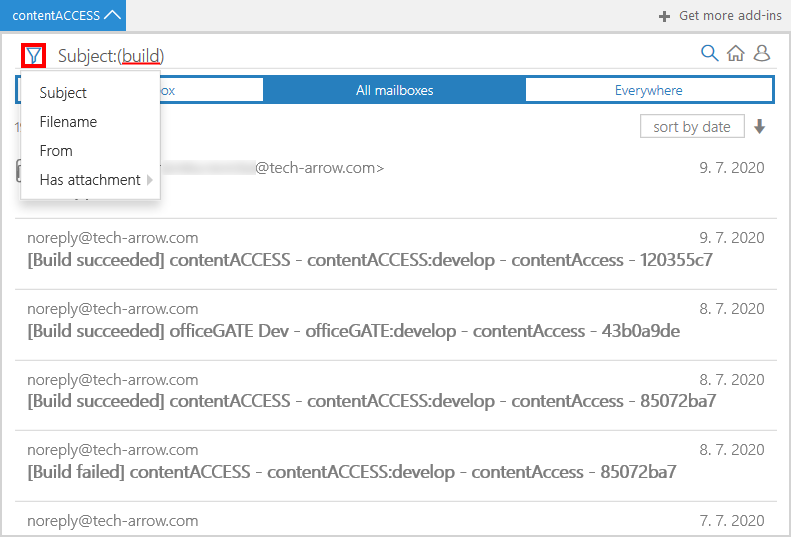
You can add filters to the search query by clicking the Filtering icon in the upper-left corner.
Click the property that you want to add to the query. For subject, filename, and from, enter the required value manually.
Open a selected email by clicking it. If the email contains attachments, you can open and download them from the email view.
Home screen
Click the Home button to return to the home screen.
From the home screen, you can:
- Archive emails.
- Restore emails.
- Download attachments.
- View original emails.

Manage MailApp settings
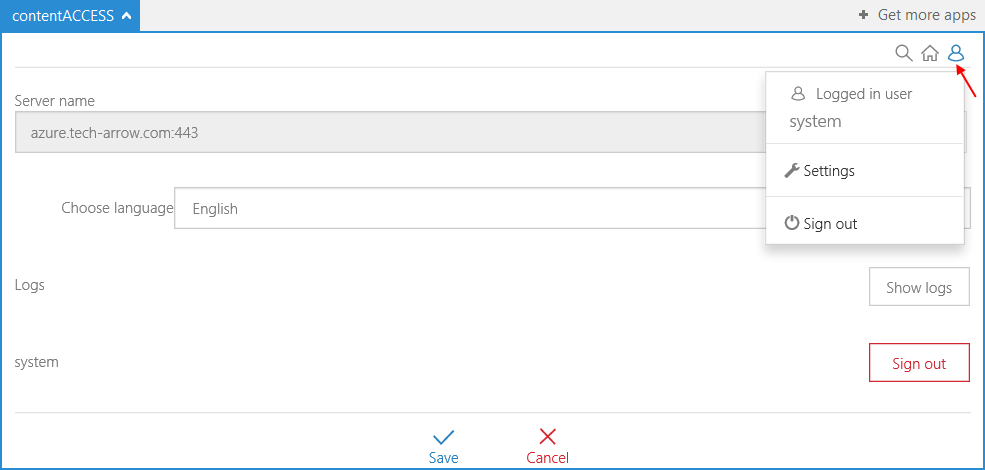
The menu displays the currently logged-in user and allows you to sign out.
Click Settings to open the application settings. The settings section allows you to:
- View the server name.
- Change the application language.
- View the latest logs, for example, when an error has occurred.
- View/sign out the current user.
At the bottom of the settings section, the following buttons are available:
- Save – saves the changes.
- Cancel – cancels the changes without saving them.