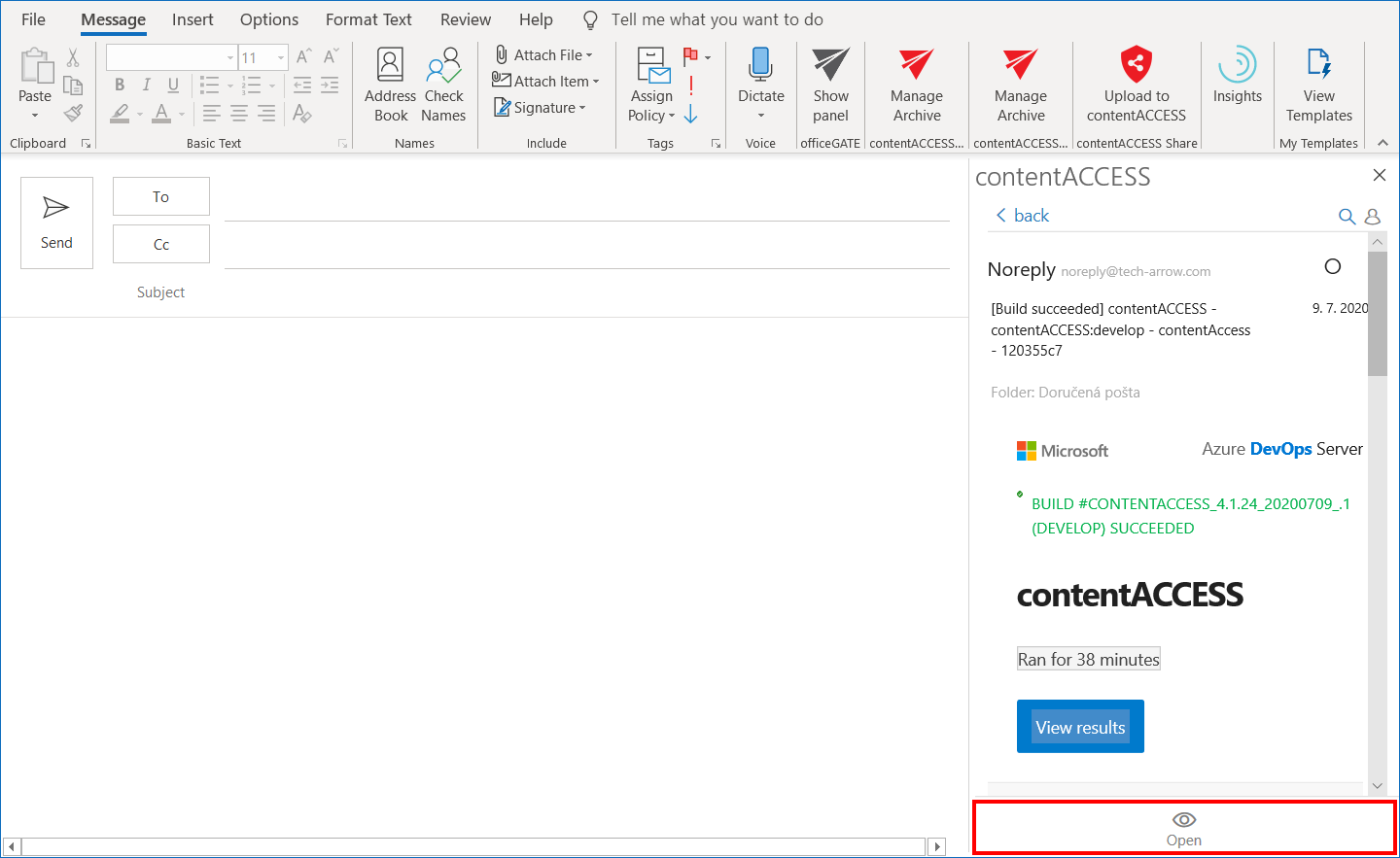
contentACCESS MailApp in compose mode
Introduction
contentACCESS MailApp allows users to search and share archived emails while composing a new email message. In compose mode, users cannot archive or restore emails. Instead, they can search for archived emails, open and preview them, share selected emails as links or .eml files, and share links to performed searches.
Open MailApp in compose mode
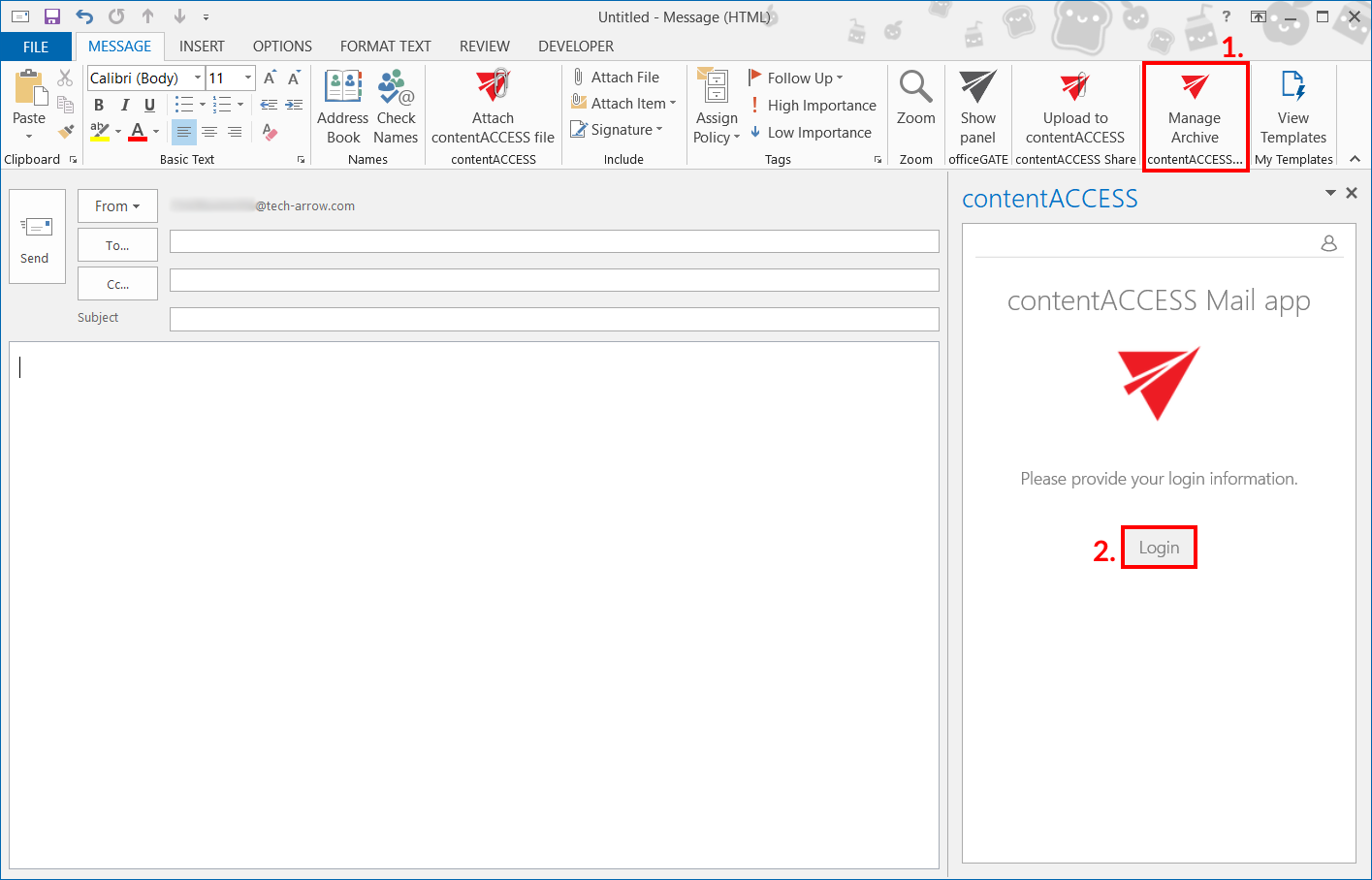
Open compose mode by starting a new email message.
-
Click Manage Archive in the upper-right corner.
-
Authenticate by clicking Login.
-
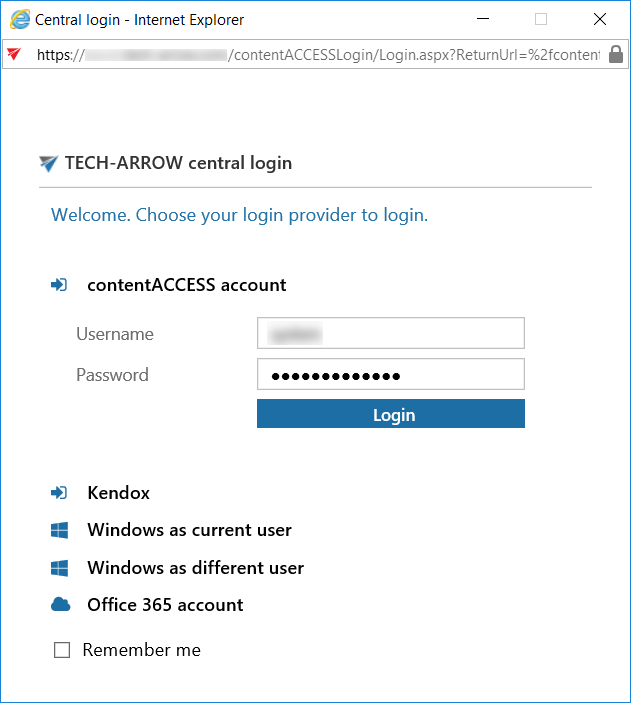
Select the required login provider.
-
Enter your user credentials.
-
Click Login.
Search archived emails
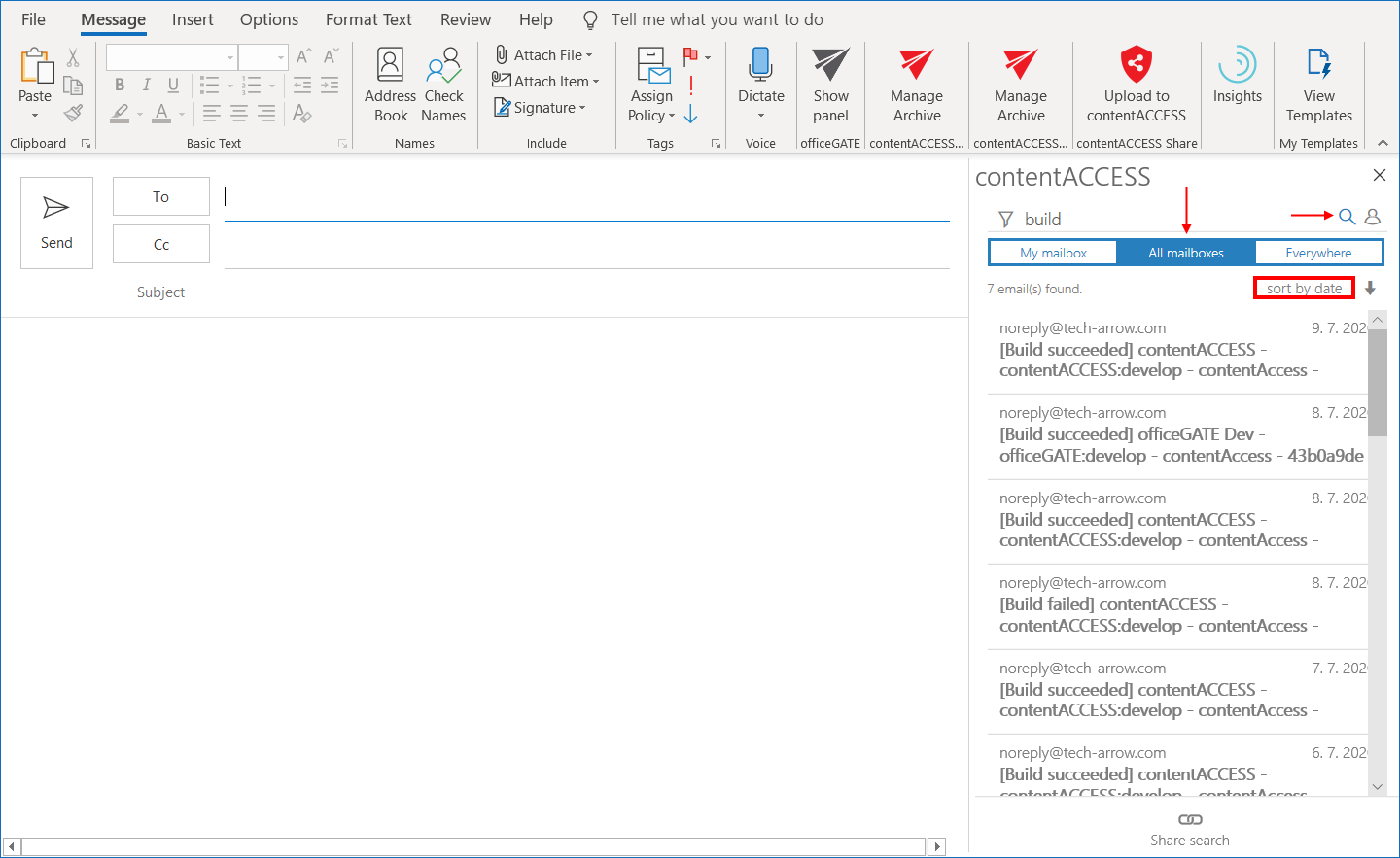
Enter the term you want to search for and select where you want to search by clicking the respective tab.
Click the search icon or press Enter. The search results are displayed.
You can sort the search results by:
- Date
- Title (subject)
- Best match when the Everywhere tab is selected.
Note: You can search only in entities that you have access to.
Share a whole search
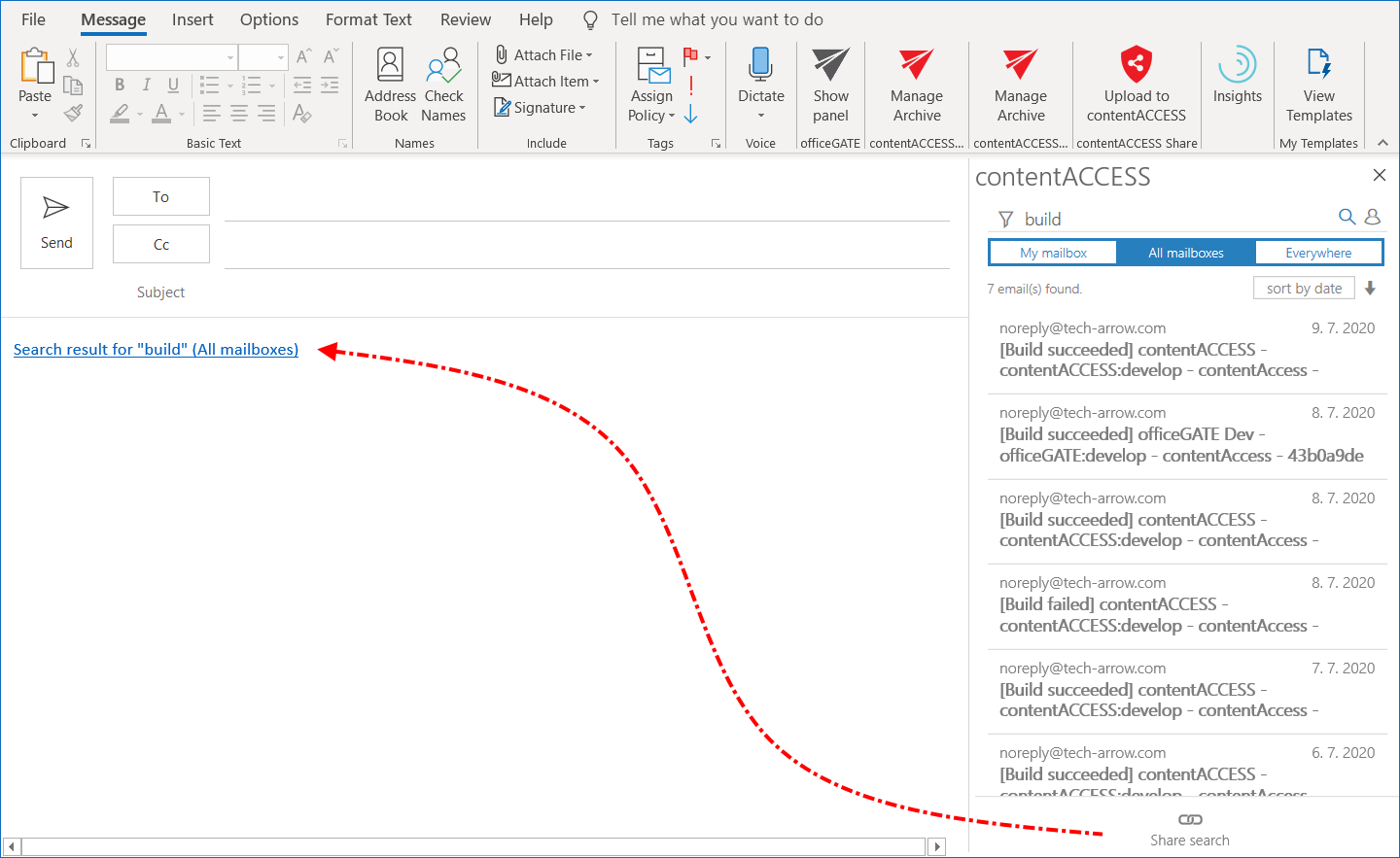
To share a link to the performed search, click Share search at the bottom of the MailApp pane.
The link is added to the body of the email.
Share selected emails
To share selected emails:
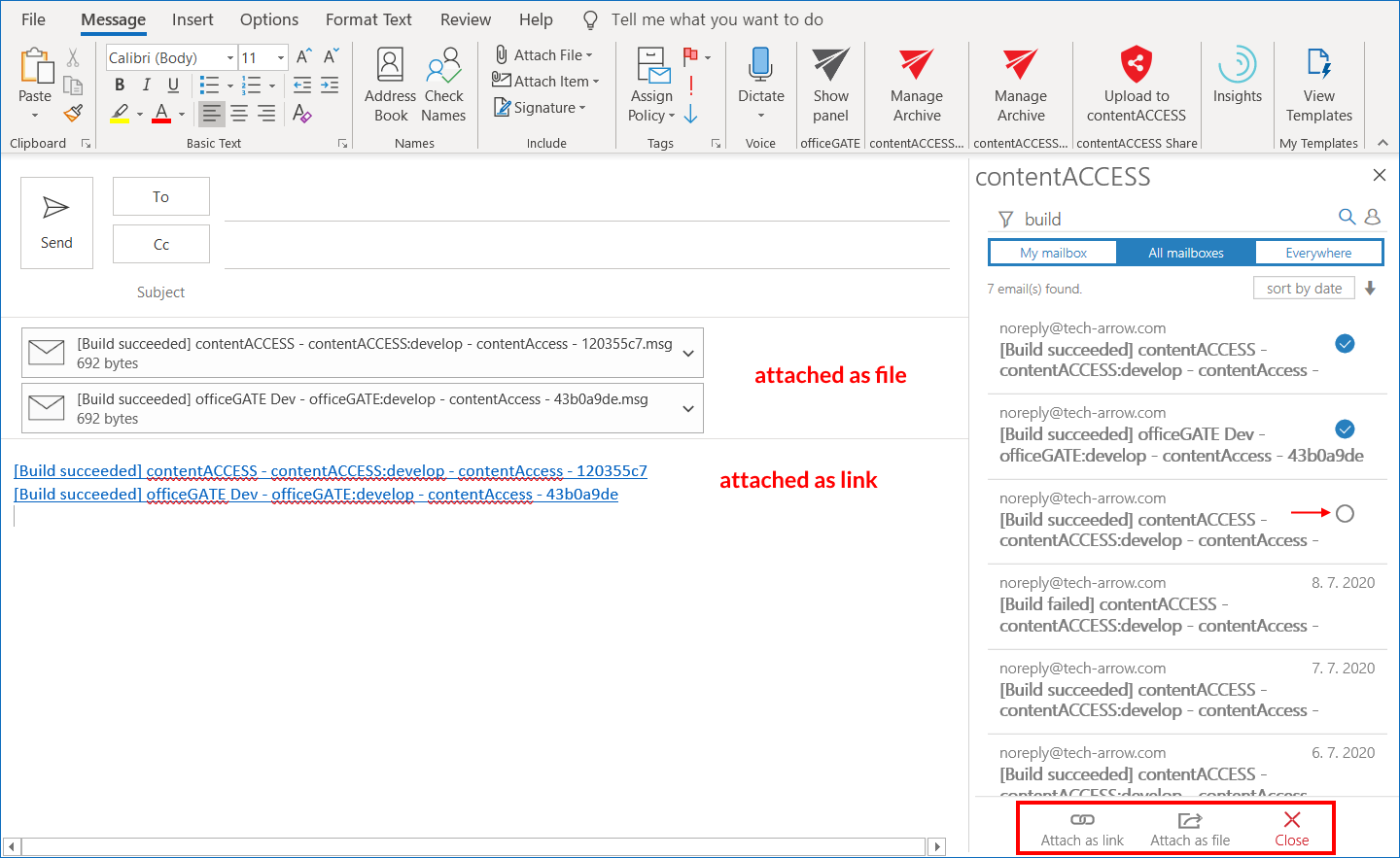
- Move the cursor over the email and select its checkbox.
- Select whether you want to attach the email to the message as a link or as an
.emlfile.
Open an archived email
To open an archived email, click the email.
A preview of the email is displayed. To open the original email, click Open at the bottom of the MailApp pane.