Connecting to OneDrive
Introduction
OneDrive is Microsoft's cloud storage service that allows users to store, synchronize, and share files across devices and with other people.
officeGATE integrates OneDrive into MS Outlook and provides quick access to documents stored in OneDrive folders. The OneDrive provider includes separate nodes for personal and business accounts, while locally synchronized OneDrive files are available under My Computer.
The OneDrive provider includes the following nodes:
- Personal – connects to the online OneDrive system using a personal Microsoft account, for example,
john.doe@gmail.com. - Business – connects to OneDrive for Business using a company account, for example,
john.doe@tech-arrow.com.
If OneDrive is installed on the computer, its locally synchronized files are also available under the My Computer node.
Configure OneDrive connections
You can choose whether to connect to your personal OneDrive account, your OneDrive for Business account, or both.
To configure the OneDrive connections:
-
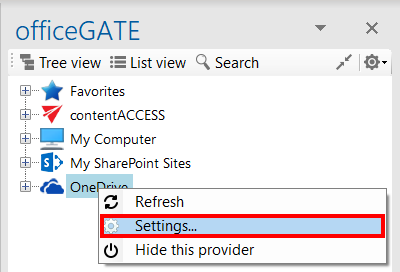
Open the OneDrive connector settings dialog by selecting Settings from the OneDrive provider's context menu or from the officeGATE Settings dialog under Providers.
-
Select the checkbox for each OneDrive system that you want to connect to.

-
Click Save.
Sign in to OneDrive
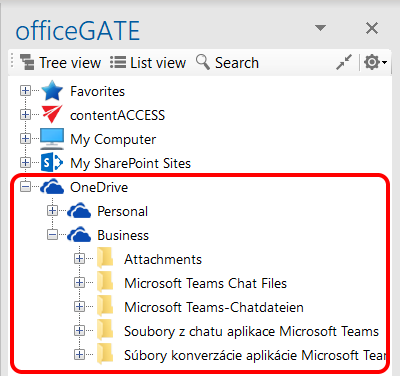
After enabling the required OneDrive connections, expand the Personal or Business node in the officeGATE pane.
A Microsoft authentication window opens.
-
Enter your credentials.
-
Click Sign in.
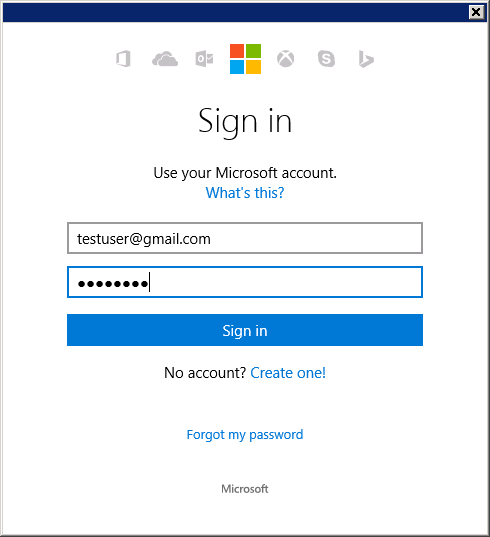
Signing in to OneDrive with a personal account
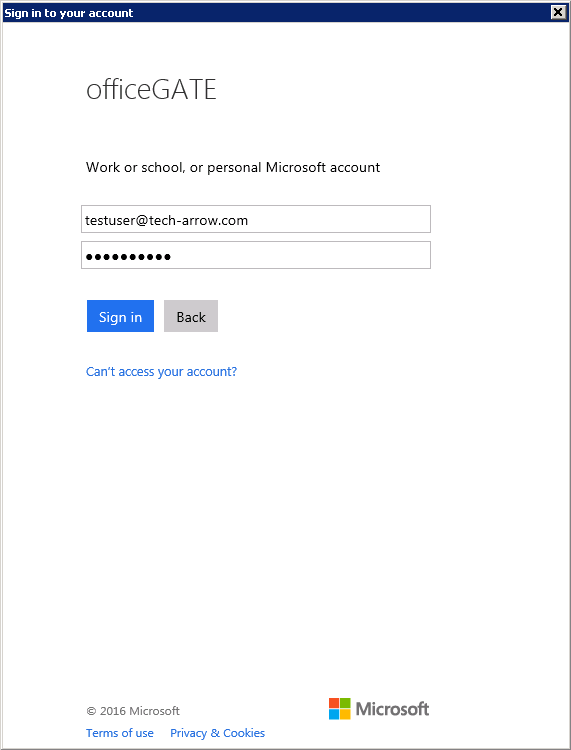
Signing in to OneDrive for Business with a business account
-
Expand the Personal or Business folder and wait for the contents to load.
-
Work with the available files and folders in officeGATE.
Sign in with a different account
To sign in with a different OneDrive account:
- Open the OneDrive connector settings dialog.
- Click Sign out all.
- Sign in again using the required account credentials.
