Connecting to SharePoint site(s)
Introduction
The SharePoint provider allows officeGATE to connect to multiple SharePoint sites. Users can configure individual site connections, use a global user for multiple sites, and choose between different authentication methods.
The SharePoint provider supports the following SharePoint versions:
- Microsoft 365
- SharePoint 2013
- SharePoint 2010
- SharePoint Foundation
Note: The SharePoint provider does not support login for external users. An external user is someone from outside your Microsoft 365 subscription to whom you have given access to one or more sites, files, or folders.
Configure SharePoint connection settings
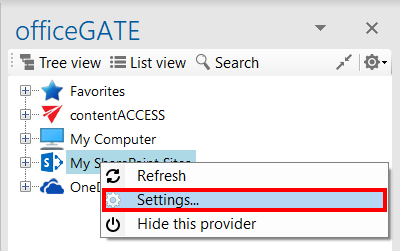
Open the SharePoint connector settings dialog by selecting Settings from the SharePoint node's context menu, or from the officeGATE Settings dialog under Providers.

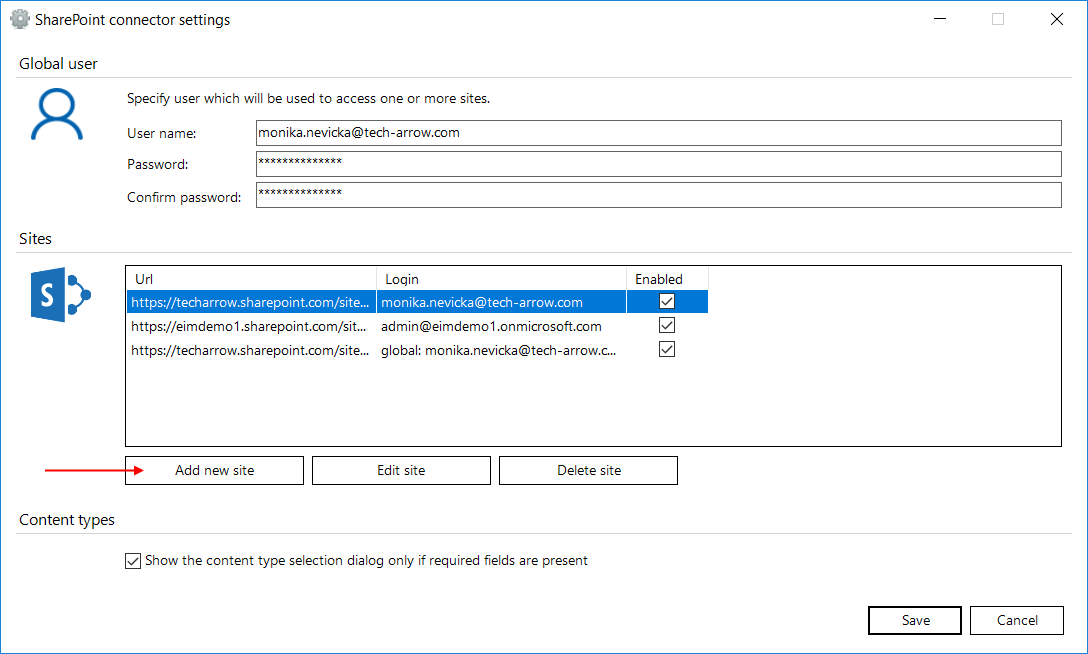
The SharePoint connector settings dialog allows you to configure a Global user. The global user can be used to connect to multiple sites without entering the same credentials repeatedly.
If the global user credentials are changed, the new credentials are used for all sites configured to use the global user.
officeGATE supports connections to multiple SharePoint sites. Already connected sites are listed in the SharePoint connector settings dialog. When connecting to SharePoint for the first time, the list is empty.
To add a SharePoint site:
-
Click Add new site.
-
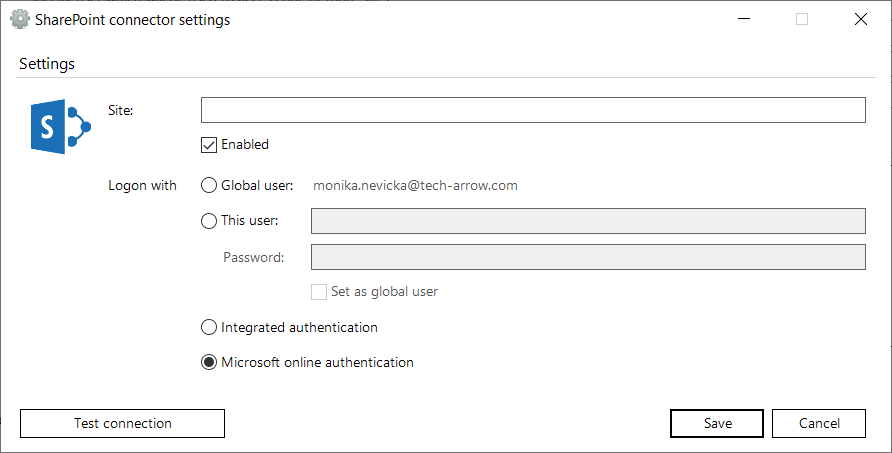
Enter the URL of the SharePoint site in the Site field.
-
Select Enabled to enable the site.
-
Select the authentication method:
- Use the previously configured Global user.
- Enter the credentials of a different user and optionally set this user as the global user.
- Select Integrated authentication to use the current Windows identity for authentication. When this option is selected, the Login and Password fields are disabled.
- Select Microsoft online authentication to use Modern authentication. When this option is selected, the Login and Password fields are disabled. For more information about Modern authentication, see the Microsoft documentation.
-
Click Test connection to verify the connection.
-
Click Save.
Configure content type and metadata prompts
The Show the content type selection dialog only if required fields are present option determines when the content type and metadata dialog is displayed during uploads to SharePoint.
- Option disabled – the dialog is displayed for every upload, regardless of whether required fields are present.
- Option enabled – the dialog is displayed only when uploading to containers that require these properties.
When the dialog is displayed, enter the required data before completing the upload.
Important: If officeGATE cannot establish a connection to SharePoint, one possible cause is that the SharePoint password has been changed on the server. In this case, update the password in officeGATE as well.
Edit SharePoint sites
SharePoint connection settings can be changed when, for example, the password has been changed.
To edit a SharePoint site:
-
Select the site that you want to edit.
-
Click Edit site.
-
Change the required settings, such as the URL, user, or password.
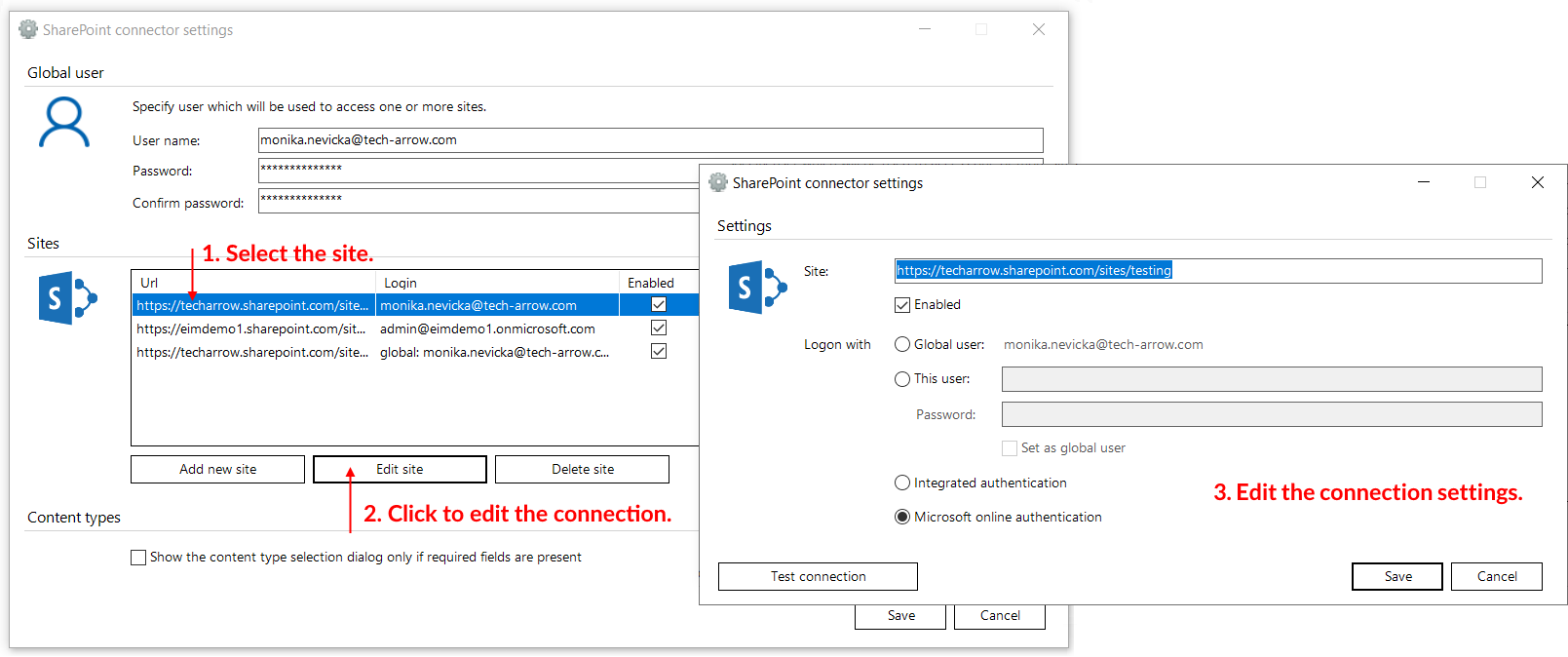
Screenshot A: Editing SharePoint site settings
Enable or disable SharePoint sites
SharePoint sites can be enabled or disabled from the SharePoint connector settings dialog.
To change the status of a site, select or clear the Enabled checkbox in the corresponding row.
A disabled SharePoint site is not connected to officeGATE and is hidden from the officeGATE pane.
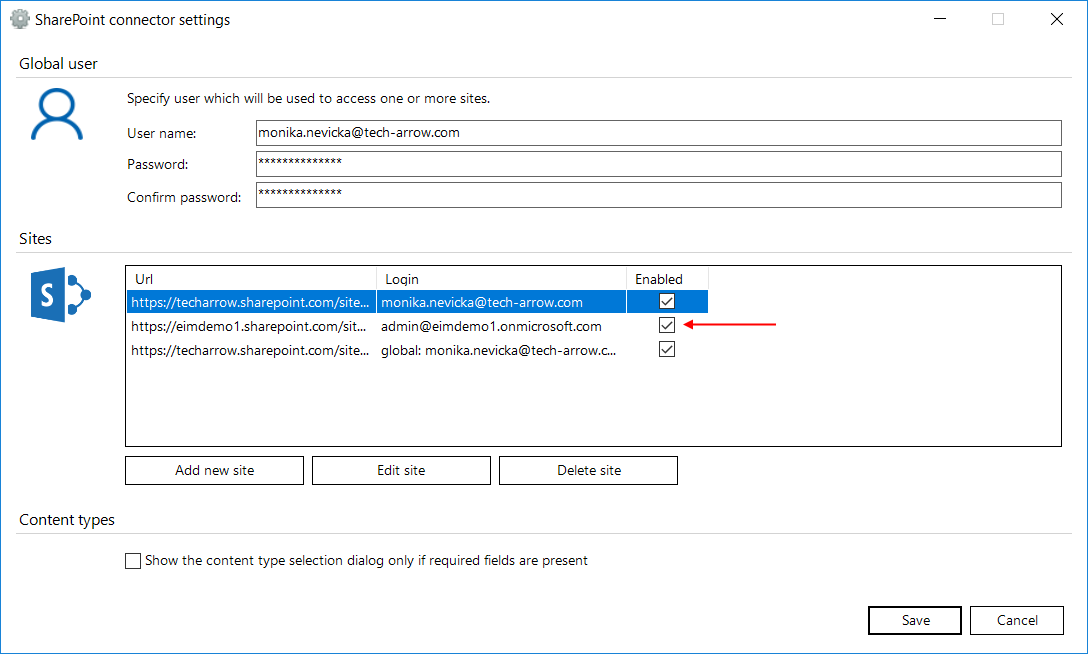
Screenshot B: Enabling or disabling SharePoint sites
Delete SharePoint sites
SharePoint sites can be removed from the list of configured sites.
To delete a site:
- Select the site in the list.
- Click Delete site.
- To connect to the site again, click Add new site and specify the required connection settings.
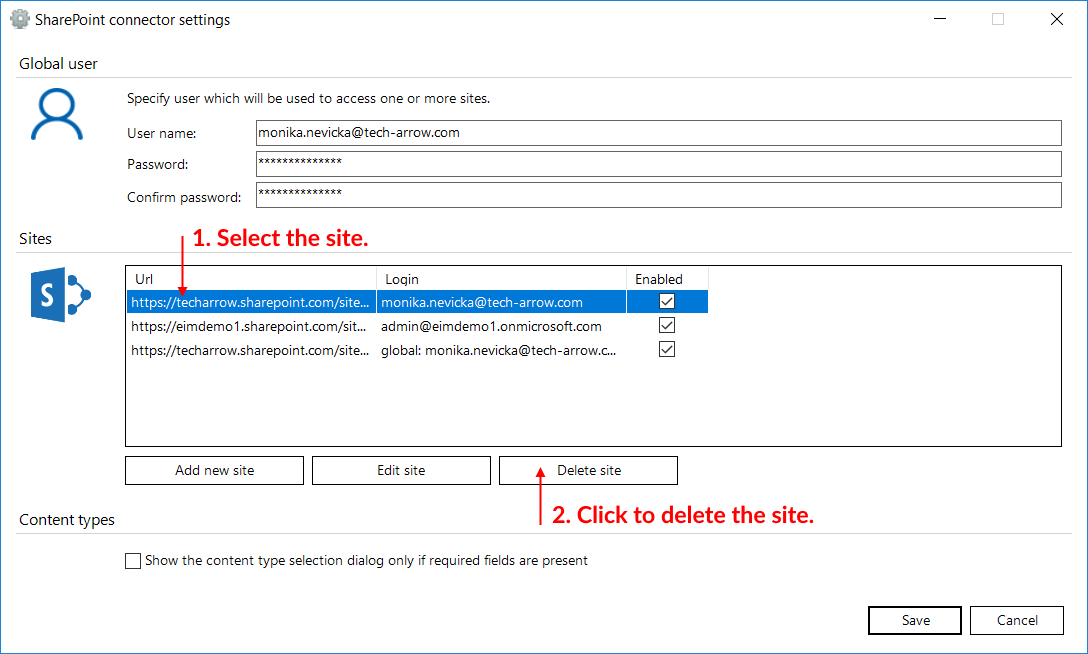
Screenshot C: Deleting SharePoint sites