Single installation of officeGATE
Introduction
The officeGATE installation wizard guides users through installing officeGATE on their PC. The installation includes selecting the language, accepting the license agreement, choosing the installation folder, and completing the setup.
Install officeGATE
-
Download the officeGATE setup package (
.exe). -
Select the installation language from the available languages.
 info
infoHint: Group Policy installation supports only English. For detailed information, see Installation of officeGATE in a distributed company environment using Group Policy.
-
Run the setup package and follow the on-screen instructions.

-
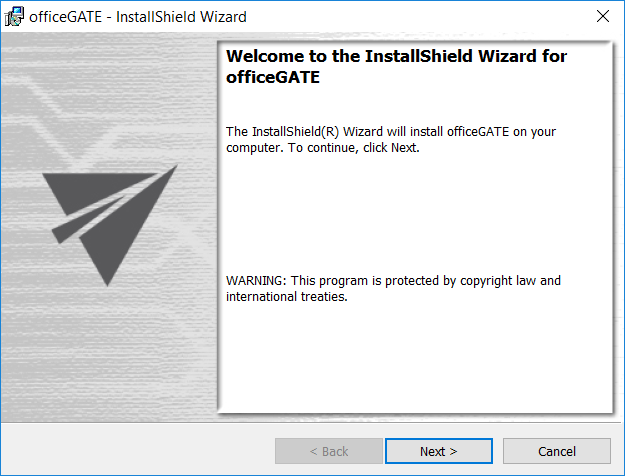
When the officeGATE InstallShield Wizard appears, click Next.
-
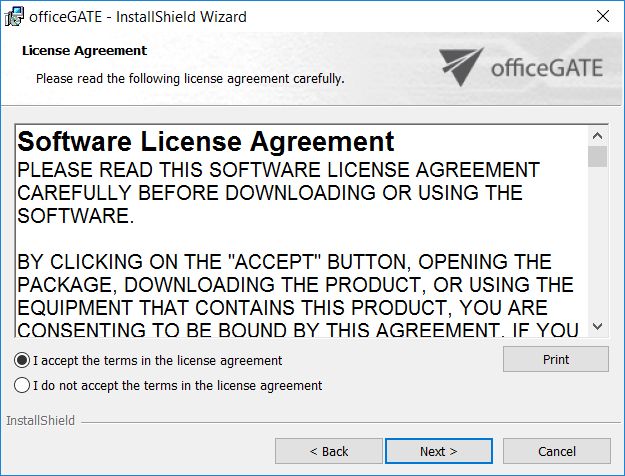
Select I accept the terms in the license agreement and click Next.
-
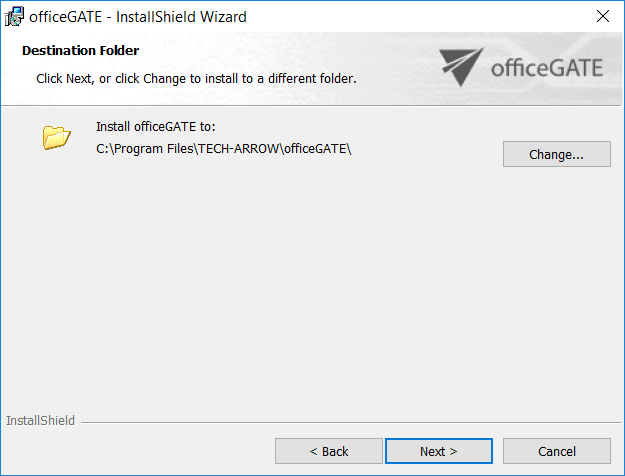
Select the destination folder where officeGATE will be installed and click Next.
-
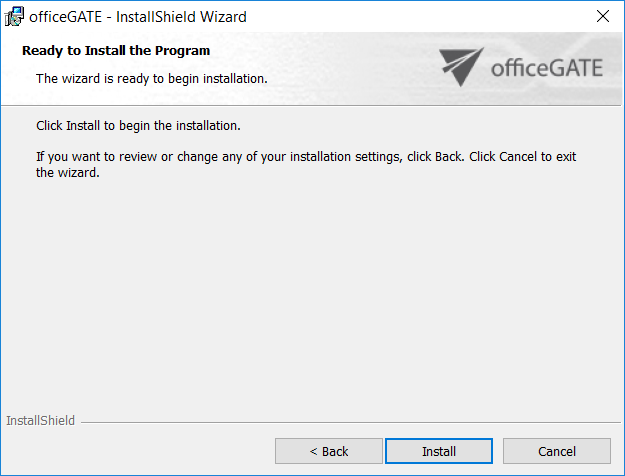
Click Install and then Finish to complete the installation.
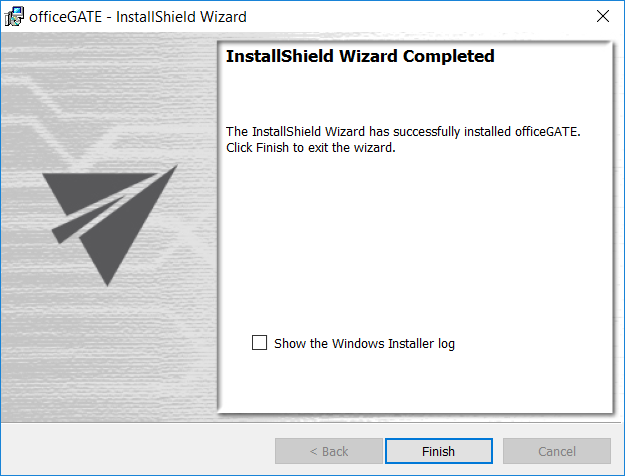
After the installation is complete, the final window allows you to open the Windows Installer log. To open the log, select Show the Windows Installer log. Otherwise, leave the checkbox cleared.
Open officeGATE in MS Outlook after the installation is complete. If MS Outlook was already open during the installation, restart MS Outlook before using officeGATE.
Activate officeGATE
If you downloaded and installed officeGATE from Central Administration, complete the additional configuration described in the following sections.
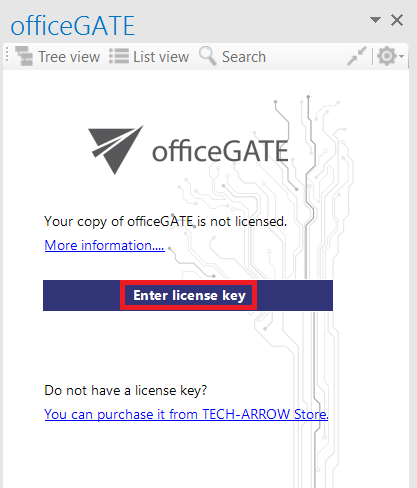
If you purchased officeGATE from the store and installed it from the Download Center, enter and activate the license key to complete the setup.