Attaching files to email message
Introduction
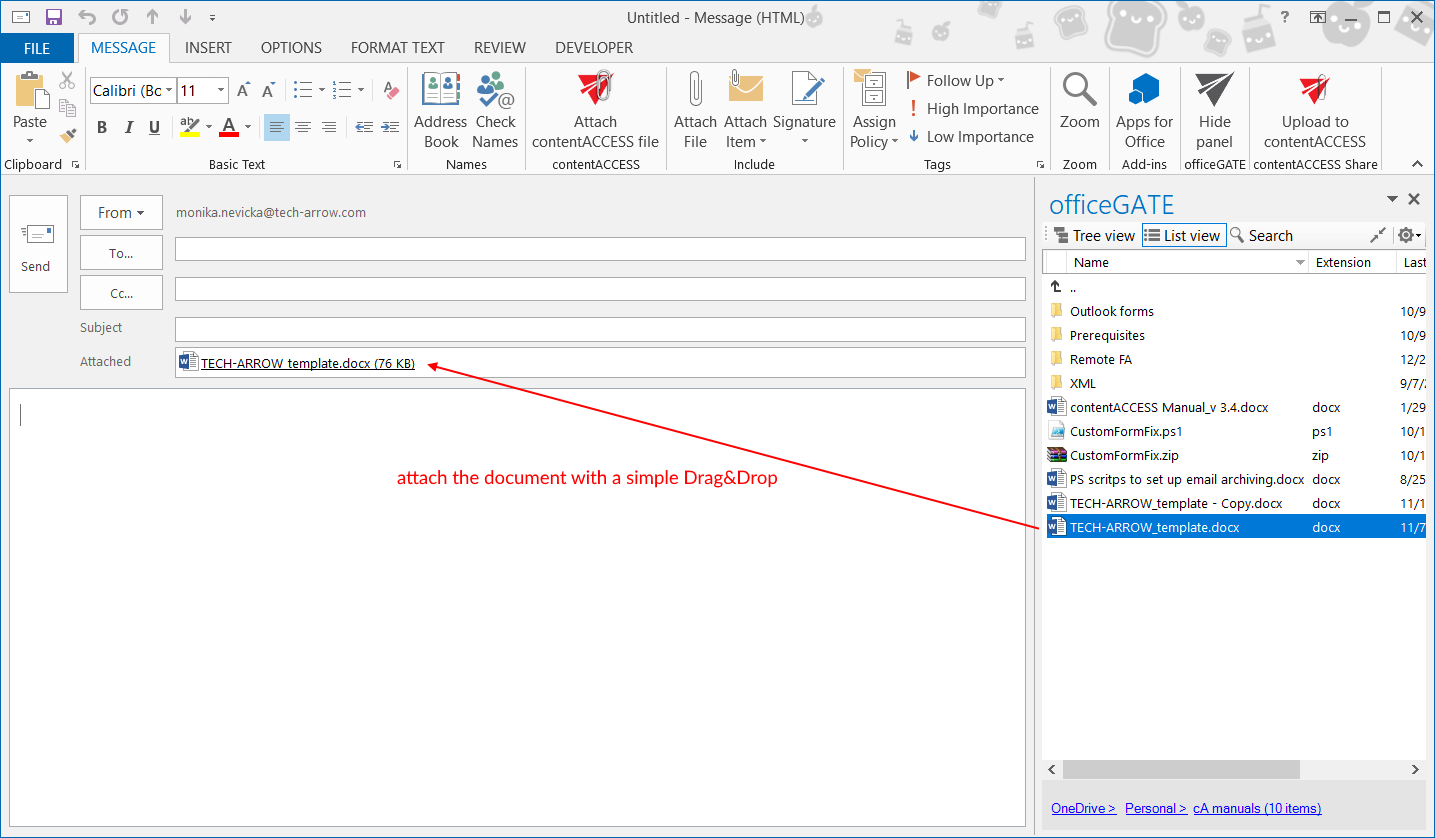
The Drag & Drop function in Microsoft Outlook allows users to attach one or more files to a new email directly from the officeGATE sidebar. Files can be added either as email attachments or as links, depending on the General settings configuration.
Attach files using Drag & Drop
To attach files to a new email:
- In Microsoft Outlook, click New Email to open a compose window.
- In the compose window's sidebar, locate the file or files that you want to attach.
- Drag and drop the selected file or files into the email message.
Multiple files can be dragged and dropped at once.
Depending on the configuration in General settings, the files can be added either as attachments or as links. For more information, see General officeGATE settings.