Uploading emails/attachments directly from the mailbox
Introduction
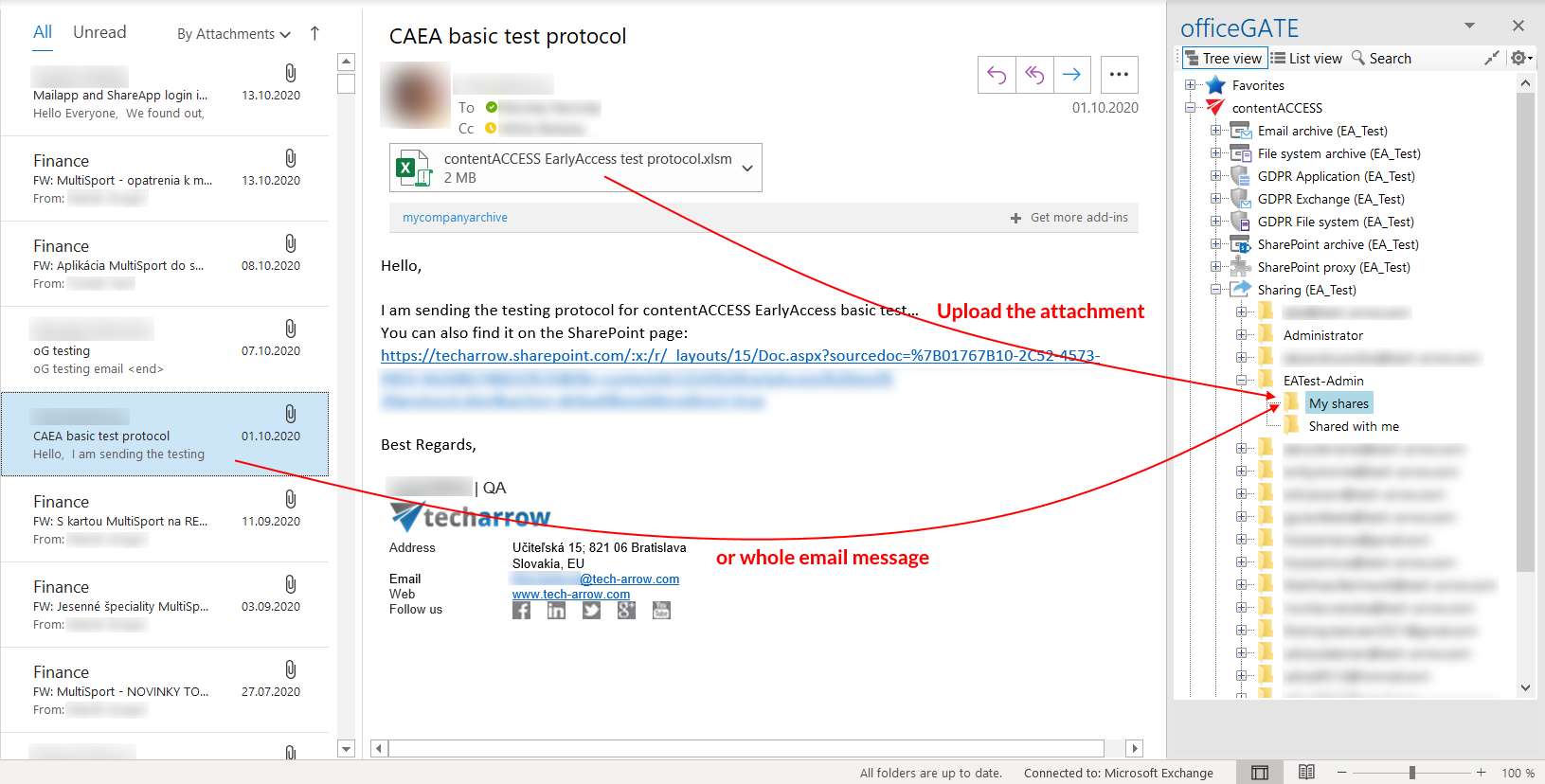
The Drag & Drop function allows users to upload email attachments directly to a selected folder or library of a provider. The whole email message can also be uploaded as an .msg file.
When uploading to Sharing in contentACCESS, files can only be uploaded to the My Shares folder of the currently logged-in user. In this example, the logged-in user is EATest-Admin.
Upload email attachments using Drag & Drop
To upload an email attachment:
- Open the email message containing the attachment.
- Locate the destination folder or library in the officeGATE pane.
- Drag and drop the attachment into the desired folder or library.
You can also drag and drop the whole email message to upload it as an .msg file.