Handling emails – archive, restore, search
Introduction
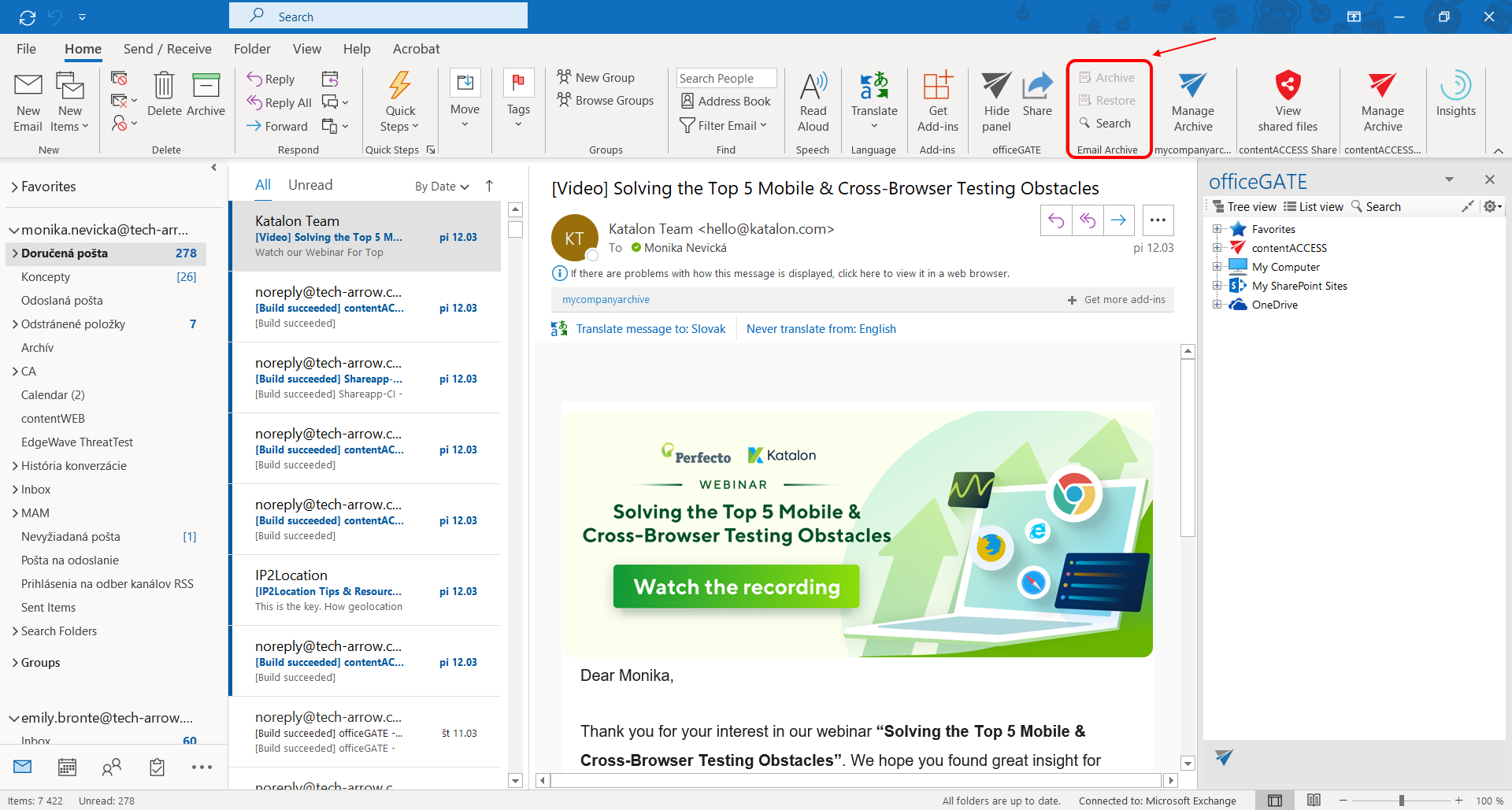
The email archive functions in officeGATE allow users to Archive, Restore, and Search archived emails directly from Microsoft Outlook.
Prerequisites
Before using the email archive functions, the following requirements must be met:
- officeGATE must be connected to contentACCESS.
- Email archive must be configured for the selected mailbox.
- The Email archive job must have been run at least once for the mailbox.
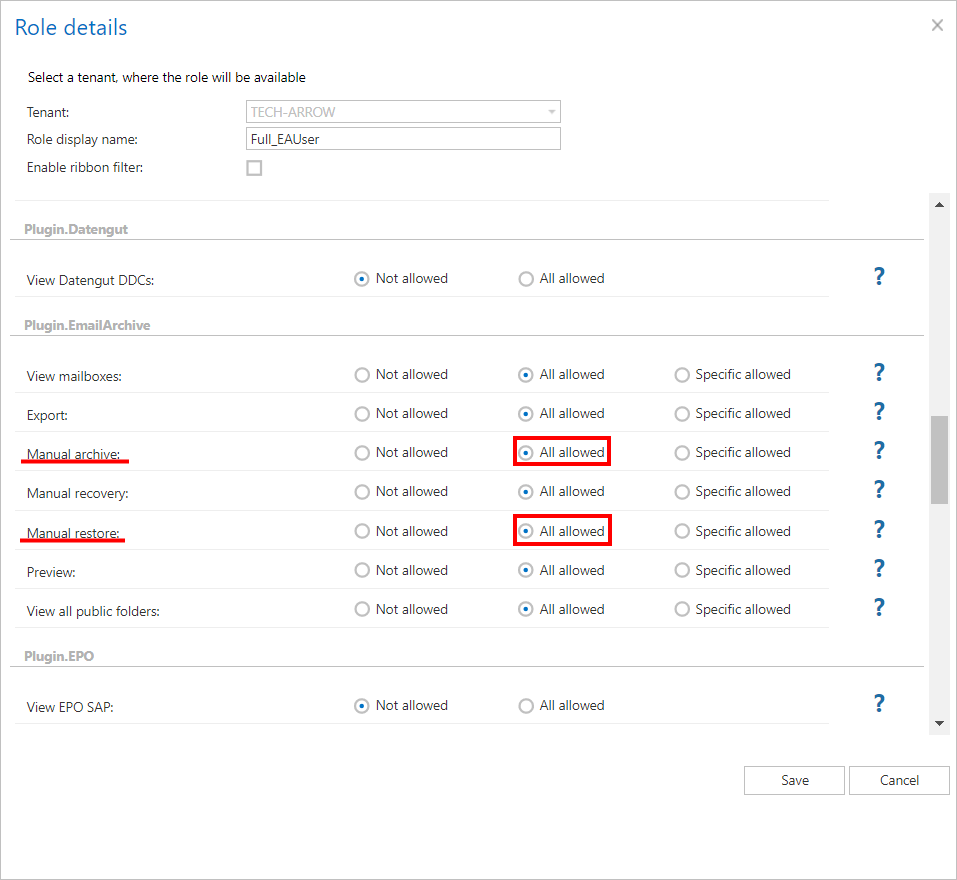
- The signed-in user must have the required permissions enabled in their role in contentACCESS.
Archive and restore emails
The available Archive and Restore options depend on whether the email has already been archived:
- If the email has already been archived, Archive is disabled and Restore is enabled (Screenshot A).
- If the email has not been archived yet, Restore is disabled and Archive is enabled (Screenshot B).
When an item is archived, the properties configured for the mailbox in the Address book are applied to the email.

Screenshot A

Screenshot B
Note: For more information about email archiving and restoring, see Email archive job and Email restore job.
Note: The Split attachments option is enabled by default. This means that the email body and its attachments are stored separately.
If an email containing attachments was archived by a job with Split attachments disabled, the MailApp, officeGATE, and contentACCESS Mobile applications will show 0 attachments. However, when the original email is opened, the attachments are displayed.

If Split attachments is enabled and the email contains an embedded email (.msg attachment), the embedded email is not displayed among the attachments in these applications.
Search archived emails
To search for emails, they must have been archived and processed by the indexing job first.
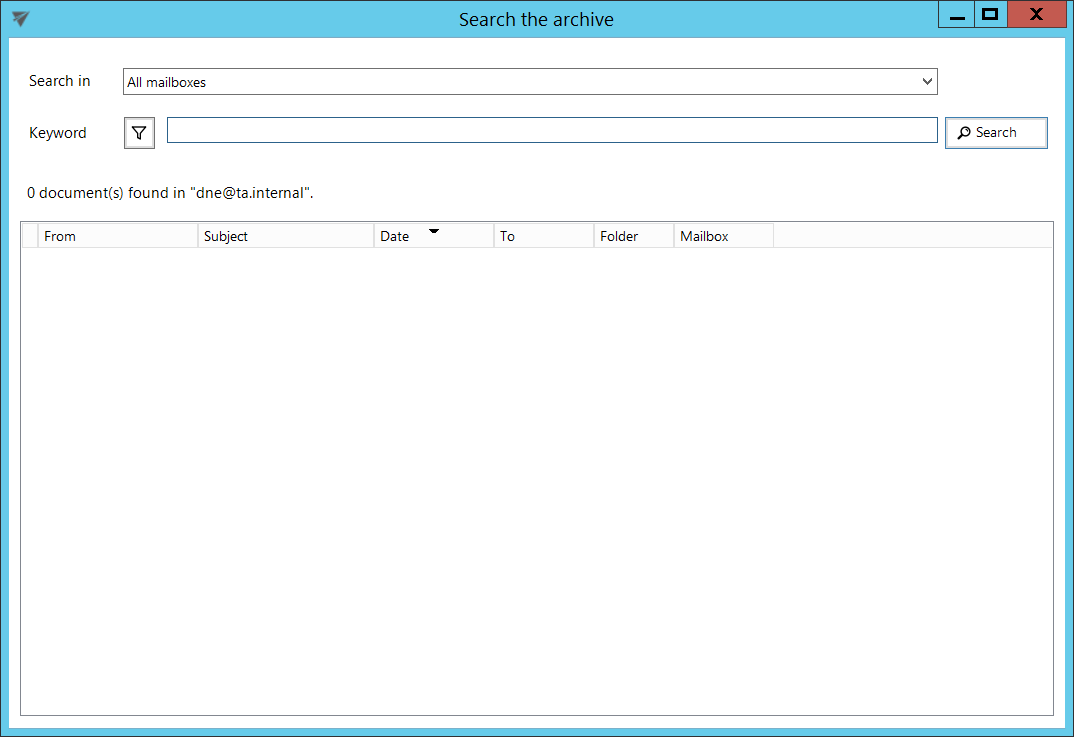
Click Search to open the search pop-up window.
Select the search location
Use the Search in drop-down list to select the location to search in.

Refine the search
To specify the properties to search for, click the Search refinement icon.

After selecting a search option, it is added to the Keyword list, where you can define its value.
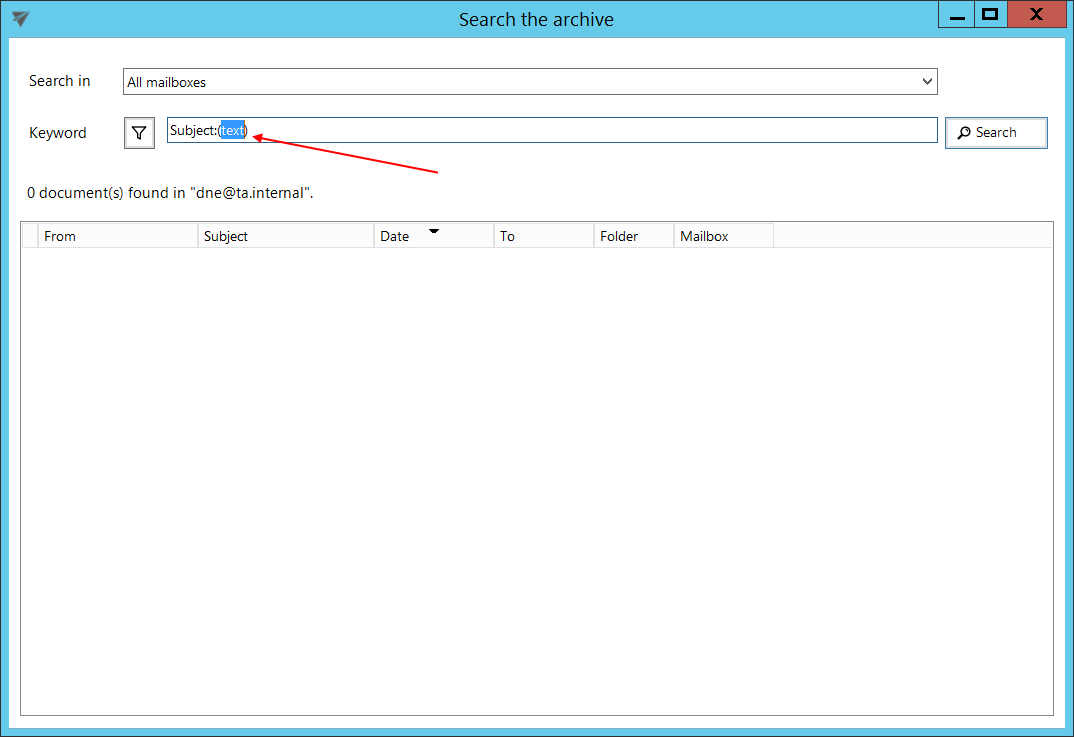
The following properties can be selected from predefined options instead of being specified manually:
- Sent date
- Received date
- Has attachment
- Importance
- Sensitivity

Screenshot: Sent date/Received date options

Screenshot: Has attachment options

Screenshot: Importance options

Screenshot: Sensitivity options
Sort search results
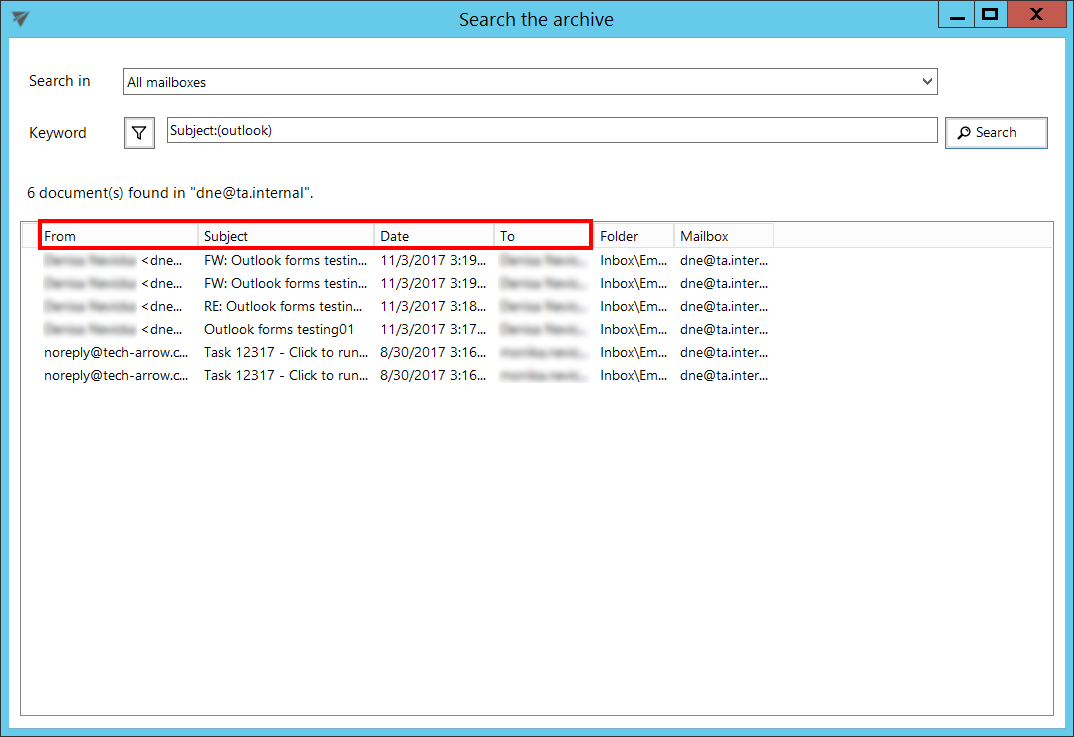
Search results can be sorted by:
- Sender (From)
- Subject
- Sent date (Date)
- Recipient (To)
Process search results
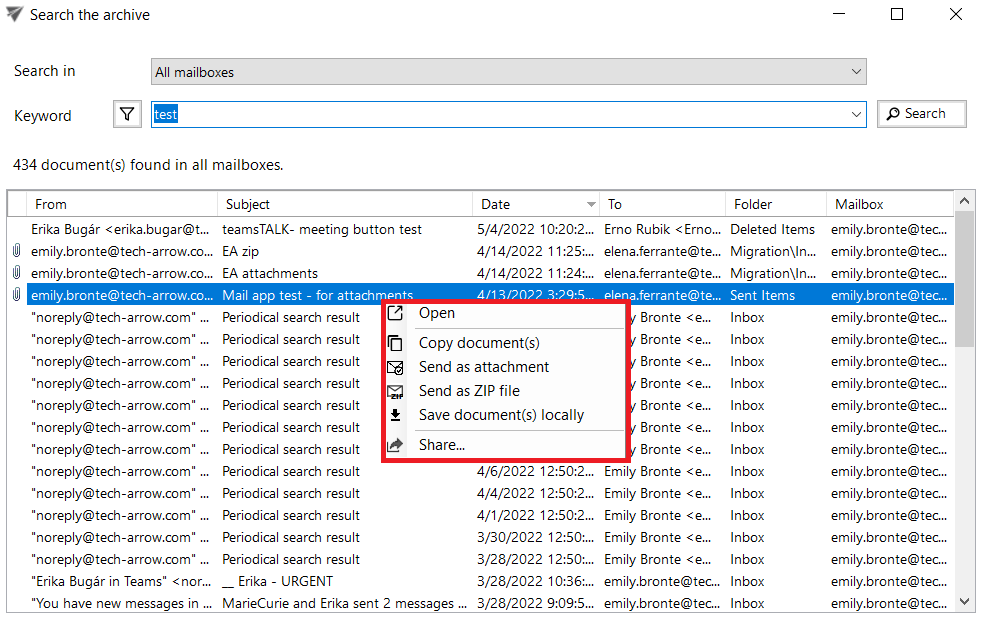
Search results can be processed further using the context menu.