Launching officeGATE
Introduction
The officeGATE panel allows users to access officeGATE directly from MS Outlook. Users can show or hide the panel from the Outlook ribbon and also access it while composing an email.
When officeGATE is installed from the TECH-ARROW store, the panel also displays subscription and trial information.
This page explains how to open the officeGATE panel, access it while composing an email, and review the trial and subscription notifications shown in the panel.
Open the officeGATE panel
To show or hide the officeGATE panel:
-
Open MS Outlook.
-
Click Show panel / Hide panel on the Outlook ribbon.

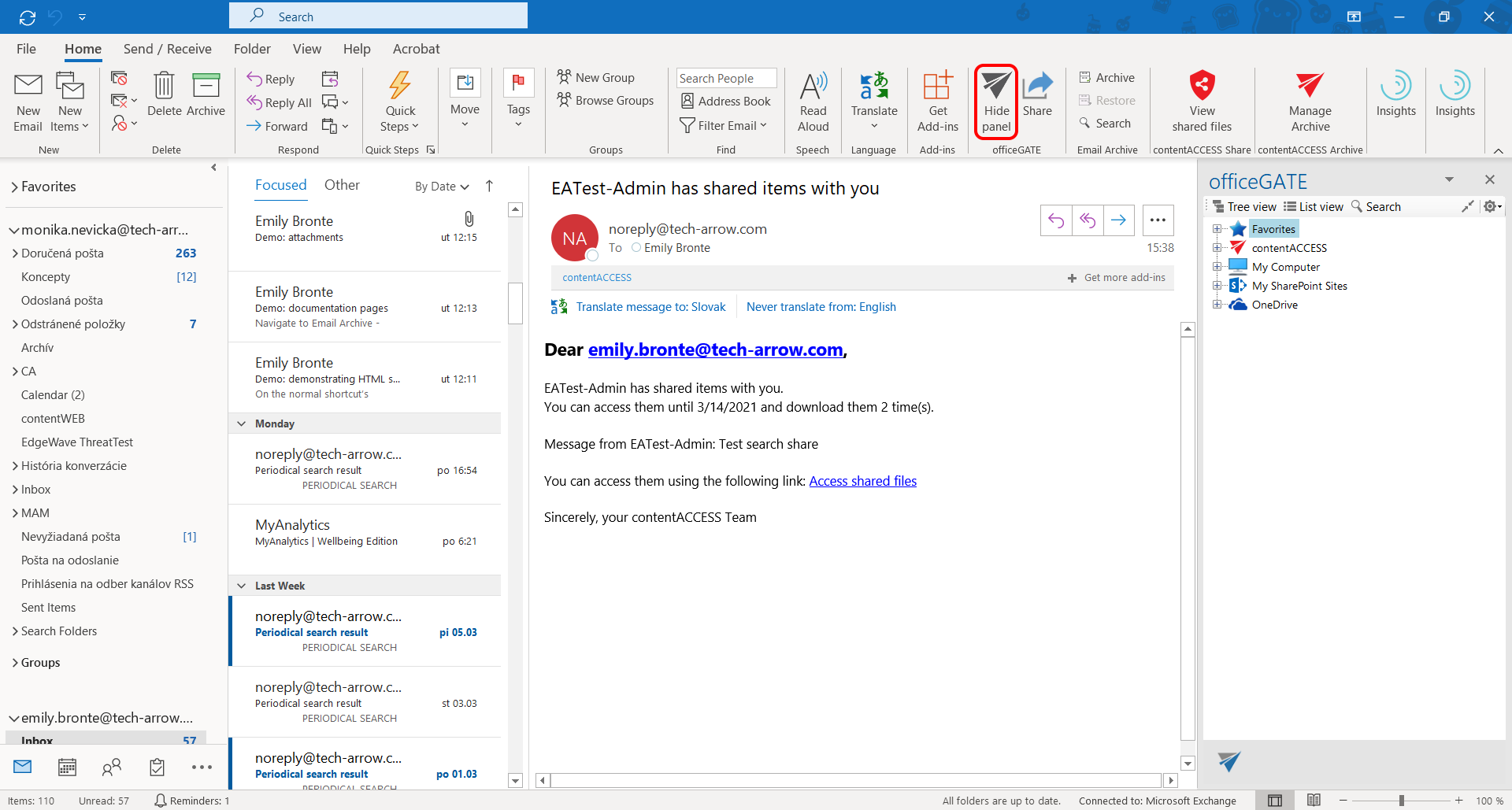
Click the button again to hide the officeGATE panel.
Open officeGATE while composing an email
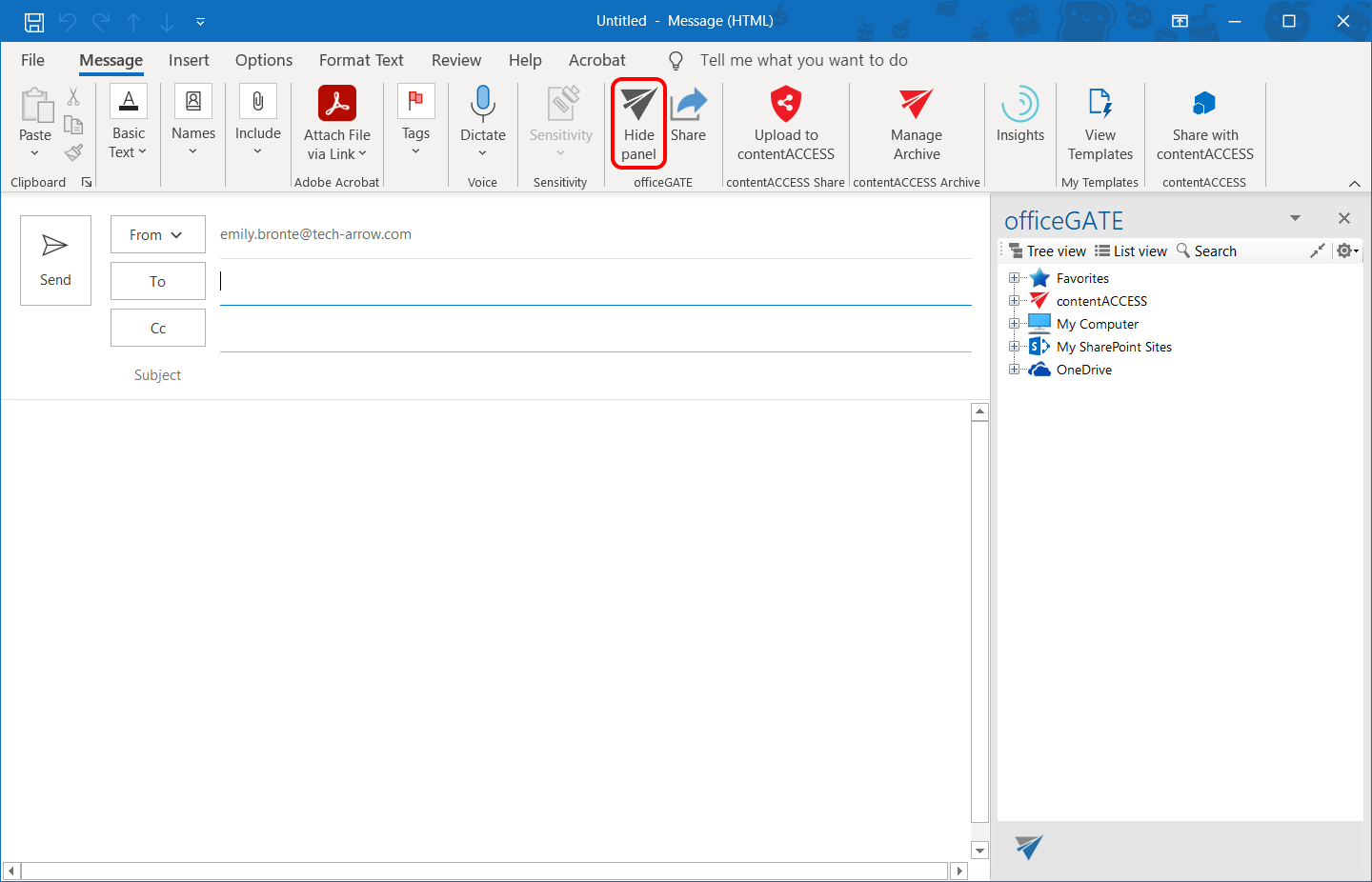
The officeGATE panel can also be accessed from a compose email message window.
To show the panel, click the officeGATE button in the message.
Trial and subscription notifications
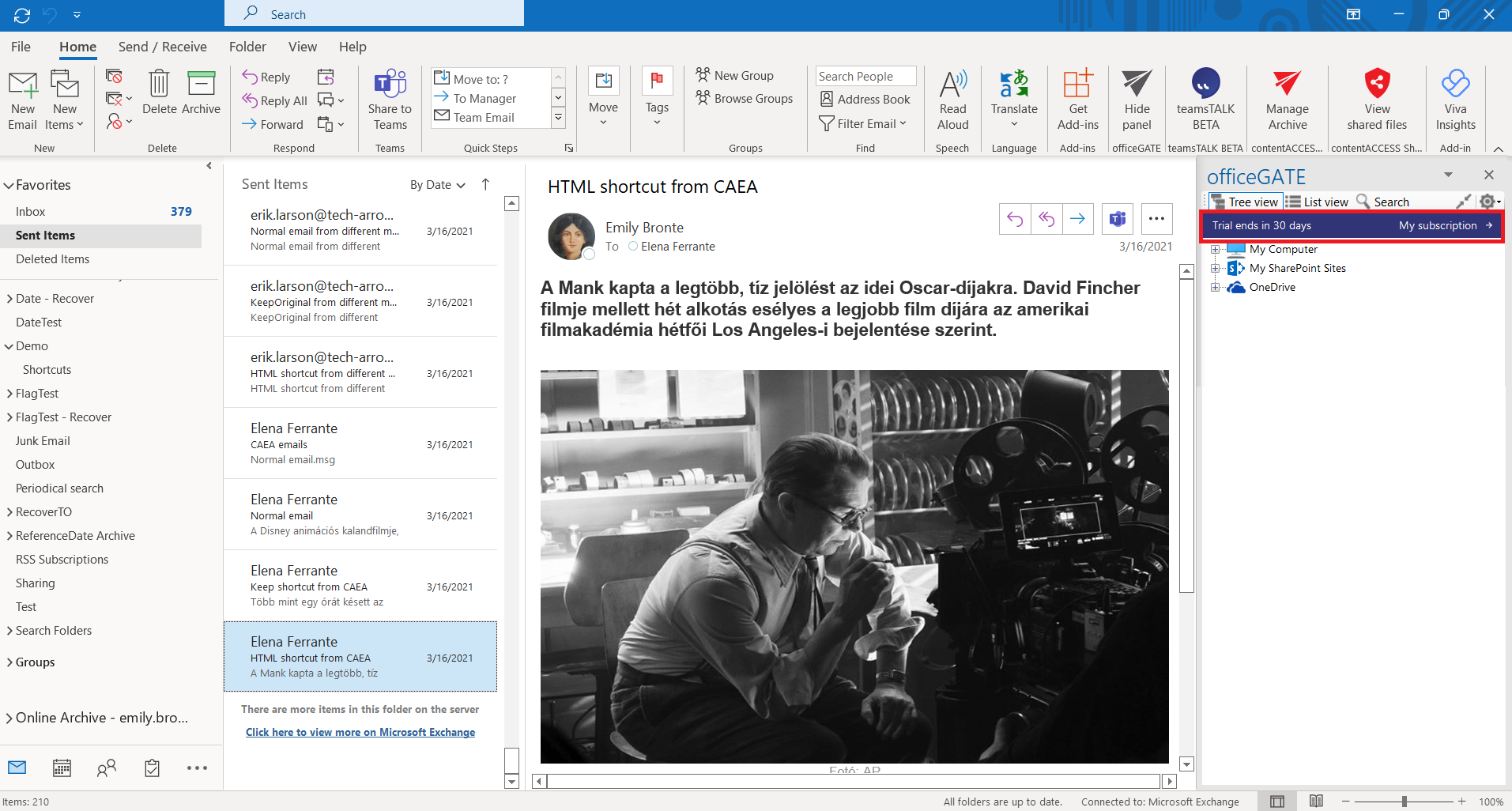
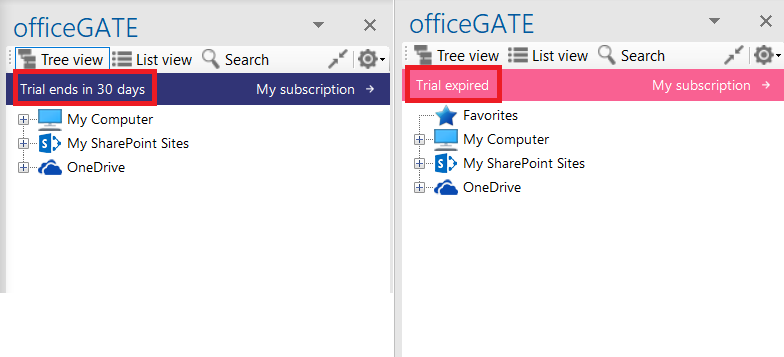
When officeGATE is downloaded and installed from the TECH-ARROW store, a notification bar is displayed in the officeGATE pane.
The notification bar allows users to:
- Check when the trial or subscription ends.
- Open My subscription to view their account, orders, downloads, and account details in the TECH-ARROW store.
The notification bar is displayed throughout the trial period. After purchasing the required version, it is displayed again five days before the subscription expires.
When the trial or subscription ends, the same license key can still be used for seven days before the license expires. The license key and subscription can be renewed from the TECH-ARROW store.
During the trial period, the notification bar is blue. During the seven-day period after the trial or subscription ends, the bar changes from blue to pink and displays Trial expired.
Note: If you have trouble displaying officeGATE, see Troubleshooting.