License key activation
Introduction
The License details window in officeGATE allows you to view the current license information and activate a different license key. You can activate a license online or offline using the License Activation Wizard.
Activate a license
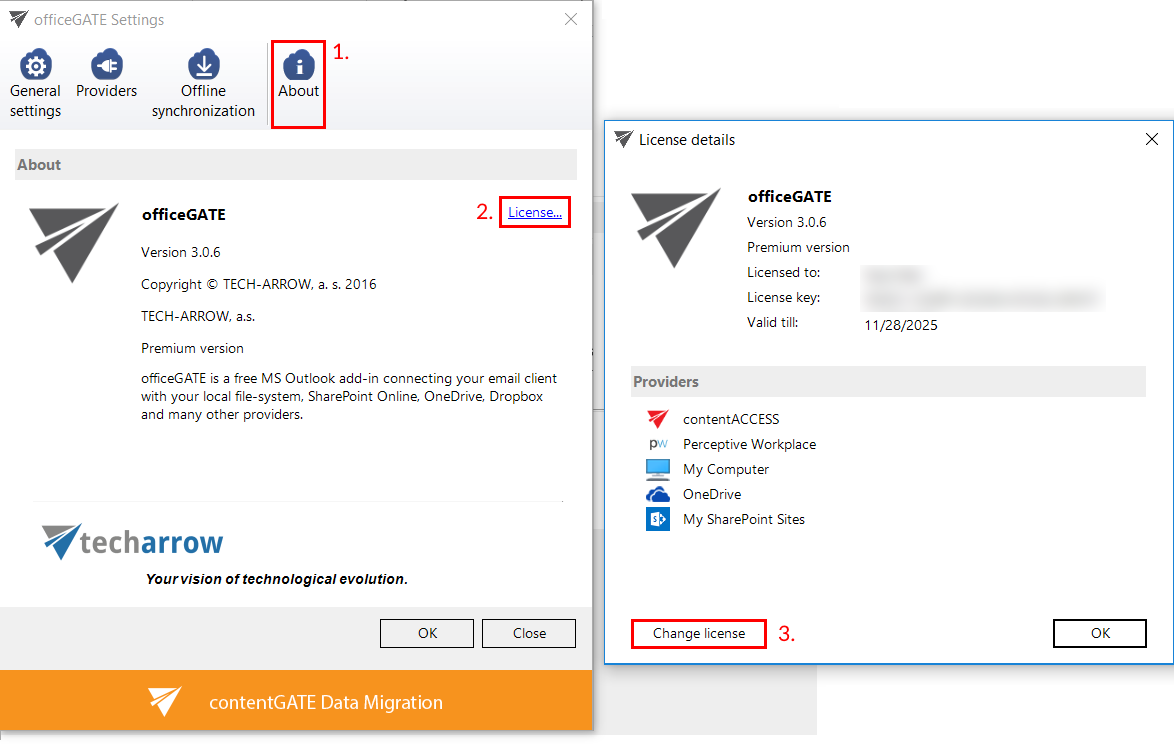
To view the current license details and activate a new license key:
- In the officeGATE Settings dialog, select the
 About tab.
 - Click License.
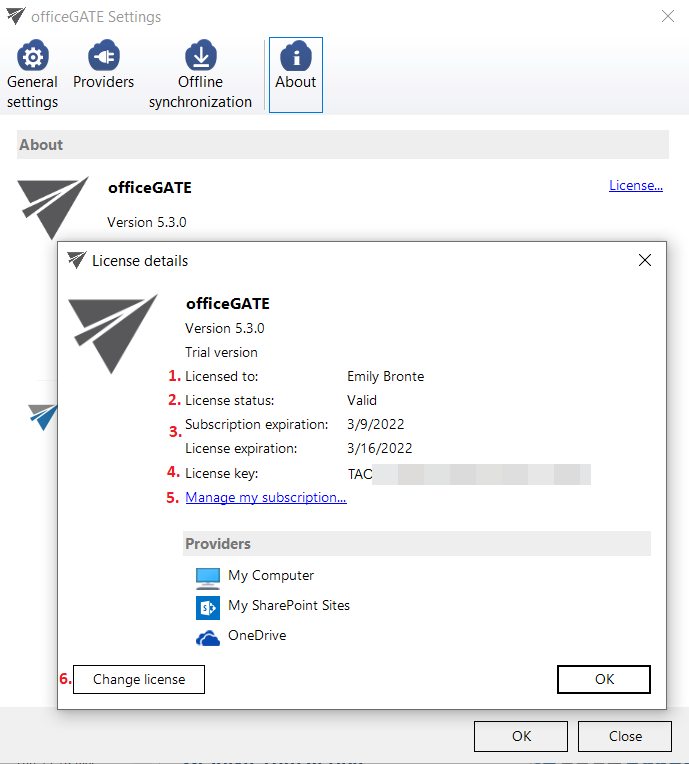
- The License details window displays the current license information.
- Click Change license to open the License Activation Wizard.
- Activate the new license key using one of the available activation methods.
If you previously used the free version of officeGATE and want to use the Premium version, activate the new license key in the License Activation Wizard.
There are two options for activating a license key:
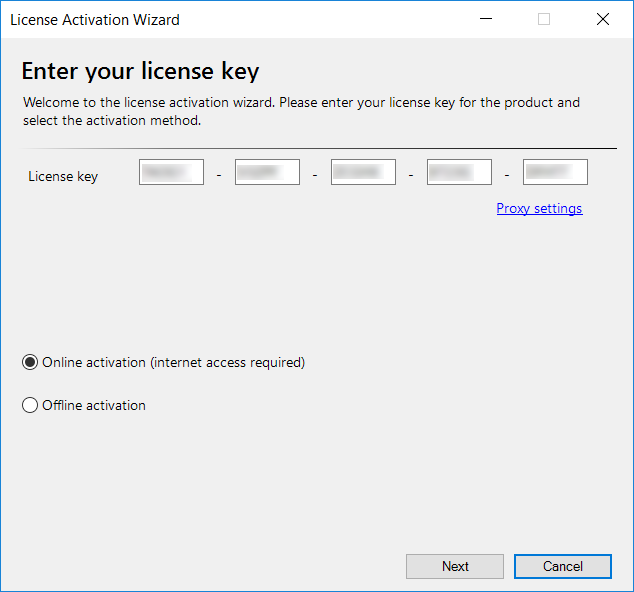
Online activation
If you choose online activation, internet access is required.
- Select the online activation option.
- Click Next.
- The license is activated automatically.
Offline activation
If you choose offline activation, internet access is not required.
-
Select the offline activation option.
-
Click Next.
-
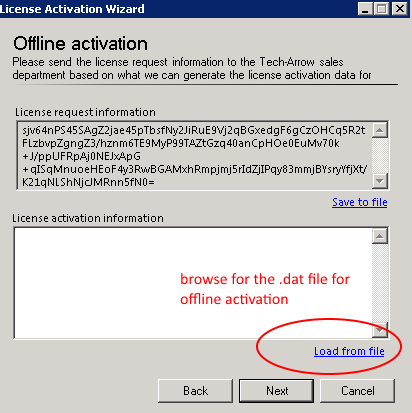
Copy the License request information from the textbox and send it to the TECH-ARROW sales department.
Alternatively, use Save to file to save the license request information in
.datformat and send the file as an attachment. -
The TECH-ARROW sales department generates the activation data and sends the
.datfile back to you. -
Under the License activation information box on the right side, click Load from file.
-
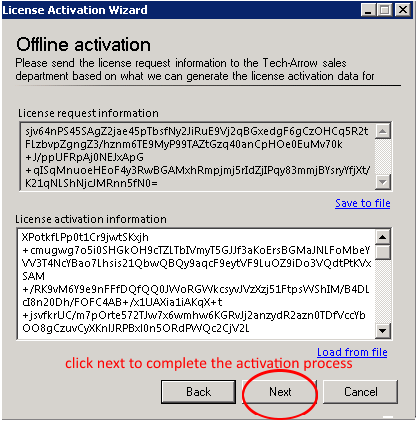
Select the
.datfile received from the TECH-ARROW sales department. -
Click Next to activate the license key.
License details
If officeGATE was purchased from the store, the License details window contains the following information:
- Licensed to: Displays the owner of the license.
- License status: Displays whether the license is valid or expired.
- Subscription expiration and License expiration: Subscription expiration shows when the free trial ends. After the trial ends, the same license key can be used for 7 days before the license expires (License expiration). This 7-day period provides time to purchase the required version of the product.
- User's license key: Displays the user's license key.
- Manage my subscription: Opens the user's account in the TECH-ARROW store.
- Change license: Opens the License Activation Wizard, where you can activate a different license key.
The license key can be renewed by purchasing the required version from the store.
Note: The available providers depend on the type of license key. The contentACCESS provider is not supported with the subscription-based version. Only My Computer, My SharePoint Sites, and OneDrive are available with this version.