Enabling offline file access
Introduction
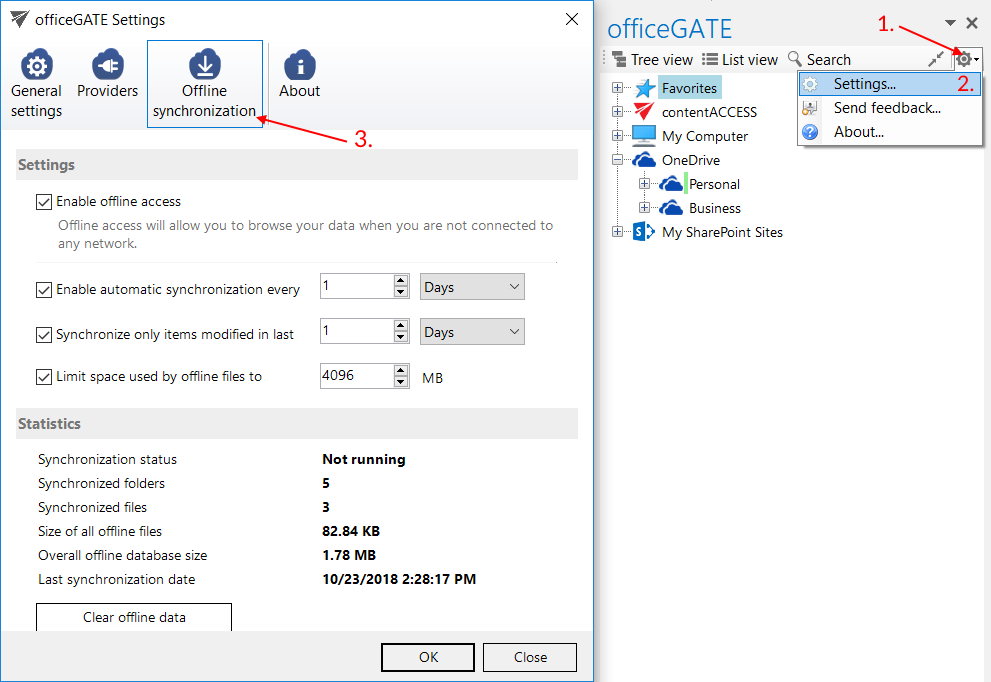
The Offline synchronization settings in officeGATE allow you to enable offline access and configure how offline files are synchronized. You can also limit the age of synchronized items and the amount of space used by offline files. The Statistics section provides information about the synchronization process and the offline database.
Configure offline synchronization
By default, offline access, and therefore offline synchronization, is turned off.
To configure the offline synchronization settings:
- Click the
 icon in the officeGATE pane's header bar.
 - Select Settings….
- Switch to Offline synchronization.
Enable offline access
To enable offline access for all web-based file systems available in officeGATE, select the Enable offline access checkbox.
After enabling this setting, the Enable offline access option appears in the context menu of files, folders, and libraries.
Once offline access is enabled, you can select the desired libraries, folders, and files in the officeGATE pane to make them available in offline mode.
Enable automatic synchronization
You can also enable automatic synchronization of offline files in the Offline synchronization dialog.
When automatic synchronization is enabled, offline files are periodically synchronized with their online versions during the defined time slots, provided that a network connection is available again.
Limit synchronization by item age
To synchronize only items modified within a specific period, select the Synchronize only items modified in last checkbox and specify the desired age in days, weeks, months, or years.
Limit space used by offline files
To limit the space used by offline files, select the Limit space used by offline files to checkbox and specify the desired size in megabytes.
Statistics and offline database
The Statistics section displays the following information:
- the current status of the synchronization process;
- the number of synchronized folders and files;
- the size of the offline database.
The offline database is located in the following folder:
C:\Users\[MyUser]\AppData\Roaming\officeGATE
The database file is officeGATE.db.
To clear the offline database, click Clear offline data. This clears the offline database and disables offline access for all files and emails.