Connecting to contentACCESS
Introduction
The contentACCESS provider connects officeGATE to contentACCESS, allowing users to access contentACCESS documents directly from MS Outlook without switching to another application.
officeGATE supports contentACCESS 3.1 and higher. The connection can use a secure HTTPS connection through the contentACCESS proxy, an HTTP connection through the proxy, or a direct connection without a proxy.
Important: officeGATE version 2.9 and higher is compatible only with contentACCESS 3.1 and higher. Connecting to an older contentACCESS version results in a version incompatibility error.
Configure the contentACCESS connection
To open the contentACCESS connector settings dialog, click Settings in either the contentACCESS provider's context menu or the officeGATE Settings dialog.
The required connection settings depend on how officeGATE connects to contentACCESS.
Connect through the proxy using HTTPS
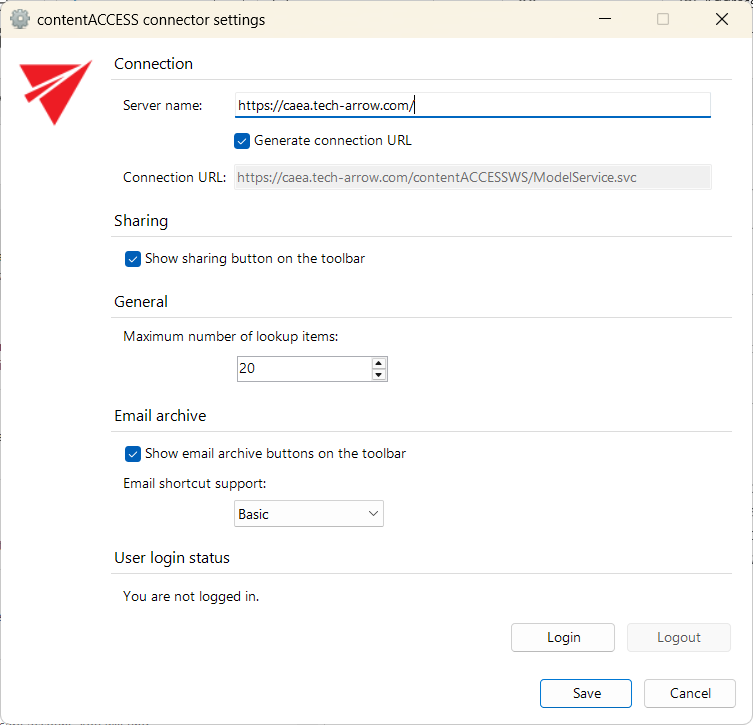
If you use the contentACCESS proxy (contentACCESSWS) with a secure HTTPS connection, configure the connection as follows:
-
Select Generate connection URL.
-
Enter the contentACCESS server name in the Server name field. The connection URL is generated automatically.
-
Specify the maximum number of lookup items. The default value is
20. -
Specify the default sharing settings. If the Sharing plugin is not licensed in contentACCESS, these settings can be ignored. For more information, see Sharing files and folders directly from MS Outlook.
-
Choose whether to display Email archive buttons on the Outlook toolbar.
-
Specify the Email shortcut support level: None, Basic, or Full.
-
Save the settings.
Connect through the proxy using HTTP
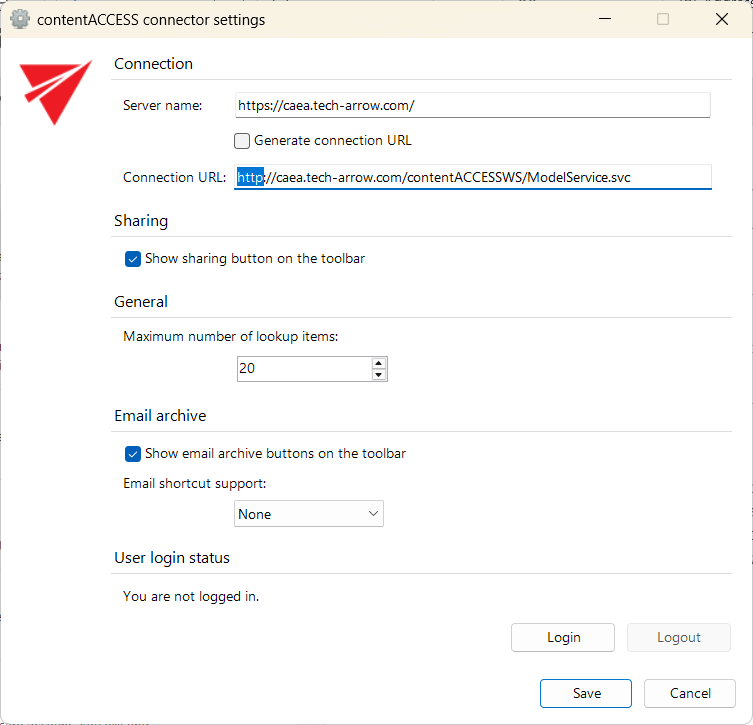
If you use the contentACCESS proxy (contentACCESSWS) without a valid certificate and therefore use an unsecured HTTP connection, configure the connection as follows:
-
Enter the contentACCESS server name in the Server name field.
-
Enter the HTTP connection URL with the correct server name in the Connection URL field:
http://[ServerName]/contentACCESSWS/ModelService.svc -
Specify the default sharing settings. If the Sharing plugin is not licensed in contentACCESS, these settings can be ignored. For more information, see Sharing files and folders directly from MS Outlook.
-
Specify the maximum number of lookup items. The default value is
20. -
Choose whether to display Email archive buttons on the Outlook toolbar.
-
Specify the Email shortcut support level: None, Basic, or Full.
-
Save the settings.
Connect directly without a proxy
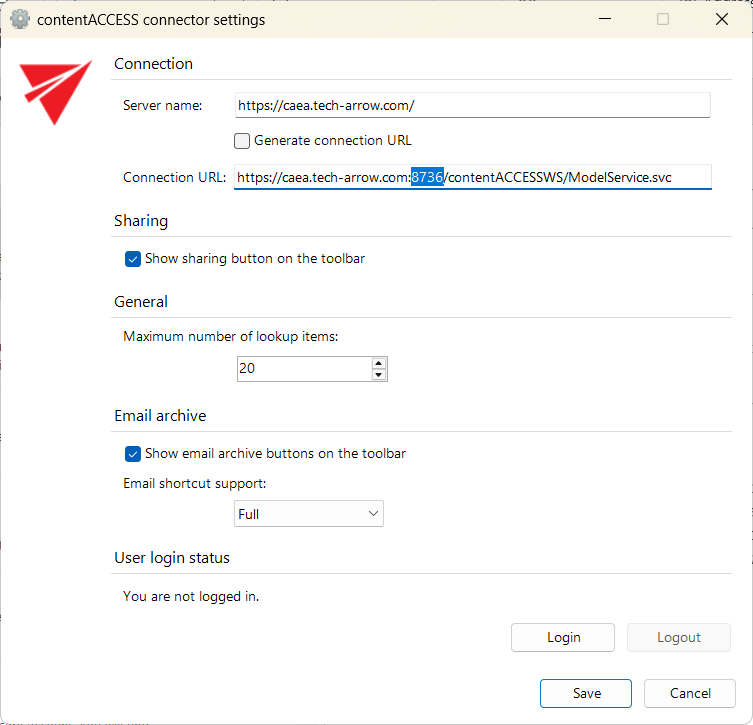
If no contentACCESS proxy is installed and officeGATE connects directly to contentACCESS, configure the connection as follows:
-
Enter the contentACCESS server name in the Server name field.
-
Enter the connection URL with the correct server name in the Connection URL field:
http://[ServerName]:8736/contentACCESSWS/ModelService.svc -
Specify the default sharing settings. If the Sharing plugin is not licensed in contentACCESS, these settings can be ignored. For more information, see Sharing files and folders directly from MS Outlook.
-
Specify the maximum number of lookup items. The default value is
20. -
Choose whether to display Email archive buttons on the Outlook toolbar.
-
Specify the Email shortcut support level: None, Basic, or Full.
-
Save the settings.
Configure email shortcut support
Email shortcut support controls how Outlook opens HTML shortcuts (links) to emails archived by contentACCESS.
When a user clicks an email shortcut, Outlook forms are used to open the archived email. If officeGATE is installed, Outlook can use officeGATE to retrieve the archived item from contentACCESS.
For the best performance, officeGATE offline synchronization is recommended. If the selected mailbox is synchronized, the email content is retrieved from the officeGATE offline cache instead of the contentACCESS server.
If performance issues occur when opening HTML shortcuts, email shortcut support can be configured or disabled. The following options are available:
- None – Outlook forms do not use officeGATE.
- Basic – Outlook forms use officeGATE to retrieve the archived content. The content is saved to the computer and opened from there.
- Full – Outlook forms use officeGATE to retrieve the archived content and store the email or emails in a hidden folder inside the mailbox. This option is slower, but the email behaves like a normal mailbox item and supports Outlook features such as reply, forward, and search.
Connect to contentACCESS
There are two ways to log in to contentACCESS.
Log in from the connection settings
-
Configure the connection settings.
-
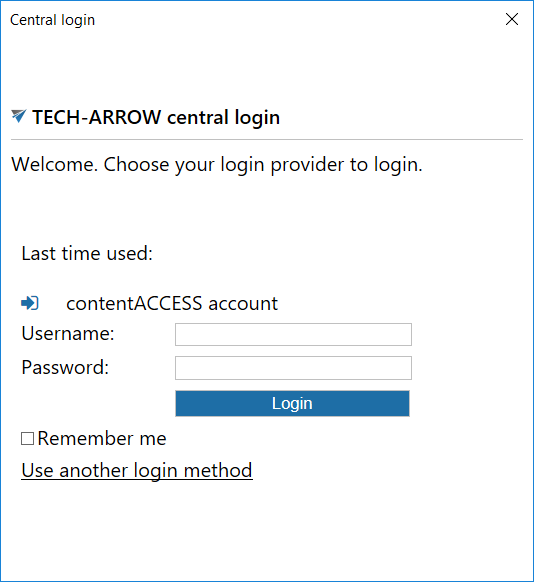
Before saving the settings, click Login.
A Login providers window opens.
-
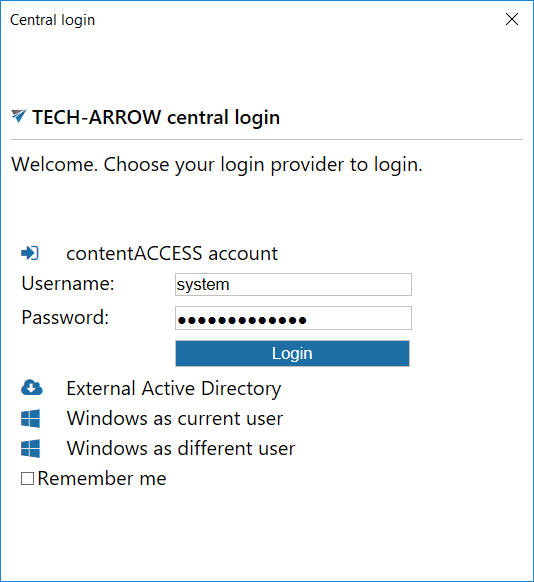
To display all login providers configured in Central Administration, click Use another login method.
-
Select the required login provider.
-
Enter your credentials.
-
Click Login.
-
Save the settings.
Connect from the provider context menu
-
Save the contentACCESS connection settings.
-
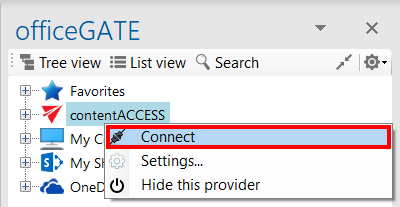
In the officeGATE pane, right-click the contentACCESS provider.
-
Select Connect.
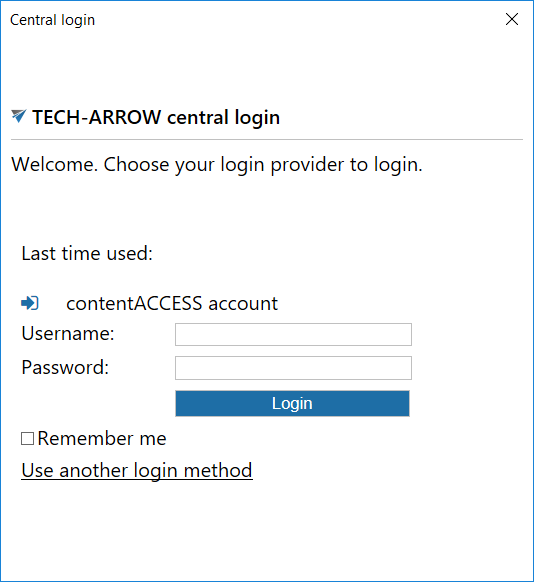
A Login providers window opens.
-
To display all login providers configured in Central Administration, click Use another login method.
-
Select the required login provider.
-
Enter your credentials.
-
Click Login.
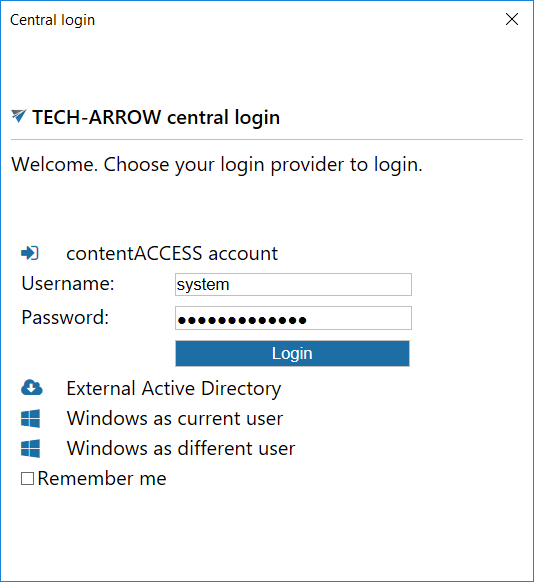
Important: The old login is supported when officeGATE connects to contentACCESS version 3.1.76 or earlier. The latest contentACCESS 3.1 release with Service Pack 2 uses the new login.
If the contentACCESS version is earlier than 3.1.76, the old login window is displayed when connecting to the contentACCESS provider.

The Windows authentication type in the old login works only with the current user. Another user cannot be selected.
View connected contentACCESS plugins
After the connection is successfully established, the licensed plugins are displayed when you expand the contentACCESS provider in the officeGATE pane.
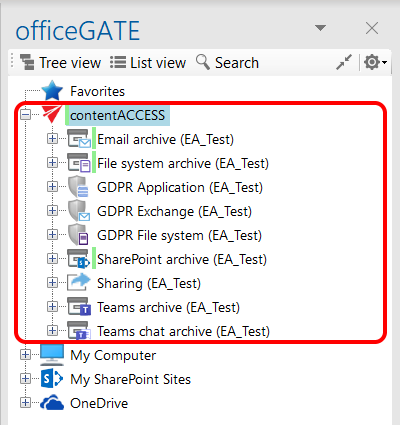
Note: The Metalogix Archive Manager Exchange Edition archive connection allows you to access old MAM shortcuts in officeGATE. The connection to this archive can be established using the corresponding contentACCESS plugin.
Before configuring the connection, install and configure the Legacy MAM retrieve server on the MAM server and configure it in contentACCESS Central Administration. For more information, refer to the contentACCESS Manual.
Log out from contentACCESS
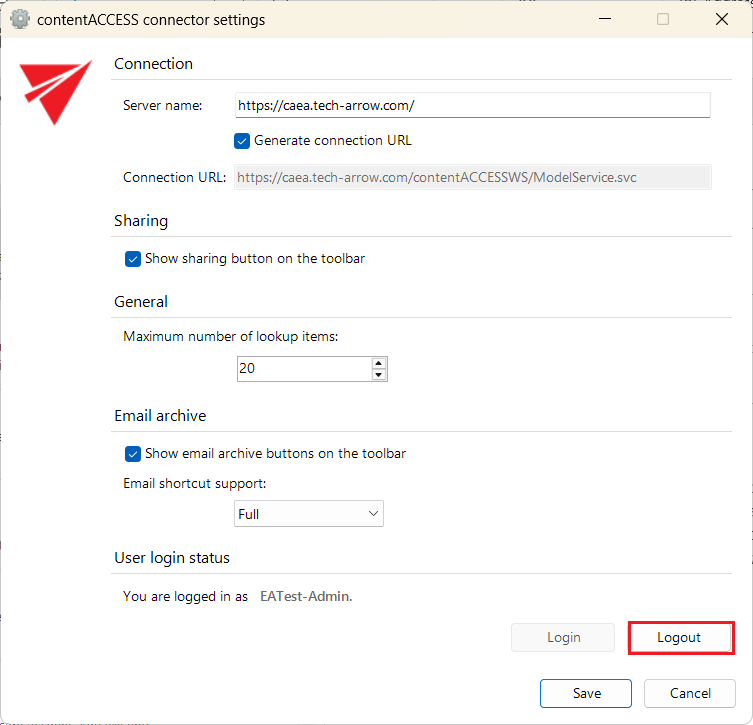
The contentACCESS provider settings include a Logout button. The button is enabled or disabled depending on whether the user is currently logged in.