Enabling/ disabling providers
Introduction
The provider settings in officeGATE determine which providers are displayed in the officeGATE pane. Enabled providers are visible, while disabled providers are hidden. By default, all available providers are enabled.
OneDrive and Dropbox folders can also be accessed under the My computer node when their client applications are installed locally.
Enable or disable providers
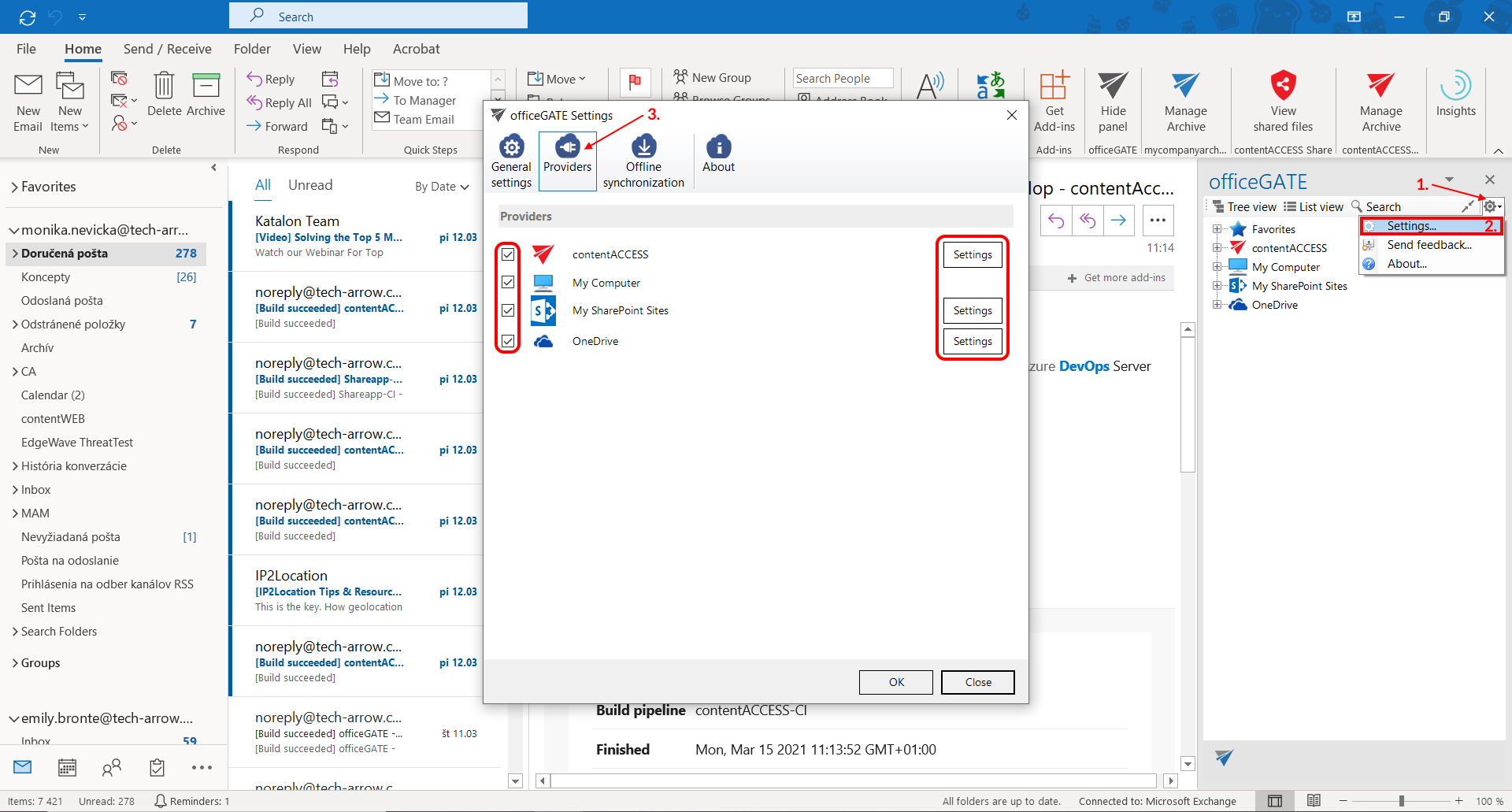
To change the providers displayed in the officeGATE pane:
-
In the officeGATE pane, click the Options button.

-
Select Settings.

-
In the officeGATE Settings dialog, open the Providers tab.
-
Select or clear the checkbox next to a provider to show or hide it.
The following providers are available on this tab:
- contentACCESS
- Perceptive Workplace
- My computer
- OneDrive
- SharePoint
-
To configure the connection settings for a provider, select the provider and click Settings.
Connection settings can also be accessed from the provider's context menu. For more information, see Connecting to providers.
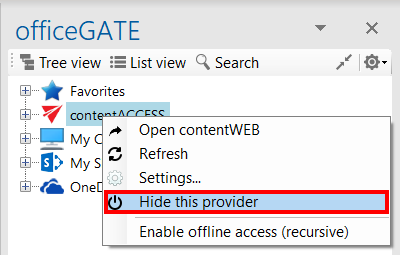
Hide a provider from the context menu
You can also hide a provider directly from the officeGATE pane.
-
Right-click the provider.
-
Select Hide this provider from the context menu.