General officeGATE settings
Introduction
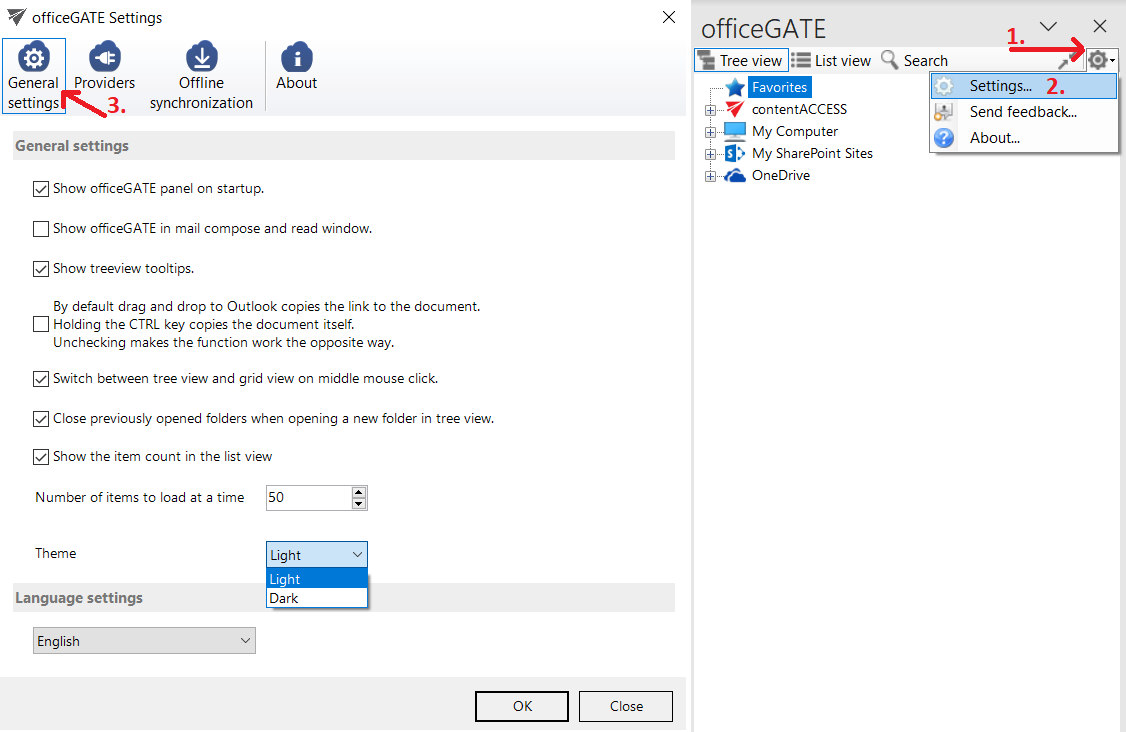
The officeGATE general settings control common application functions, including the panel display, tooltips, drag-and-drop behavior, view selection, item counts, theme, and language. These settings can be configured in officeGATE Settings under General settings.
Open general settings
To open the general settings:
- In the officeGATE pane, click the
 Options button.
 - Select Settings.
- Open the General settings tab.
The following functions can be configured on this tab:
Panel display
Show officeGATE panel on startup determines whether the officeGATE pane is displayed automatically when Outlook starts.
- When enabled, the officeGATE pane is displayed automatically.
- When disabled, the pane is hidden and must be opened by clicking the officeGATE button (
 ).
).
For more information, see Launching officeGATE.
Show officeGATE in mail compose and read window determines whether the officeGATE pane is displayed automatically when opening or reading an email message.
When enabled, the Show panel / Hide panel () button is available in the email window.
Tree view and drag-and-drop settings
Show treeview tooltips displays the full path of a selected folder when you move the cursor over it in the officeGATE pane.
The drag-and-drop setting determines whether dragging a document to an email message copies a link to the document or the document itself.
- By default, drag-and-drop copies only a link to the selected document.
- When the option is enabled, holding the CTRL key copies the document itself.
- When the option is disabled, the behavior is reversed.
Switch to grid view with middle mouse click allows you to switch between tree view and list view by clicking the middle mouse button.
For more information, see View selection: tree view, list view, collapse all.
Close previously opened folders when opening a new folder in tree view automatically closes previously opened folders when you open another folder in tree view. This option is disabled by default.
List view settings
Show the item count in the list view displays the number of items at the bottom of the pane.
When this option is enabled, you can also specify the Number of items to load at a time.
Theme
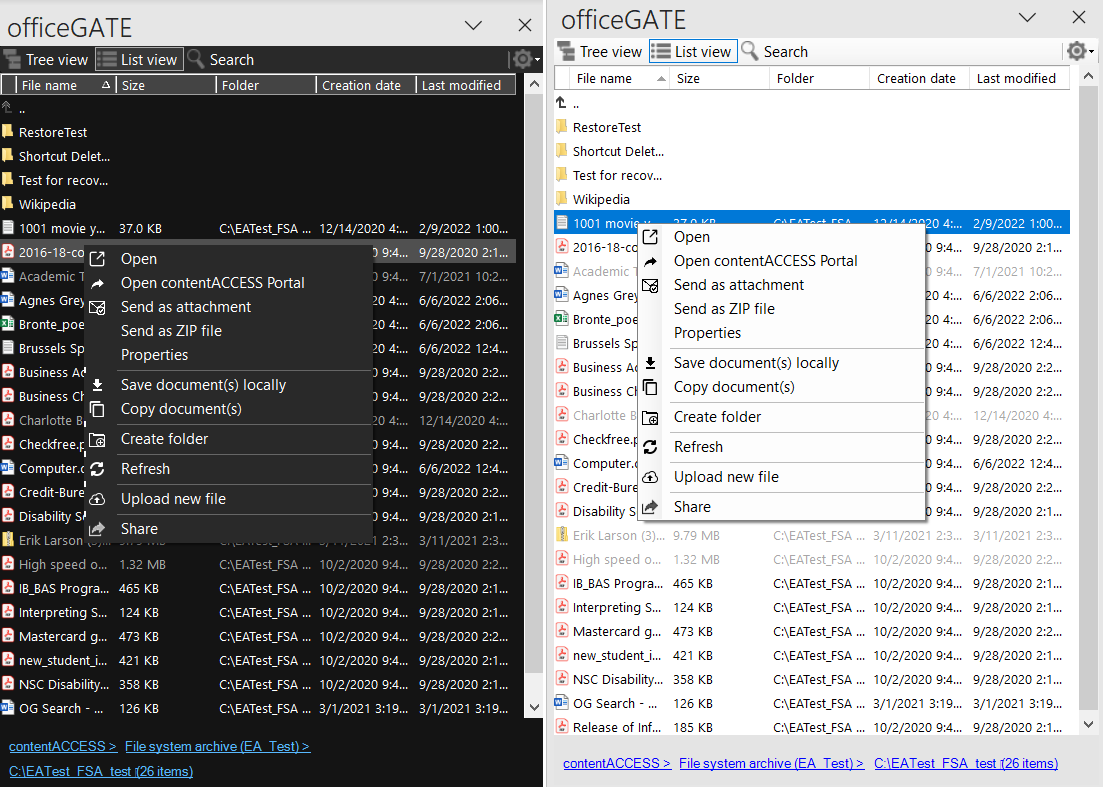
The Theme setting allows you to select the officeGATE appearance:
- Light – displays officeGATE with a light background.
- Dark – displays officeGATE with a dark background.
Select the required option and click OK to apply the theme.
Language settings
The Language settings section allows you to select the officeGATE user interface language. Available languages include English, German, Norwegian, and Simplified Chinese.
You can also select Auto detect to use the Outlook language automatically.
When Auto detect is selected:
- officeGATE uses the language configured in Outlook.
- If the Outlook language is not available in officeGATE, English is used instead.
- If you change the Outlook language, officeGATE automatically switches to the corresponding language when it is supported.

Note: The officeGATE language can also be selected during installation.