Searching in officeGATE
Introduction
The officeGATE search function allows users to quickly find documents stored in connected providers or on indexed local disks. Searching provider content is provider-specific, meaning that officeGATE uses the search engine(s) of the respective provider.
On this page, users can read how to search across all connected providers, inside a selected provider, or within a specific folder or library. The page also explains local disk indexing requirements, available actions on search results, and optional features such as Search suggestions and Hit highlighting.
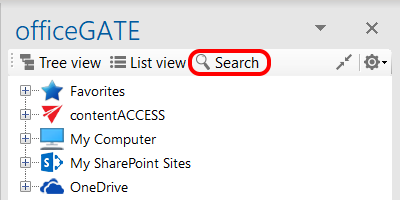
The Search button is located in the header of the officeGATE pane.
Search for documents
Users can search for documents in all connected providers, in a specific provider, or within the content of a selected node.
Search in all connected providers
To search across all available (connected) providers:
- Select All providers from the Location dropdown list.
- Enter the keyword you are looking for.
- Click Search.
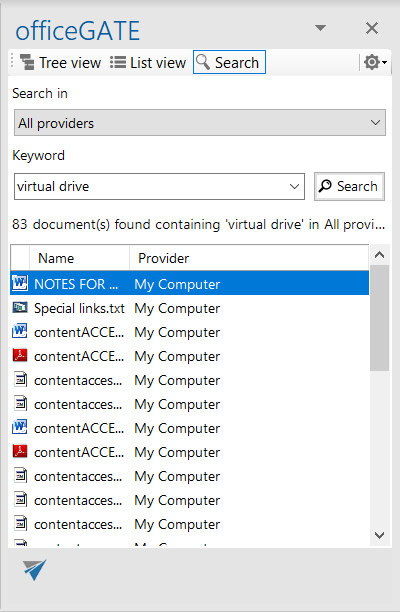
The search results are displayed in three columns:
- A column with icons.
- A column containing the document names.
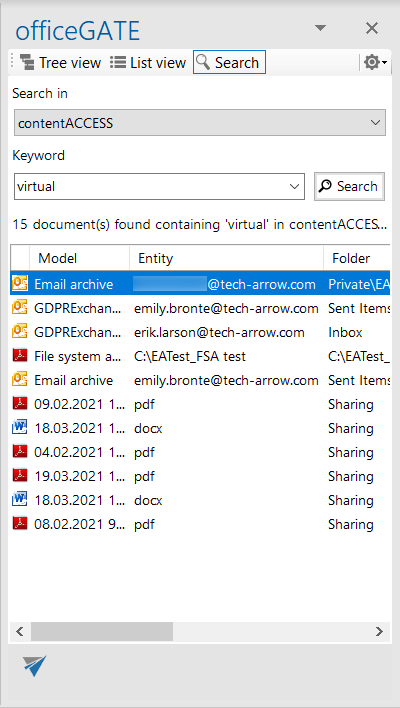
- A column containing the respective provider. For contentACCESS, the model name is also displayed.
Search in a specific provider
To search within one of the connected providers:
- Select the desired provider from the Location dropdown list.
- Enter the keyword you are looking for.
- Click Search.
Search in a selected node
Users can search within the content of a selected node, such as a folder or library.
- Locate the desired folder or library in the tree view.
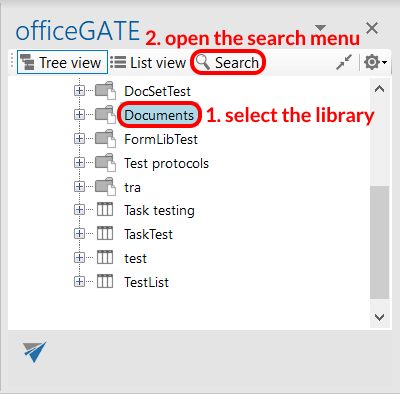
- Click the folder or library.
- Click the magnifier icon in the officeGATE pane to open the search page.
- Verify that the Location is preselected.
- Enter the keyword you are looking for.
- Click Search.
The following example demonstrates how to search for contentACCESS-related documents in the Documents SharePoint library.
Select the Documents library under the SharePoint node and click the magnifier icon:

Specify the keyword you are looking for. In this example, the keyword is contentaccess. Then click Search:
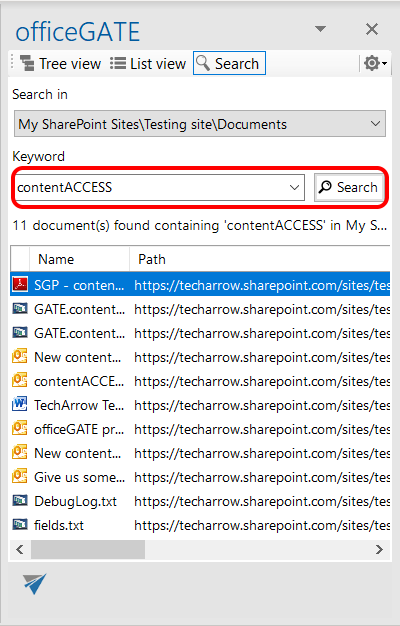
The search returns 11 documents whose title or text contains the phrase contentaccess.
Search on local disks
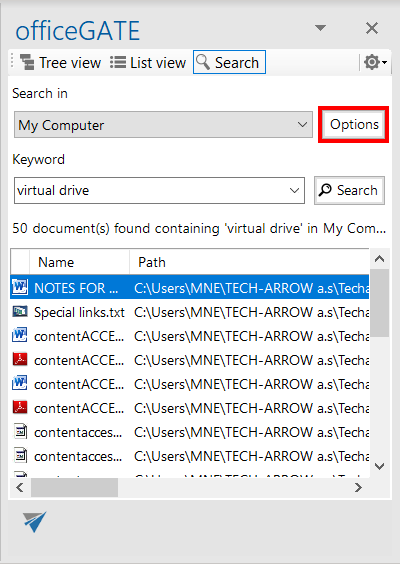
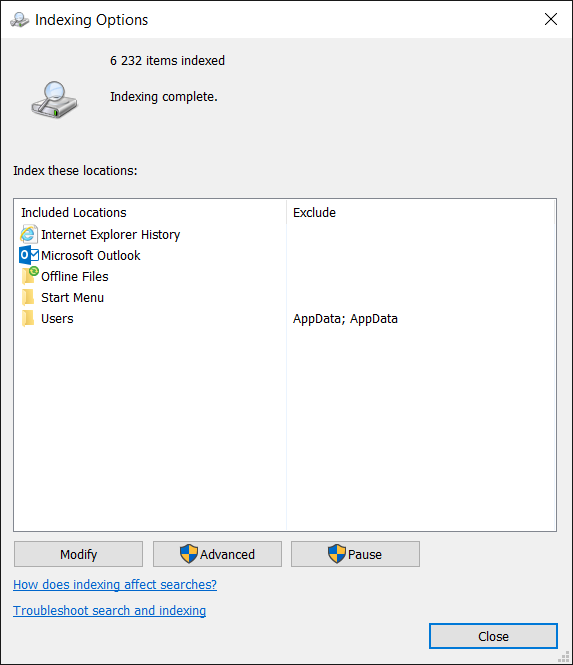
When My Computer is selected from the Location dropdown list, the Options button appears on the search page. This allows users to check which local disks are already indexed.
Note: Only documents located on indexed local disks can be searched.
Search result operations
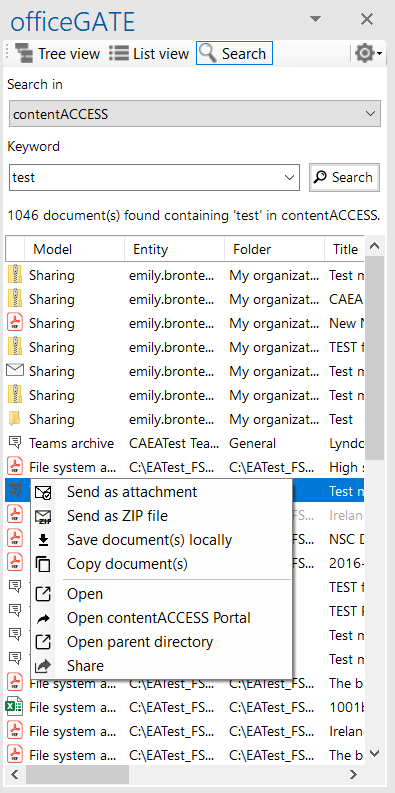
The following operations are available from the context menu of searched items on the search page:
- Send as attachment
- Send as ZIP file
- Save document(s) locally
- Copy document(s)
- Open
- Open contentACCESS Portal
- Open parent directory: Opens the parent directory of the selected file. This context menu item is available from the search page only.
- Share
These features are described in detail in the chapter Working with nodes and files using the context menu.
Search suggestions
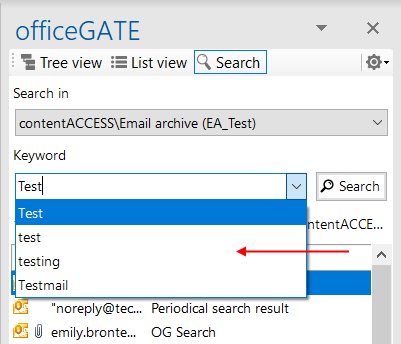
If Search suggestions are enabled in the System settings for the contentACCESS server to which officeGATE is connected, the system generates search suggestions.
Search suggestions are search terms related to the content being searched for. They are generated from document contents, so only terms related to at least one of your documents are suggested.
Hit highlighting
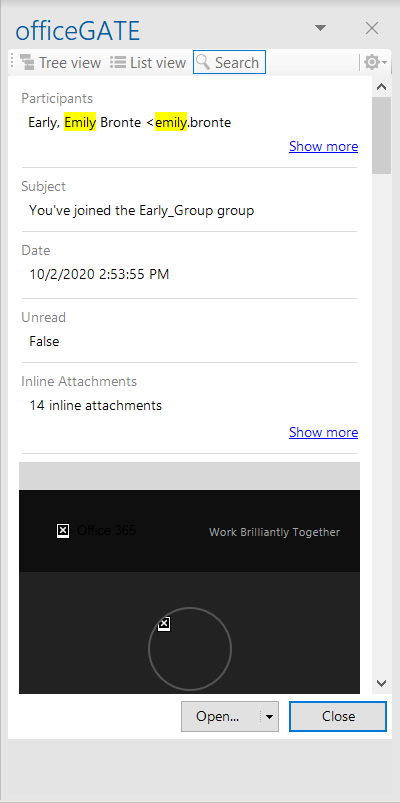
If Hit highlighting is enabled in the System settings for the contentACCESS server to which officeGATE is connected, the located words are highlighted in yellow in the search results.