SharePoint data handling
Introduction
SharePoint content types allow organizations to define different metadata and behavior for documents, list items, folders, and document sets. officeGATE enables users to select SharePoint content types and fill in their metadata directly from Microsoft Outlook when uploading or creating SharePoint items.
Configure content type selection
Different content types can have different optional and required metadata fields. In officeGATE, you can configure when the content type selection and metadata dialog is displayed:
- Only when the SharePoint content type contains required fields.
- Always, regardless of whether the fields are required or optional.
To configure this behavior:
- Open the SharePoint site's context menu in the officeGATE pane.
- Click Settings.
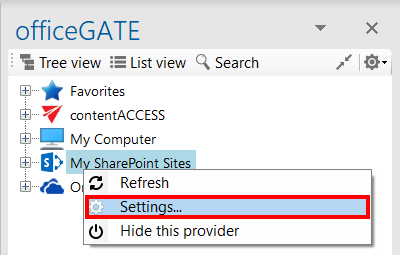
The SharePoint connector settings dialog opens.
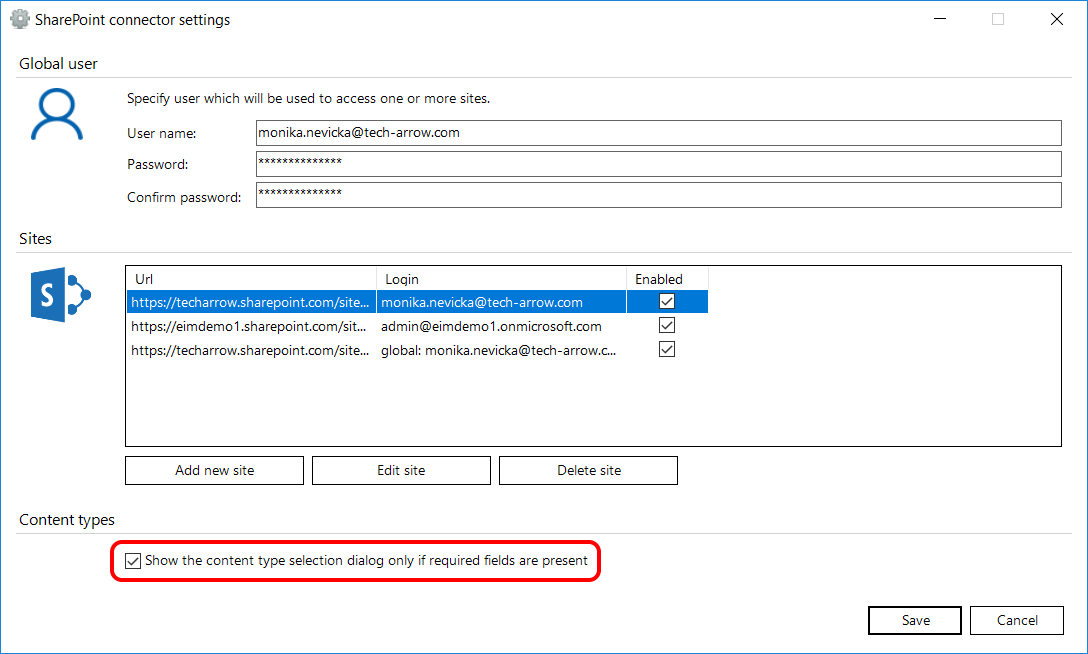
- Select or clear the Show the content type selection dialog only if required fields are present checkbox according to your requirements.
When the option is selected, the content type selection dialog is displayed only when required fields are present.
Fill in content types and metadata when uploading
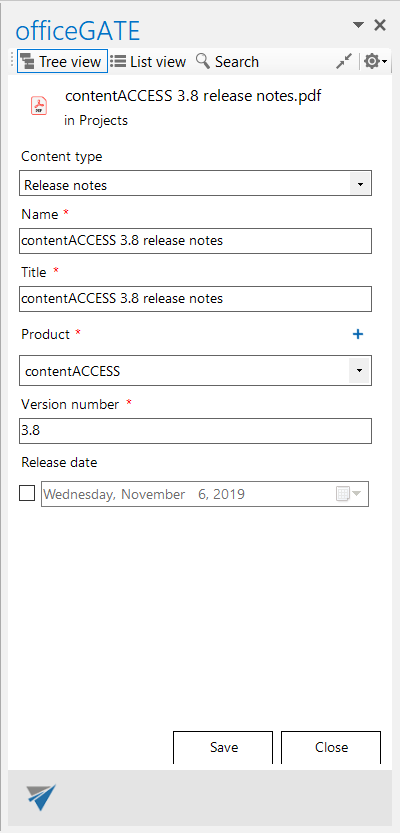
When uploading a file to SharePoint, the Upload document dialog can prompt you to select a content type and fill in its required metadata. The dialog is displayed according to the configuration in the SharePoint connector settings.
In the following example, a file is uploaded using Drag & Drop to the Projects library on a SharePoint site. Content type selection is configured to appear only when required fields are present.
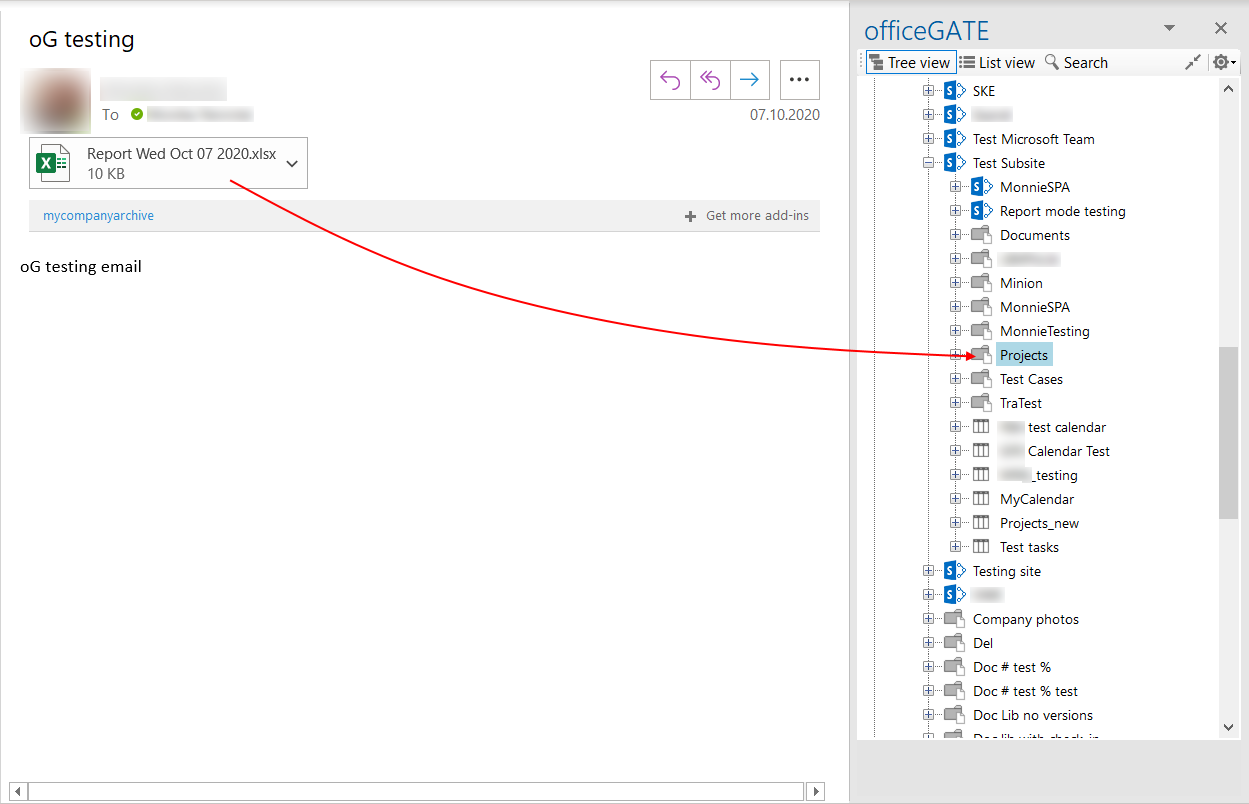
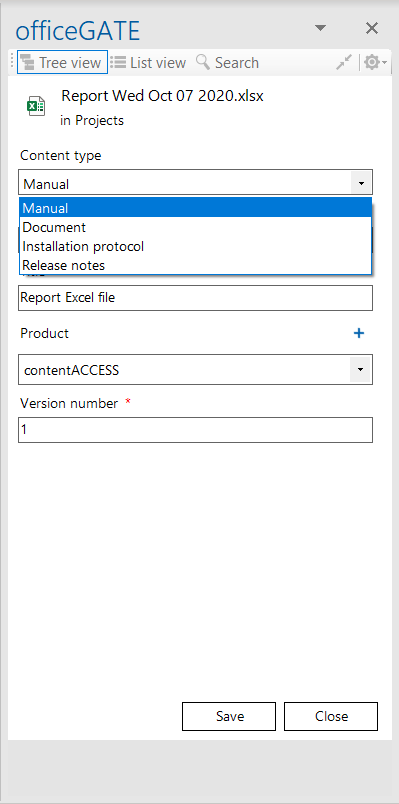
The available content types in this example are:
- Manual
- Document
- Installation protocol
- Release notes
The required metadata fields depend on the selected content type. For the Manual content type, the following fields are required:
- Name
- Title
- Product
- Version number
Required fields are marked with a star. If a required field is not specified, the document cannot be uploaded to the selected location.
Optional fields, such as Release date, are not marked with a star and can be left empty.
After all required fields have been specified, click Save to upload the file to the selected library.
Important: Do not forget to Check in the item after uploading it.
SharePoint item types
Since version 3.3, officeGATE supports the following item types in My SharePoint Sites:
- Sites/Subsites

- Document libraries

- Document sets

- Folders

- Lists

Document library
A Document library contains items with and without metadata.
Document set
A Document set acts like a common folder but also has metadata. Files can be uploaded to a document set.
List
A List contains items consisting only of metadata. Attachments can be added to these items.
SharePoint item context menu
The available context menu operations depend on the SharePoint item type. To work with an item, locate it in the officeGATE pane and right-click it to open its context menu.
The following table provides a general overview of the available options.
Note: The New menu with submenu items is available only for SharePoint Online. When using on-premise SharePoint, the New item and New folder options are available instead, as described in officeGATE version 3.9.
| SharePoint item | Context menu options | Screenshot |
|---|---|---|
| Document library | ✓ New (with submenu items based on the selected site/document set/folder/list templates) ✓ Open online ✓ Add to favorites ✓ Upload new file ✓ Refresh ✓ Enable offline access ✓ Enable offline access (recursive) | 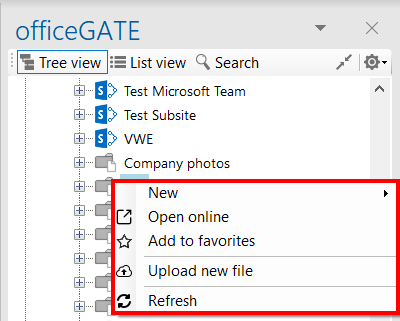 |
| Document set | ✓ New (with submenu items based on the selected site/document set/folder/list templates) ✓ Open online ✓ Rename folder ✓ Delete folder ✓ Add to favorites ✓ Properties ✓ Upload new file ✓ Refresh ✓ Enable offline access ✓ Enable offline access (recursive) | 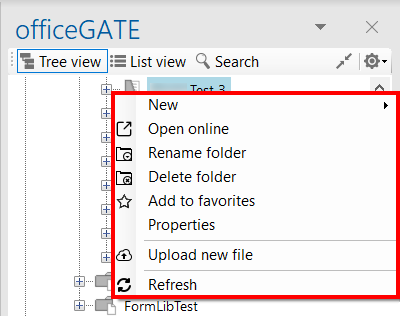 |
| List | ✓ New (with submenu items based on the selected site/document set/folder/list templates) ✓ Open online ✓ Add to favorites ✓ Refresh ✓ Synchronize calendar items (if the list contains any) | 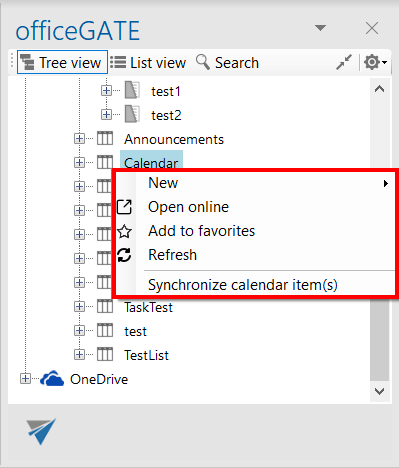 |
Create new SharePoint items
Depending on the SharePoint item type, different creation options are available from the context menu.
Upload a new file
Select Upload new file to open the file selection dialog. If metadata is required, the document metadata dialog opens after selecting the file.
Create an item using New
Select New to open a submenu containing the available templates for the selected entity.
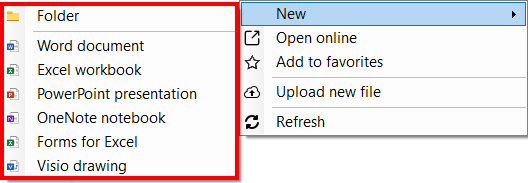
If you select Folder, a pop-up window opens. Enter the folder name and click OK.

If you select one of the available templates, such as a Word document or Excel workbook, and required metadata is missing, a warning is displayed.

If you select Open document, officeGATE opens the document online so that you can start editing it. After you finish editing and close the document tab or window, you must fill in any required fields in officeGATE.
If you select Edit required fields, the item details window opens, as when selecting Properties from the item's context menu. Enter the required values marked with a red asterisk. You can then click Open to edit the document online.
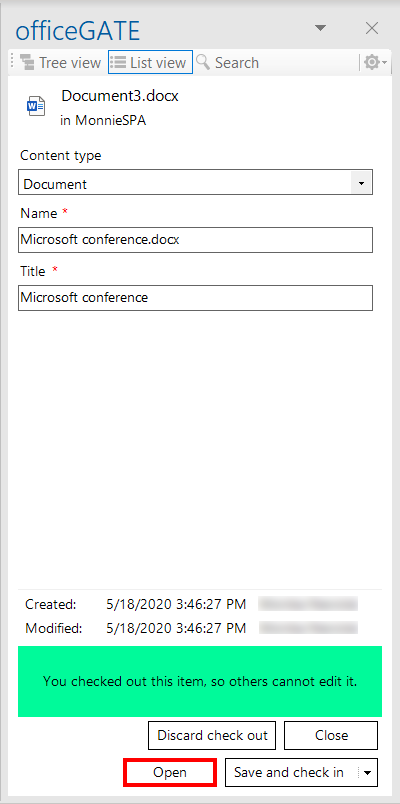
The document is then created in SharePoint.
Important: The document is automatically checked out after being uploaded to SharePoint.
Create an item using Drag & Drop
Items can also be created using Drag & Drop.
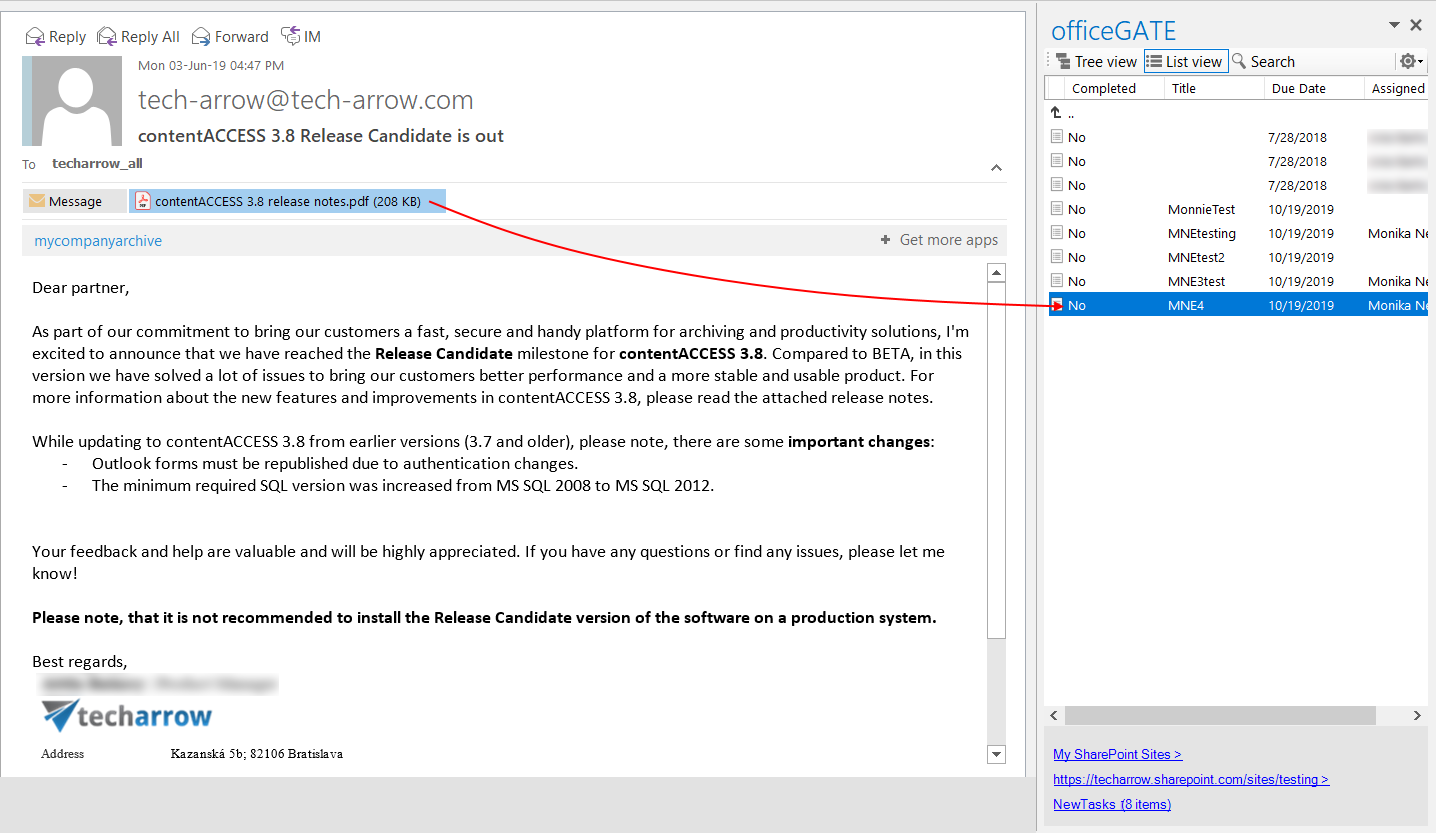
If you drop an Outlook item or a file into a list that supports attachments, one of the following behaviors occurs.
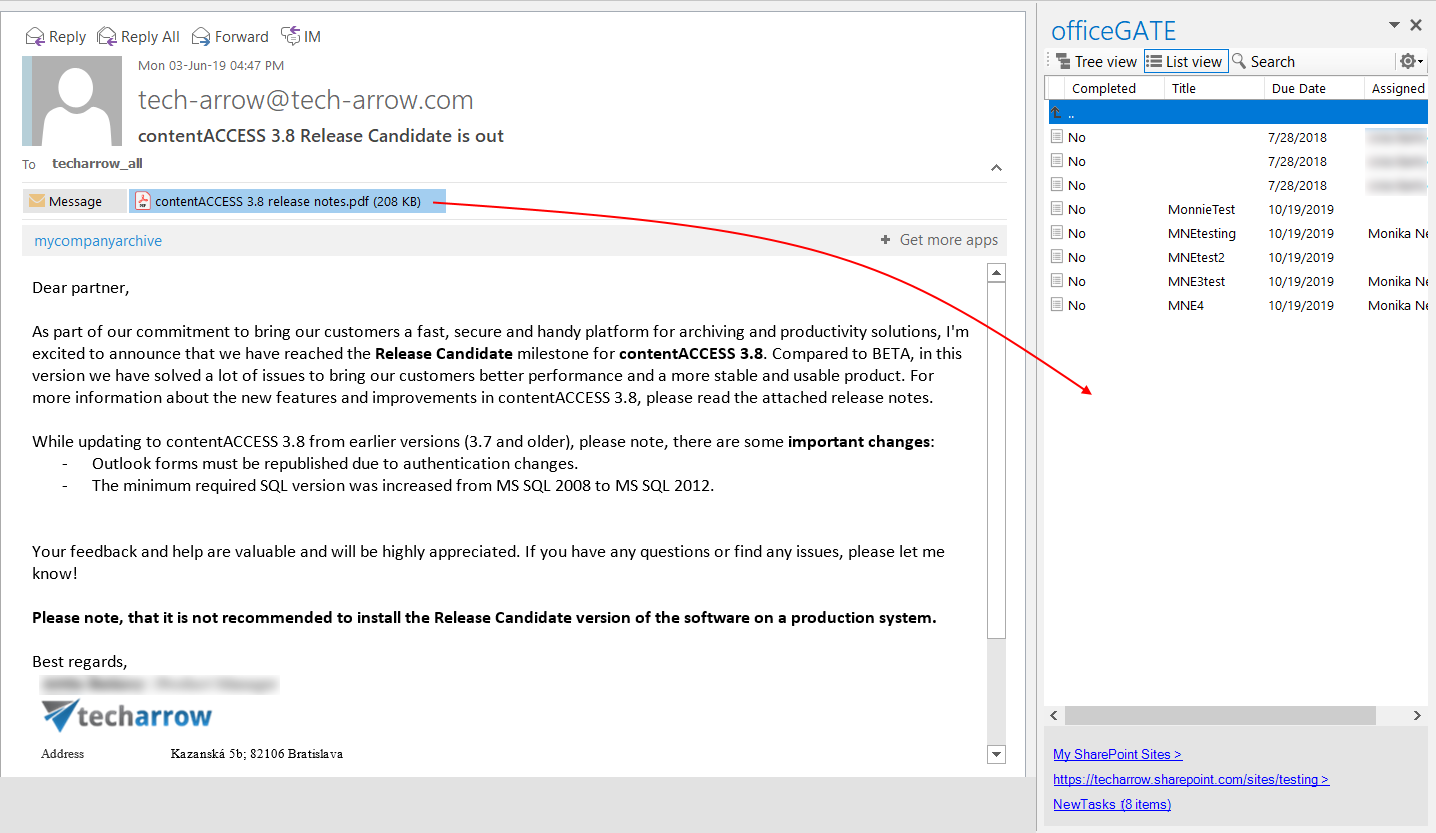
Drop an item into an empty area
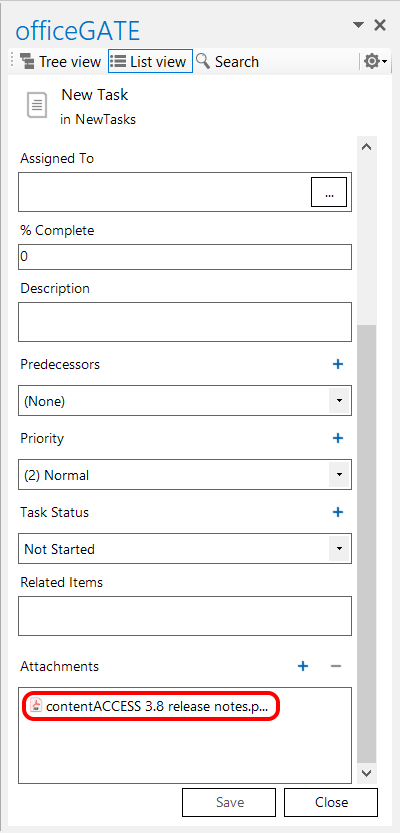
If you drop the item into an empty area of the list, the item creation dialog opens with the dropped item already added to the attachment list.
Drop an item onto an existing item
If you drop the item onto an existing item, you are asked whether you want to create a new item using the dropped item or attach it to the existing item.

Open and update SharePoint items
Open and update document library items
The main content of a document library item is the file. Double-clicking the item downloads and opens it in the appropriate application.
To view or modify the item's properties, select Properties from its context menu. The item properties dialog opens without the attachment list and allows you to view or modify the document metadata.
Open and update list items
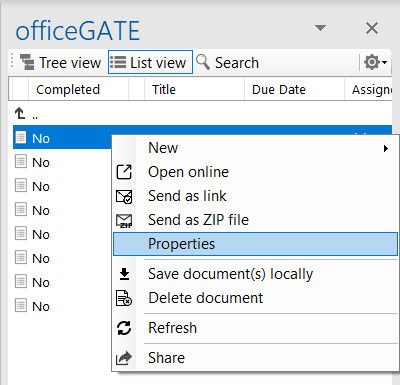
For list items, double-clicking opens the item details dialog with the attachment list displayed. You can view and modify the item's metadata and attachment list.
The Properties context menu option is also available for list items and provides the same functionality as double-clicking the item.
View and edit metadata
Document metadata is displayed in the List view in the officeGATE pane.
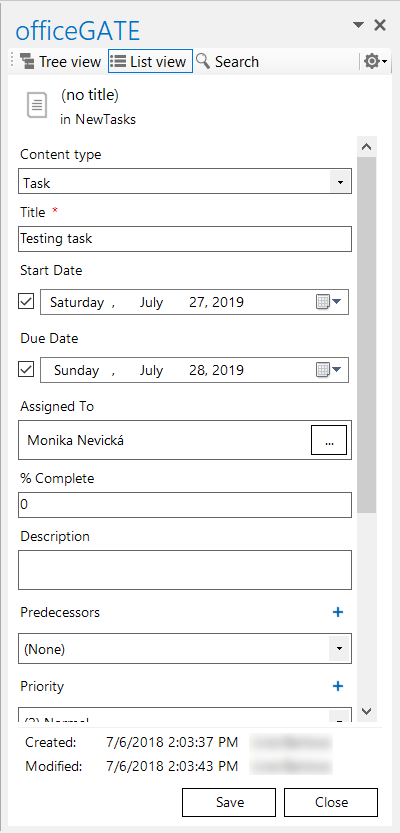
To view or edit metadata, or to add or open attachments, open the item details dialog by either:
- Double-clicking a list item.
- Selecting Properties from the item's context menu.
Select a SharePoint user or group
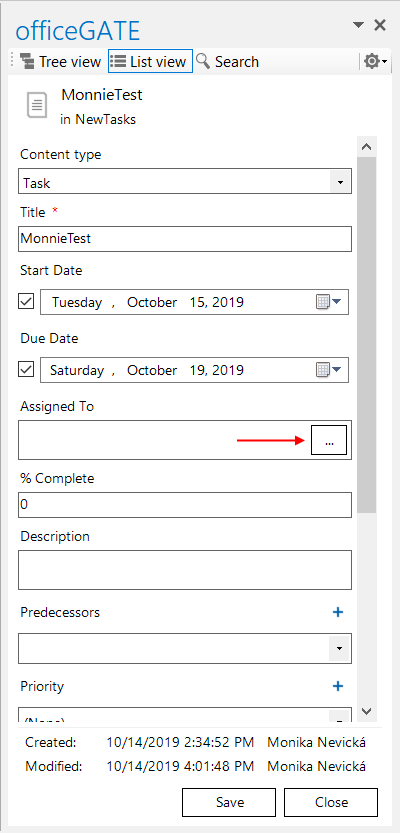
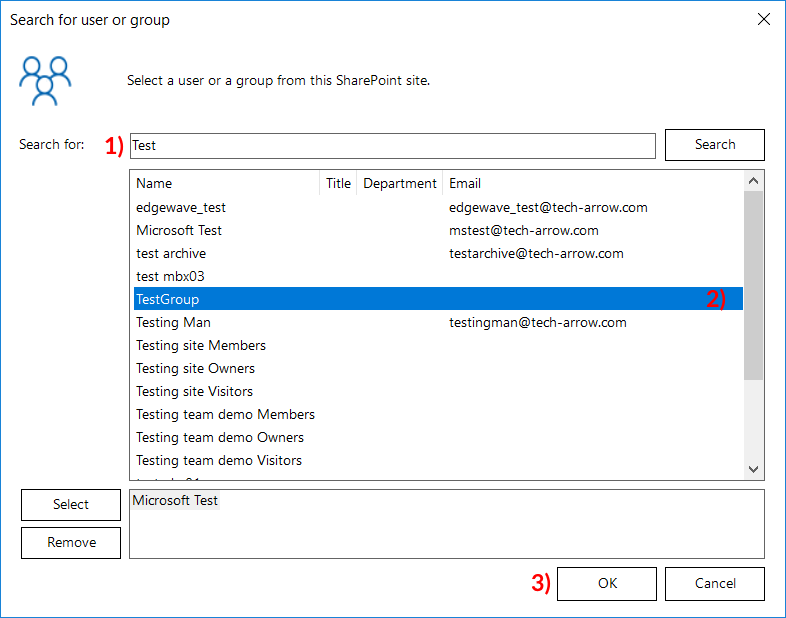
Some fields, such as Assigned To, require you to select a user or group from the SharePoint site to which the item belongs.
To select a user or group:
-
Click the three dots next to the field.
-
In the user/group selection window, enter the name of the user or group that you want to search for.
-
Click Search.
-
Select the desired user or group.
-
Click Select (2) to add it.
-
To remove a user or group, select it in the lower field and click Remove.
-
Repeat the steps to add additional users or groups.
-
When you have finished selecting users and groups, click OK (3).
Offline synchronization
Note: Offline synchronization is currently disabled for the SharePoint provider.
Check-out, check-in, and versioning
Note: The check-out feature is enabled on all SharePoint sites. If you want users to be able to edit only documents that they checked out, enable the Force check out feature.
The Check out document option allows a user to block a document while making changes to it.
After the changes are complete, select Check in document to remove the block and apply the changes. If you do not want to save the changes, select Discard check out.
While a document is checked out, no other users can modify it except the user to whom the document is checked out.
Check out a document
To check out a document:
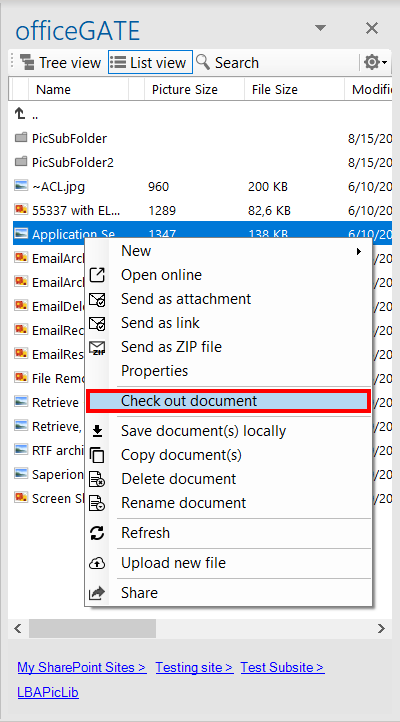
- Open the document's context menu.
- Select Check out document.
A checked-out document is marked as follows:
 – checked out by the current user.
 – checked out by a different user.
You can view check-out details by selecting Properties from the item's context menu.
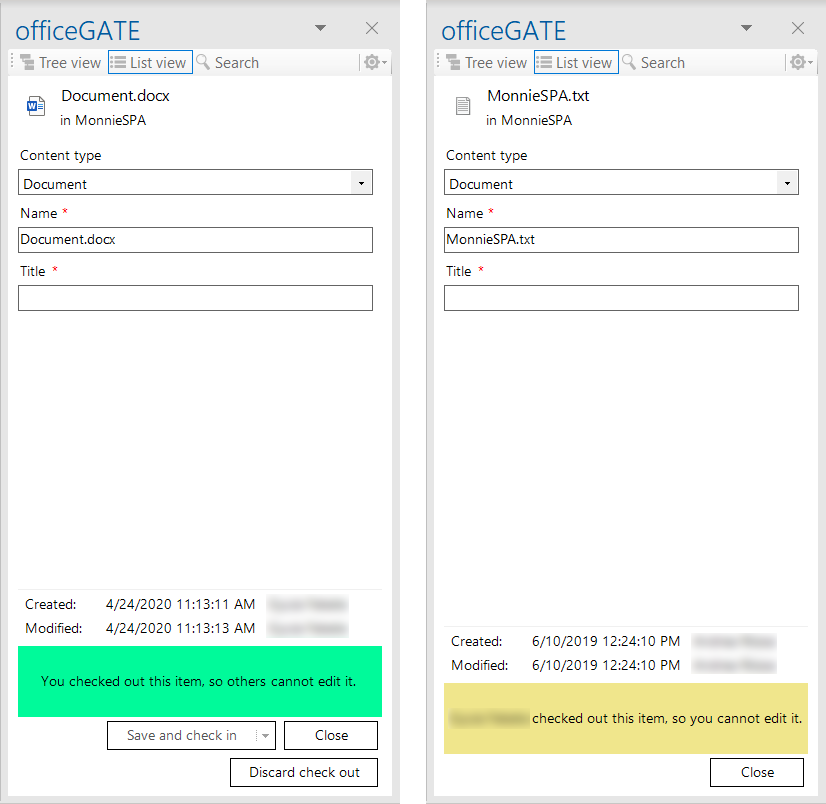
Screenshot: Item checked out by the current user (left) and item checked out by a different user (right)
Edit a checked-out document
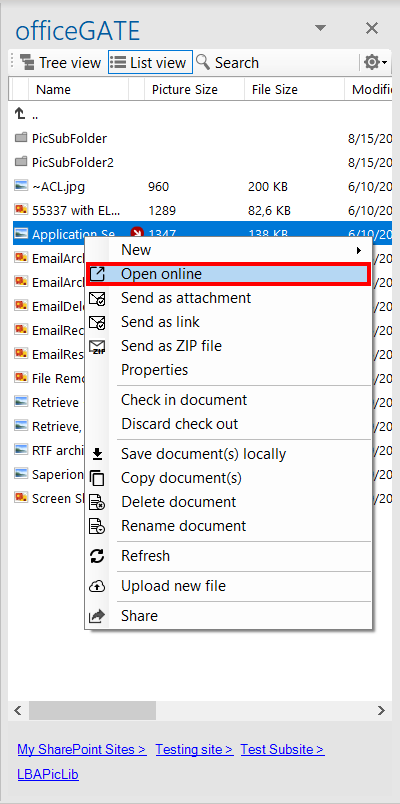
After checking out a document, edit it by selecting Open online from its context menu and editing it online. When you have finished making changes, close the browser.
Check in a document
To apply your changes and make the document available to other users:
- Select Check in document from the document's context menu.
- In the pop-up window, enter a comment if needed.
- Click OK.
Checking in the document also creates a new version. Older versions and the version history can be viewed directly in SharePoint. officeGATE always opens the latest version.
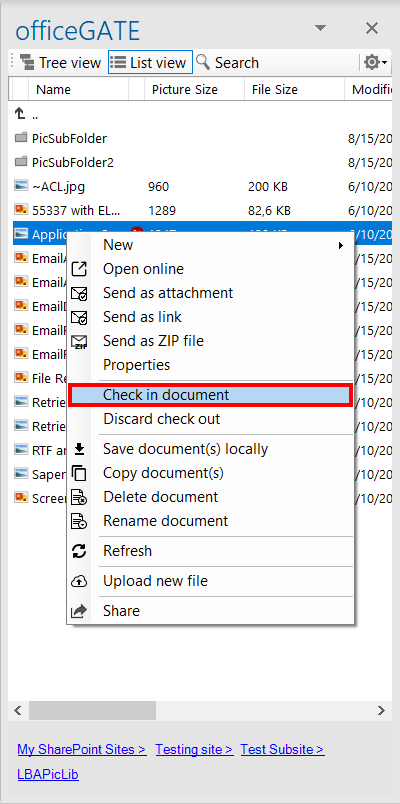
It is recommended to add a comment when checking in a document to provide a better overview of the changes later.

Discard a check-out
If you do not want to keep the changes made to a checked-out document, select Discard check out.
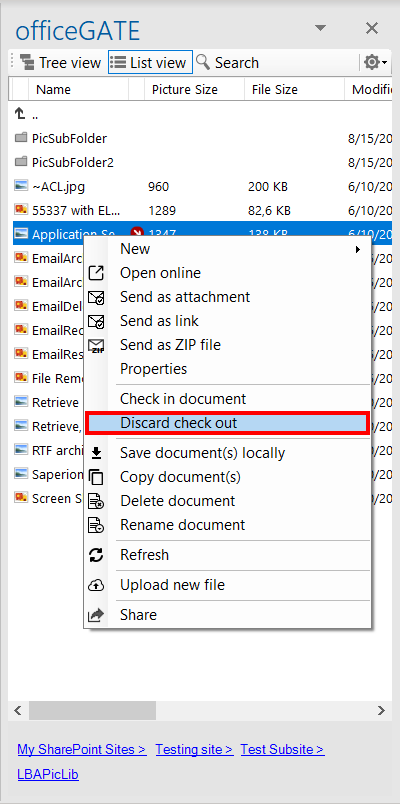
A warning pop-up window opens. If you confirm that you want to discard the check-out, all changes made while the document was checked out are lost.

Create document versions
When a document is uploaded to SharePoint, it is automatically checked out to the user who uploaded it. To make the document available to other users, it must first be checked in.
When versioning is enabled
If versioning is enabled on SharePoint and you upload a document to a library where the same document already exists, officeGATE asks whether you want to overwrite the existing document and create a new version.
If you select Yes, officeGATE overwrites the document in SharePoint and creates a new version.

When versioning is not enabled
If versioning is not enabled, officeGATE asks whether you want to overwrite the existing document.
If you select Yes, officeGATE overwrites the document in SharePoint.
Add SharePoint items to an email
SharePoint items can be added to a new email as attachments, links, or ZIP files. The available behavior depends on the SharePoint item type.
Send as attachment
- Library item – creates a new message with the selected document as an attachment.
- List item – cannot be sent as an attachment from its context menu.
- Document set item – creates a new message with the selected document as an attachment.
Send as link
- Library item – creates a new message containing a link to the selected document.
- List item – creates a new message containing a link to the selected item.
- Document set item – creates a new message containing a link to the selected document.
Send as ZIP file
-
Library item – puts the compressed document into a new message.
-
List item – compresses the item properties into an HTML file together with the item attachments into a single ZIP file and puts it into a new message.
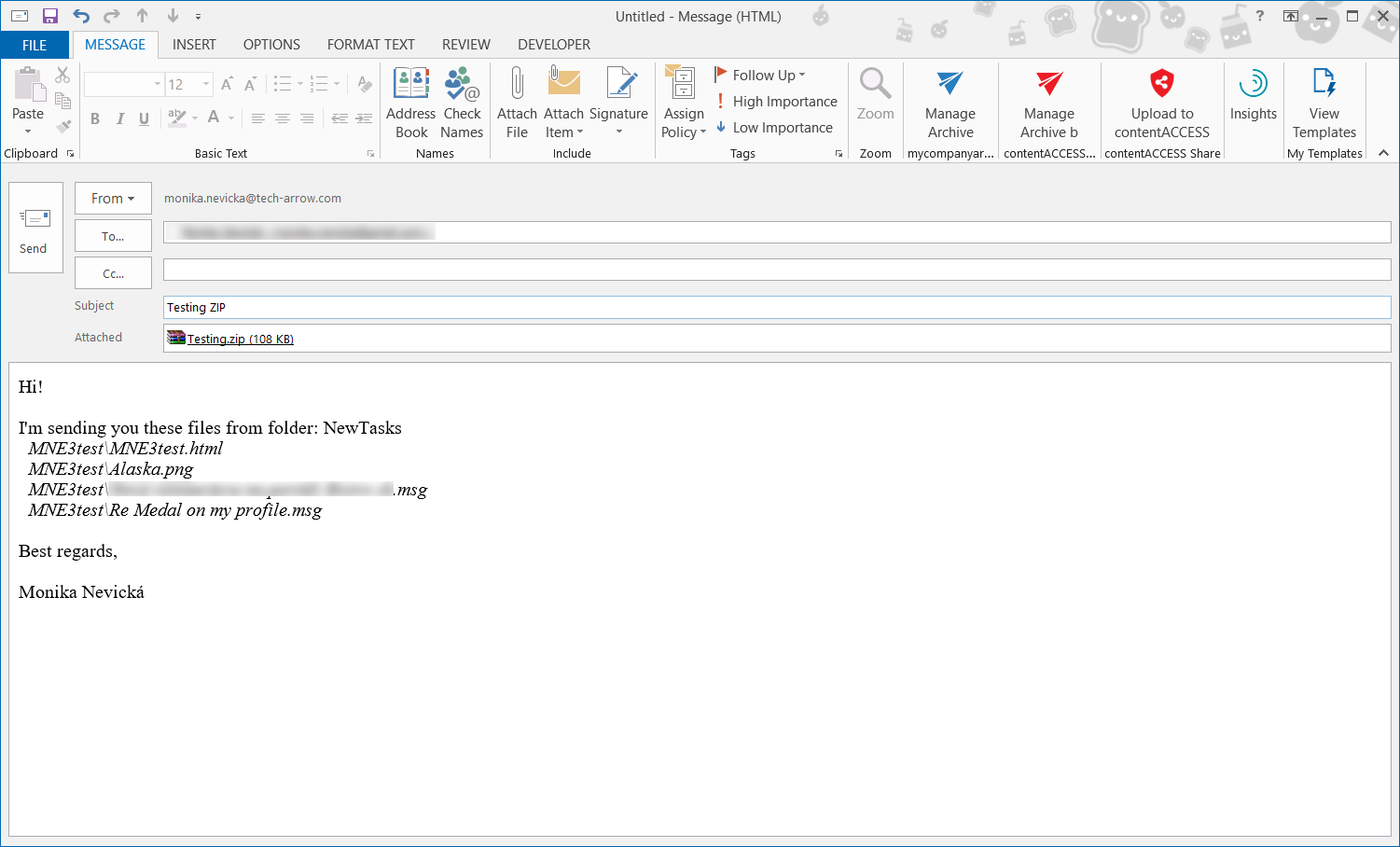
-
Document set item – puts the compressed document into a new message.
Drag & Drop into a message
-
Library item – adds the document as an attachment.
-
List item – creates a table containing property information and a link to the selected item and its attachments.
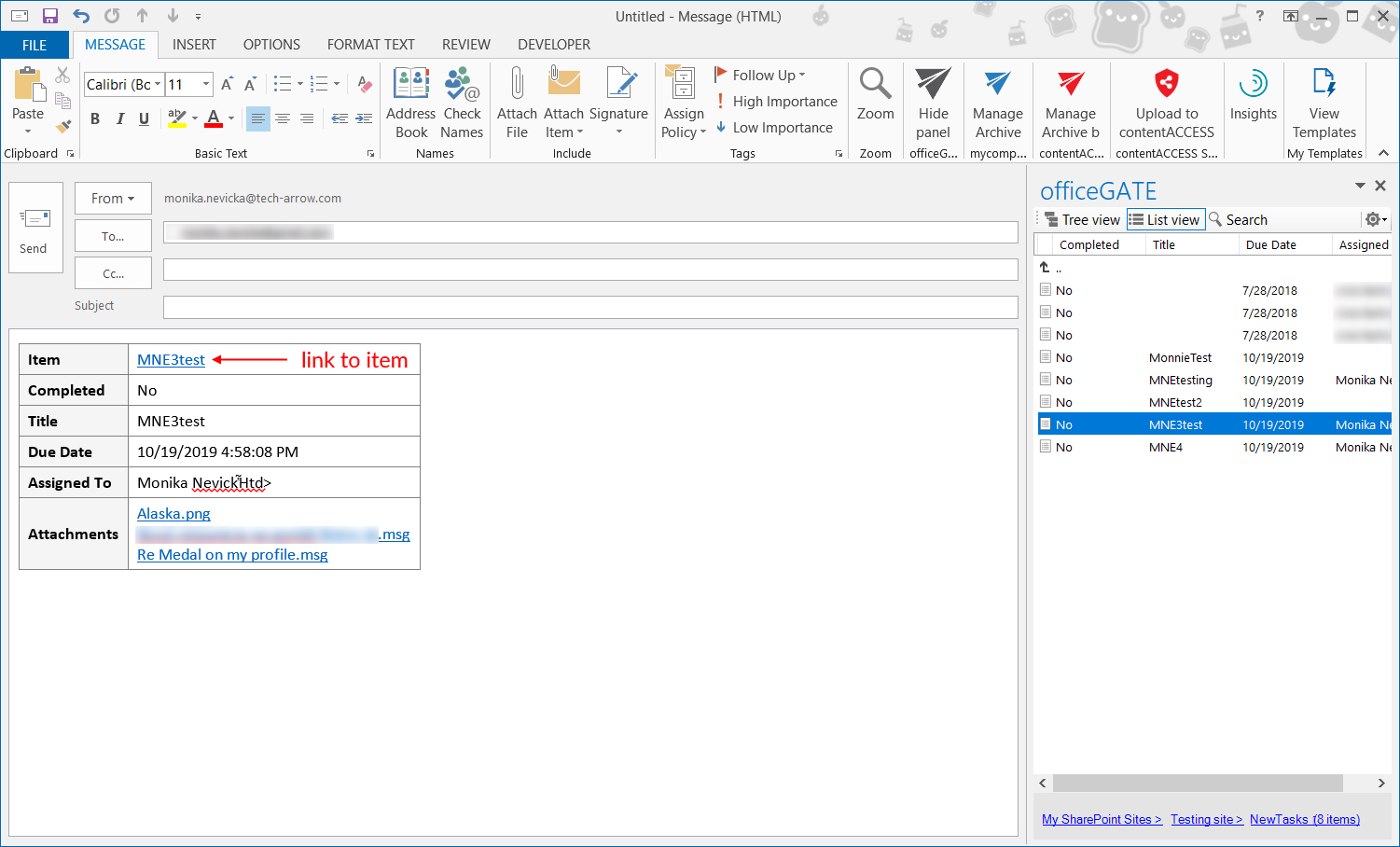
-
Document set item – adds the document as an attachment.