Outlook calendar entry creation
Introduction
officeGATE allows users to create SharePoint and Outlook calendar items directly from Microsoft Outlook. You can create a SharePoint calendar entry, optionally create a corresponding Outlook calendar entry, and synchronize existing SharePoint and Outlook calendar items.
Create a SharePoint calendar entry
To create a SharePoint calendar entry:
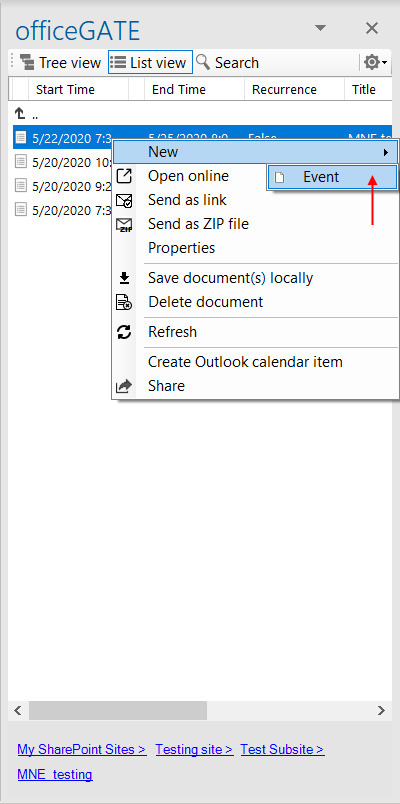
- Right-click an Events list or list item.
- Select New.
- Select Event.
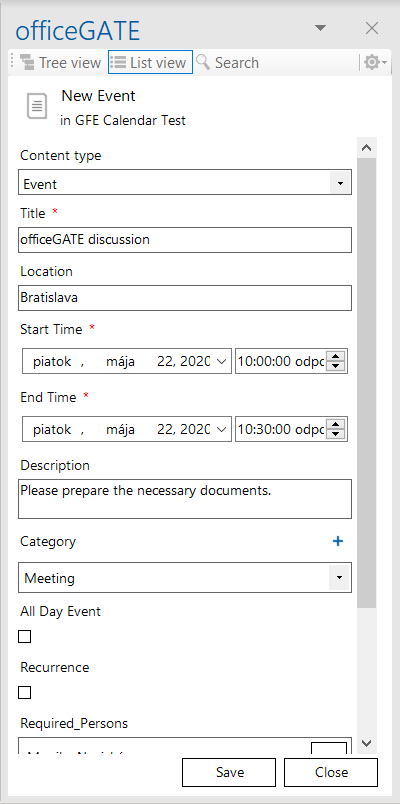
The document metadata dialog opens. Fill in the required fields marked with a red asterisk and click Save.
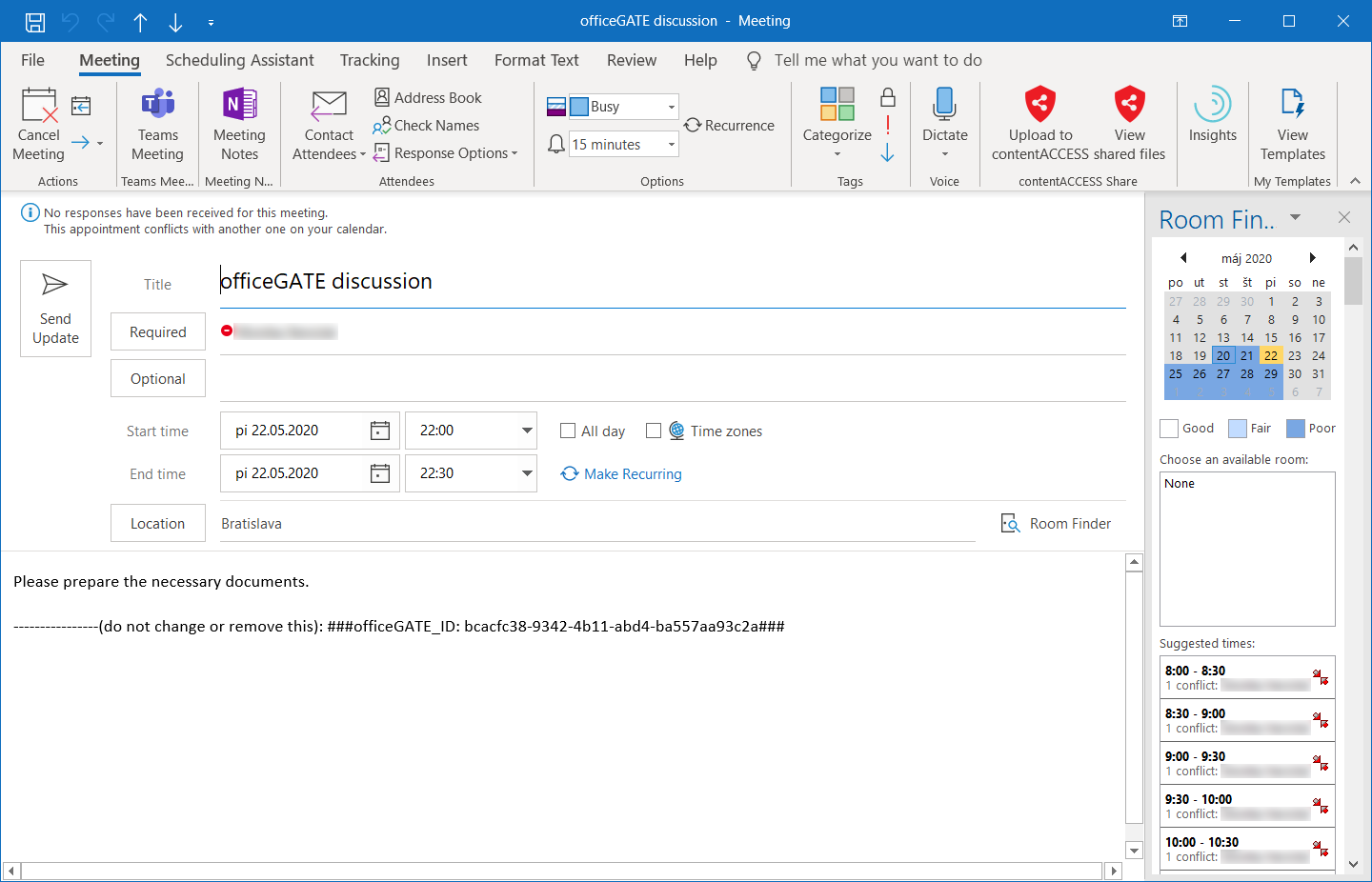
After the item is saved and a new calendar item is created in SharePoint, officeGATE asks whether you want to create a corresponding calendar entry in your Outlook mailbox calendar.

If you select Yes, officeGATE searches for fields containing usernames and/or email addresses and analyzes the metadata of the newly created entry. The information is used to create the Outlook calendar entry.
An officeGATE ID is assigned to the Outlook item. This ID is used to synchronize the Outlook and SharePoint items.
If a user is added as Required and/or Optional, they receive a notification email about the invitation.
If an existing calendar or task item is edited in officeGATE and does not contain an officeGATE ID, the option to retrospectively create an Outlook calendar entry for that item is available. After the entry is created, the Synchronize calendar item(s) button becomes visible.
Synchronize calendar items
Tree view
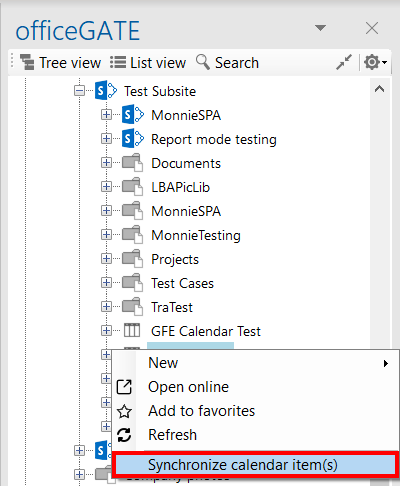
The Synchronize calendar item(s) context menu option is visible only when the selected item in officeGATE is a calendar.
When you select this option, officeGATE queries all calendar items in the selected calendar. If the description contains the Outlook calendar ID, the corresponding Outlook calendar item is updated.
SharePoint calendar items that do not contain the Outlook calendar ID in their description are skipped.
List view
In List view, two context menu options are available.
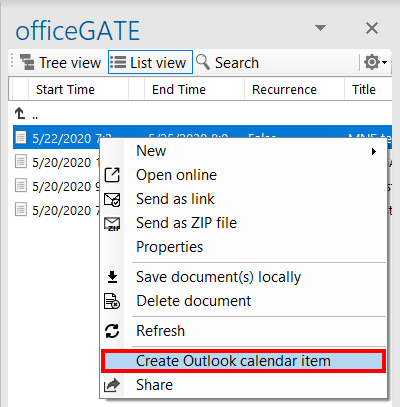
Create Outlook calendar item
The Create Outlook calendar item option is visible when an Outlook calendar item has not yet been created from the selected SharePoint calendar item.
When you select this option, officeGATE creates an Outlook calendar item as described above.
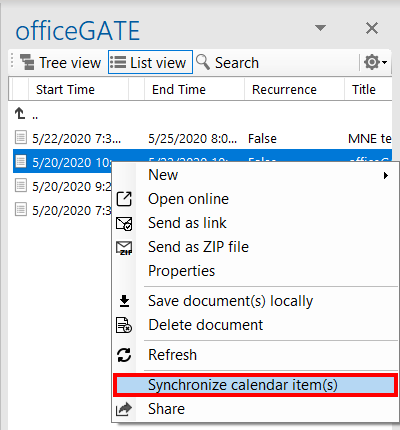
Synchronize Outlook calendar item(s)
The Synchronize Outlook calendar item(s) option is visible when an Outlook calendar item has already been created from the selected SharePoint calendar item.
When you select this option, officeGATE reads the SharePoint calendar item fields and updates the corresponding Outlook calendar item.
Item details view
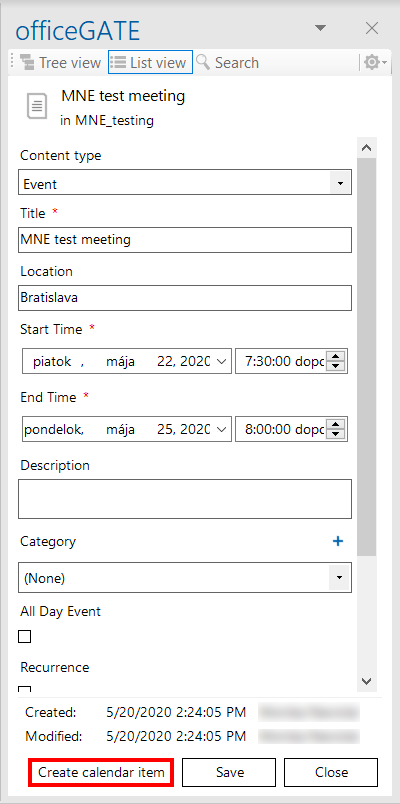
When you open a SharePoint calendar item in officeGATE, the item details view opens. The same two options as in List view are available.
Create Outlook calendar item
The Create Outlook calendar item option creates an Outlook calendar item in the same way as the corresponding option in List view.
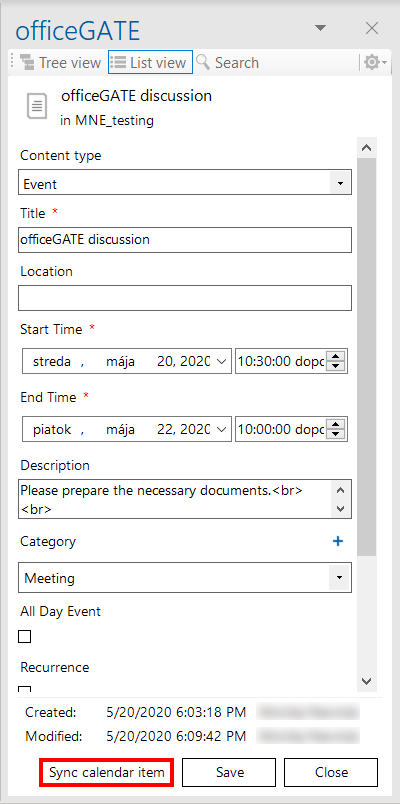
Synchronize Outlook calendar item(s)
The Synchronize Outlook calendar item(s) option synchronizes the Outlook calendar item in the same way as the corresponding option in List view.
Important: If an item that has already been synchronized is deleted from the SharePoint event list, it remains in the Outlook calendar because deleted items are not synchronized.