View selection: Tree view, List view, Collapse all
Introduction
The officeGATE status pane provides Tree view, List view, and Collapse all options for navigating providers, folders, and documents. Tree view displays providers and their hierarchical structure, while List view displays the contents of the selected location and provides additional navigation and sorting options. The List view also supports previews for contentACCESS items when the Preview service is available.
Tree view
Tree view displays all available providers and presents their information in a hierarchical structure. Each provider can contain several child nodes, such as:
- folders in a local or cloud file provider;
- libraries or folders in SharePoint;
- jobs in contentACCESS.
You can expand a provider to display its child nodes or collapse it to hide them.
To expand a provider:
- Click the plus sign (
+) next to the provider. - Locate the child node you want to work with.
- Right-click the child node to open its context menu.
The available context menu options depend on the particular provider. You can use the context menu to perform actions such as:
- add the selected child node to Favorites;
- rename or delete the selected node;
- open selected folders;
- create new subfolders;
- upload new files.
For an overview of the available context menu options for nodes and files, see Working with nodes and files using the context menu.
Collapse all
The Collapse all option collapses the nodes that have previously been expanded in Tree view.
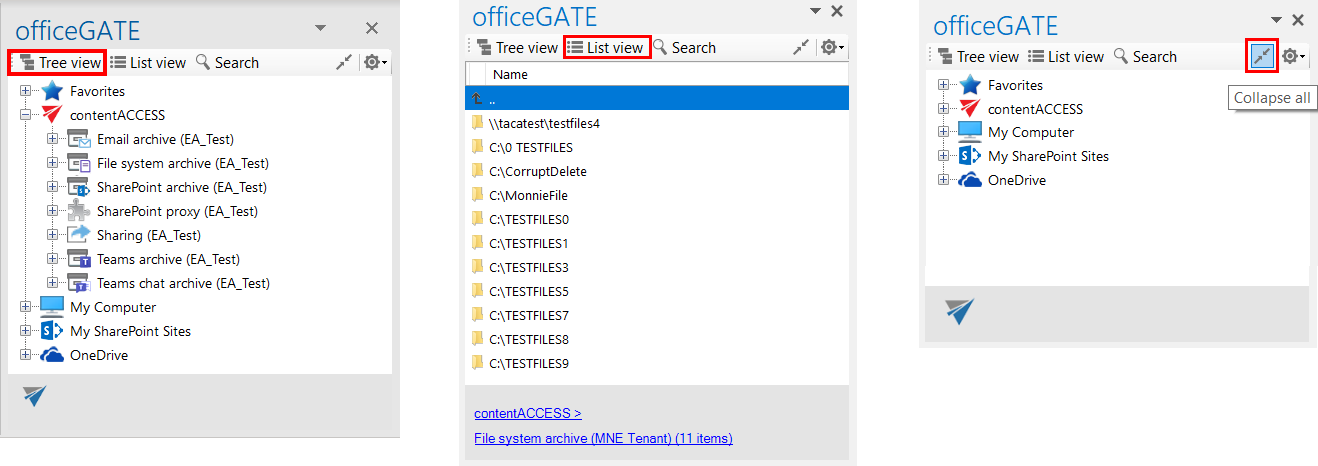
Screenshot A: Tree view; Screenshot B: List view; Screenshot C: Collapse all
List view
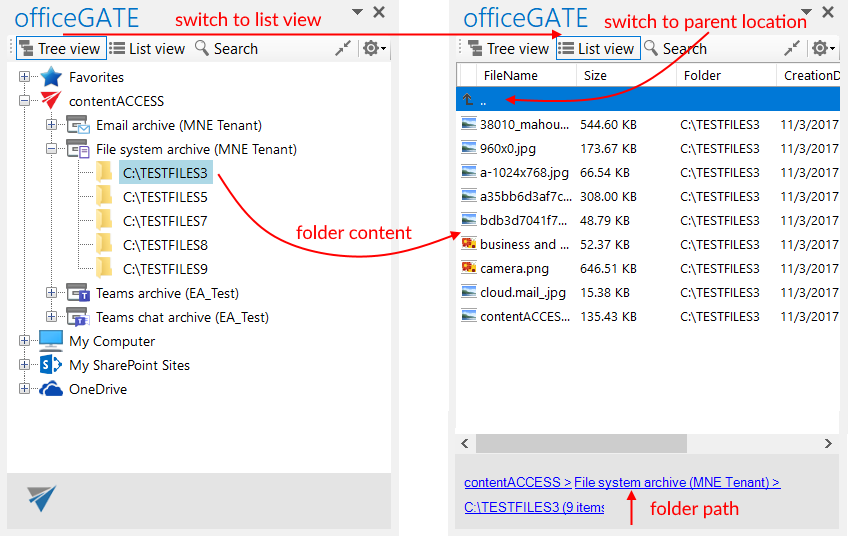
List view displays the contents of the selected parent folder, including folders, documents, and other available items.
The topmost entry is displayed as ... Click this entry to navigate to the parent location.
At the bottom of the pane, breadcrumbs display the path of the current location. Click a breadcrumb element to navigate directly to the corresponding parent location.
Sorting items in List view
officeGATE allows you to sort items by the available column headers in List view. The displayed headers depend on the selected provider.
For example, when a SharePoint folder is selected, the files can be sorted by the following column headers:
- Name
- Modified
- Modified by
The files can be sorted by the date they were last modified.
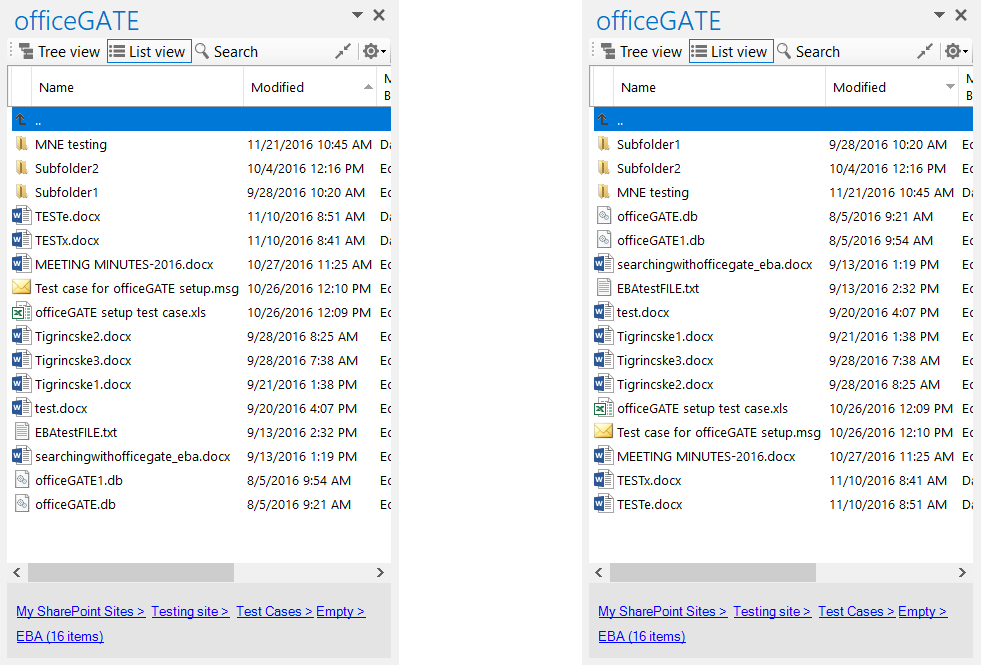
Screenshot A: Sorting the SharePoint files from youngest to oldest
Screenshot B: Sorting the SharePoint files from oldest to youngest
Preview contentACCESS items
When you are in List view, double-clicking a contentACCESS item opens its preview. The Properties context menu option works in the same way.
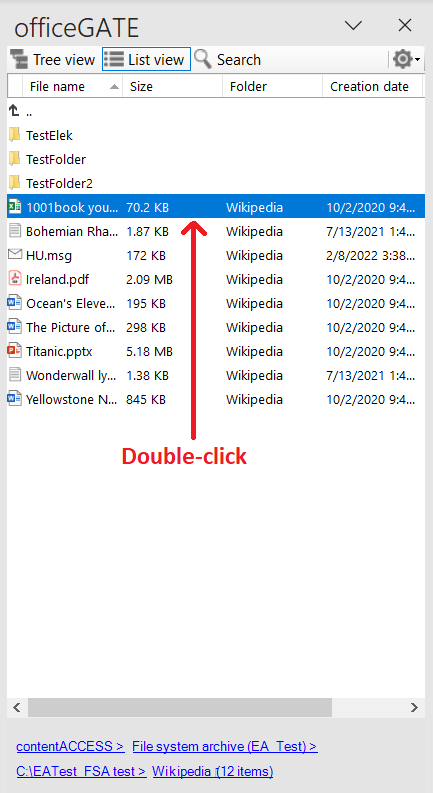
If the Preview service is installed and enabled in Central Administration, you can view file previews in officeGATE.
The Preview service works with:
- attachments of emails from Email archive and GDPR Exchange, and Teams messages from Teams archive;
- files from File System, OneDrive, and SharePoint archive, GDPR File system, and Teams archive (Files folder) models;
- previous versions of items from file-based models.
When the Preview service is enabled, it can be accessed from the file icon or the context menu.
Open a preview from the file icon
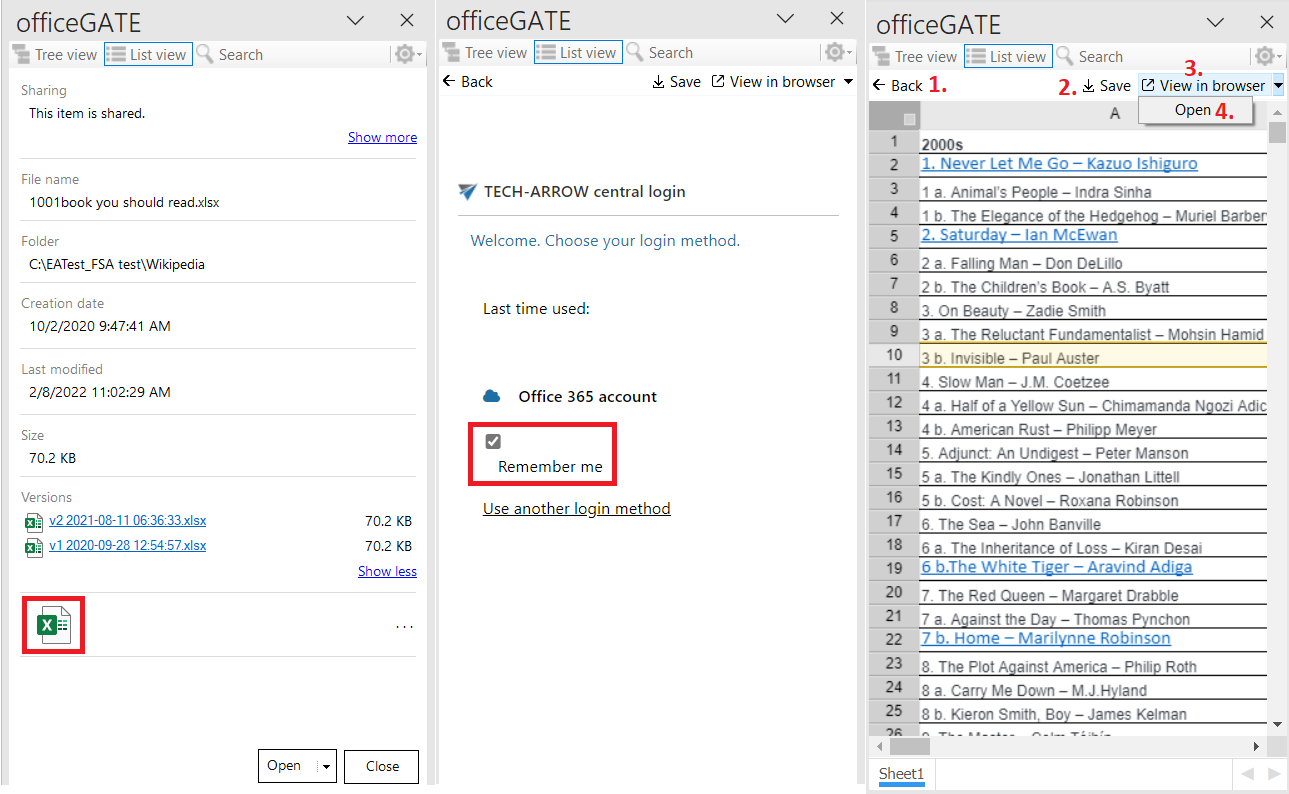
Click the file icon to open the preview.
If you open a preview for the first time, or after the login session has expired, the login page is displayed. Select a login method to continue.
Important: Remember me must be checked in the current version. Otherwise, the login page is displayed each time you open a file preview.
After you log in, the item preview is displayed. The following options are available:
- Back: Returns to the item preview where the metadata is displayed.
- Save: Saves the file to your device.
- View in browser: Opens the file in a browser, where you can download the original file or a PDF version.
- Open: Opens the file in the designated application.
Preview context menu
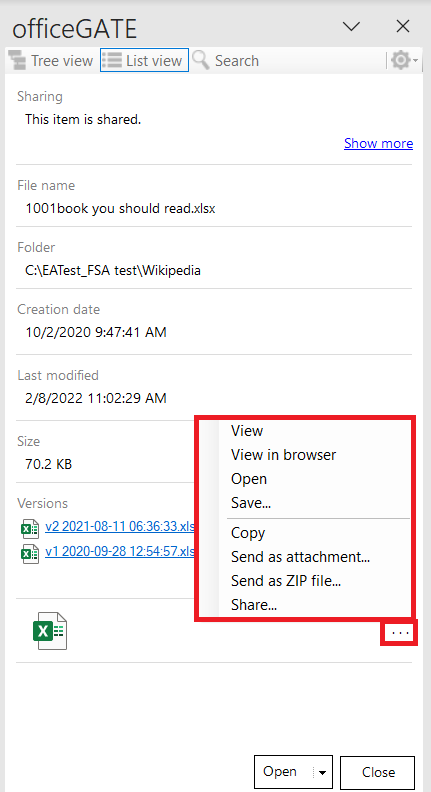
The following functions are available from the preview context menu:
- View: Opens the preview and provides the Save and View in browser options.
- View in browser: Opens the preview in the browser, where you can download the original file or a PDF version.
- Open: Opens the file in the designated application.
- Save: Saves the file to the local machine.
- Copy: Copies the document to the clipboard.
- Send as attachment: Attaches the file to a new email and sends it to the selected recipients.
- Send as ZIP: Sends the file as a ZIP file to the selected participants.
- Share: Shares the selected file from the preview.
Important: In the Sharing entity, opening an item's preview as the recipient is considered a download and increases the download count. If the download limit has been reached, the context menu is no longer available in the item preview, and you cannot click the item's icon.
From the preview, you can Open the original item or Close the preview.
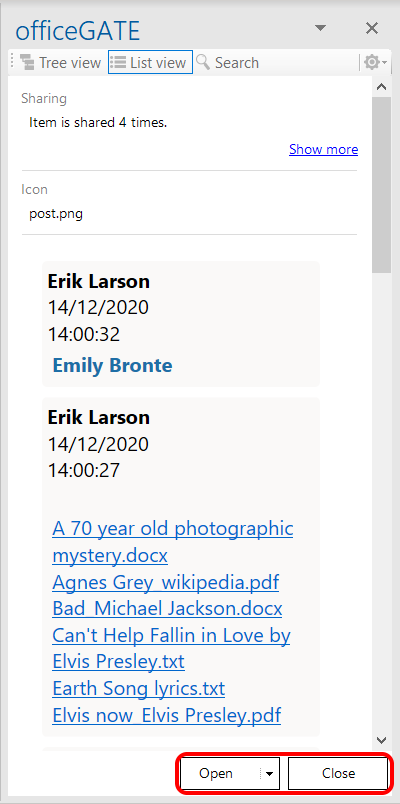
Screenshot: Preview and details of a Teams chat archive item
Open options
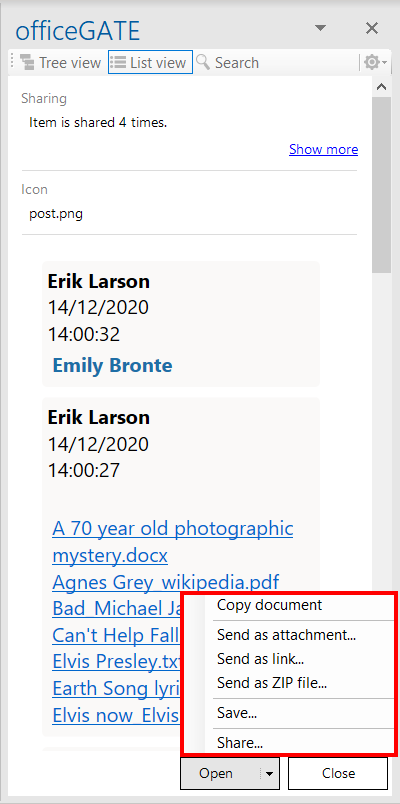
Click the arrow on the Open button to display additional options for the item:
- Copy document
- Send as attachment...
- Send as link...
- Send as ZIP file...
- Save...
- Share...
Switch between Tree view and List view
You can switch between Tree view and List view using a middle-mouse click if this option is enabled in the General settings of officeGATE.
For more information, see General officeGATE settings.