Working with nodes and files using the context menu
Introduction
The officeGATE context menu provides operations for working with folders, libraries, and documents in the pane. The available operations depend on the provider and the type of item selected.
To work with a folder or library, locate it in the pane and right-click it to open its context menu. To work with files, switch to List view, locate the desired file or files, and right-click to open the context menu.
Folder and library context menu
The following table provides a general overview of the operations available for folders and libraries in different providers.
| Providers | Operations on folders/libraries using their context menu | Preview |
|---|---|---|
| contentACCESS | ✓ Open contentACCESS Portal ✓ Add to favorites ✓ Properties ✓ Upload new file ✓ Refresh ✓ Enable offline access ✓ Enable offline access (recursive) ✓ Share | 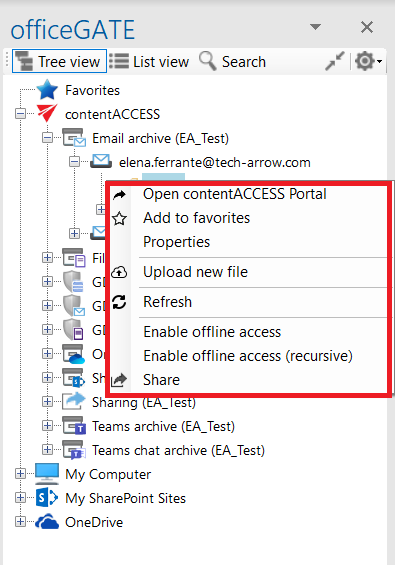 |
| My Computer (including local Dropbox and OneDrive folders) | ✓ Open ✓ Create folder ✓ Rename folder ✓ Delete folder ✓ Add to favorites ✓ Upload new file ✓ Refresh | 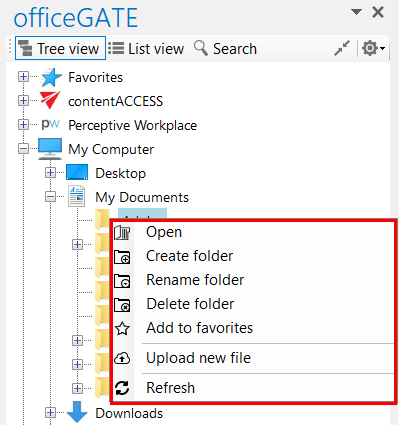 |
| SharePoint | Library: ✓ New (with submenu items based on the selected site/document set/folder/list templates) ✓ Open online ✓ Add to favorites ✓ Upload new file ✓ Refresh Folder/document set: ✓ New (with submenu items based on the selected site/document set/folder/list templates) ✓ Open online ✓ Rename folder ✓ Delete folder ✓ Add to favorites ✓ Upload new file ✓ Refresh List: ✓ New (with submenu items based on the selected site/document set/folder/list templates) ✓ Open online ✓ Add to favorites ✓ Refresh | 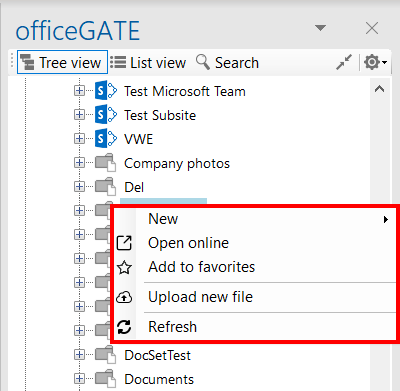 |
| OneDrive and OneDrive for Business | ✓ Open online ✓ Create folder ✓ Rename folder ✓ Delete folder ✓ Add to favorites ✓ Upload new file ✓ Refresh ✓ Enable offline access ✓ Enable offline access (recursive) | 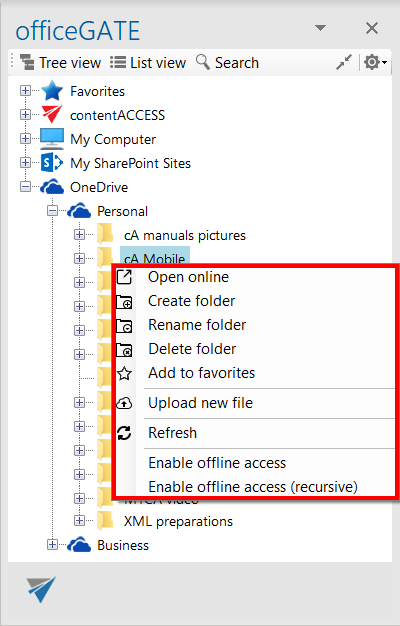 |
The available operations depend on the provider and the selected item.
File context menu
Operations on files are available from the file context menu in List view. Some operations are available only for specific providers.
The following table provides a general overview of the available file context menu options.
| officeGATE providers | Operations on files using their context menu | Preview |
|---|---|---|
| contentACCESS | ✓ Open ✓ Open contentACCESS Portal ✓ Send as attachment ✓ Send as ZIP file ✓ Properties ✓ Save document(s) locally ✓ Copy document(s) ✓ Create folder ✓ Refresh ✓ Upload new file ✓ Enable offline access ✓ Share | 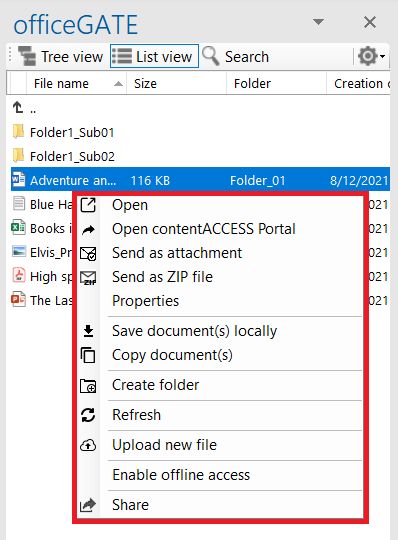 |
| My computer (including local Dropbox and OneDrive files) | ✓ Open ✓ Send as attachment ✓ Send as link ✓ Send as ZIP file ✓ Save document(s) locally ✓ Copy document(s) ✓ Delete document ✓ Rename document ✓ Create folder ✓ Refresh ✓ Upload new file ✓ Share | 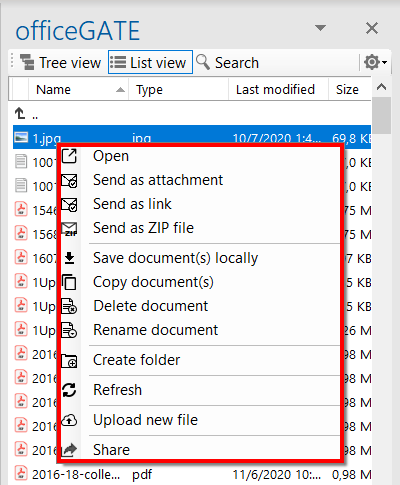 |
| SharePoint | ✓ New (with submenu items based on the selected site/document set/folder/list templates) ✓ Open online ✓ Send as attachment ✓ Send as link ✓ Send as ZIP file ✓ Properties ✓ Save document(s) locally ✓ Copy document(s) ✓ Delete document ✓ Rename document ✓ Refresh ✓ Upload new file ✓ Share | 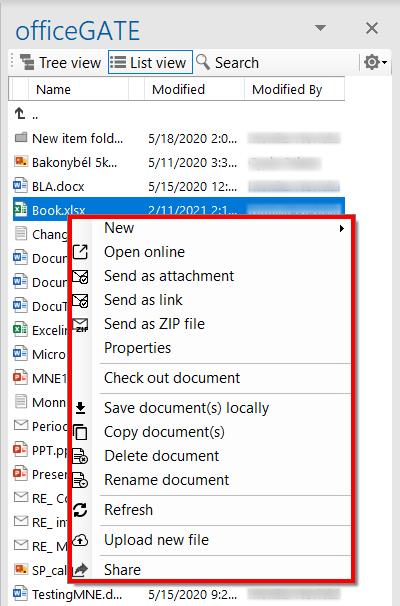 |
| OneDrive / OneDrive for Business | ✓ Open online ✓ Send as attachment ✓ Send as link ✓ Send as ZIP file ✓ Save document(s) locally ✓ Copy document(s) ✓ Delete document ✓ Rename document ✓ Create folder ✓ Refresh ✓ Upload new file ✓ Enable offline access ✓ Share | 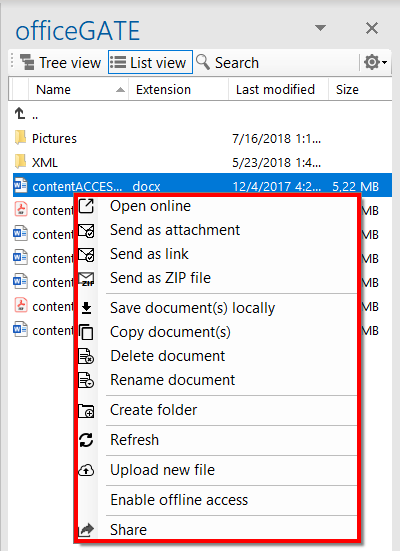 |
Working with files
For everyday file operations in officeGATE:
- Select your provider from the officeGATE pane.
- Connect to the provider if it is not connected automatically.
- Switch to List view.
- Locate the file or files you want to work with.
- Right-click the selected file or files to open the context menu.
- Select the required operation.