Copying/pasting document(s)
Introduction
The Copy document(s) and Paste document(s) functions allow users to copy selected documents from one provider folder or library to another target location. Documents can also be copied and pasted using the CTRL+C and CTRL+V keyboard shortcuts.
Copy and paste documents
To copy documents to another provider folder or library:
- Select the documents that you want to copy and open the context menu.
- Select Copy document(s).
- Navigate to the target location where you want to create the copy.
- Select the target location, open its context menu, and select Paste document(s).
- Wait until officeGATE uploads the documents to the target location.
The copy and paste functions also work with the CTRL+C and CTRL+V keyboard shortcuts.
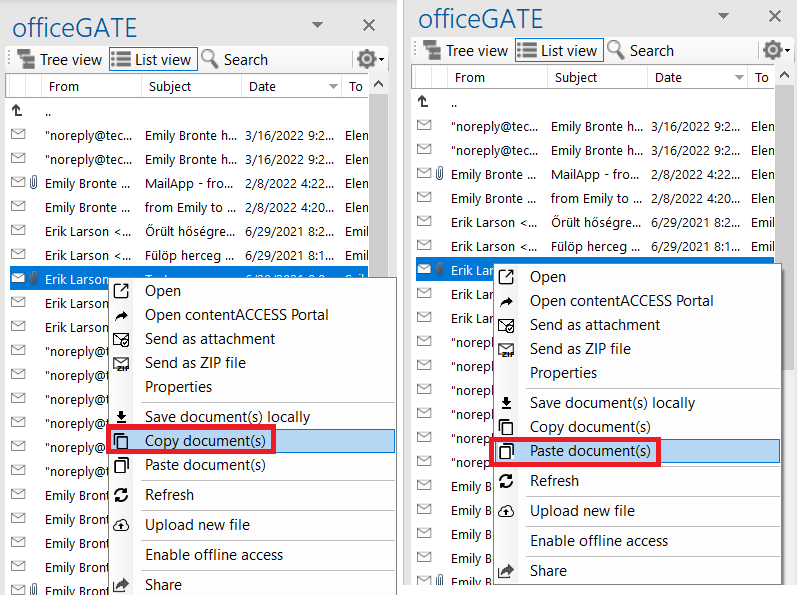
- Screenshot A: Copy document(s) from a source location.
- Screenshot B: Paste document(s) to a target location.