Selecting items for offline access
Introduction
The Offline synchronization settings in officeGATE allow you to select libraries, folders, and files for offline access. Selected items are downloaded to the offline database and can then be accessed without a network connection.
Enable offline access
If offline access is enabled in the Offline synchronization settings, you can select the desired libraries, folders, and files to be accessed without a network connection and download them to the offline database. These settings are available from the respective item's context menu.
To enable offline access for an item:
- Select the respective item in the navigation pane.
- Right-click the item to open its context menu.
- Select the appropriate offline access option.
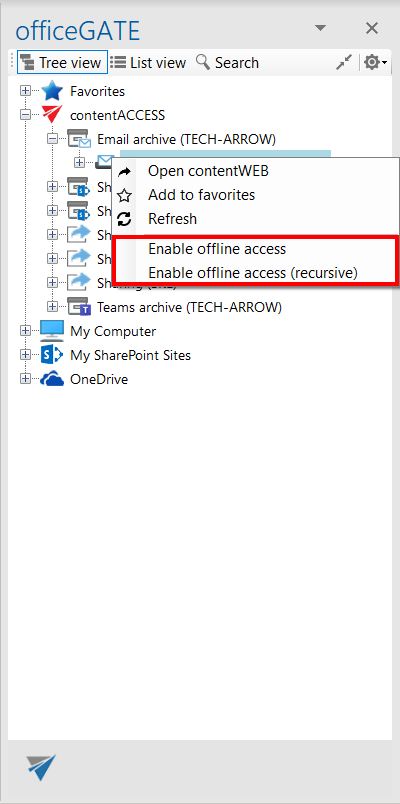
For folders and libraries, you can enable offline access:
- for the selected node (file container) only – select Enable offline access;
- for the recursive folder structure, including all its child folders or libraries – select Enable offline access (recursive).
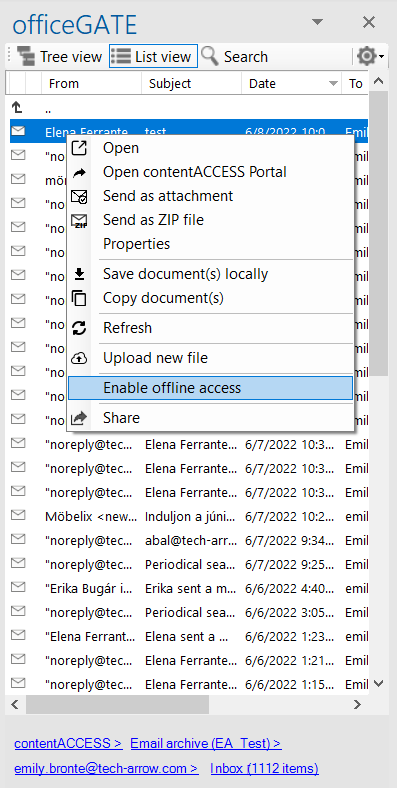
To enable offline access for a selected file:
- Locate the file in the navigation pane in list view.
- Right-click the file to open its context menu.
- Select Enable offline access.
Synchronize items for offline access
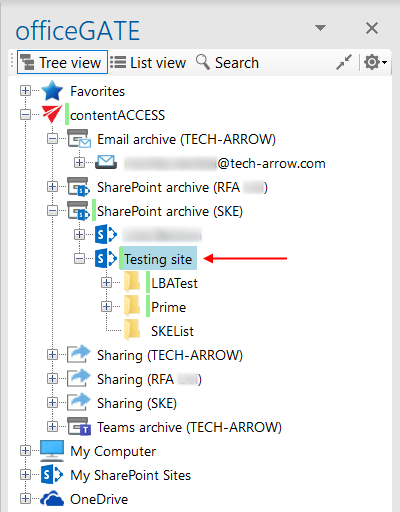
To enable offline access recursively for the archived SharePoint site testing site, select Enable offline access (recursive) from its context menu.
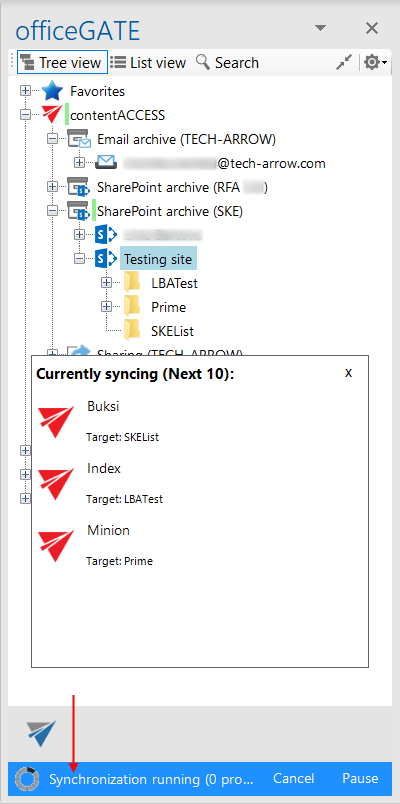
The synchronization process starts when you select this option. The selected items are downloaded to the offline database, and the progress is displayed in the footer of the navigation pane.
The documents currently being synchronized are displayed in a pop-up window. You can pause or stop the synchronization process at any time:
- Pause: Pauses the synchronization process. The synchronization can be resumed later.
- Cancel: Stops the synchronization process.
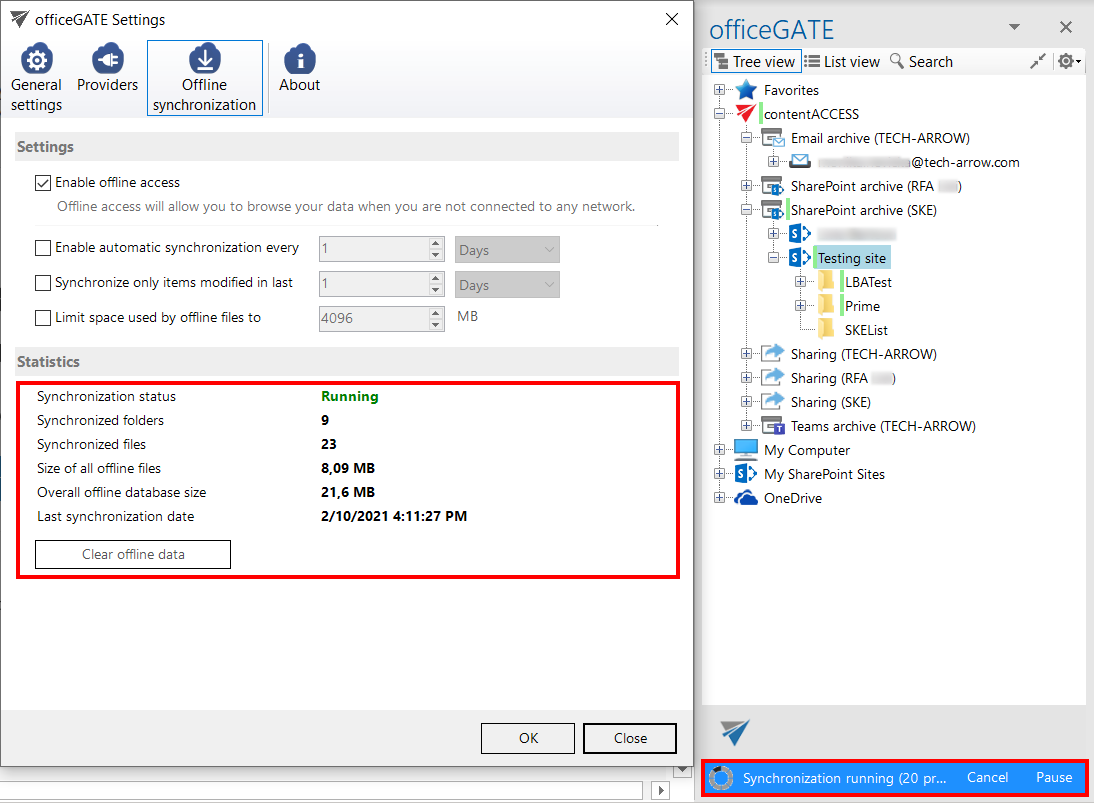
The status of the synchronization process can be checked in the Offline synchronization settings.
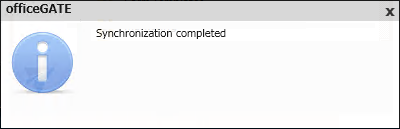
A pop-up dialog informs you when the synchronization is complete.
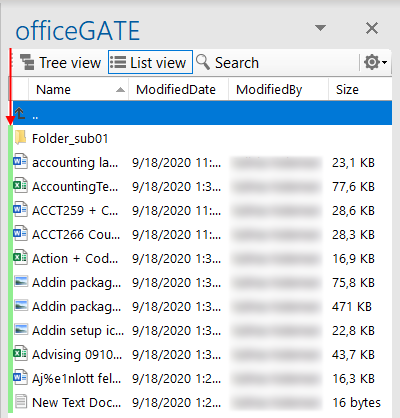
After synchronization is complete, the data in the Testing site and its subfolders is synchronized and available in offline mode.