Sharing with contentACCESS version 4.2 or older
Introduction
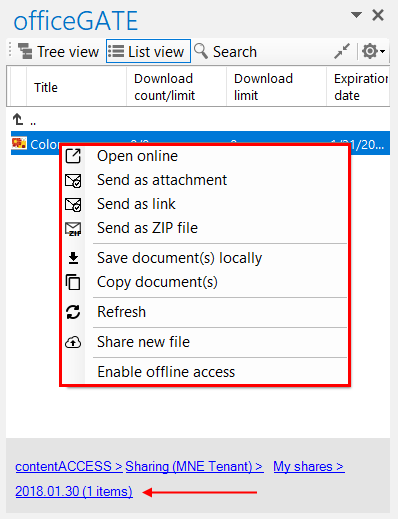
The Sharing job in officeGATE provides easy access to shared files, including large files that cannot be sent as email attachments. Files uploaded to the My shares folder are stored by contentACCESS, and the application automatically generates a link that can be shared with other users. Links to files that have already been uploaded can also be sent from the file's context menu.
Note: The sharing feature is available only when a contentACCESS provider is used and the Sharing job is licensed.
Prerequisites
Before sharing files using officeGATE, complete the following configuration:
-
Configure a Sharing job in contentACCESS.
A Sharing job can be configured in the Custom plugins ⇒ General ⇒ Jobs section of the Central Administration interface of contentACCESS. For more information, see Sharing job. -
Connect officeGATE to contentACCESS.
Click Connect in the contentACCESS node's context menu to open the settings dialog and configure the required parameters for connecting to contentACCESS. -
Configure the sharing values.
Configure the Download limit and Expiration date in the contentACCESS connector settings, under the Sharing section. These values can also be changed directly in the upload dialog.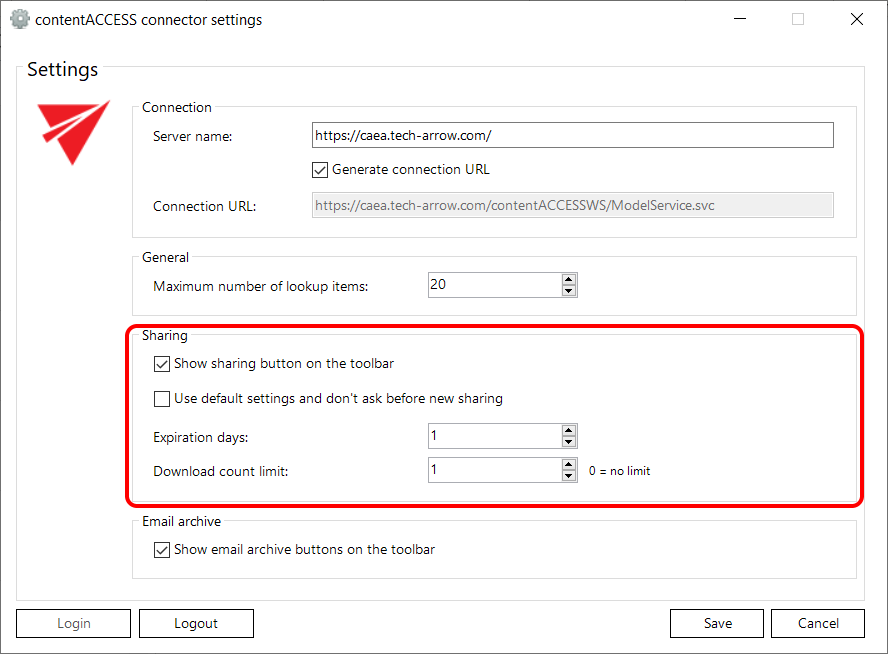
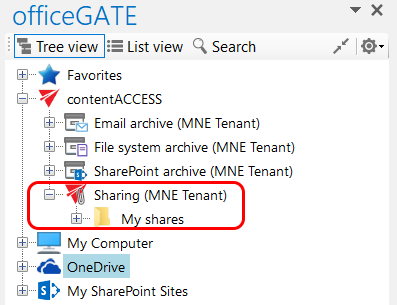
After the connection is established, expand the contentACCESS node. The Sharing job is available under the contentACCESS node in the officeGATE pane. Shared files are saved in the My shares folder under this node.
Share files
After contentACCESS is connected to officeGATE, files can be shared in two ways.
Share a file from the toolbar
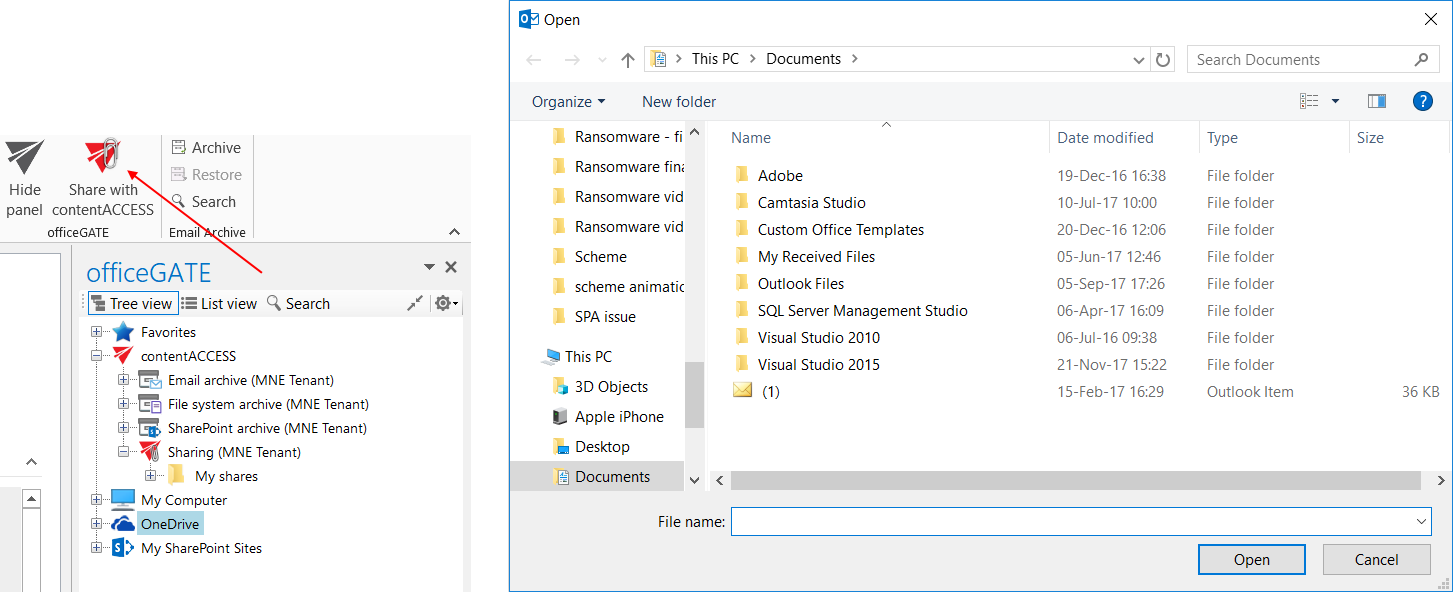
- Click Share with contentACCESS in the Microsoft Outlook toolbar.
- Locate the file that you want to share.
- Click Open.
The advantage of this method is that you do not need to locate the Sharing job in the officeGATE pane.
Share a file from the My shares folder
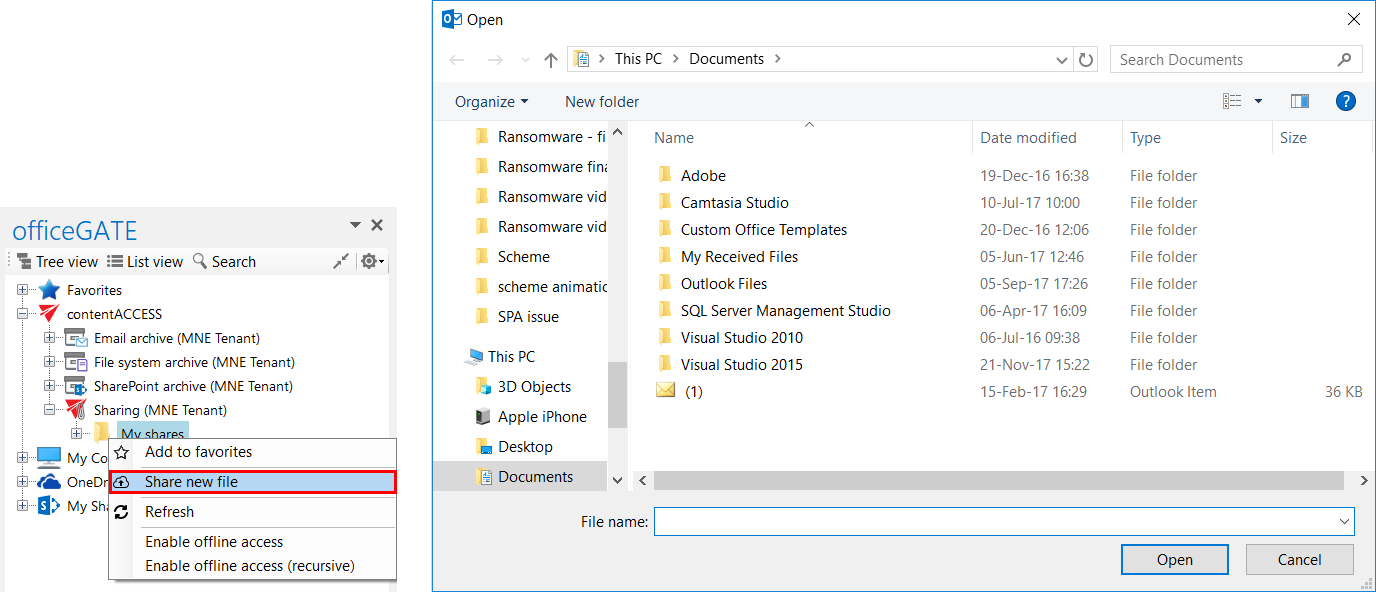
- Open the context menu of the My shares folder under the Sharing job.
- Select Share new file.
- Select the file that you want to share.
- Click Open.
Configure sharing options
The Process document with contentACCESS dialog opens automatically after selecting a file to share. You can configure the following values:
- Expiration date – the period for which the file is kept in the My shares folder.
- Download limit – the maximum number of times the file can be downloaded.
The default values are automatically populated according to the contentACCESS settings configured previously.
Change the values if needed and click Upload to start the upload process.
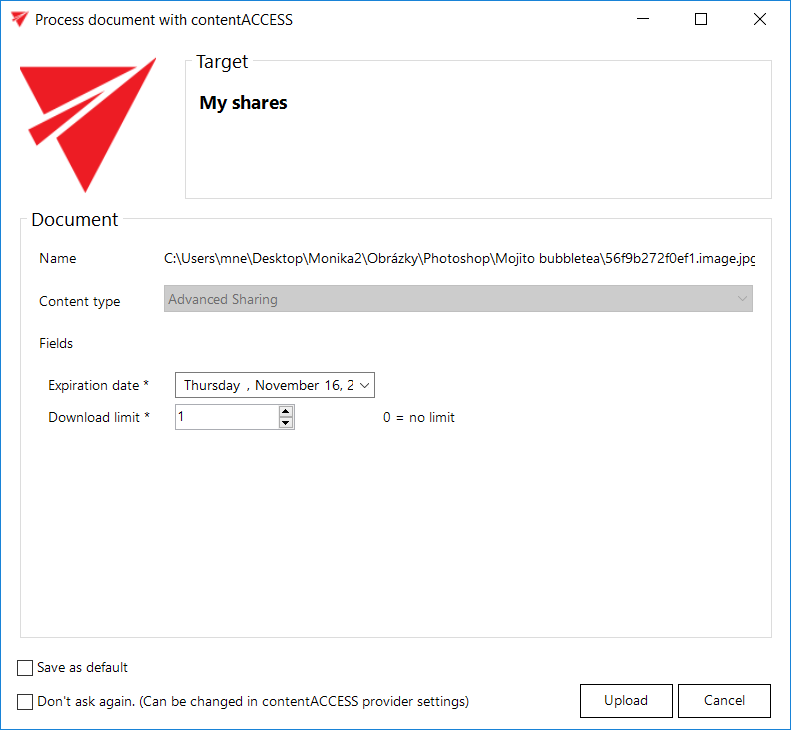
You can also change the default expiration date and download limit directly in this dialog:
- Enter the desired values in the corresponding text boxes.
- Select Save as default in the lower-left corner of the dialog.
- Click Upload.
The newly specified values are applied to each subsequent upload.
If you select Don't ask again, the application uses the same default settings for each share without asking again. These settings can be modified later in the contentACCESS connector settings dialog, on the Sharing tab.
Send a shared file
After the upload is completed, a compose email window automatically opens with a link to the shared file. You can send the message containing the link to another user.
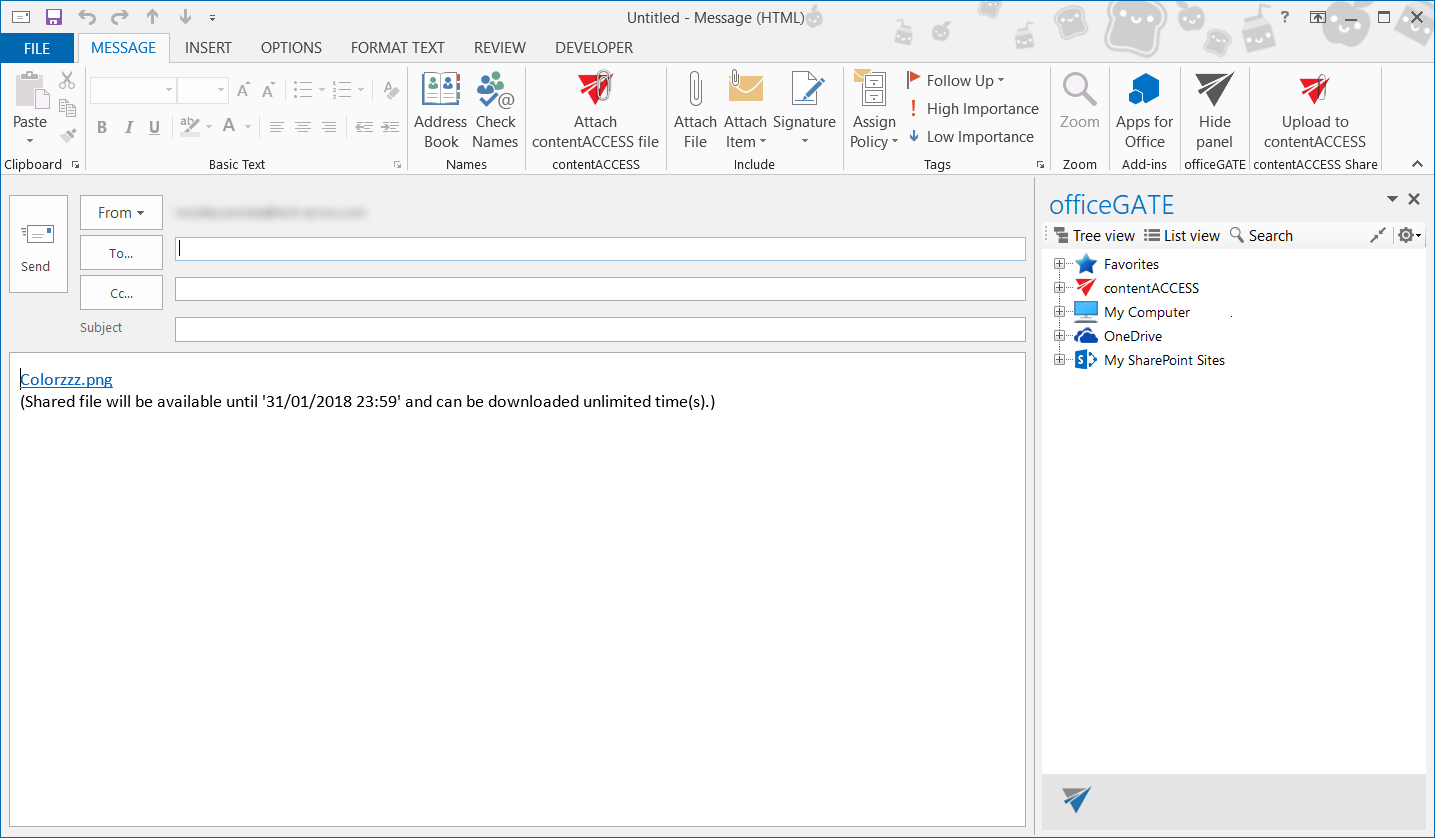
You can also attach a contentACCESS file directly from the compose window:
- Click Attach contentACCESS file in the toolbar.
- Select the file that you want to attach.
Manage shared files
To open, edit, or share a file from the My shares folder:
- Locate the file in the officeGATE pane.
- Open its context menu.
- Select the required action.