Troubleshooting
Introduction
Troubleshooting in officeGATE helps you identify and resolve common problems that may occur while working with the application. This section provides solutions for issues related to the officeGATE add-in, SharePoint connections, Outlook compatibility, and disabled add-ins.
Troubleshooting
officeGATE add-in does not appear in the right-hand panel
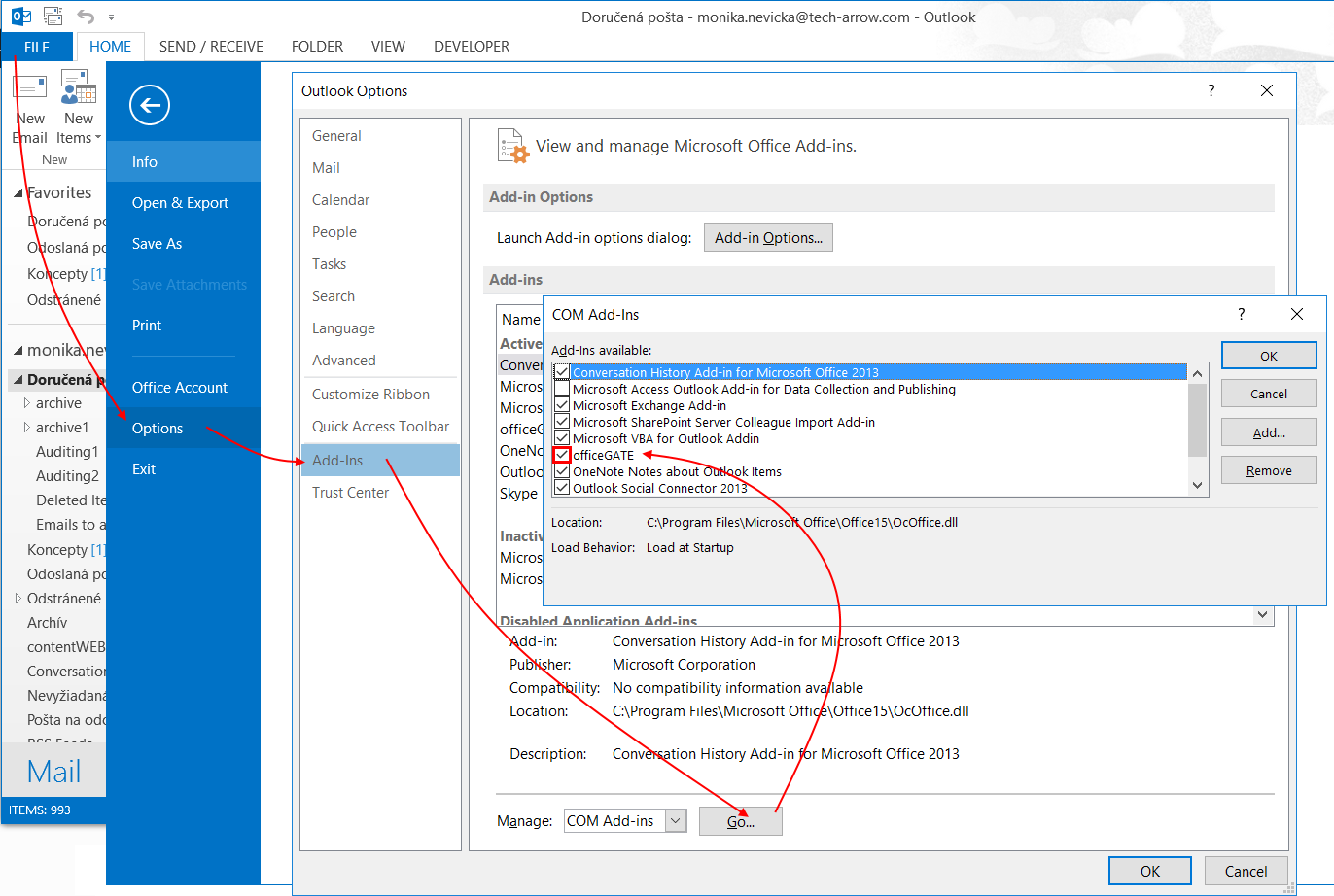
When you reopen Microsoft Outlook, the officeGATE panel may become invisible. To make the officeGATE add-in visible again:
- In Microsoft Outlook, go to File ⇒ Options.
- In the Outlook Options window, select Add-Ins from the left panel.
- Click Go at the bottom of the window.
- In the COM-Add-Ins window, make sure that the checkbox for officeGATE is selected.
- Click OK.
The officeGATE panel should now be visible.
SharePoint connection in officeGATE is not established
If the connection to SharePoint cannot be established, one possible reason is that the SharePoint password has been changed on the server.
Set the new SharePoint password in officeGATE as well. For more information, see Connecting to SharePoint site(s).
officeGATE version is not supported by Microsoft Outlook
If you receive the following message when trying to install officeGATE, the installed version of officeGATE is not supported by the version of Microsoft Outlook installed on your PC.
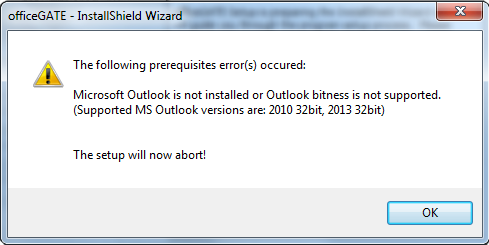
Download the version of officeGATE that corresponds to the version of Microsoft Outlook installed on your PC.
Microsoft Outlook displays a warning about officeGATE
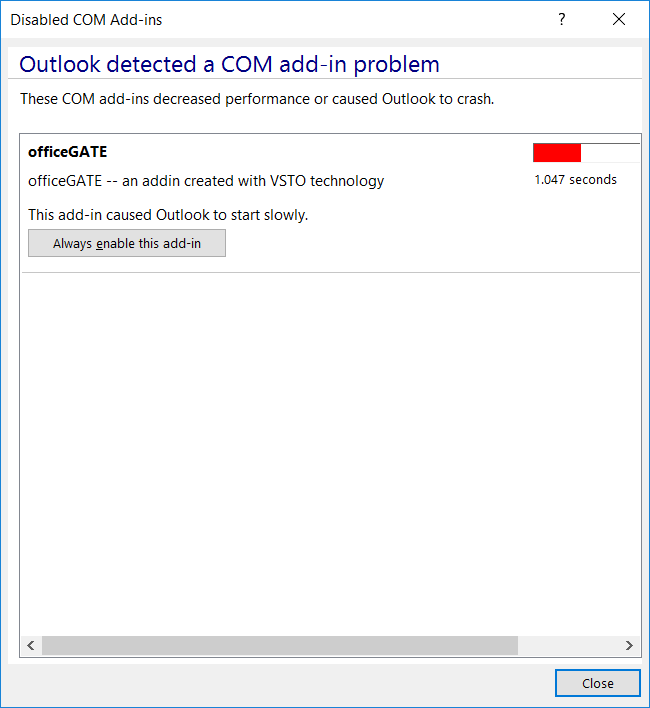
If Microsoft Outlook displays the following warning and the officeGATE pane does not appear on the right side of the window, follow these steps:

-
Click View Disabled Add-ins… in the warning.
-
In the Disabled Add-ins window, click Always enable this add-in.
-
Click Close to close the window.
-
Restart Microsoft Outlook.
The officeGATE panel should now be visible.