Installation
Introduction
The contentACCESS Outlook forms must be installed in Microsoft Outlook so archived email messages can be opened transparently from the Outlook client. The installation includes publishing the required .oft files, selecting the appropriate form library, assigning the correct display names, and validating the forms for standard, forwarded, and replied messages.
Install the contentACCESS Outlook forms
-
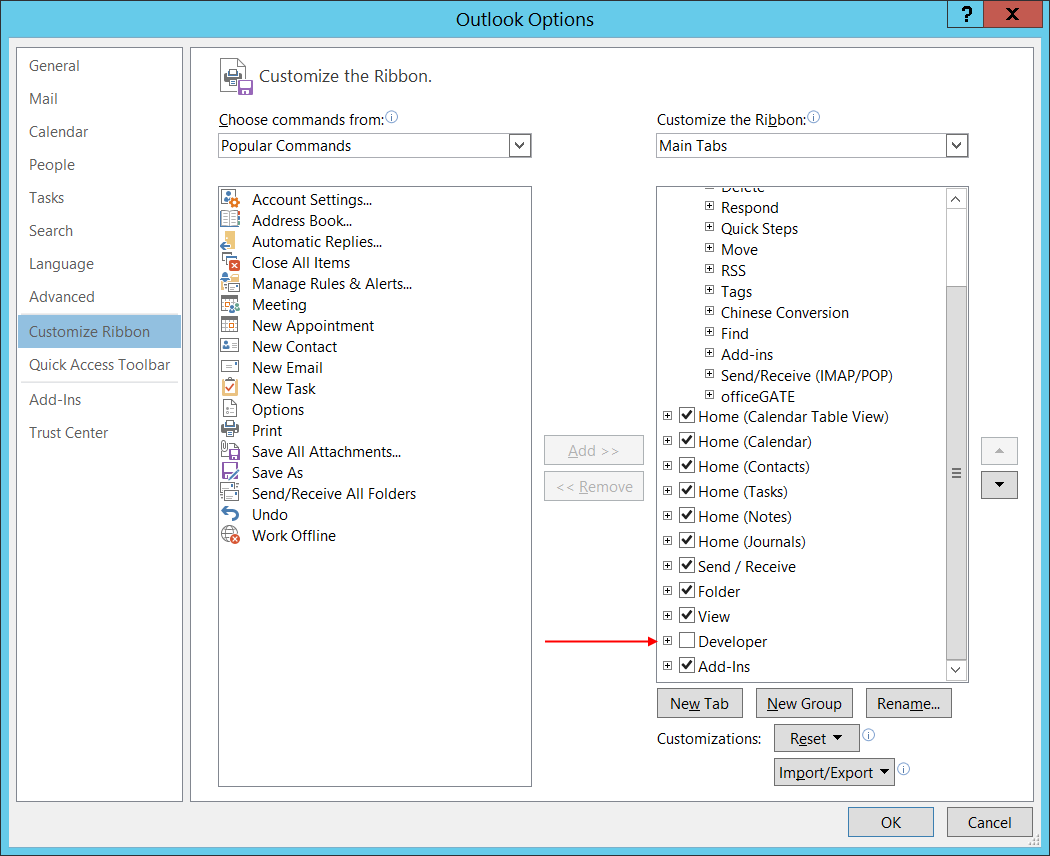
Open Outlook and enable the Developer ribbon if it is not already visible. In Outlook 2010, go to File > Options > Customize Ribbon:
-
In the list on the right side, select the Developer group.
-
On the Developer tab, click Design a Form:

-
In the Look In drop-down list, select User Templates in File System and locate the CA_techarrow.oft file first.


-
Select CA_techarrow, click Open, and the form opens in design mode.
-
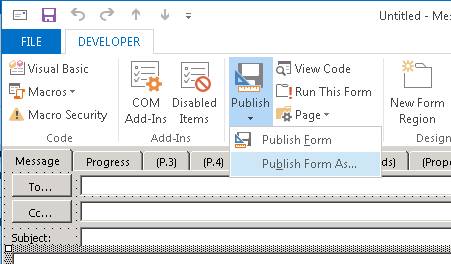
Click Publish and then select Publish Form As...:
-
Select the target location for the form:
- Organizational Forms Library – For an Exchange-wide installation.
- Personal Forms Library – For a user-specific installation.
-
Change the Display name to CA and click Publish.

The form is published and can now be used to open archived messages.
-
Close the form design window and select No when Outlook asks whether you want to save the changes. The form has already been published, so there is no need to save it elsewhere.
-
Repeat steps 3–9 to install the remaining forms:
- CA_F_techarrow.oft must be published as IPM.Note.CA.F with the display name CA.F.
- CA_R_techarrow.oft must be published as IPM.Note.CA.R with the display name CA.R.
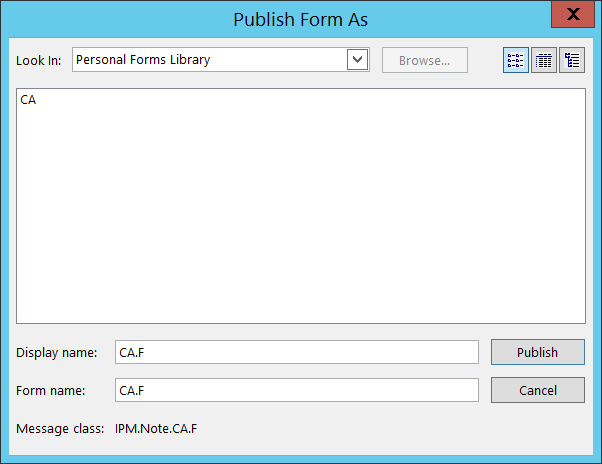
Publishing CA_F_techarrow.oft:
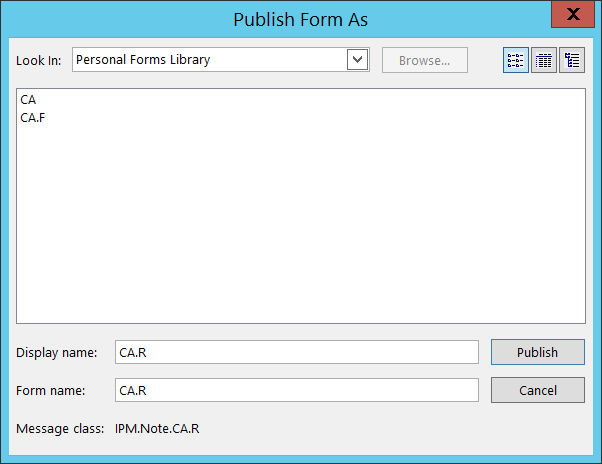
Publishing CA_R_techarrow.oft: