contentACCESS Portal user interface
Introduction
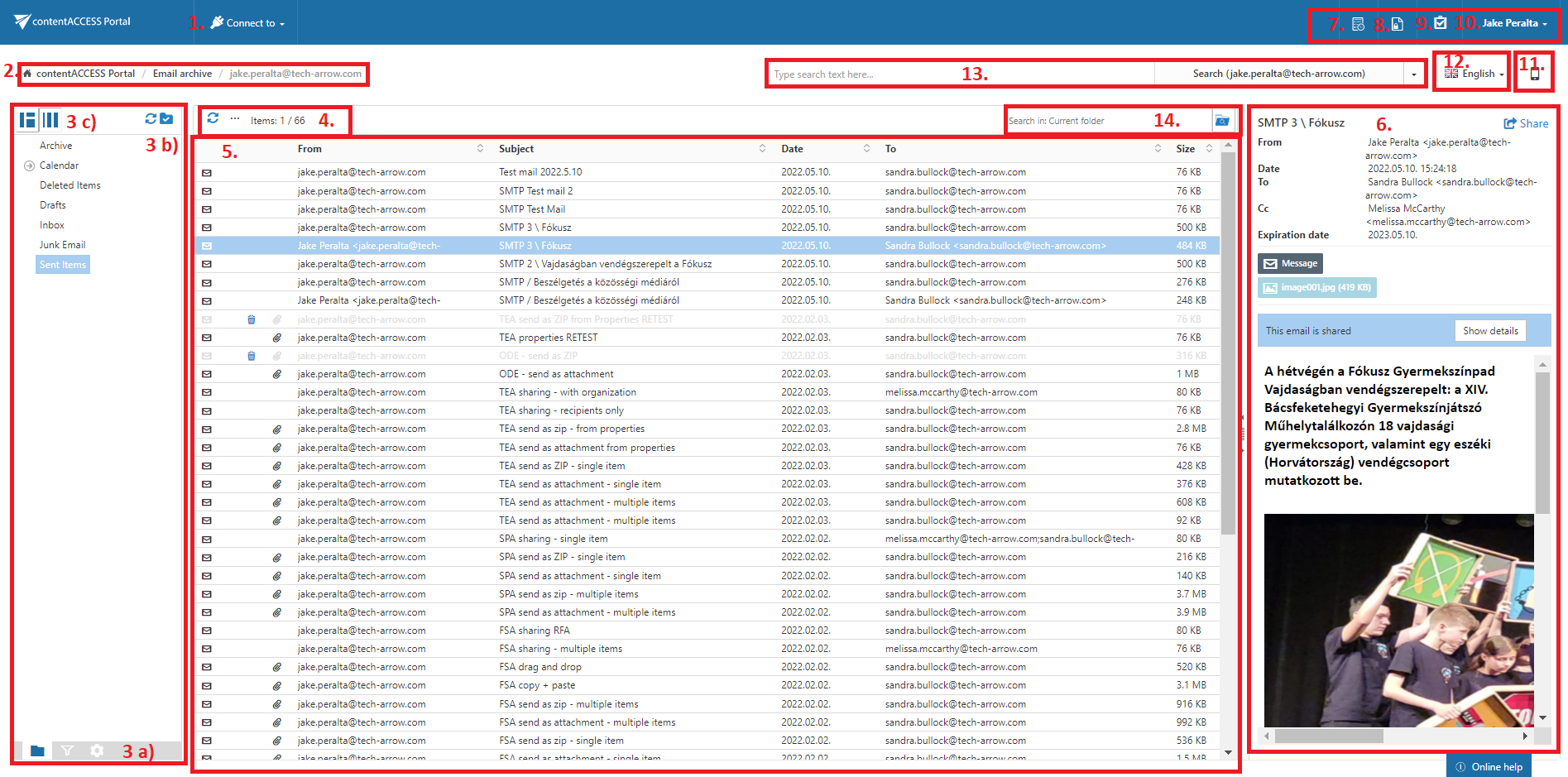
The contentACCESS Portal user interface provides access to archived entities, folders, items, search functions, processing options, and user settings. The main interface is divided into several sections that allow users to browse and manage processed items.
contentACCESS Portal user interface
The main sections of the contentACCESS Portal user interface are:
-
Connect to menu – Allows the user to connect to the associated entities. An entity can be an email archive mailbox, file system archive folder, or anything else processed or archived by a certain contentACCESS job type and displayed in this menu.
-
Breadcrumbs – Displays the entity to which the logged-in user is currently connected through the Connect to menu.
-
contentACCESS Portal pane – Displays different information depending on the button selected at the bottom of the pane:
- Folders – Displays the selected entity's folder structure in the navigation pane.
- Active/inactive items – Allows the user to apply the active/inactive item view.
- Settings – Allows the user to configure the double-click action for items.
-
Folder selector buttons – Enable folder selection and allow the user to select or deselect the entire folder structure in the pane.
-
Layout selector buttons – Allow the user to position the reading pane on the right or left side.
-
Toolbar buttons – Provide processing options such as Refresh, Export to ZIP, Export to PST, Create report, Share item(s), Recovery, Delete, and Legal hold. The available processing options depend on the selected entity.
-
Item list view – Displays the items and their corresponding properties.
infoNote: An item is a file or email from the list view that has previously been processed by the contentACCESS server.
-
Item preview – Displays a preview of the selected item.
-
Periodical search list – Displays all available Periodical searches.
-
Legal hold – Allows the user to create a Legal hold case where documents can be placed. Documents in a Legal hold case cannot be deleted from the system until the case expires.
-
Tasks list – Displays the available tasks.
-
Administrator's settings menu – Provides access to common and UI settings. This menu is available and visible only for System administrators. The menu also provides the Logout option for signing out of contentACCESS Portal.
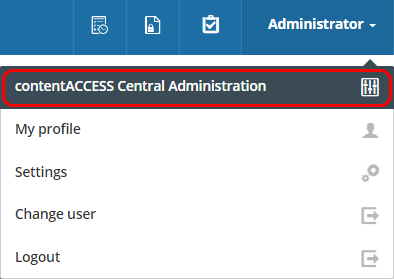
If the user has access to Central Administration, such as a Tenant administrator or System administrator, the menu also provides an option to open Central Administration directly.
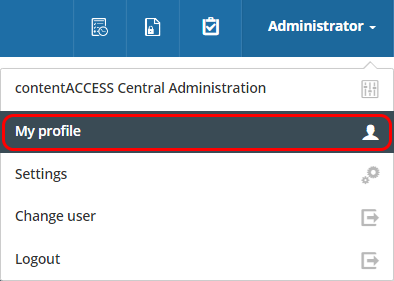
The menu also provides an option to open the User profile page.
-
Switch to mobile version – Switches the user interface to the mobile version.
-
Language selection menu – Allows the user to select the interface language.
-
Full-text search and Advanced search – Provide access to the corresponding search functions.
-
Simple search – Allows the user to enter a search term and select the search level:
- Current folder
- Current folder and subfolders
- Subfolders only
Definition of terms
Definition of terms:
- Item – A file, email, or folder that is present in the contentACCESS Portal archive.
- Entity – A mailbox in the case of the Email archive, a root in the case of the File system archive, or another archive location. To connect to an entity, select it from the Connect to menu.
The following sections of this manual describe the contentACCESS Portal user interface in detail and provide information about how to work with processed items.