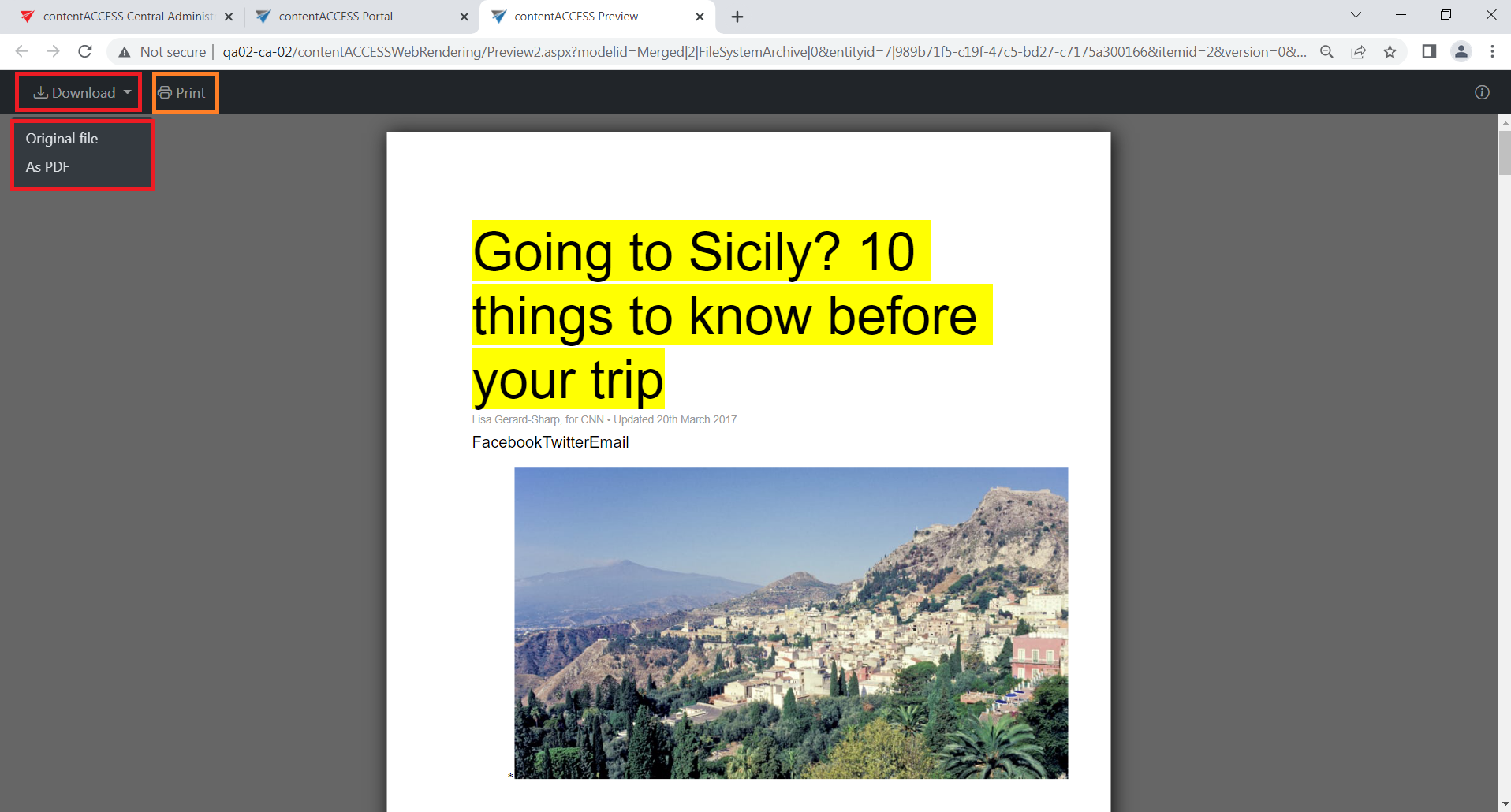
Download from the item list/item preview in contentACCESS Portal
Introduction
There are three ways to download items in contentACCESS Portal. You can download an item from its preview, use the configurable double-click action in the item list, or download a file through the Preview service.
Download items from the item preview
The first option is to click the corresponding Download button in the item preview.
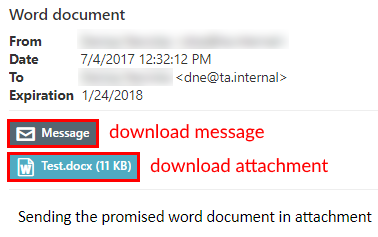
Screenshot A: Downloading an archived email or email attachment from the item preview
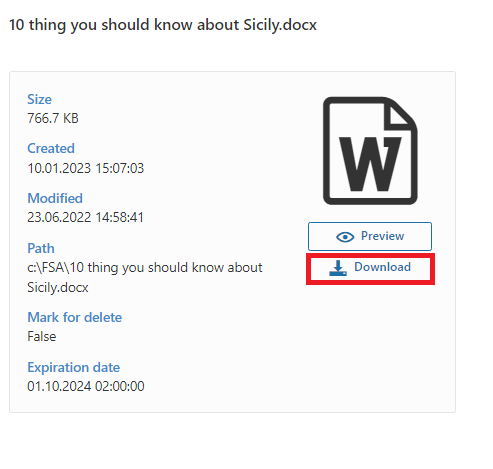
Screenshot B: Downloading an archived file from the item preview
Download items by double-clicking
The second, and easier, method is to double-click the item in the item list. The selected item opens in a new browser tab, where you can save it.
This option can be configured from the navigation pane:
-
At the bottom of the navigation pane, click the Settings cog icon:

-
Select the Download radio button.
-
Click Apply.
To disable the double-click download action:
- Select the No action radio button.
- Click Apply.

Download files through the Preview service
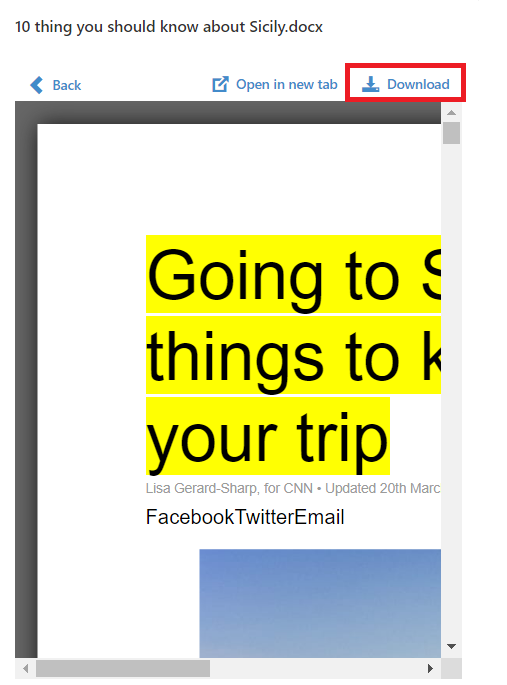
The third option is to download files through the Preview service. To use this option, the Preview service must be installed with the contentACCESS package and enabled on the System page.
When the Preview service is enabled, you can:
-
Download the item directly from the opened file preview.
-
Open the item in a new browser tab and download the file from there.
For more information, see Item list and item preview.