Item list and item preview
Introduction
The item list view displays the items contained in the folder selected in the navigation pane. The available columns depend on the selected entity, and items can be sorted by these columns. Selecting an item displays its preview, including extended metadata or the email body.
If the Preview service is installed and enabled in Central Administration, users can also preview and download files directly in contentACCESS Portal. The Preview service provides additional preview options for supported file-based models and supports video streaming.
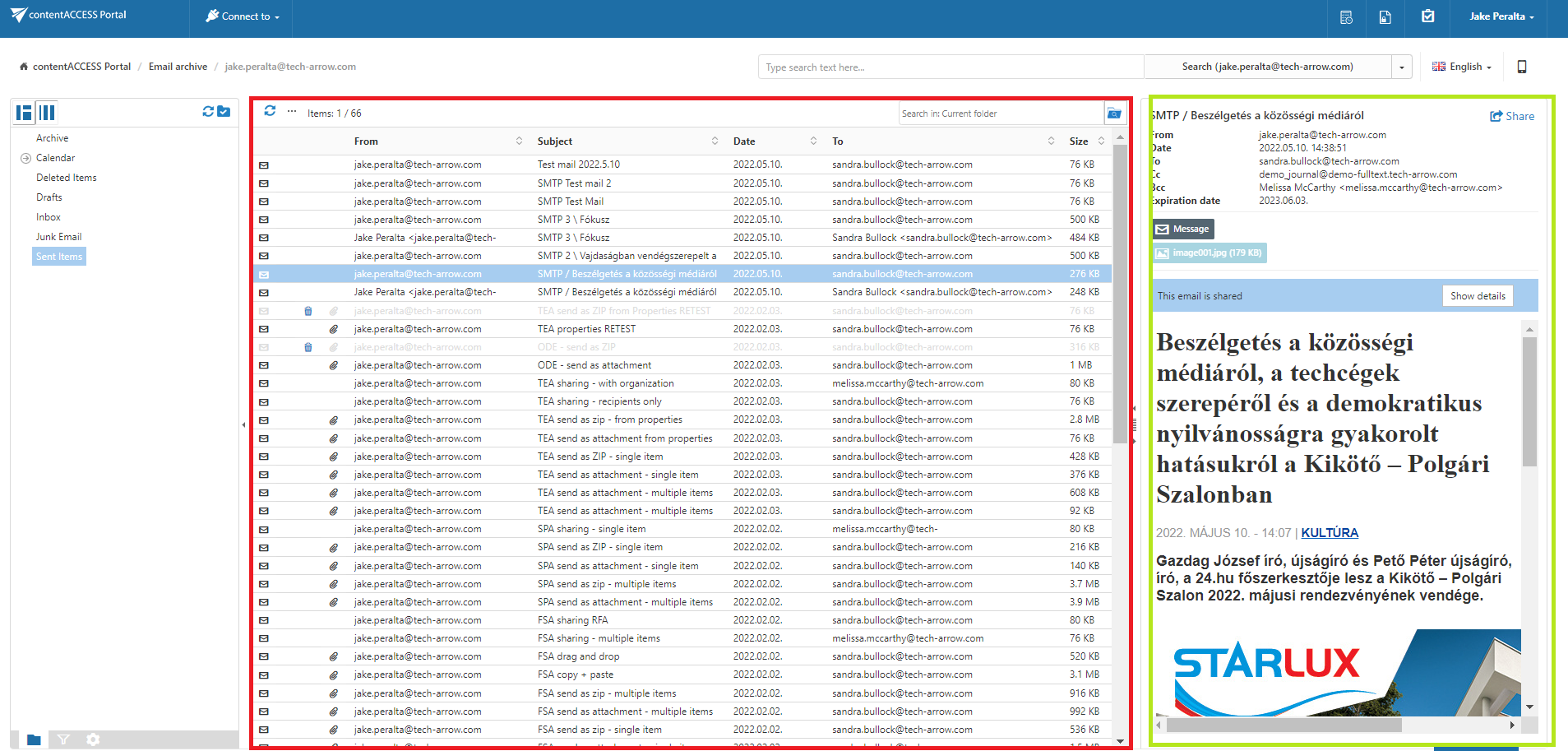
Emails' item list and item preview
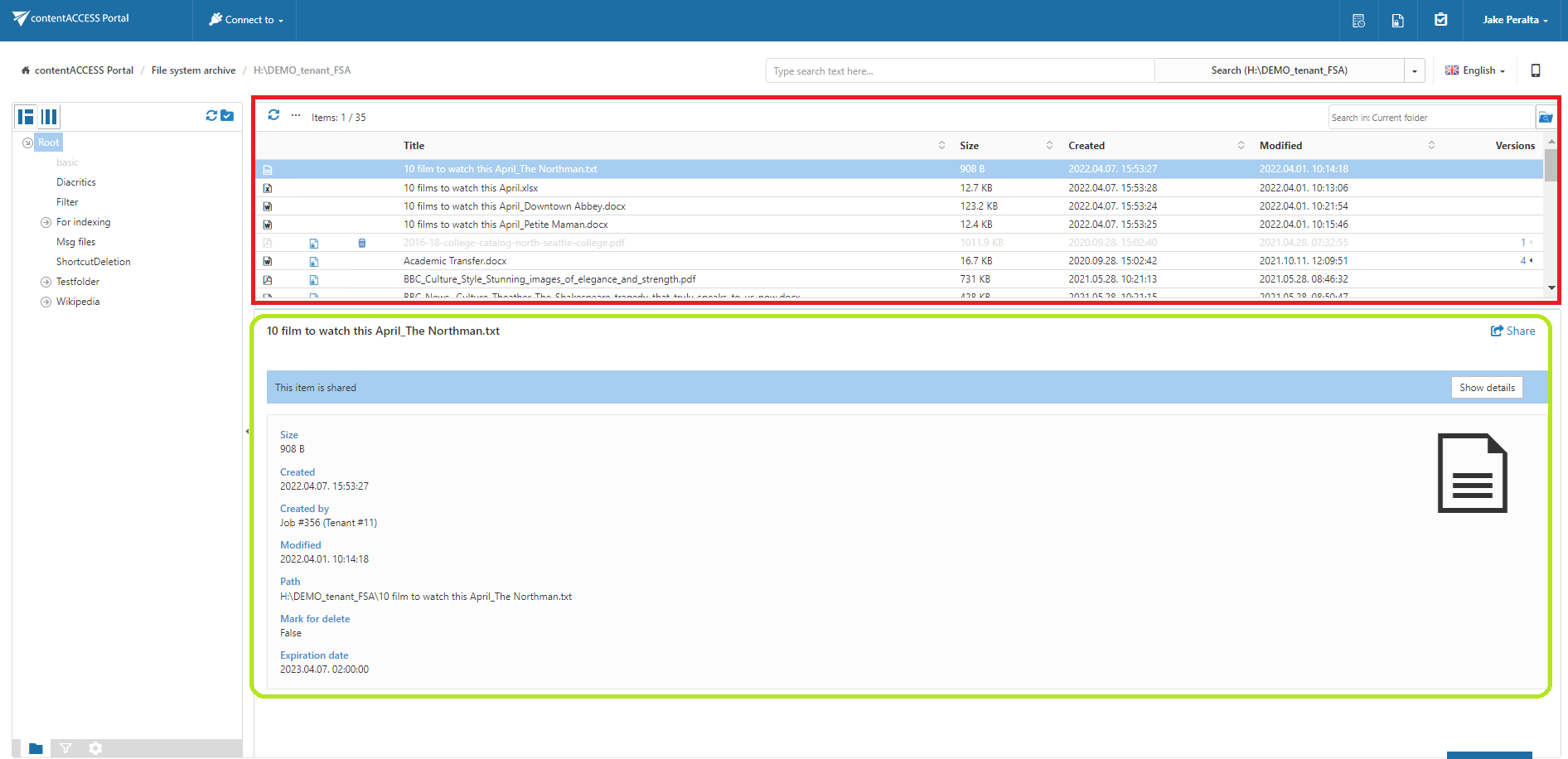
Files' item list and item preview without the Preview service
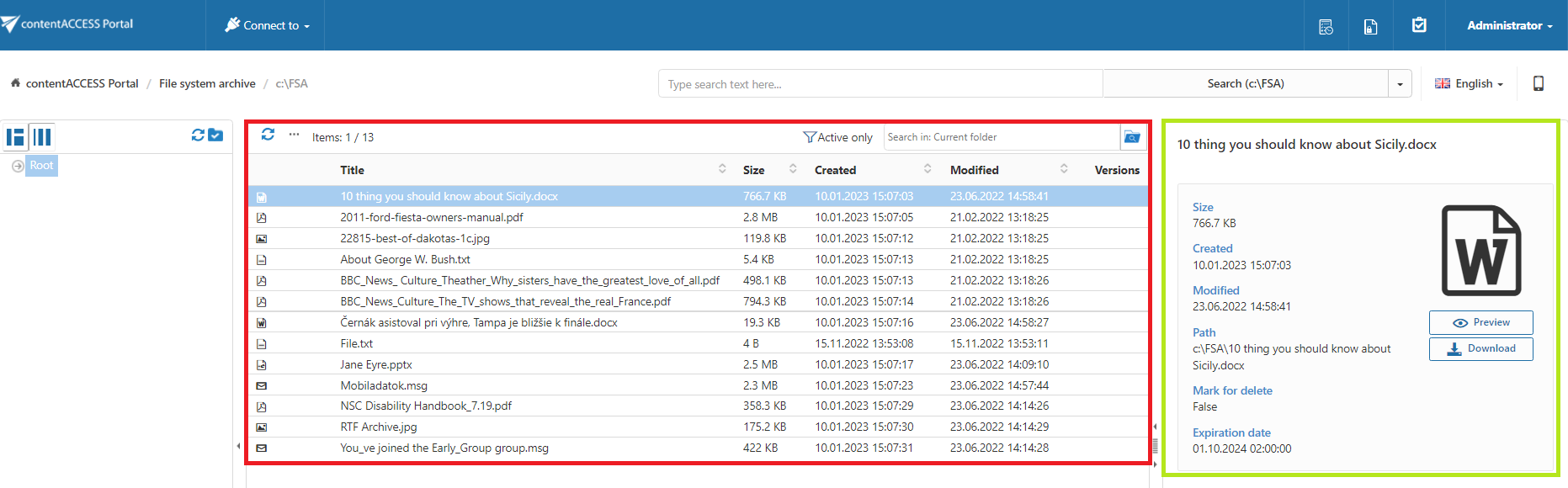
Files' item list and item preview with the Preview service
Item list view
When a folder is selected in the navigation pane, its items are displayed in the list view. Each item has several columns. The available columns are specific to the selected entity, and the items can be sorted by these columns.
The administrator can define which columns are visible or hidden in Settings. For more information, see User Interface Settings, under the Table view column configuration subsection.
Item preview
Select an item from the list view to display its preview. Depending on the item type, the preview contains extended metadata information or the body of an email.
If the Preview service is not installed, the preview contains only the available metadata information or email body, and the user cannot preview the file content.
If the Preview service is installed and enabled in Central Administration, the Preview and Download buttons are displayed in the file preview in addition to the extended metadata information.
Note: The Preview service works only with the following file-based models:
- File system
- OneDrive
- SharePoint
- Teams archive – In folders containing files and in All SharePoint data folders
- Sharing
- GDPR Application
- GDPR File system
Configure the Preview service
To use the Preview service, the administrator must first install the service. For more information, see Installation of the Preview service.
After installation, the administrator must enable the service on the System page. For more information, see the System section of the contentACCESS manual.
When the Preview service is enabled, the following buttons are available in the file preview:
- Download – Downloads the item directly from the preview.
- Preview – Opens the file preview, allowing the user to view the content of the selected item.
The Preview service also supports video streaming.
Work with the file preview
When the file preview is opened, the following actions are available:
- Back – Returns to the item preview containing the metadata.
- Open in new tab – Opens the file in a new browser window.
- Download – Downloads the file.
Preview
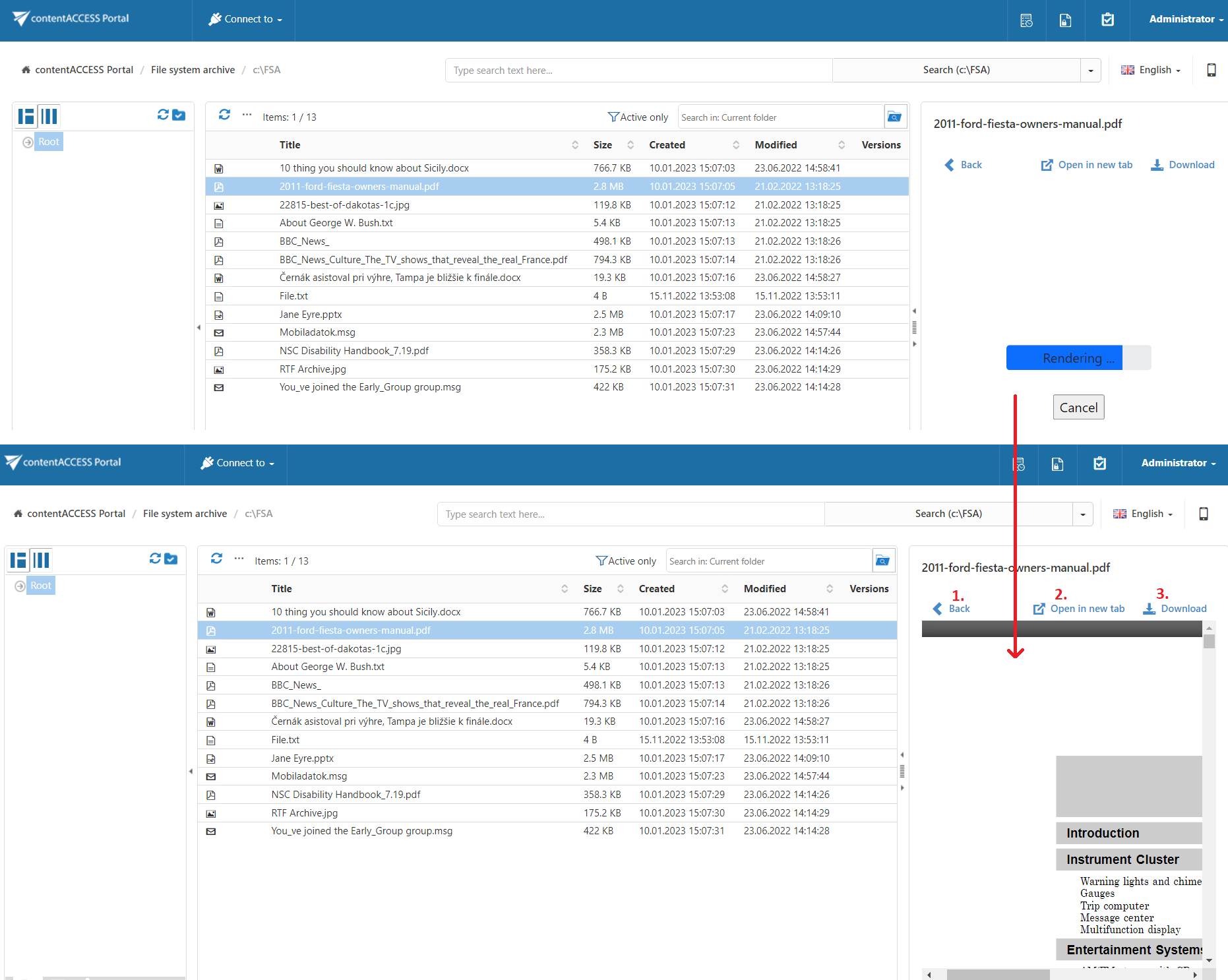
Open in new tab
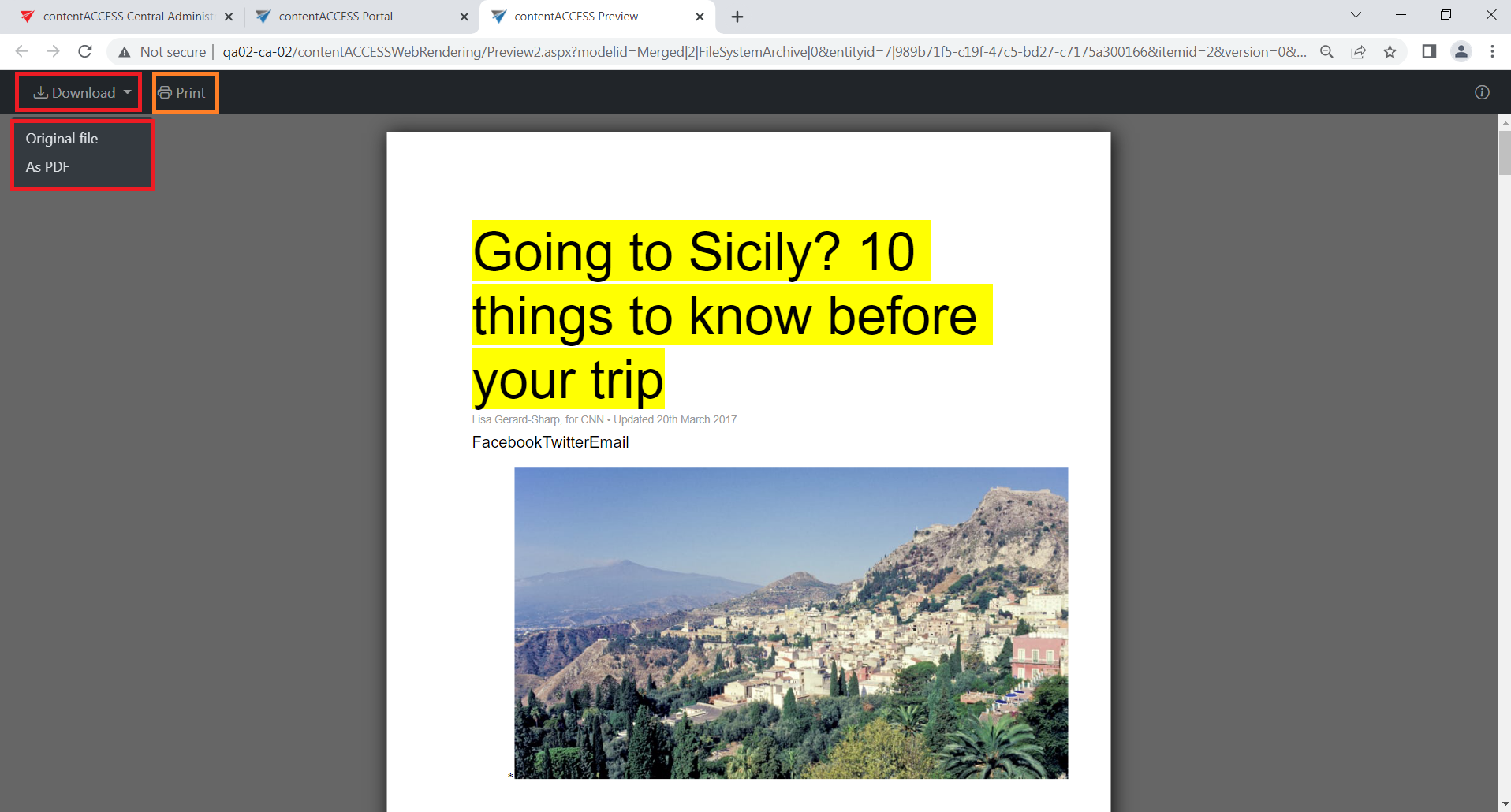
When the selected file is opened in a new browser window, the user can view the entire file, print the item, or download it.
When clicking Download, the user can choose whether to download:
- The original file, keeping its original extension, such as
.txtor.docx. - The file as a PDF, in which case the file is converted to PDF before downloading.
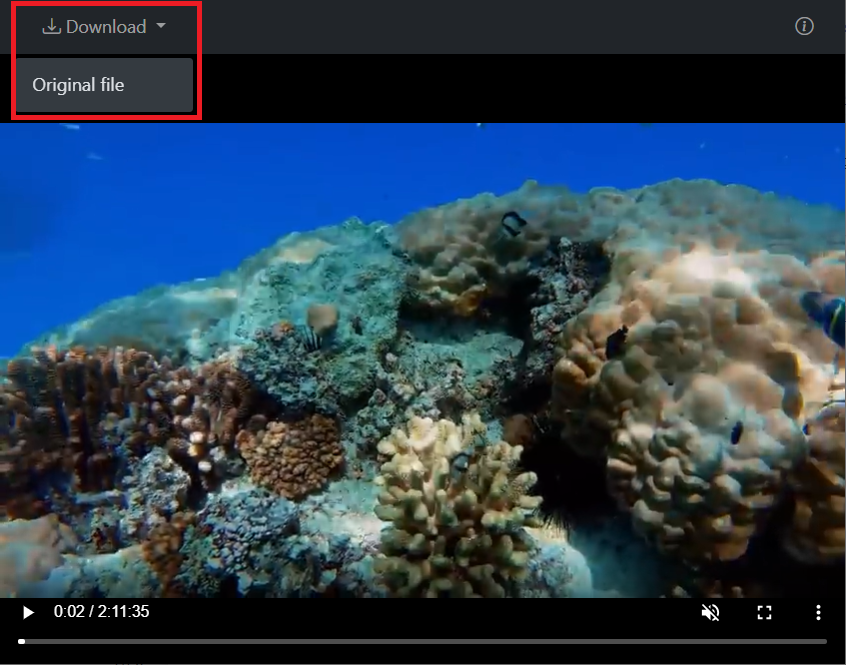
Note: Unlike text files, when a video file is opened in a new tab, only the Download original file option is available.
Preview shared items
Important: In the Sharing entity, opening an item's preview as the recipient is considered a download and increases the download count. If the download limit has been reached, the Preview button is no longer displayed in the item preview.
Supported video formats
| Browser | MP4 | WebM | Ogg |
|---|---|---|---|
| Edge | YES | YES | YES |
| Chrome | YES | YES | YES |
| Firefox | YES | YES | YES |
| Safari | YES | YES | NO |
| Opera | YES | YES | YES |
For more information about supported video formats, see the Video.js HTML5 video support website.
Email attachments
Note: The Split attachments option is active (checked) by default. This means that the email body and attachments are stored separately.
If an email containing attachments was archived by a job where Split attachments was not checked, the following apps will show 0 attachments:
However, when you open the original email, the attachments are displayed.

If Split attachments was checked but the email contains an embedded email (.msg attachment), the embedded email is not displayed among the attachments in the apps.