Sorting in contentACCESS Portal
Introduction
Processed items in contentACCESS Portal can be sorted by the available item columns. The visible columns are configurable in UI settings, and users can reverse the sorting order by clicking the arrow next to a column.
Sort items
File Archive
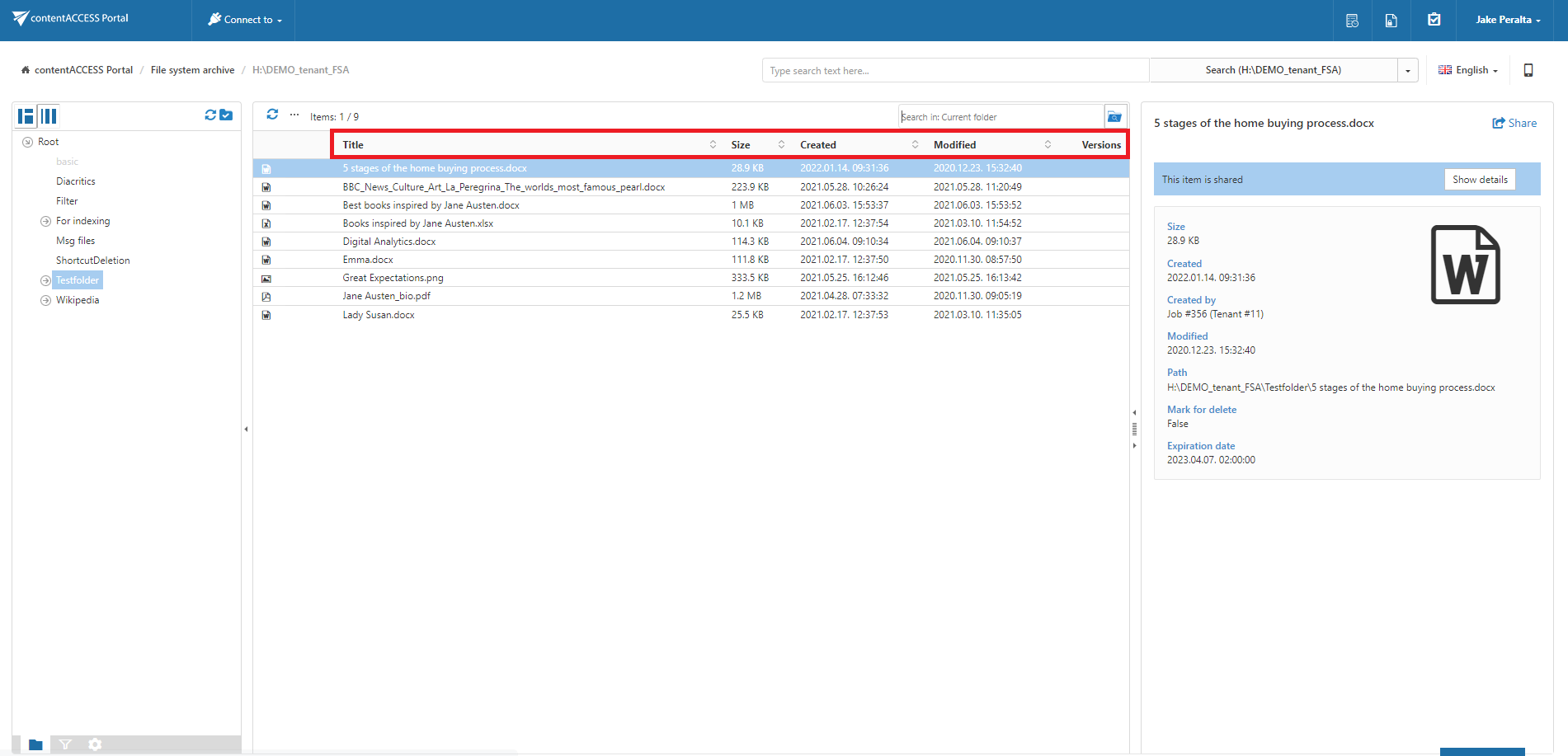
By default, the following columns are visible in the File Archive system:
- Title – Sorts items according to file name.
- Size – Sorts items according to size.
- Created – Sorts items according to creation date.
- Modified – Sorts items according to modification date.
info
Note: The Folders column is available only in the Advanced search view.
Email Archive
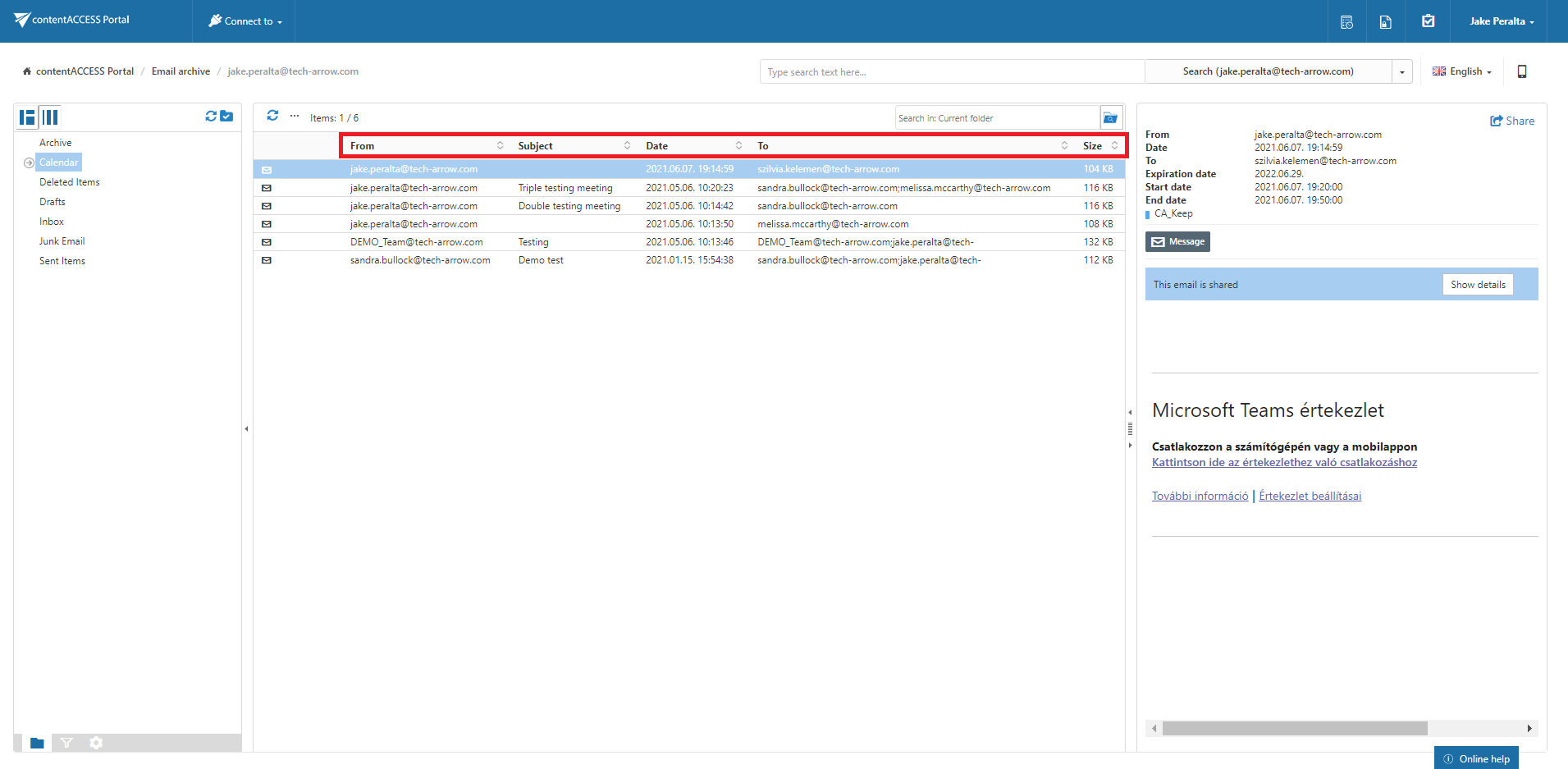
By default, the following columns are visible in the Email Archive system:
- From – Sorts items according to the sender.
- Subject – Sorts items according to the subject.
- Date – Sorts items according to the sent date.
- To – Sorts items according to the addressee.
- Size – Sorts items according to size.
info
Note: The Folders column is available only in the Advanced search view.
Configure sortable columns
On the UI settings page, the system administrator can configure which columns are visible in the grid for a given model. The administrator can also:
- Rename columns.
- Set columns as sortable or non-sortable.
For more information about these settings, see User interface settings.