User interface settings
Introduction
The UI Settings page allows administrators to configure the contentACCESS Portal user interface, including model display settings, common settings, search criteria, and table view columns. Administrators can also reset the default settings or save their changes.
Open UI Settings
-
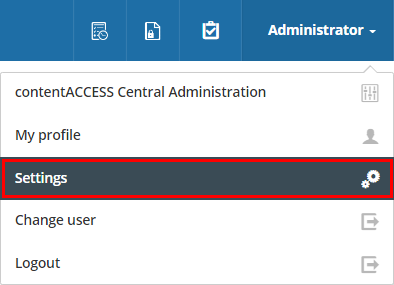
Click Settings in the contentACCESS Portal menu.
-
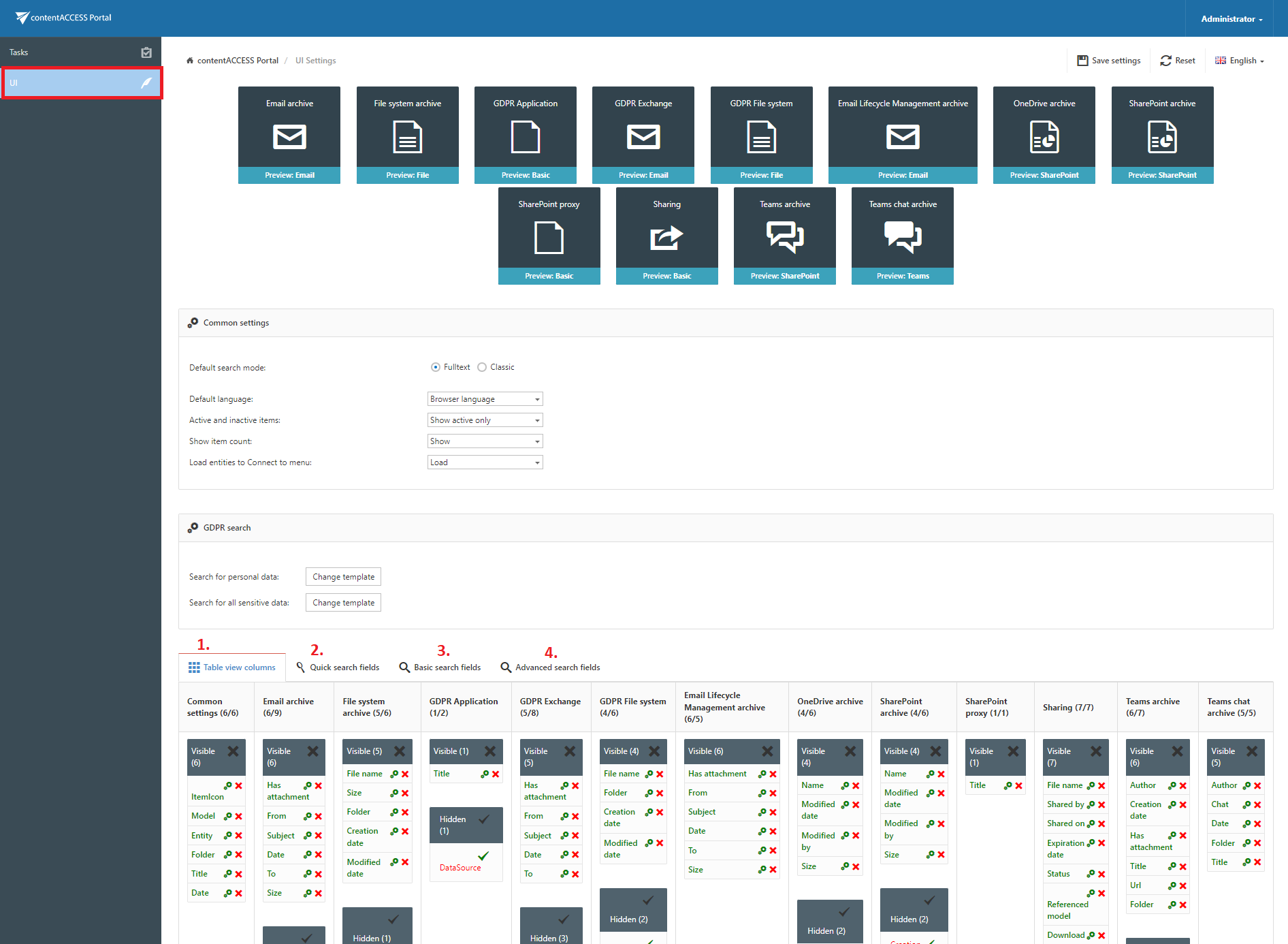
In the left pane of the settings page, select UI.
UI Settings
The UI Settings page provides the following configuration options.
Model settings
Display settings for the available models can be changed by clicking the respective model window.
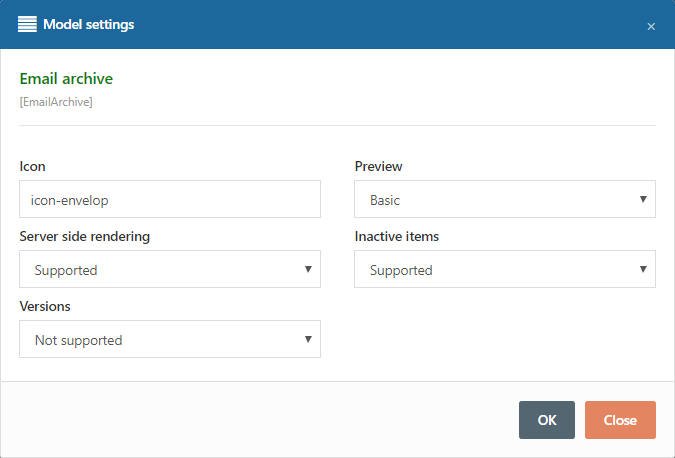
Screenshot: Email archive model settings
Common settings
The Common settings section contains settings that apply to all entities:
-
Default search mode – Specifies the search mode used by default when a user searches in multiple models that support both full-text and legacy search. The available options are:
- Full-Text
- Classic
-
Default language – Specifies the default contentACCESS Portal language for users. If Browser language is selected and contentACCESS Portal supports the browser language through a translation, the browser language is used. If the language is not supported, English is used as the default.
-
Active and inactive items – Specifies which items are displayed by default:
- Show active only
- Show inactive only
- Show all
-
Show item count – Specifies whether the item count of folders is displayed. If item counts are not displayed, the system does not need to query the item count from a folder.
-
Load entities to Connect to menu – Specifies whether entities are loaded into the Connect to menu. If entities are not loaded, the user is redirected directly to the Browse menu after clicking Connect to.
GDPR search
The GDPR search section allows administrators to change the predefined patterns used by GDPR search.
Search and table view settings
The following settings are available:
- Table view column configurations (1) – Configures which columns are displayed in the grid in the standard view and advanced search view.
- Quick search fields (2) – Enables or disables quick search criteria.
- Basic search fields (3) – Enables or disables basic search criteria.
- Advanced search fields (4) – Enables or disables advanced search criteria.
The quick, basic, and advanced search field settings are described in more detail in Editing Quick, Basic and Advanced search criteria.
Reset and save settings
The default UI Settings table can be restored by clicking Reset at the top of the page.
After making changes, click Save settings in the upper-right corner to save them.
If changes have been made but not saved, a notification is displayed when the user attempts to leave the page.
Table view column configurations
Table view column configurations determine which columns are displayed in the item grid.
Hide and unhide columns
To hide a visible column for a model, such as the Email archive model, click the cross mark ( ) in the Visible columns table.
To make a hidden column visible, click the check mark ( ) in the Hidden columns table.
Columns configured as visible or hidden are moved to the corresponding column in the grid.
Configure column settings
Column settings can be edited by clicking the cog icon next to the corresponding column name, such as From.
Note: Only visible columns can be configured.
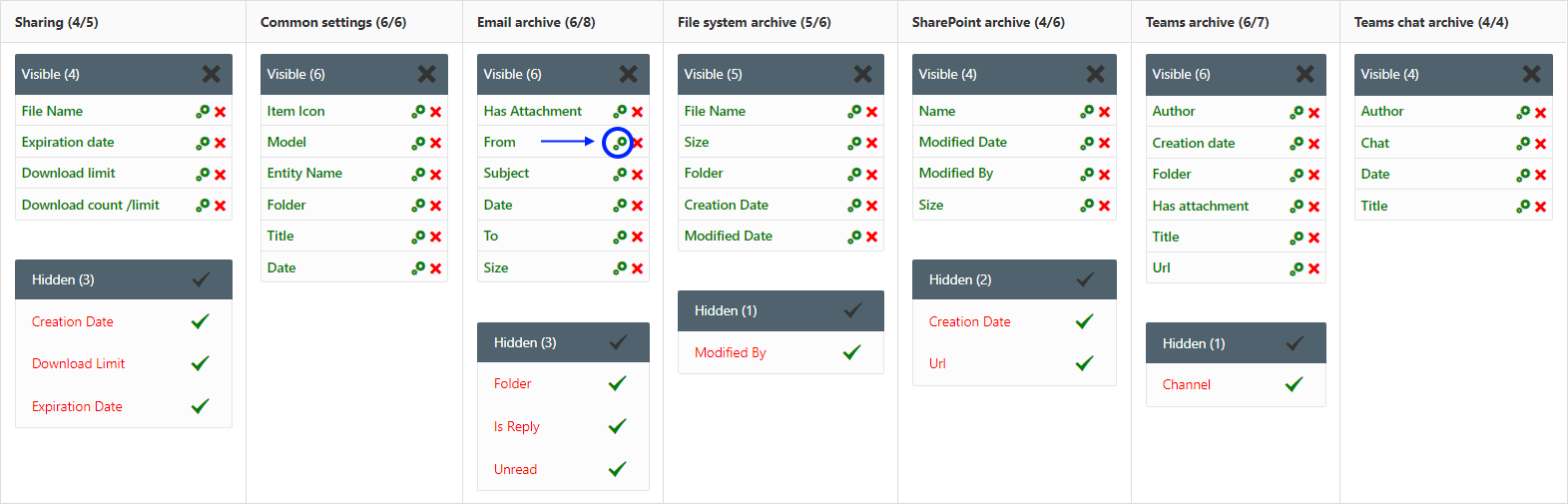
Clicking the cog icon opens the settings dialog for the selected column.
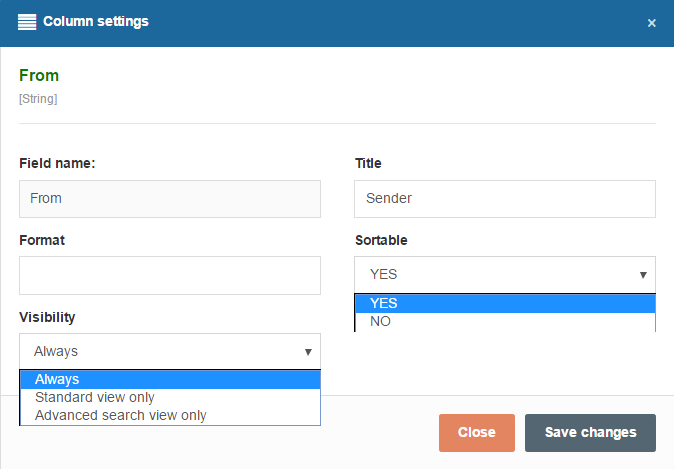
The following values can be configured:
-
Title – Changes the title of the column displayed in the grid.
For example, the From column can be renamed to Sender.


-
Visibility – Specifies in which views the column is available:
- Standard view
- Advanced search view
- Always

 info
infoNote: By default, the From and Date columns are enabled only in the Advanced search view.
-
Sortable – Specifies whether items can be sorted based on the selected column.
