File Archive tasks
Introduction
The File Archive provides toolbar tasks for processing selected files and folders in contentACCESS Portal. Users can refresh the item list, export items, create reports, share items, recover archived items, mark documents for deletion, and place items on legal hold.
The available tasks can be enabled or disabled by the administrator on the Task types tab. For more information, see Enabling/disabling tasks.
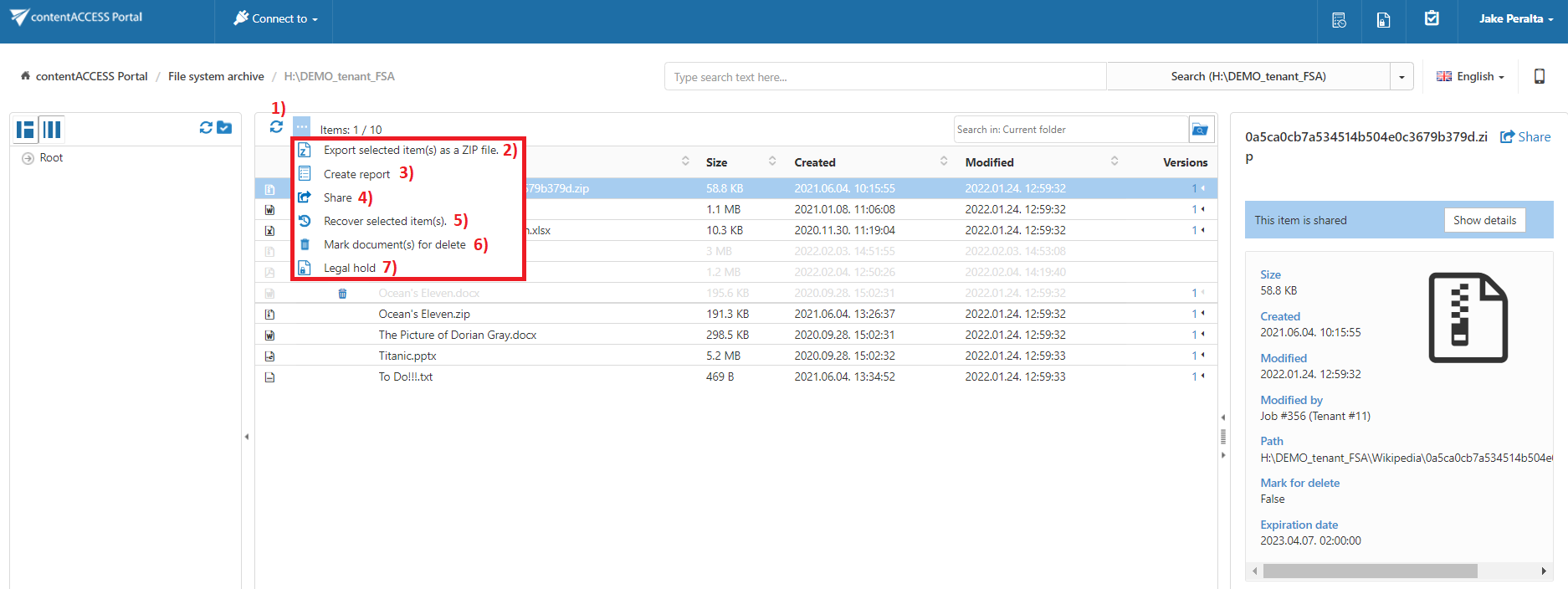
Screenshot: Toolbar buttons in File Archive
Users can select the following for processing:
- The entire folder structure from the root.
- A recursive folder structure.
- Child folders.
- Individual items.
For more information, see Folder selection methods.
Available File Archive tasks
By default, the following tasks can be triggered for selected File Archive items or folders using the toolbar:
- Refresh
- Export selected item(s) as a ZIP file
- Create report
- Share item(s)
- Recover selected item(s)
- Mark document(s) for delete
- Legal hold
Refresh
Use Refresh to reload the item list when items are not yet displayed or the list needs to be updated.
Export to ZIP
To export File Archive items or folders as a ZIP file:
- Select the required items in the item list, or select the required nodes in the navigation pane.
- Click Export selected item(s) as a ZIP file above the item list.
The selected items are compressed into a ZIP file in the background on the server.
In the following example, the Root folder, including all its subfolders, is selected for export.
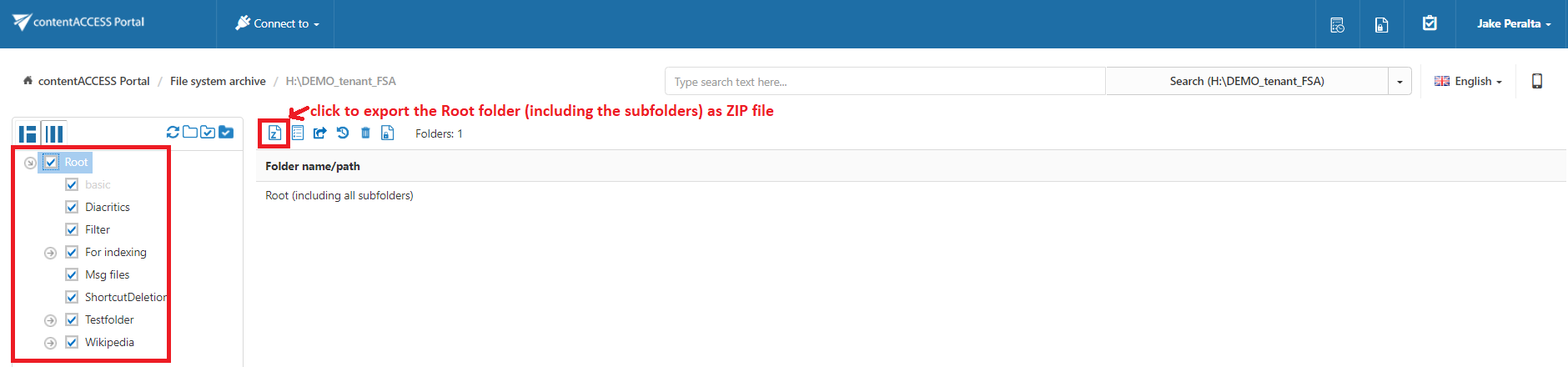
The exported items and folders can be downloaded from the Tasks list. For more information, see Download of export actions.
Create report
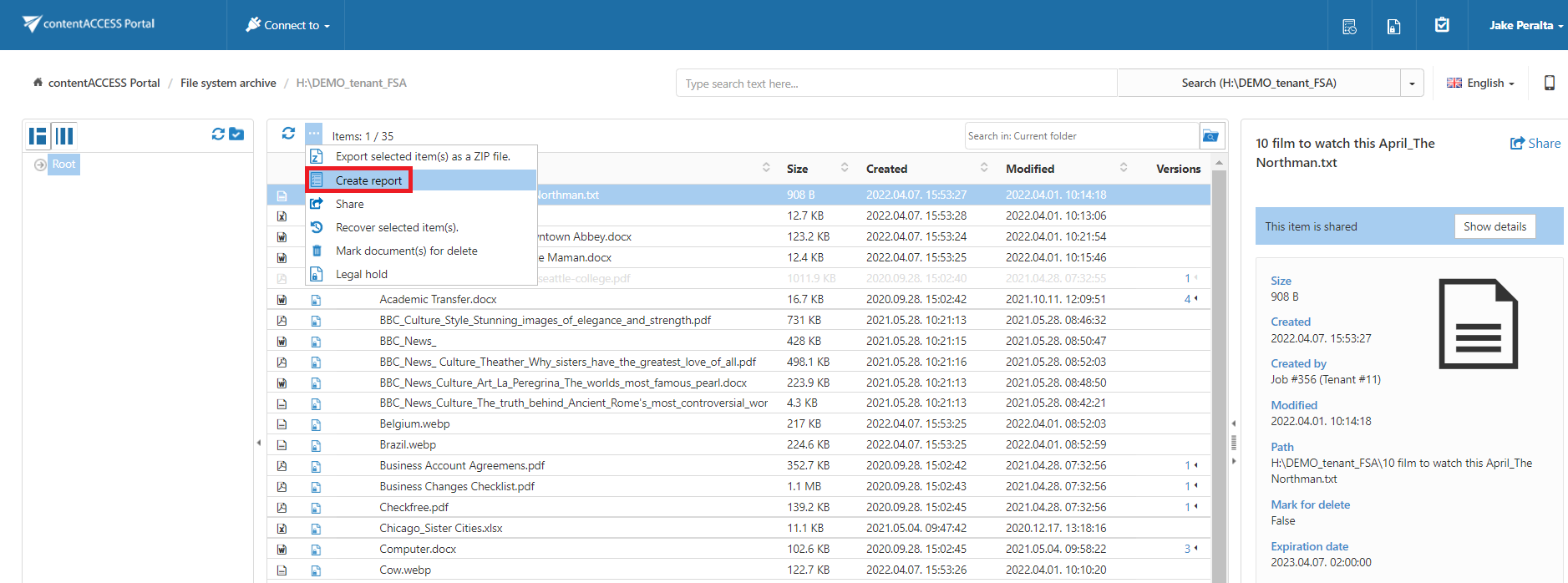
For more information, see Create report.
Recovery
Recovery is used to regenerate a file system from the archive in its original file location.
Recovery can be used when:
- A folder structure has been deleted.
- One or more folders have been deleted.
- One or more documents from the folders have been deleted from the original file location and need to be restored from the archive.
Items that do not have an original file or shortcut in the original file system are inactive in contentACCESS Portal and are displayed in light grey.
The recovery function can restore archived items to their source location and can recreate a folder if it was deleted from the folder structure.
The following parts of the folder structure can be recovered:
- One or multiple folders.
- A recursive folder structure.
- One or more folder contents.
Important: The root folder must not be deleted from the original file system. If it was deleted, it must be recreated before its contents can be recovered to the original location.
The file system recovery job checks for duplicates, so the same recovery job can safely be run multiple times without creating duplicates:
- If the file does not exist in the folder and the LNK file (shortcut) also does not exist, the original file is recovered to the folder.
- If the file does not exist in the folder but the LNK file (shortcut) does exist, the LNK file is replaced with the original file.
- If the file already exists in the folder, nothing happens.
Example: Recover deleted items from the "Wikipedia" folder
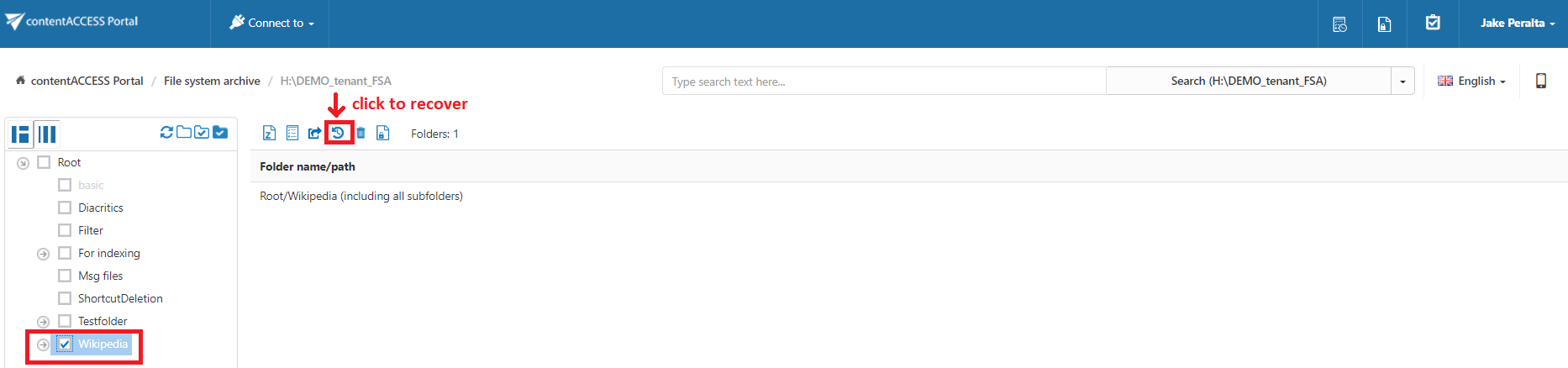
In this example, deleted items from the shared Wikipedia folder are recovered. First, select the folder in the navigation pane. Inactive items are displayed in light grey in the item grid.
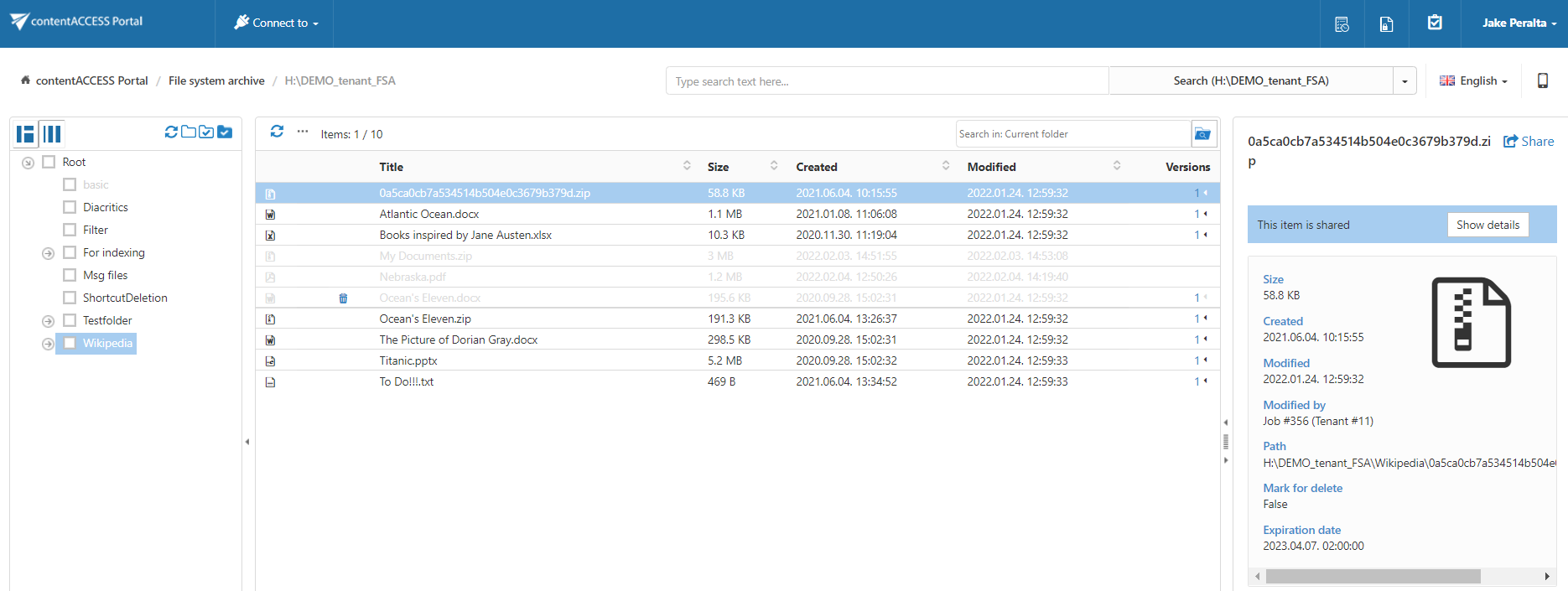
To recover all deleted folder items (inactive documents):
-
Select the folder checkbox in the navigation pane.
-
Click the Recovery toolbar button above the item list.
The manual recovery dialog provides the following options:
- Recover using the original modification date.
- Recover using the recovery date.
Recovering with the recovery date can be useful when an archive job is already running on the selected file system folders and files with a modification date earlier than the recovery date are configured to be archived. Selecting the recovery date can prevent the recovered files from being re-archived.

Click Recover to start the recovery process.
Active items are skipped during recovery:
- If the original file exists, it is not modified.
- If a shortcut to the item exists, it is skipped.
After recovery, the items are restored to the specified folder. When the original modification date option is selected, the modification date is set to the original modification date.
Recovered items are displayed in black in the contentACCESS Portal item grid.
Mark document(s) for delete
The Mark document(s) for delete task allows users to mark or unmark documents for later deletion from the archive by the Delete job.
You can mark or unmark:
- Only the selected files.
- All files in the current folder.
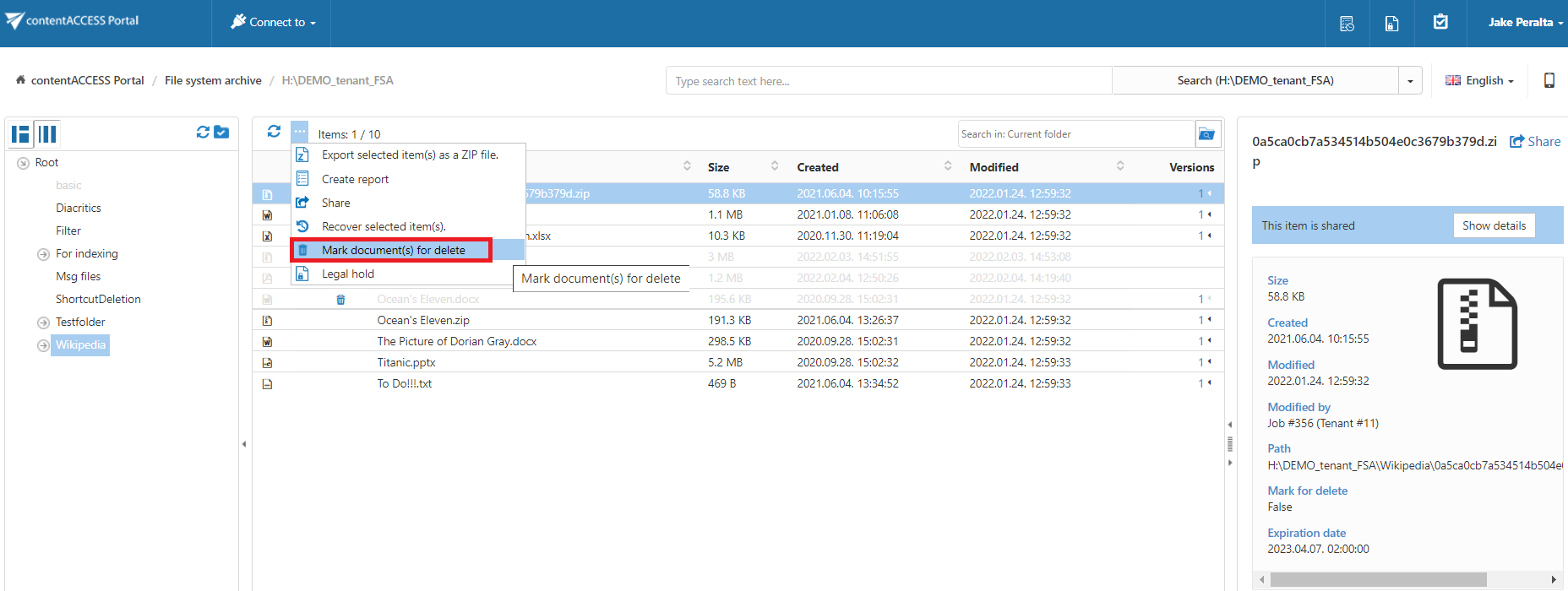
To mark or unmark documents:
- Select the required action from the Operation drop-down list.
- Click Create.

Legal hold
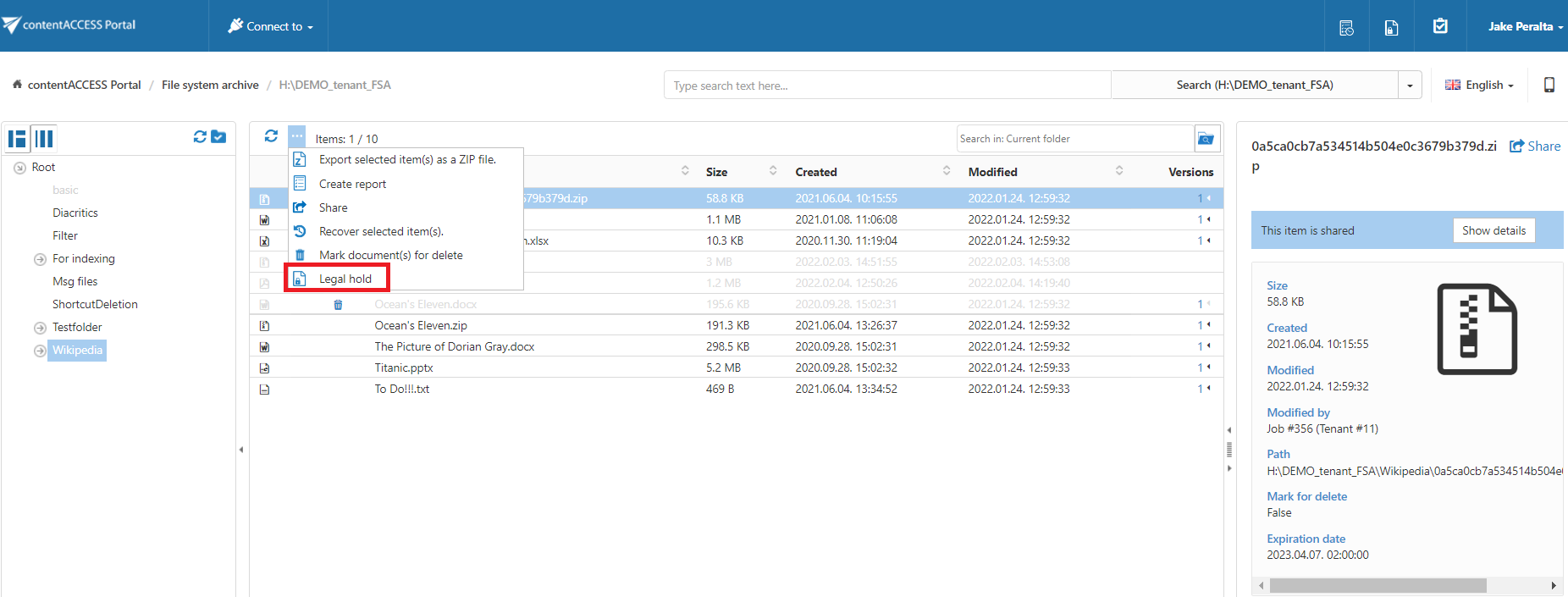
For more information, see Legal hold.
Share item(s)
The Share item(s) task allows users to create links to selected items that can be sent to other users.
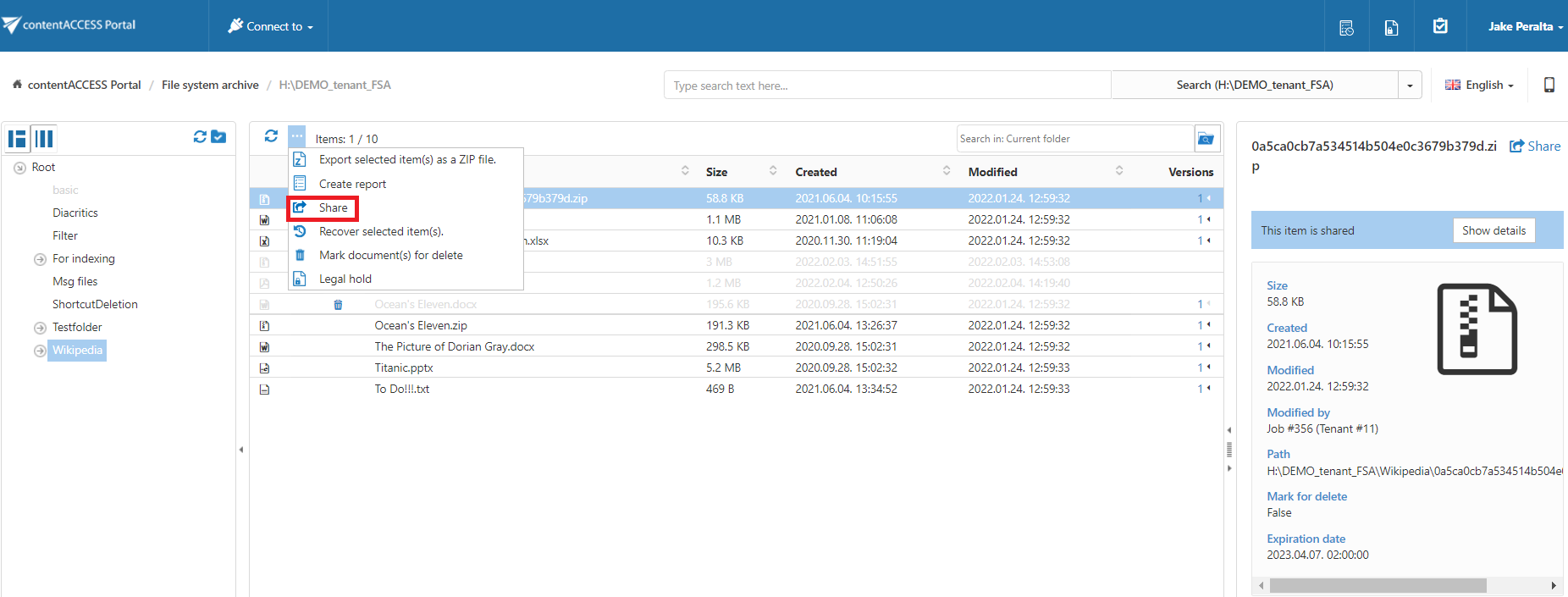
For more information, see Share item(s).