Opening shortcuts from OneDrive
Introduction
The Convert archived files to shortcuts function allows users to convert archived files in the OneDrive Archive to shortcuts. This option is generally used for archived items older than 1 or 2 years, depending on the company's requirements.
During the conversion process, the Administrator can select the shortcut type:
- Keep original – The files are converted into shortcuts, but the files in OneDrive retain their original format unless the shortcut can manage the version history. Users can open the files easily.
- HTML shortcut – The original OneDrive items are replaced with HTML files. The entire version history is deleted, and users can open the archived item through the actions available on the HTML shortcut.
- Modern shortcut – The archived file is replaced with an .alink shortcut file. This shortcut uses Microsoft 365 M365 File Handler technology, which allows OneDrive to recognize the file type and automatically redirect the user to contentACCESS when the shortcut is opened.
For more information about the archive job and the Convert archived files to shortcuts option, see OneDrive Archive job configuration.
Open HTML shortcuts from OneDrive
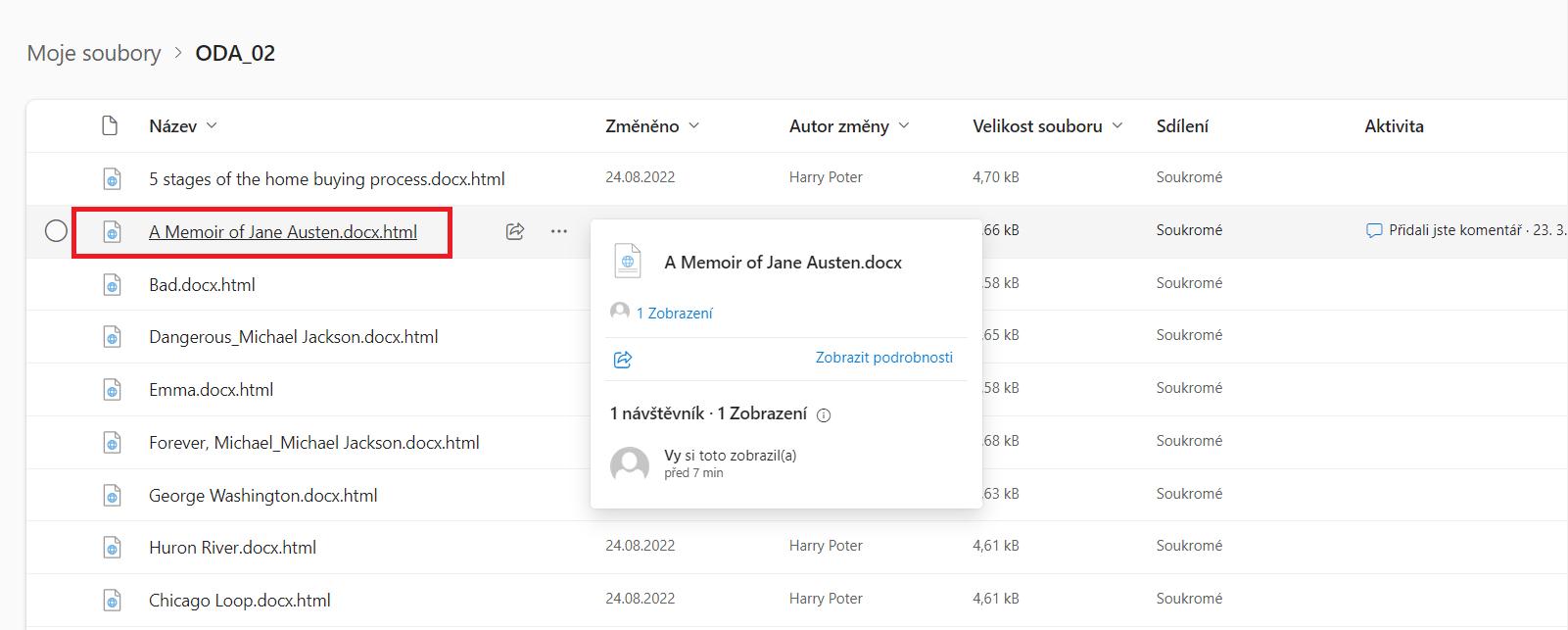
To open an HTML shortcut:
-
Click the file title.
-
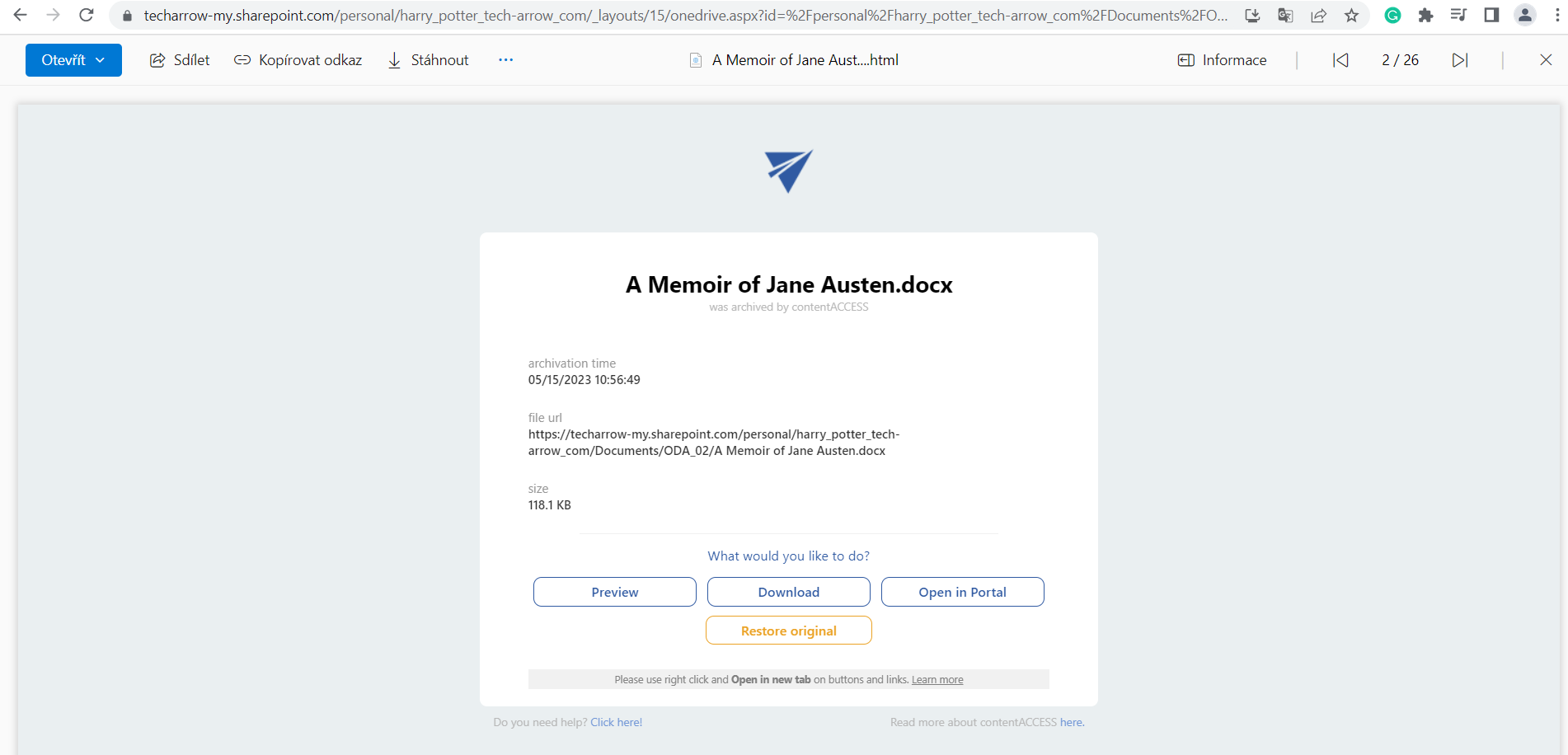
The selected file opens in the same tab. From this tab, users can open, share, copy, or download the file, close the tab, or perform other activities related to the shortcut.
-
The following shortcut-related options are available. The page also displays basic information, such as the archiving date, file URL (the location of the item in OneDrive), and size.
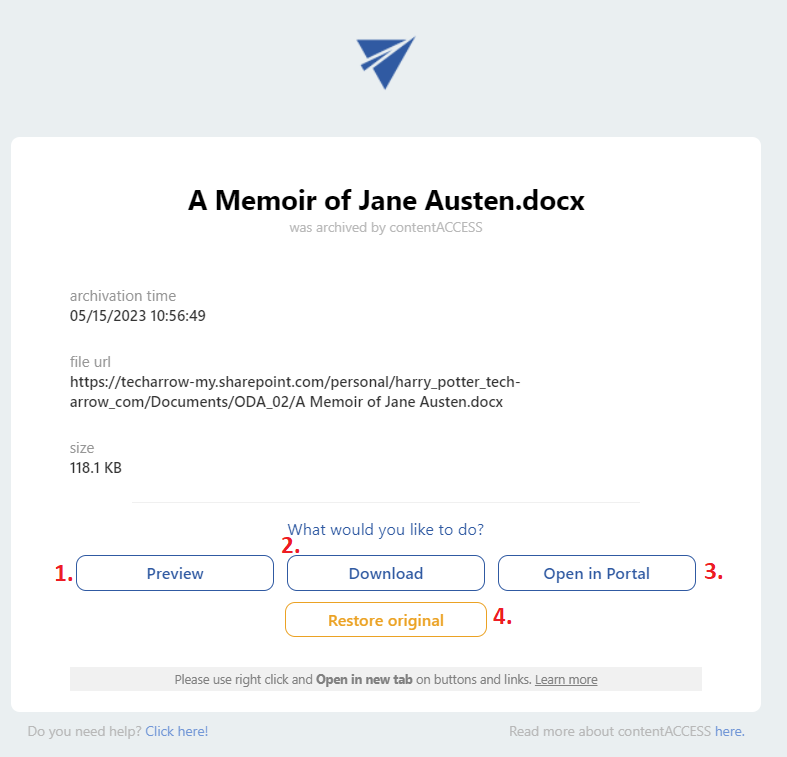
- Preview – Opens the file preview. Right-click Preview and select Open link in a new tab. The user is redirected to the Preview service, where the original file is displayed. From there, the user can download the original file or save it as a PDF.
- Download – Downloads the original file instead of the shortcut. Right-click Download and select Open in new tab.
- Open in Portal – Opens the archived item in contentACCESS Portal. In the Portal, users can view the version history of the selected file, preview the item or file, download the document, and view other items in the same folder. For more information, see Item list and item preview.
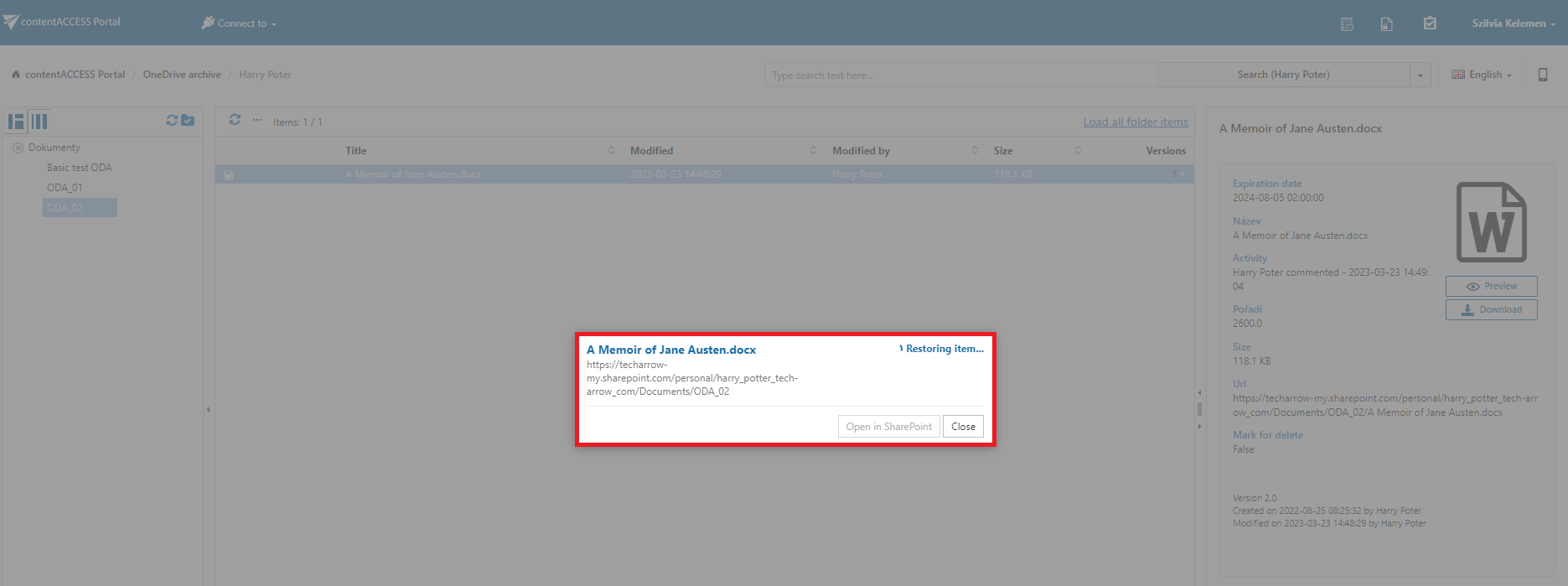
- Restore original – Restores the shortcut to the original file. The selected item opens in the Portal, and the restore process is displayed in a pop-up window. When the process is complete, the user can open the restored file in OneDrive in a new tab or cancel the action and remain in the Portal. This option works similarly to the Recover selected item(s) function in contentACCESS Portal.

Open Modern shortcuts from OneDrive
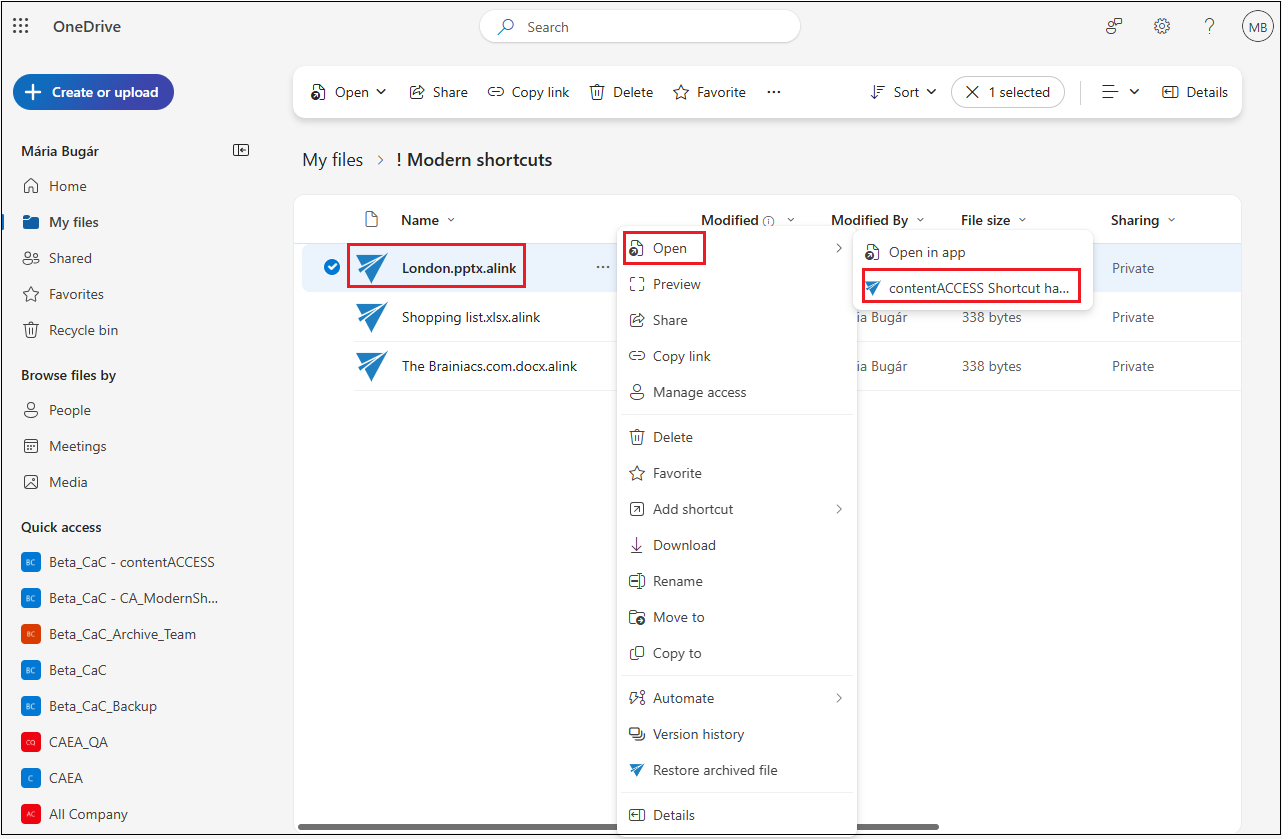
Modern shortcuts in OneDrive can be opened in two ways:
- Click the file name.
- Open the context menu and select … > Open > contentACCESS shortcut handler.
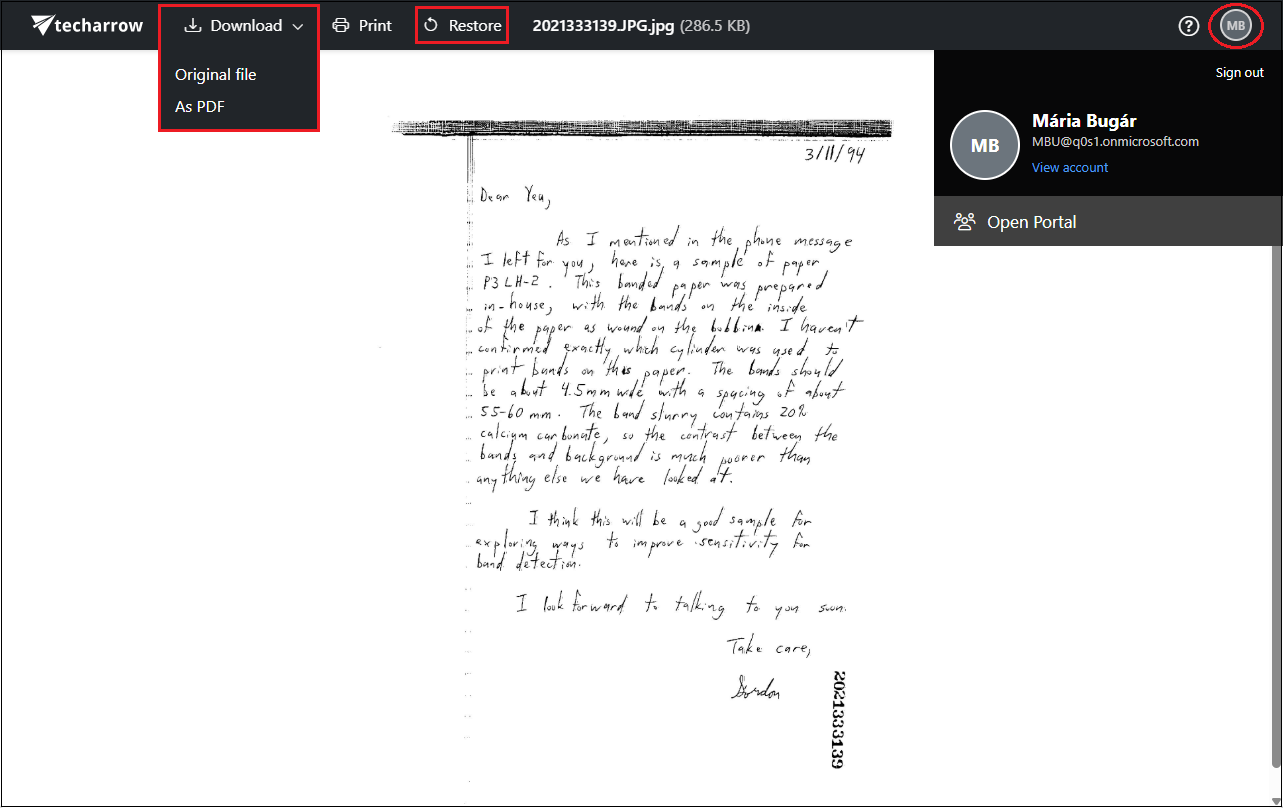
In both cases, the selected file opens in a new window, where its content is displayed.
Within the file preview, users can:
- Download the original file.
- Save the file as a PDF.
- Restore the shortcut.
The header provides additional options. Users can open the documentation by clicking the question mark and can view the initials of the logged-in user. Clicking the user's initials displays the user's name and email address and provides the following options:
- View account
- Log out
- Open Portal
The Open Portal option opens the related item in contentACCESS Portal.
Restore Modern shortcuts
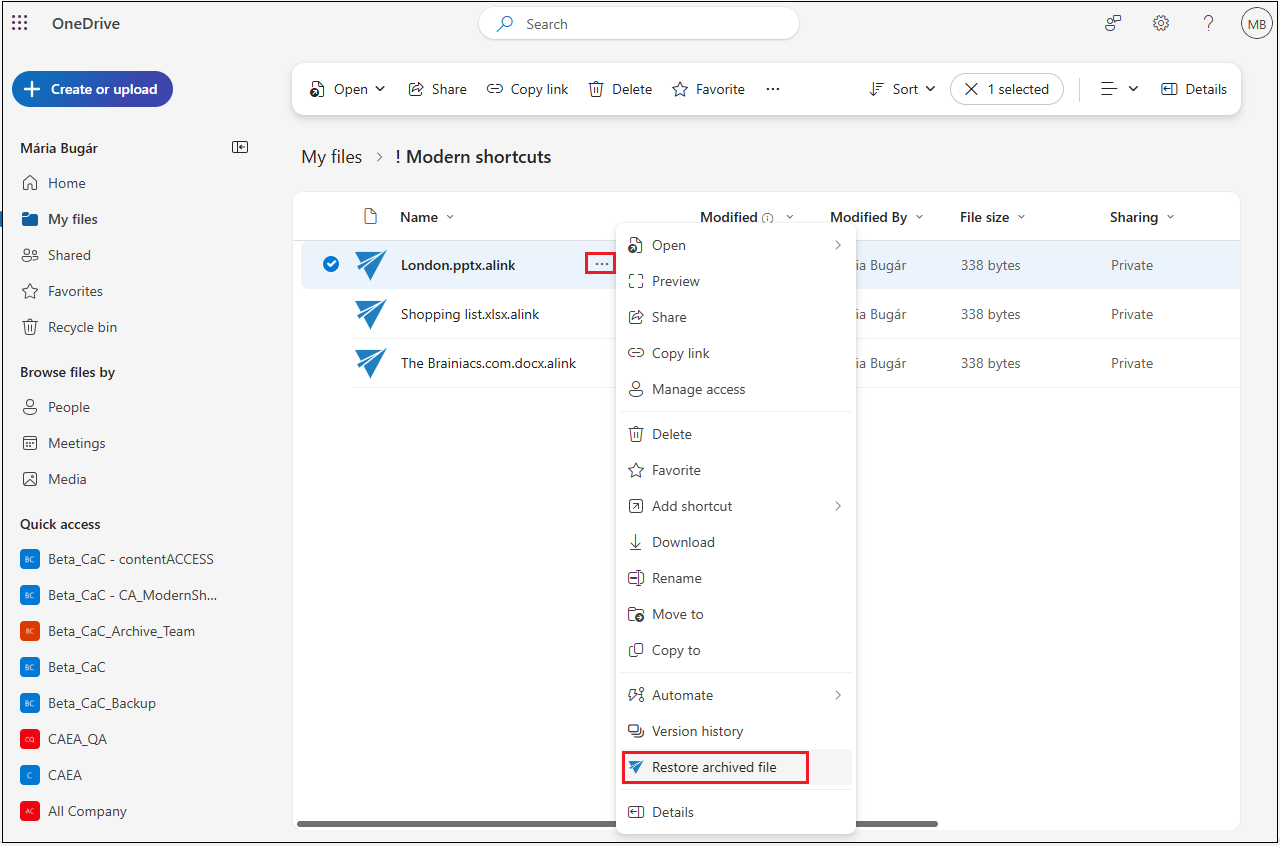
Modern shortcuts can be restored either from the file preview or from the OneDrive context menu.
Restore from the preview
When restoring a shortcut from the preview, the Restore in progress window is displayed. After the process is completed, Restore is done! is displayed.
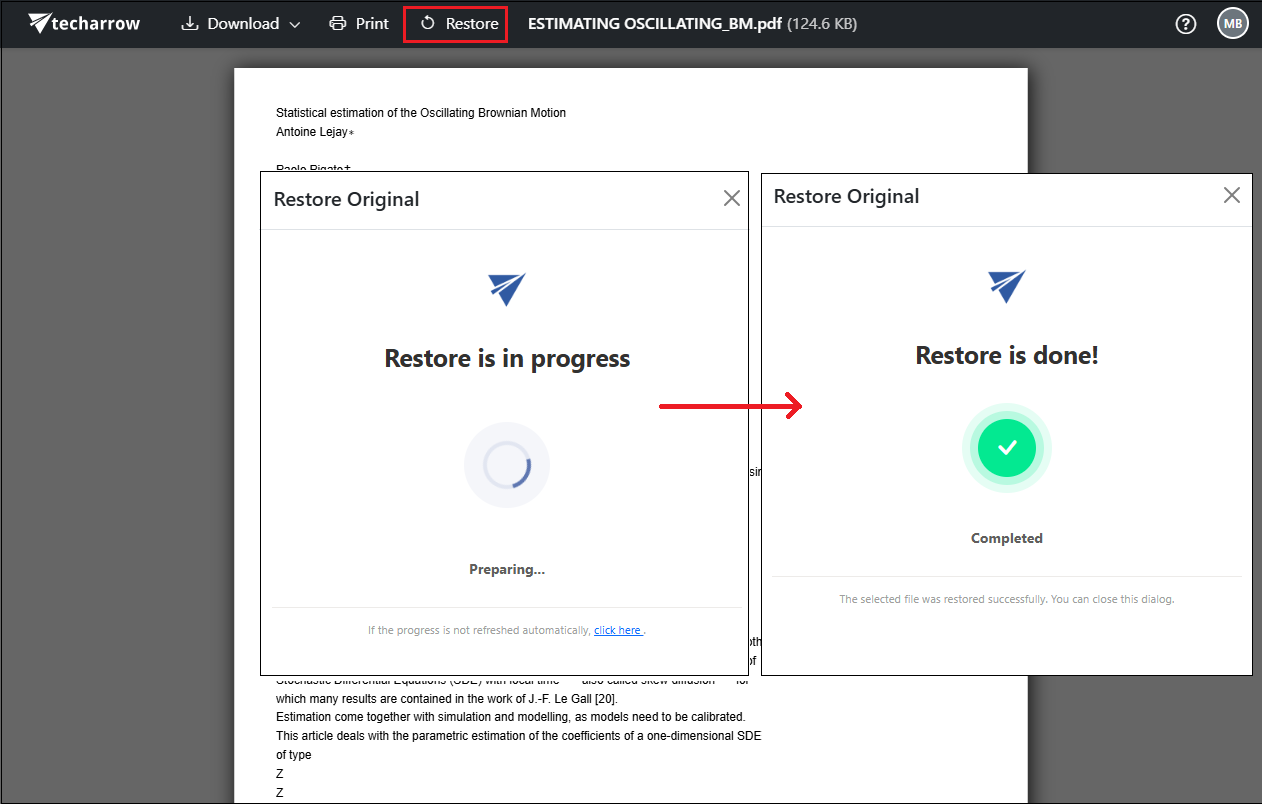
After closing the preview, the file is available again in OneDrive in its original format.
Restore from the context menu
To restore one or more shortcuts from OneDrive:
-
Select one or more shortcuts.
-
Open the context menu.
-
Select … > Restore archived file.
-
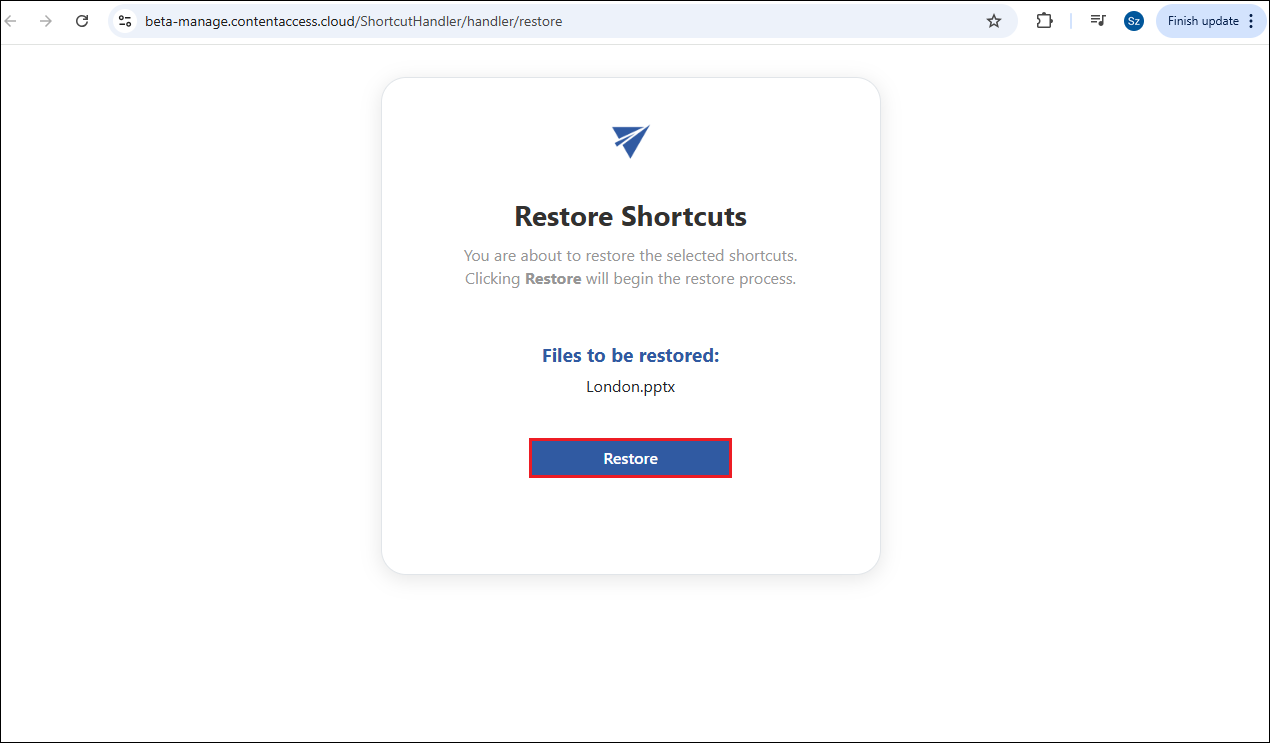
In the Restore Shortcuts window, review the selected shortcuts.
-
Click Restore to start the restore process.
-
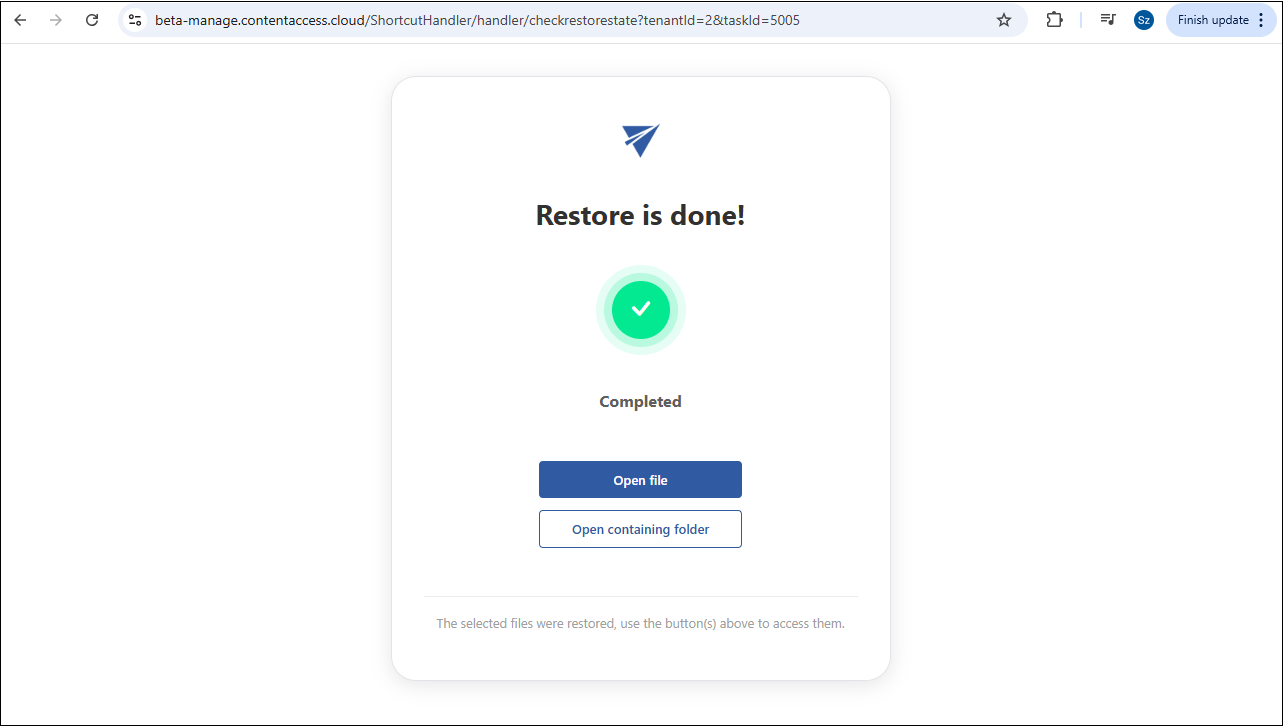
When the process is complete, the following options are available:
- Open file – Opens the restored file.
- Open containing folder – Opens the OneDrive folder containing the restored file.
Limitations while using modern shortcuts in OneDrive
While modern shortcuts provide access to archived files without storing the original content in Microsoft 365, some Microsoft 365 functions and user scenarios have limitations. The following sections describe the limitations that apply when using modern shortcuts in OneDrive, including opening shortcuts, supported links, guest user access, and recommended practices for compliance and offloading.
Link handling: supported and unsupported links
Not all Microsoft 365 link types work with modern shortcuts. The following are supported:
- Copy link – links created for People in MSFT or People you choose
- Share – links created using this OneDrive function for People in MSFT or People you choose
When sharing or referencing a modern shortcut, use these two methods.
Conversely, the following are not supported:
- Copy path – the path copied from the detail panel
- Copy URL – the URL copied from the browser address bar
- Insert link – links inserted through Microsoft 365 applications (for example, Word, Excel, or PowerPoint) or other applications
Guest user access
Guest users without a contentACCESS user account cannot access archived content through modern shortcuts, as contentACCESS sign-in is required.
Best practices for compliance
For compliance-related jobs, consider the following practices:
- Create a backup copy of files modified within the last 6 months
- Run the job on a daily or weekly basis
Best practices for offloading
For offloading jobs, consider the following practices:
- Focus on larger files, for example files larger than 5MB
- For files that have not been modified in the last 6 months, remove older versions and keep only the last version
- For files that have not been modified for 2 years, convert the files to modern shortcuts
- Run the shortcutting job monthly