Advanced search
Introduction
The Advanced search function allows users to search in one or multiple entities simultaneously using one or multiple search criteria. Unlike Quick search, Advanced search searches the entire folder structure of the selected entity or entities and cannot be limited to a single folder.
Note: When searching in multiple archives, the sorting of results may appear out of order. The search engine cannot merge and sort data from multiple sources (archives), so the results from each archive are sorted separately.
Start Advanced search
To start an Advanced search:
- Connect to an entity from the Connect to list.
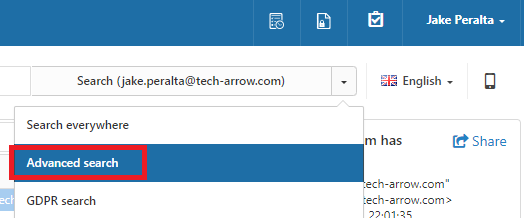
- Select Advanced search from the drop-down list on the right side of the user interface.
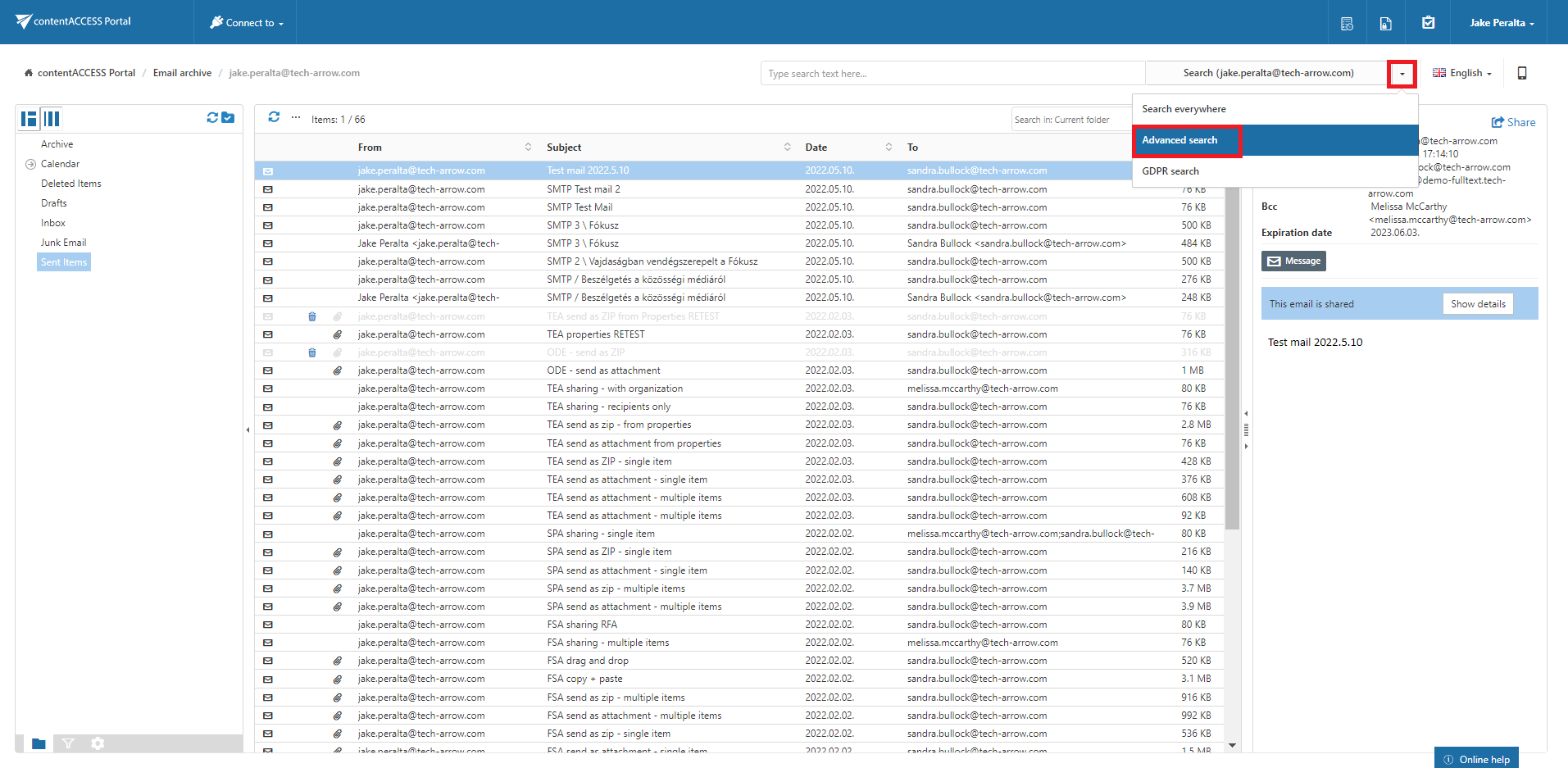
The Advanced search page opens.
Select entities to search
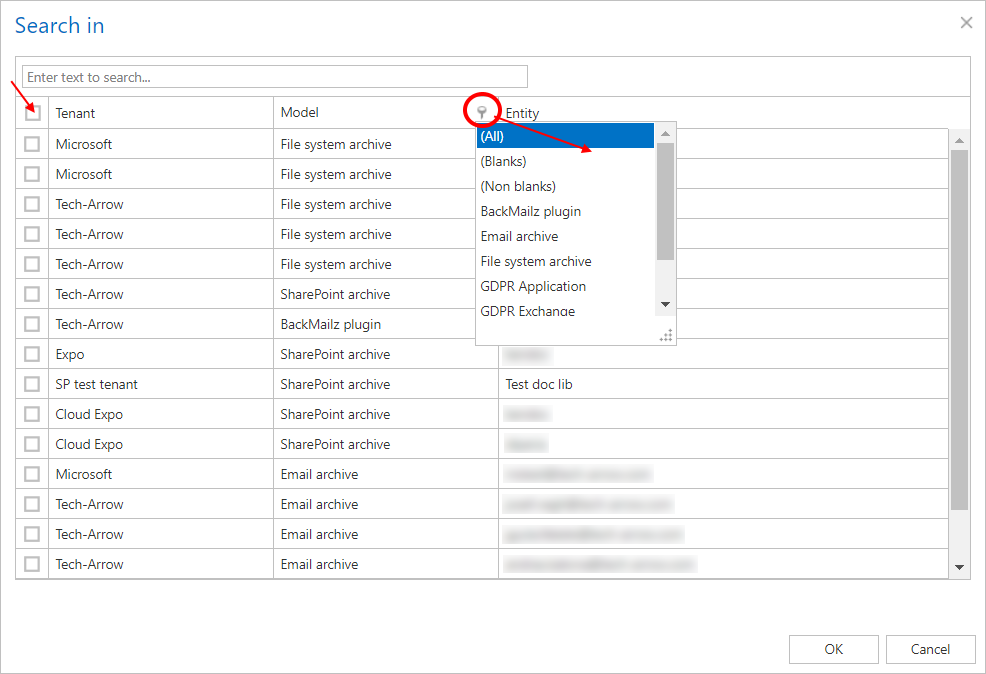
Expand the Search in drop-down list and select the entities (mailboxes or root folders) to search.
The Search in filter lists all available mailboxes and root folders for which the logged-in user has the necessary access permissions.
If the user has access to multiple entities, multiple entities can be selected for the search.
To select the desired entity or entities:
-
Click Select in the upper-left part of the Search in section.
-
Select the checkboxes of the entities you want to search.
-
To select all entities listed below a tenant, select the Tenant checkbox.
-
To filter the entities by model type, click the icon in the Model column.
Search criteria
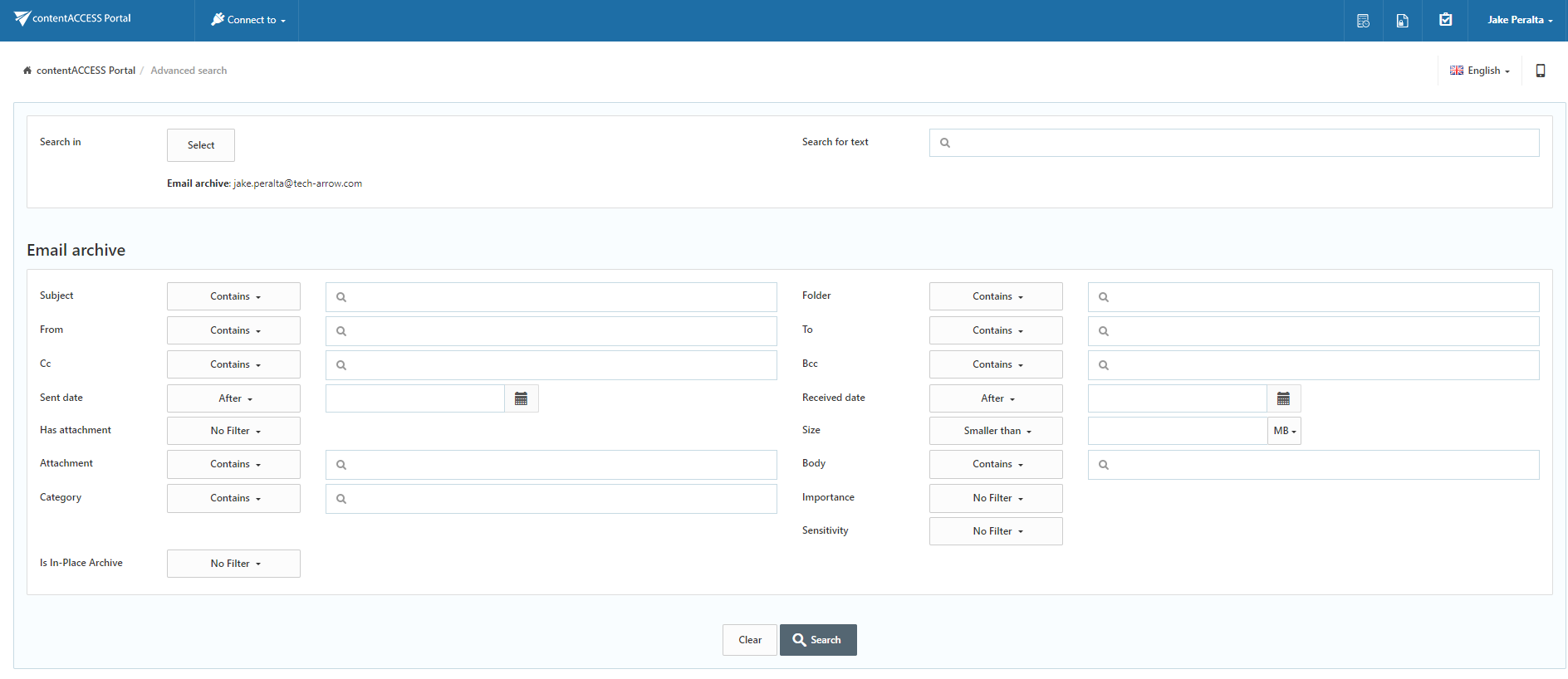
The available Advanced search criteria depend on the type of entity selected, such as File archive, Email archive, SharePoint archive, Teams archive, or Teams chat archive.
The criteria also allow users to specify how text values should be matched:
- Equals – Searches for documents with the exact specified value.
- Contains – Searches for documents containing the specified value as a partial match.
The parameters common to all entity types are shown in the following screenshot.
contentACCESS Portal enables Advanced search based on the criteria configured in the UI settings. For more information, see Editing Quick, Basic and Advanced search criteria.
Search mode
If the selected entities include models that support Fulltext search and models that do not, a search mode selector is displayed.
The following search modes are available:
- Fulltext – Searches only in models that support Fulltext search.
- Classic – Searches in models that support other types of search, excluding Fulltext search.
For more information about this setting, see User Interface Settings.
Example: Search for an email message containing the phrase "test"
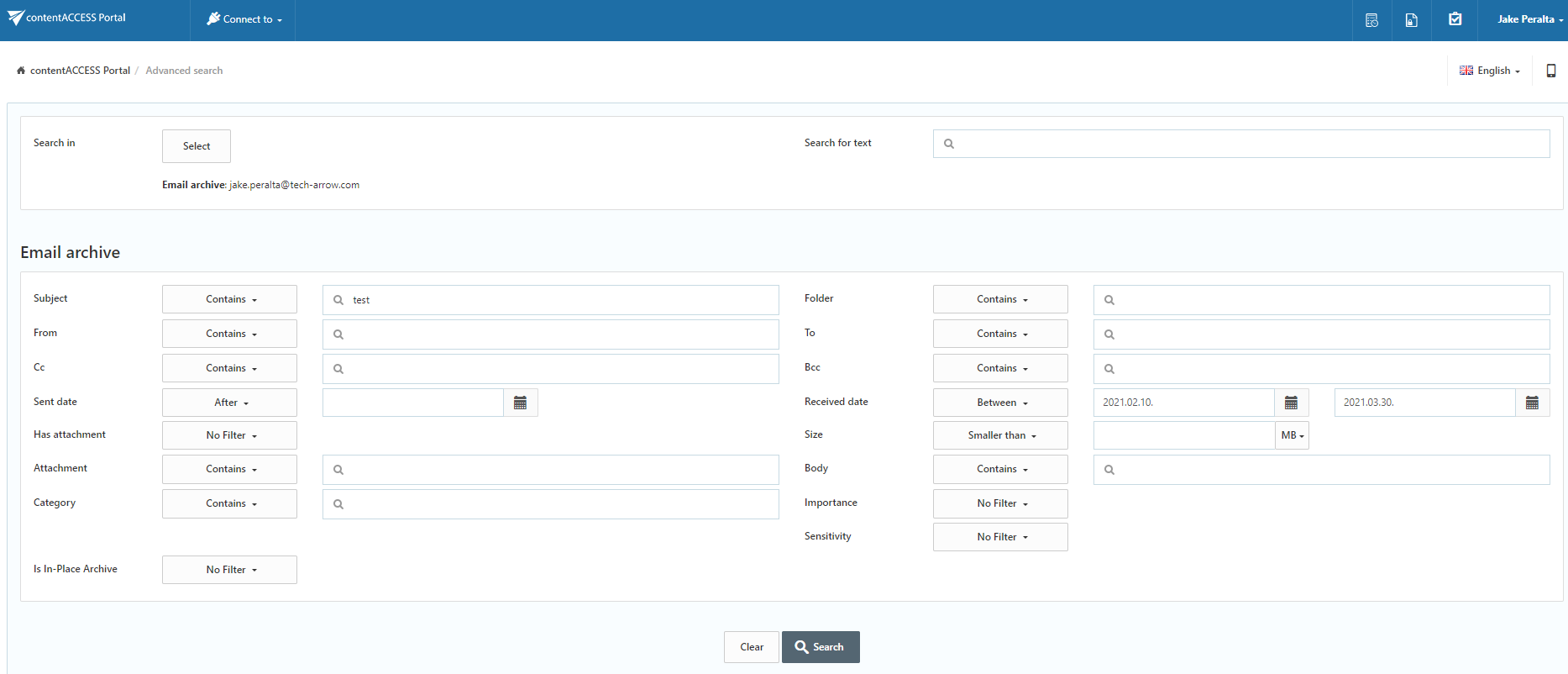
In this example, the search criteria are:
- Mailbox:
jake.peralta@tech-arrow.com - Date range: 10.02.2021 – 30.03.2021
- Subject: Contains the phrase
test
Because the search uses a non-textual value (date range) together with multiple search criteria (date range and subject), Advanced search must be used.
Open Advanced search
-
Connect to the
jake.peralta@tech-arrow.comarchive mailbox from the Connect to list.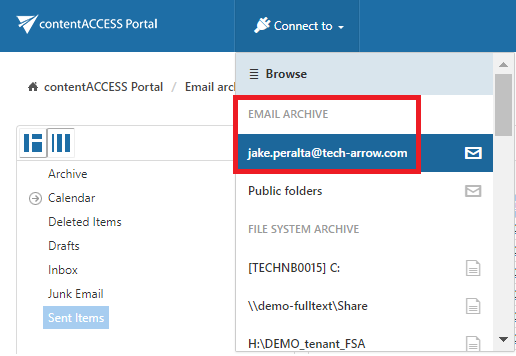
-
Select Advanced search from the drop-down menu in the upper-right part of the user interface.
Specify the search criteria
-
From the Search in drop-down list, select the archive mailbox or mailboxes to search. In the case of the File archive, root folders can be selected.
In this example, only the
jake.peralta@tech-arrow.commailbox selected in the Connect to list is searched. -
Because the search is for emails with a subject containing
test, entertestin the Subject text box. -
To search for emails received between 10/02/2021 and 30/03/2021, select Between from the Received Date drop-down list.
-
Specify the required date range and click Search.
The matching items are displayed in the search results.
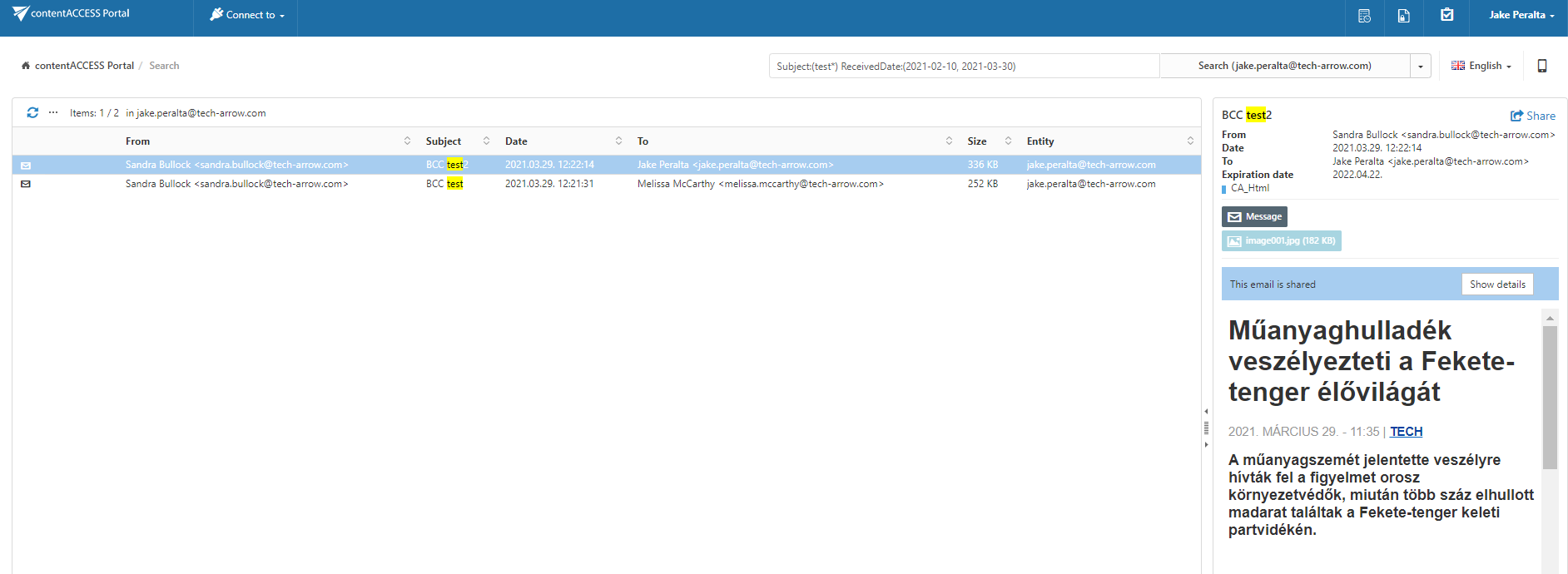
Note: The Folder column is automatically displayed in the search view. This makes it easier to identify the location of an item in the folder structure. The administrator can configure which columns are displayed in the search view. For more information, see Table view column configurations.
Note: If Enable hit highlighting is enabled in Central Administration, the located words are highlighted in yellow.