Editing Quick, Basic and Advanced search criteria
Introduction
The search criteria used by the Quick search, Basic search, and Advanced search functions in contentACCESS Portal can be configured by the system administrator. The administrator can enable or disable search fields for the available models and restore the default search field configuration.
Open the search criteria settings
To edit the search criteria:
- Open the Administrator menu.
- Click Settings.

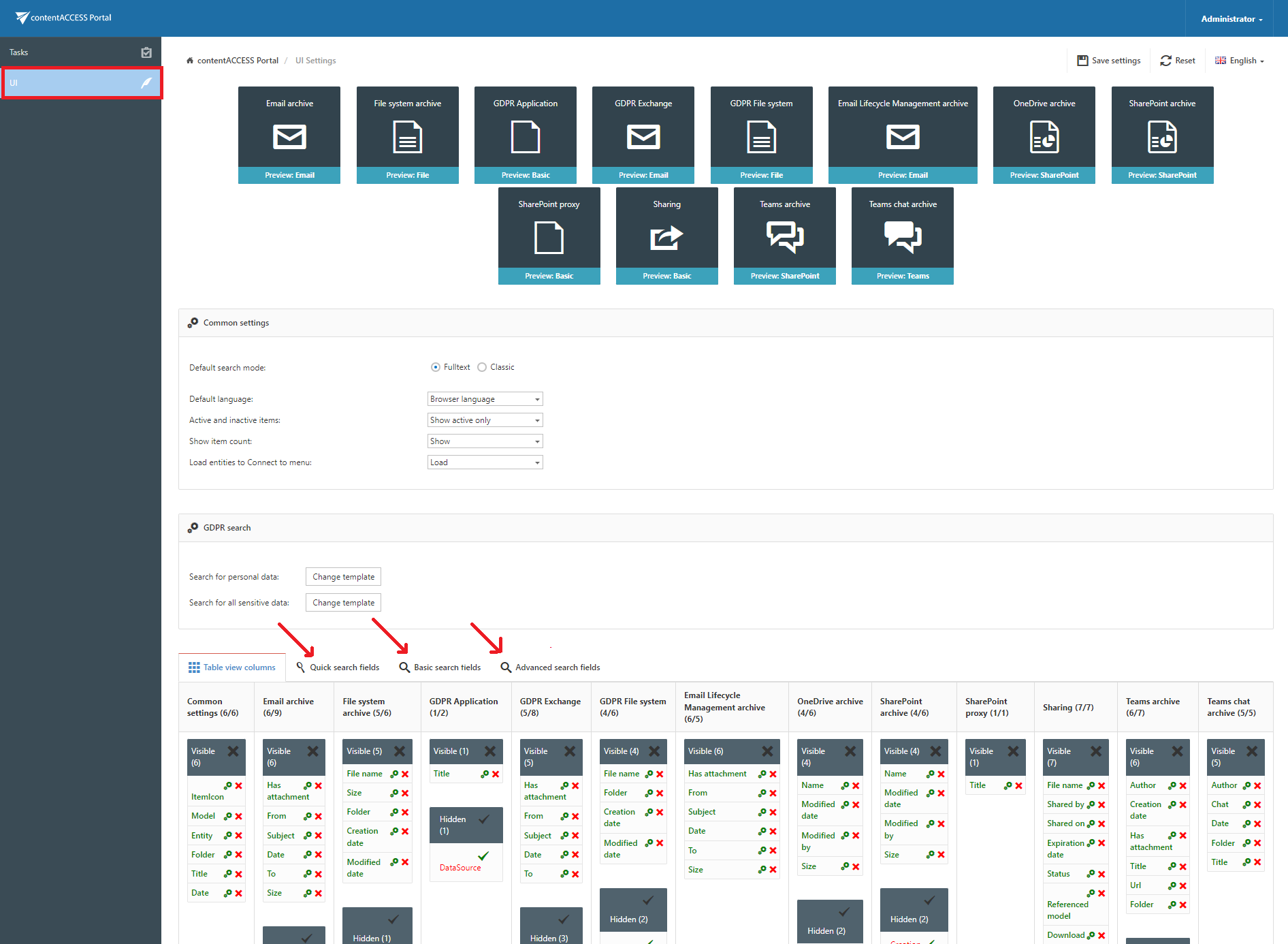
- In the left panel, click UI to open the UI settings.
- Select the appropriate tab:
- Quick search fields – Edit the search fields used by Quick search.
- Basic search fields – Edit the search fields used by Basic search.
- Advanced search fields – Edit the search fields used by Advanced search.
Enable or disable search fields
Search fields can be enabled or disabled for the available models, such as Email Archive and File Archive.
Click the corresponding status icon next to a model's search field:
- Check mark (
 ) – Enables the search field.
 - Cross mark (
 ) – Disables the search field.
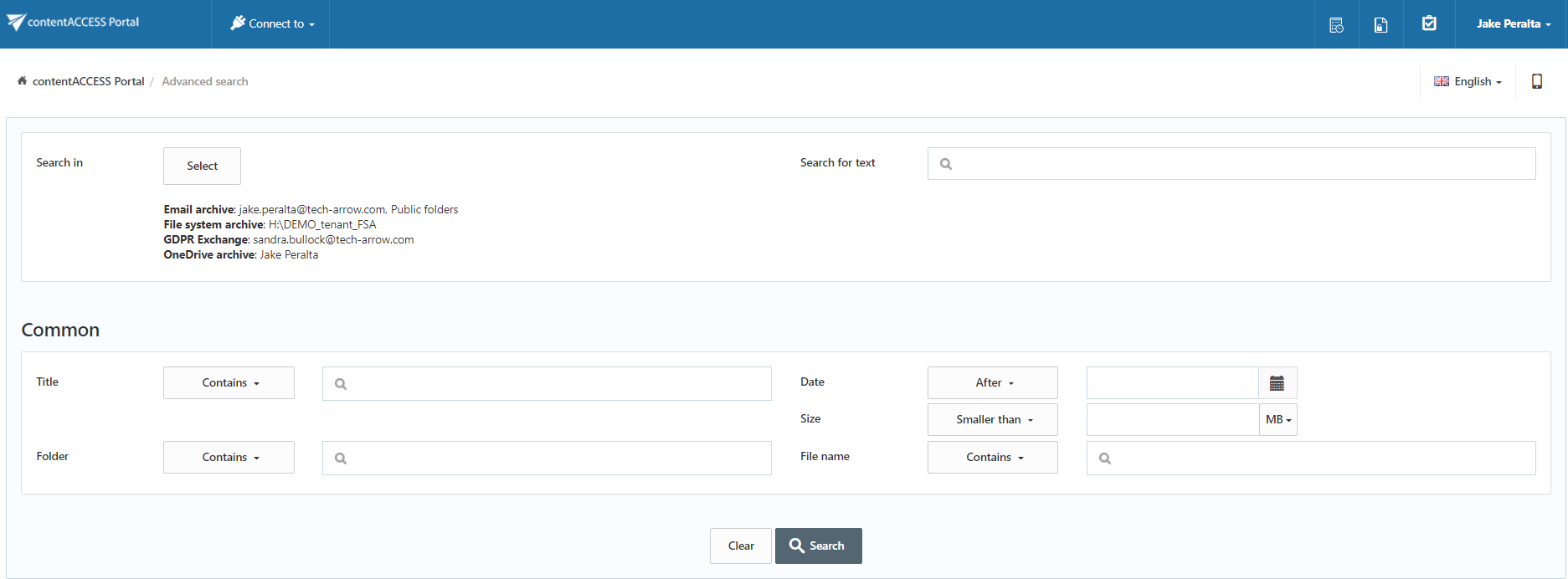
Enabled search fields are added to the search criteria of the Advanced search menu. Disabled search fields are removed from the search criteria.
Reset the default search field settings
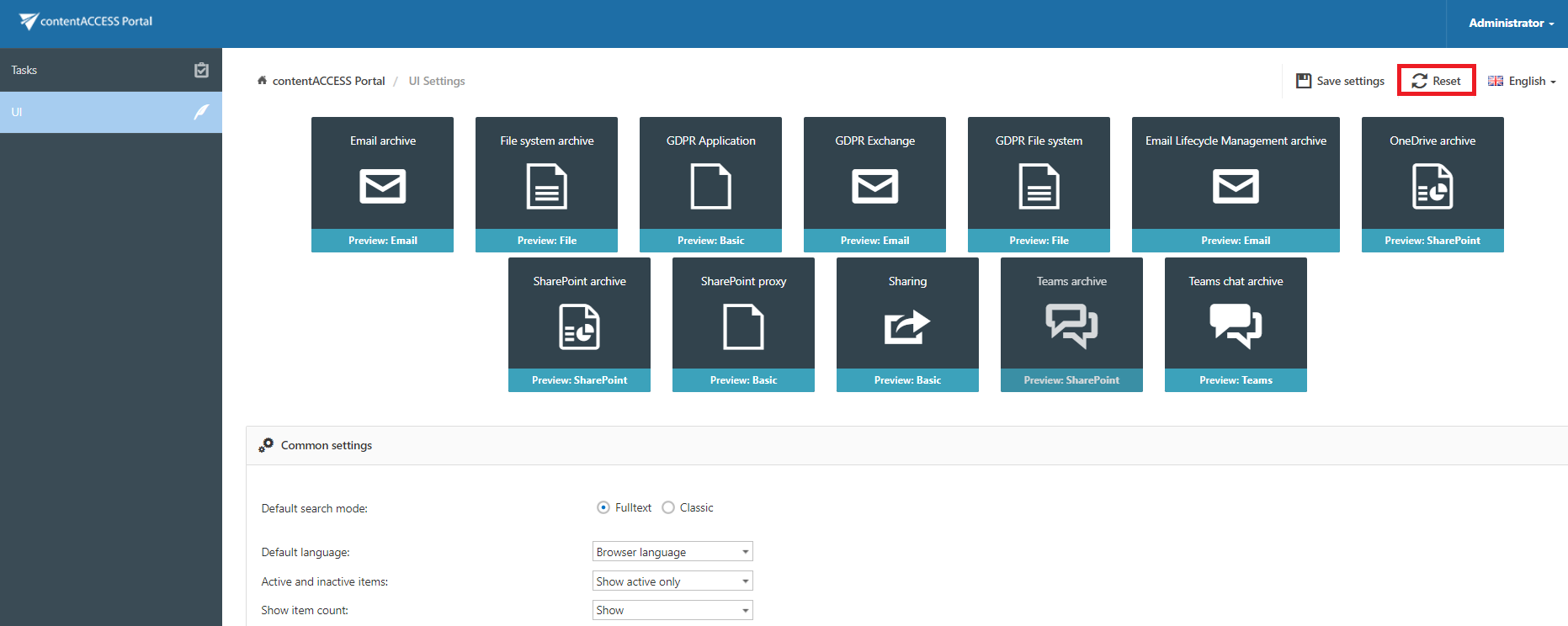
To restore the default search field configuration, click Reset on the UI settings page.