Fulltext search
Introduction
The Fulltext search function allows users to search within the entity selected from the Connect to drop-down list. Depending on the archive type, the selected entity can be an archived mailbox, File archive root, SharePoint archive root site, or archived Teams or Teams chats.
Note: For more information about the search query language, see the Search query language section.
Fulltext search
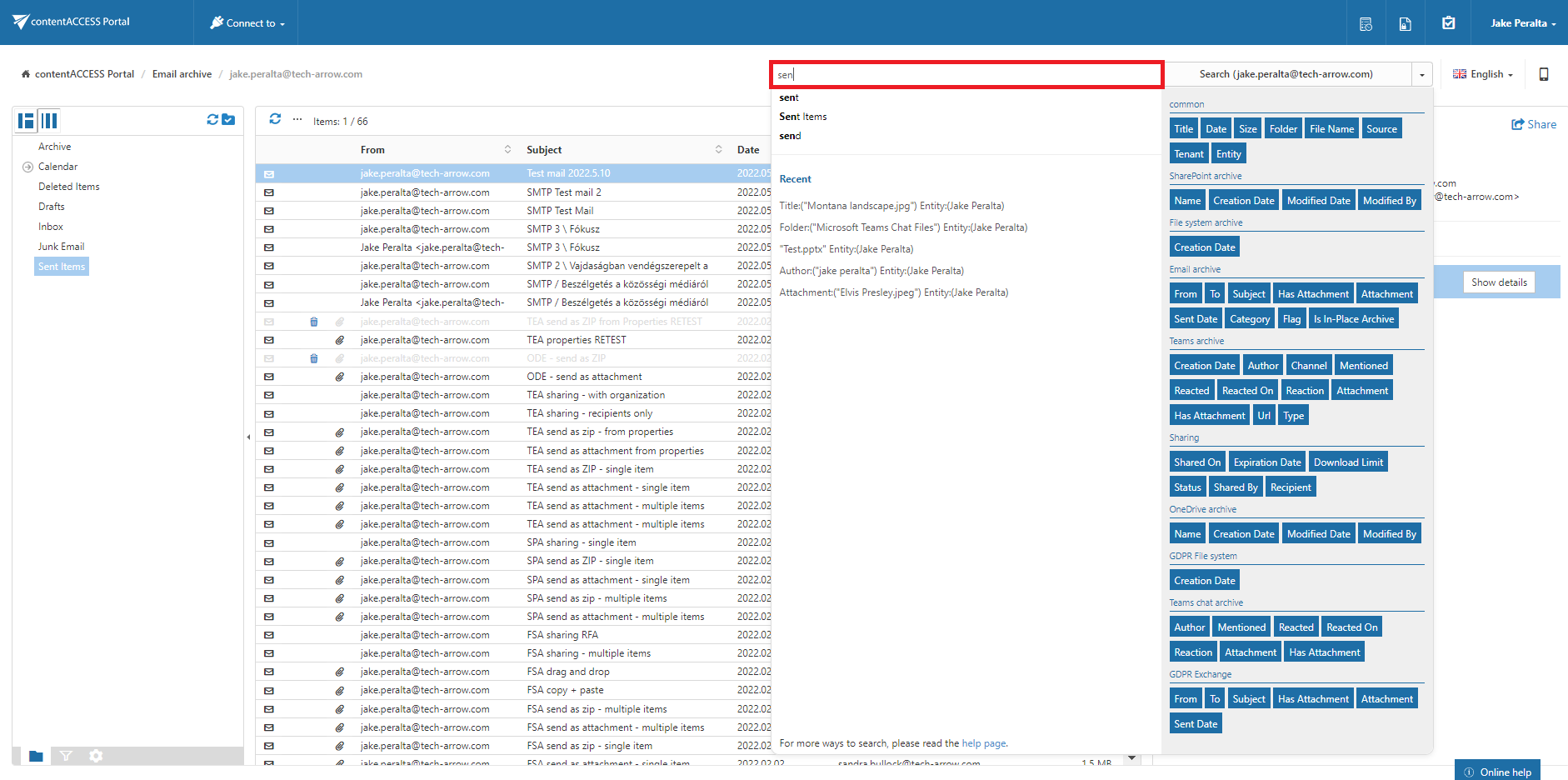
To start a fulltext search, enter the search term in the Type search text here… field.
When you move the cursor over the Type search text here… field, a pop-up appears with search filtering options and recent searches.
If Enable search suggestions is enabled in the System settings, the system suggests search terms when you start typing.
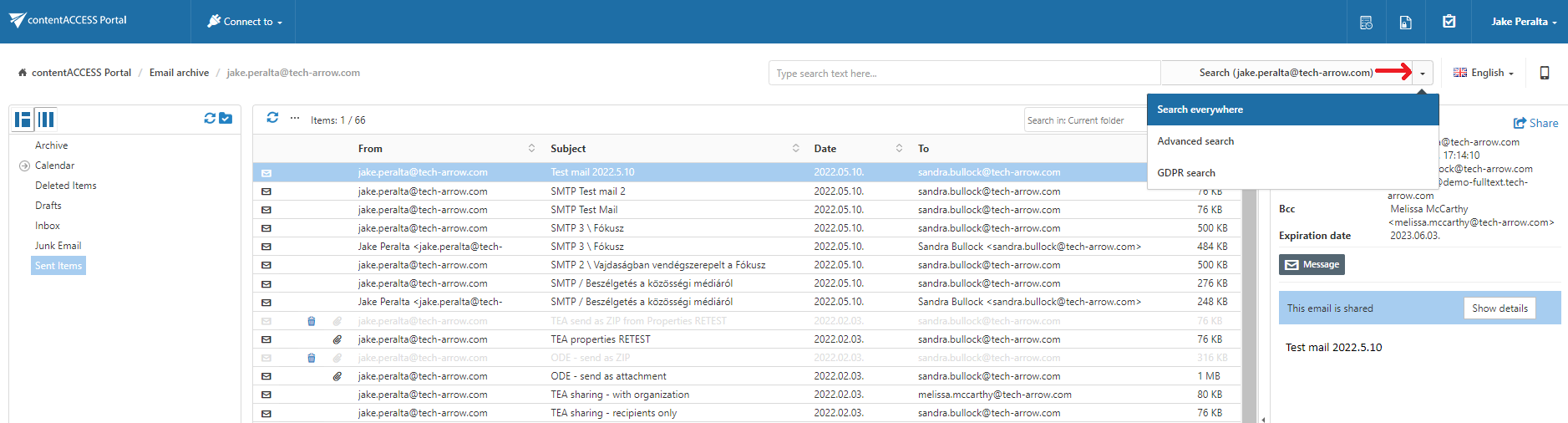
Search everywhere
If you have access to more than one entity, the Search everywhere option is available. This option allows you to search across all entities to which you have access.
If you have access to only one entity, Search everywhere is not enabled.
Note: When searching in multiple archives, the sorting of results may appear out of order. The search engine cannot merge and sort data from multiple sources (archives), so the results from each archive are sorted separately.
Search mode
When Search everywhere is used and the available models include both models that support Fulltext search and models that do not, a result mode selector is displayed.
The following search modes are available:
- Fulltext – Searches only in models that support Fulltext search.
- Classic – Searches in models that support other types of search, excluding Fulltext search.
For more information about the result mode setting, see User Interface Settings.
Note: If Enable hit highlighting is enabled in Central Administration, the located words are highlighted in yellow.