GDPR search
Introduction
The GDPR search function in contentACCESS Portal helps users find personal and sensitive data across the entities they have permission to access. Predefined search patterns make it easier to locate commonly requested personal information, such as data belonging to an identified person, bank account numbers, credit card numbers, and phone numbers.
The GDPR search page provides two search options:
- Search for personal data
- Search for all sensitive data
Open GDPR search
To open the GDPR search page:
- Open the search type drop-down list.
- Select GDPR search.
Note: When searching in multiple archives, the sorting of results may appear out of order. The search engine cannot merge and sort data from multiple sources (archives), so the results from each archive are sorted separately.
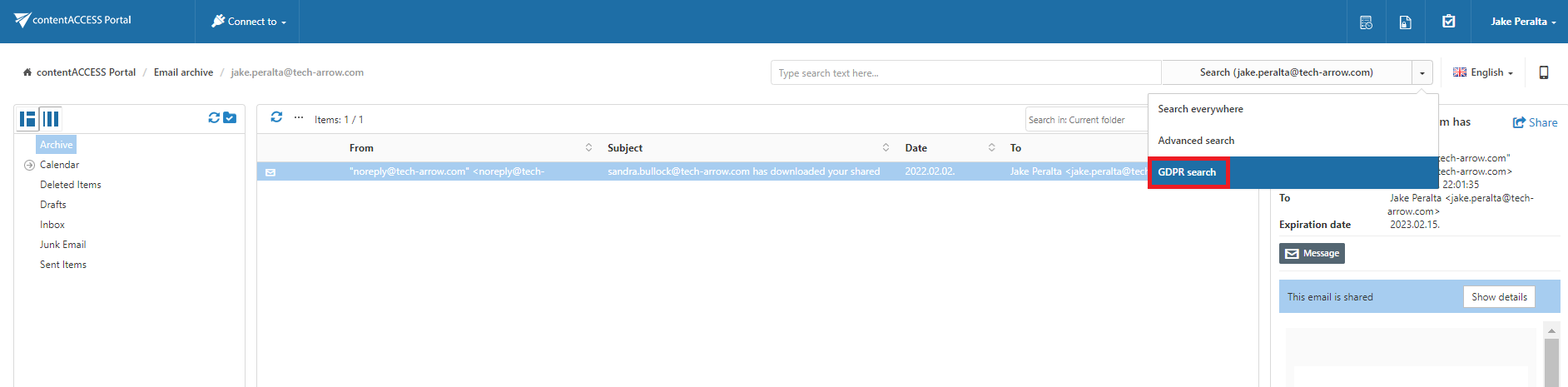
GDPR search templates
The GDPR search page provides predefined search patterns on both tabs:
- Search for personal data
- Search for all sensitive data
The predefined patterns can be modified by clicking Change template. After modifying a template, it can also be reset to its original state.
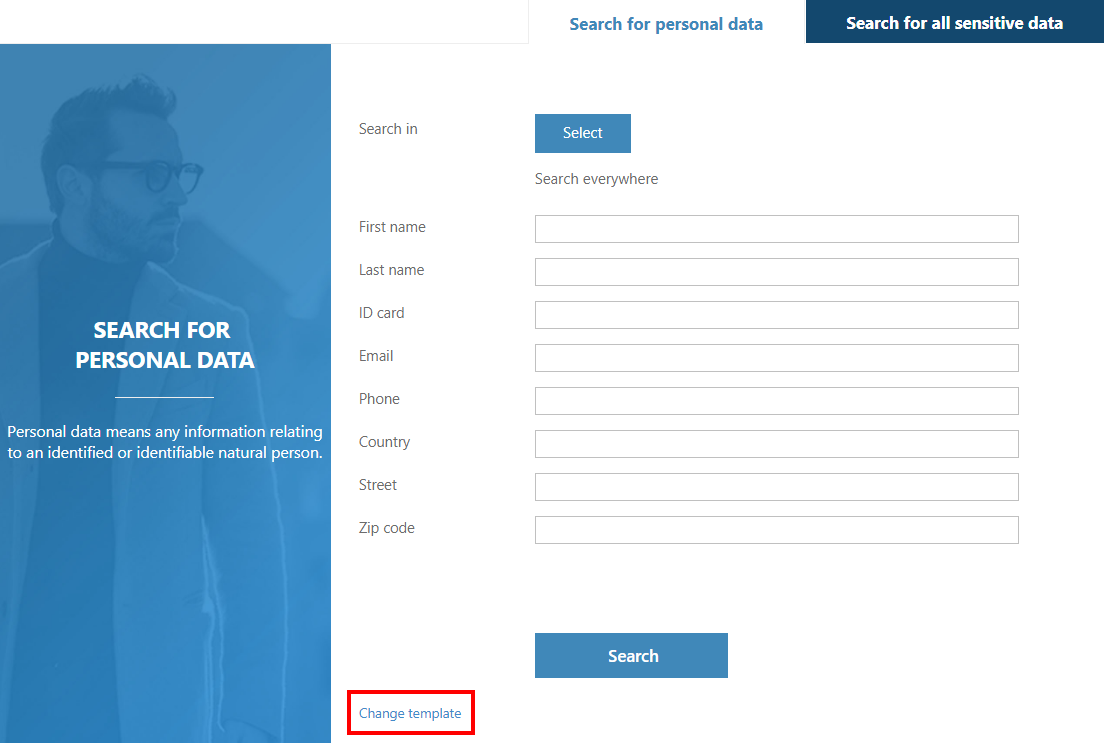
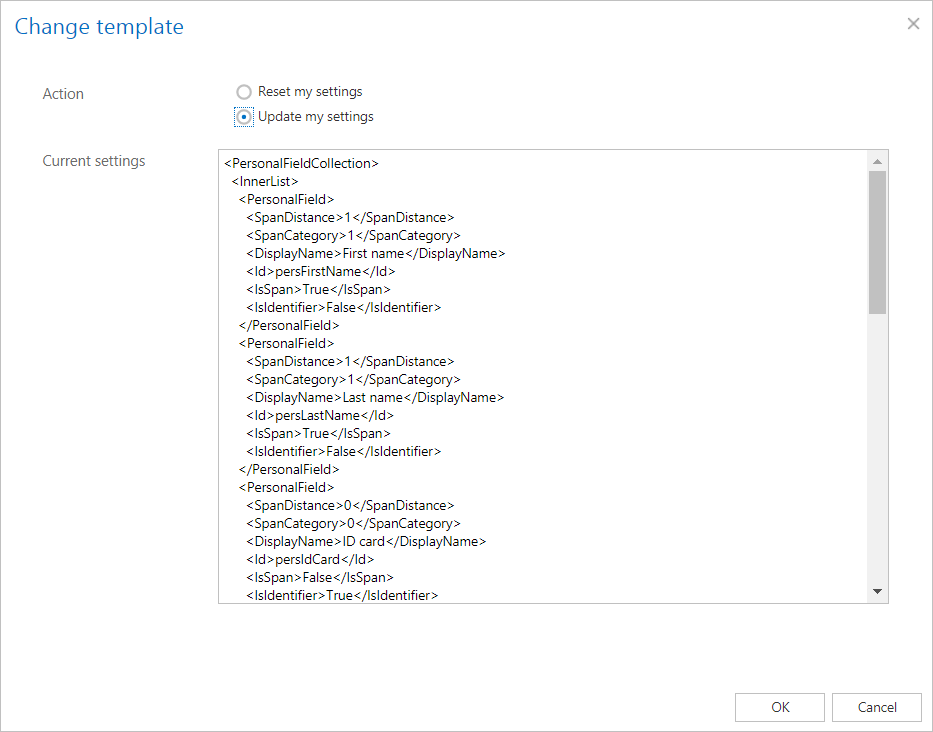
Note: To change the predefined search patterns, the user must have the Customize GDPR search permission assigned through their role. If the permission is not available, the Change template option is not displayed.
Search for personal data
The Search for personal data tab allows users to search for information related to an identified person.
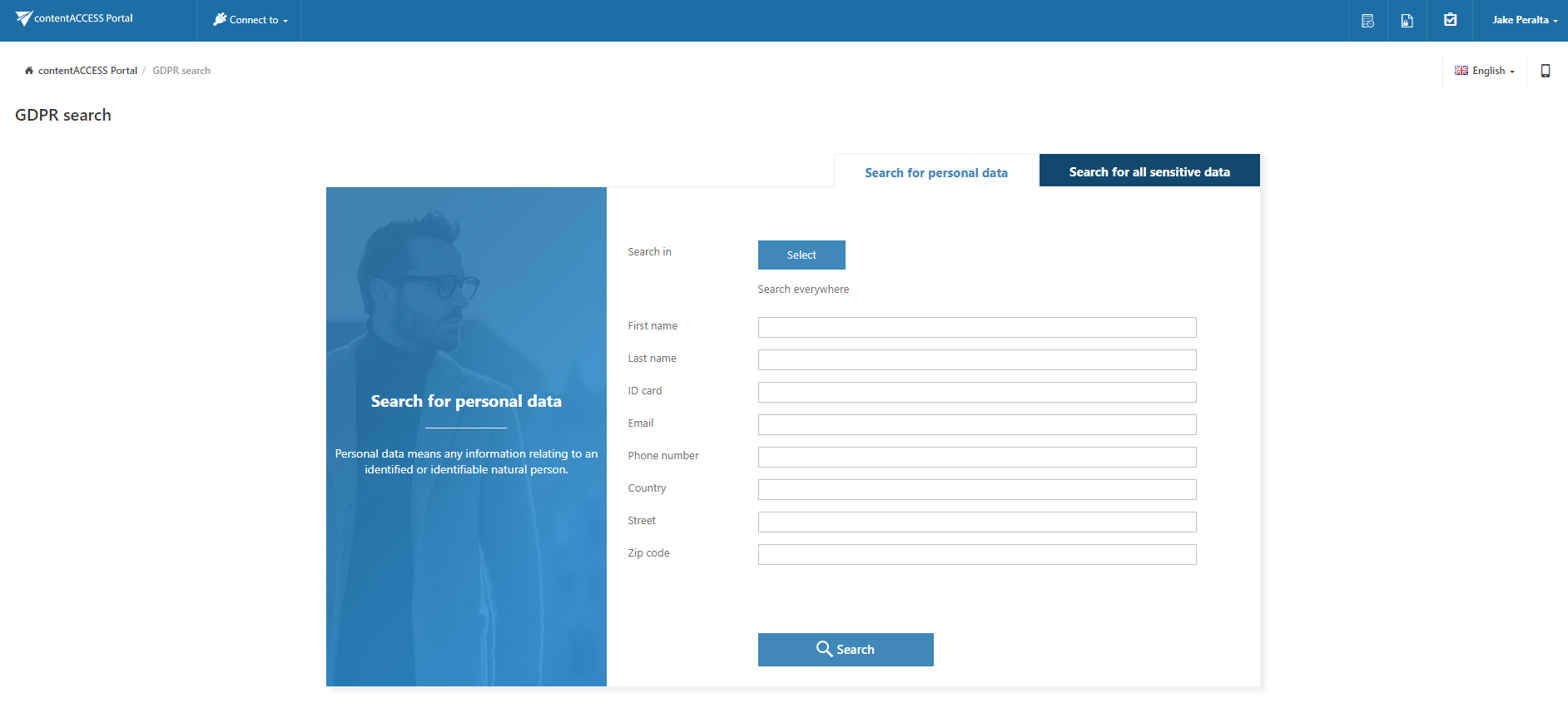
Select entities
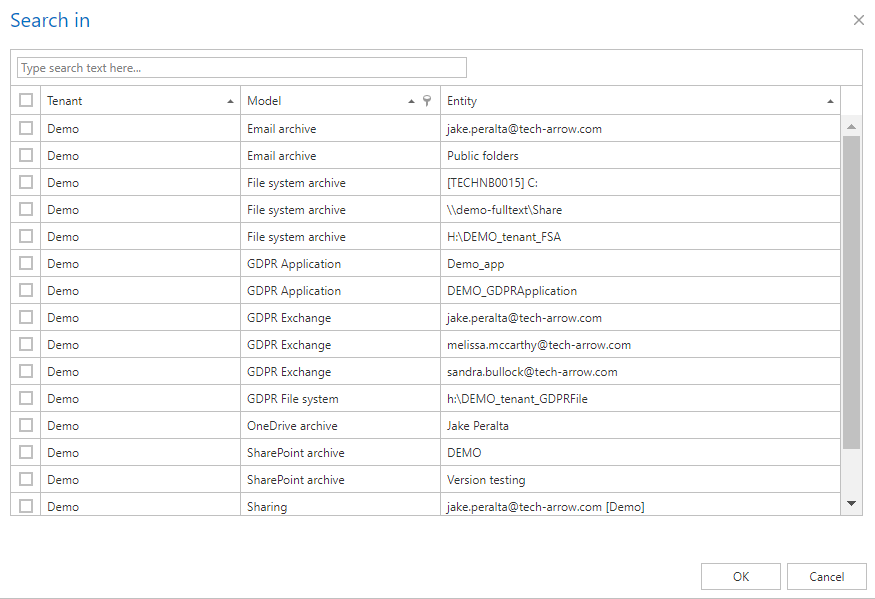
Click Select to open the entity selector.
In the entity selector, you can:
- Select the entities in which you want to perform the search.
- Filter entities by model type.
Select the required entities and click OK.
Note: The search can be performed only on entities allowed by the user's roles and permissions.
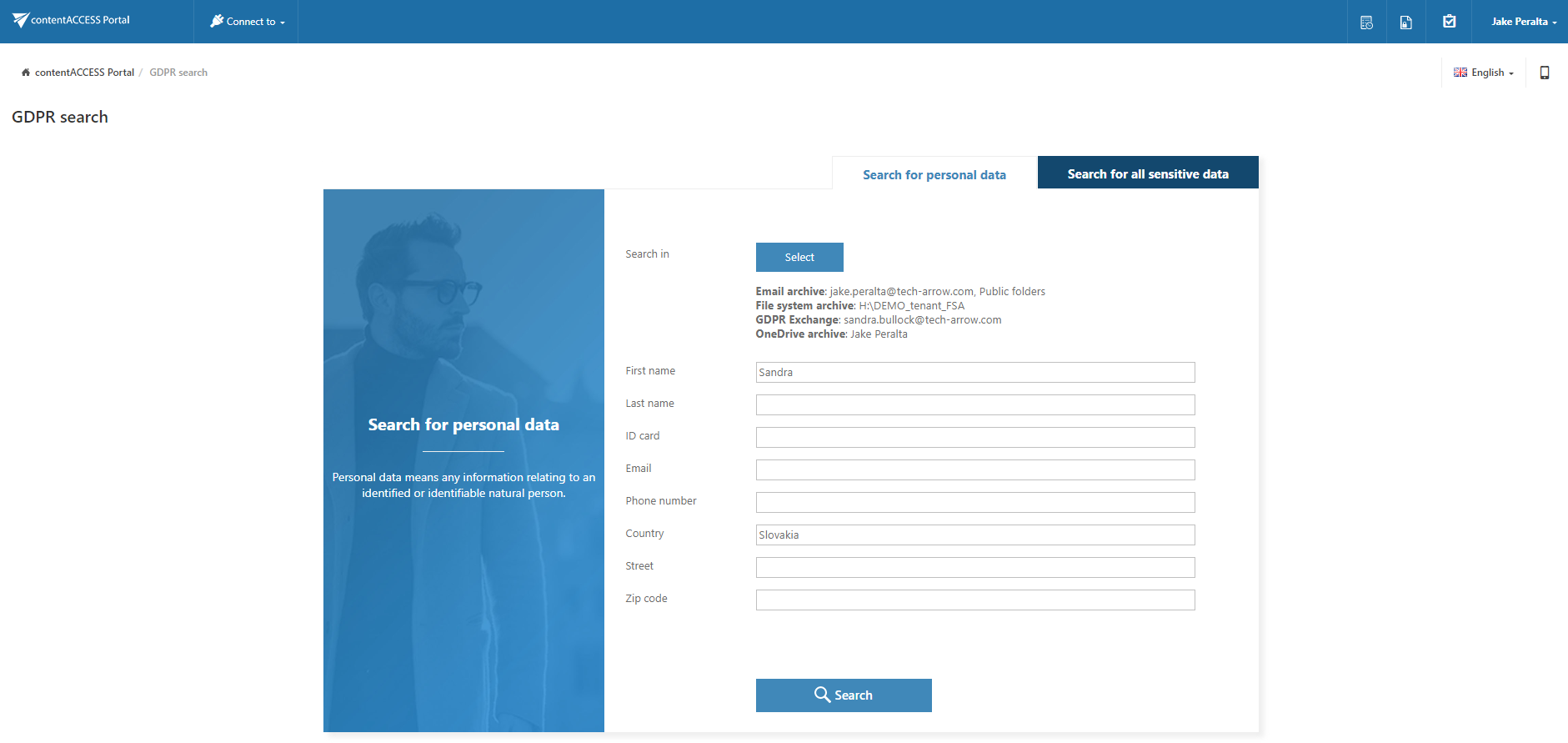
The selected entities are displayed below the Select button.
Perform the search
Specify the information you want to search for and click Search.
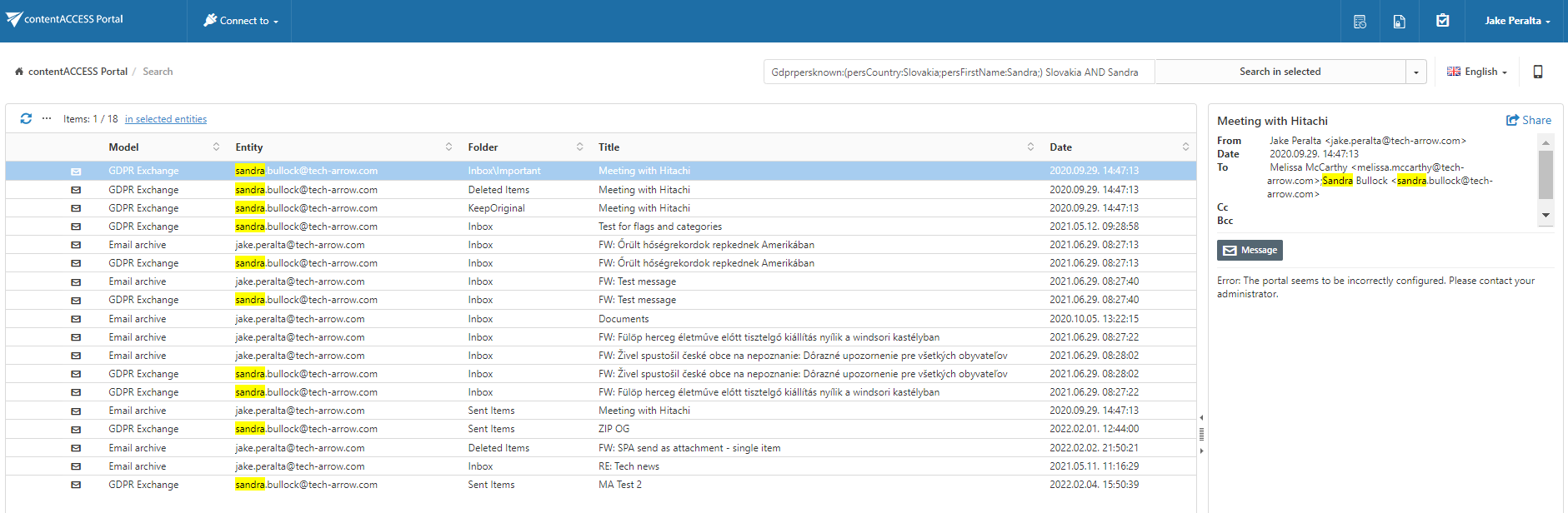
The search results are displayed. The same actions available for Quick search and Advanced search results can be performed, including:
- Export
- Create report
- Legal hold
- Mark for delete
- Create periodical search
Search for all sensitive data
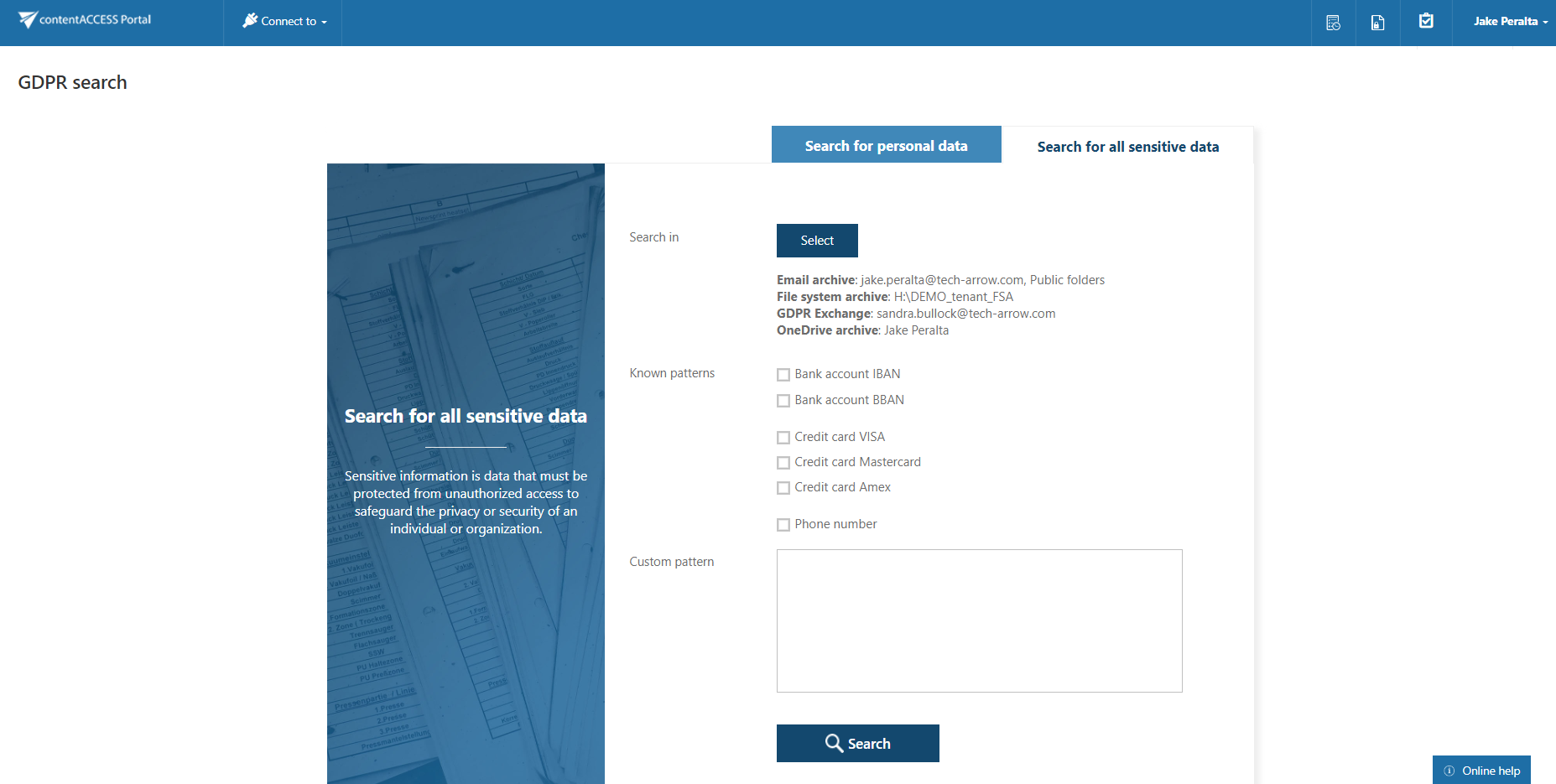
The Search for all sensitive data tab allows users to search for sensitive information such as:
- Bank account numbers
- Credit card numbers
- Phone numbers
Select entities
Click Select to open the entity selector.
In the entity selector, you can:
- Select the entities in which you want to perform the search.
- Filter entities by model type.
Select the required entities and click OK.
Note: The search can be performed only on entities allowed by the user's roles and permissions.
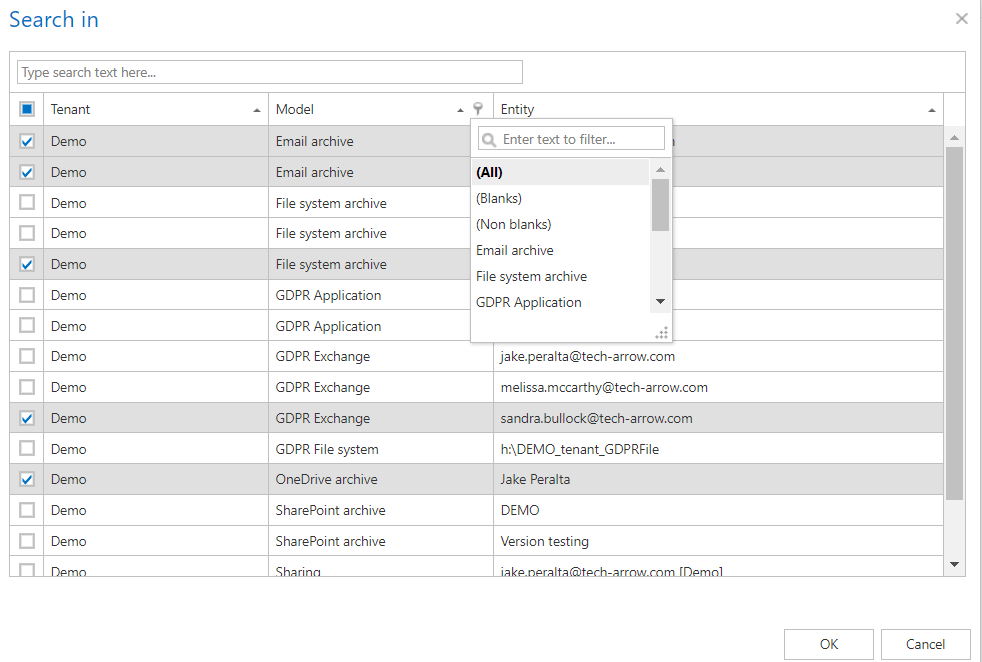
The selected entities are displayed below the Select button.
Perform the search
Select the information you want to search for, or define your own pattern, and click Search.
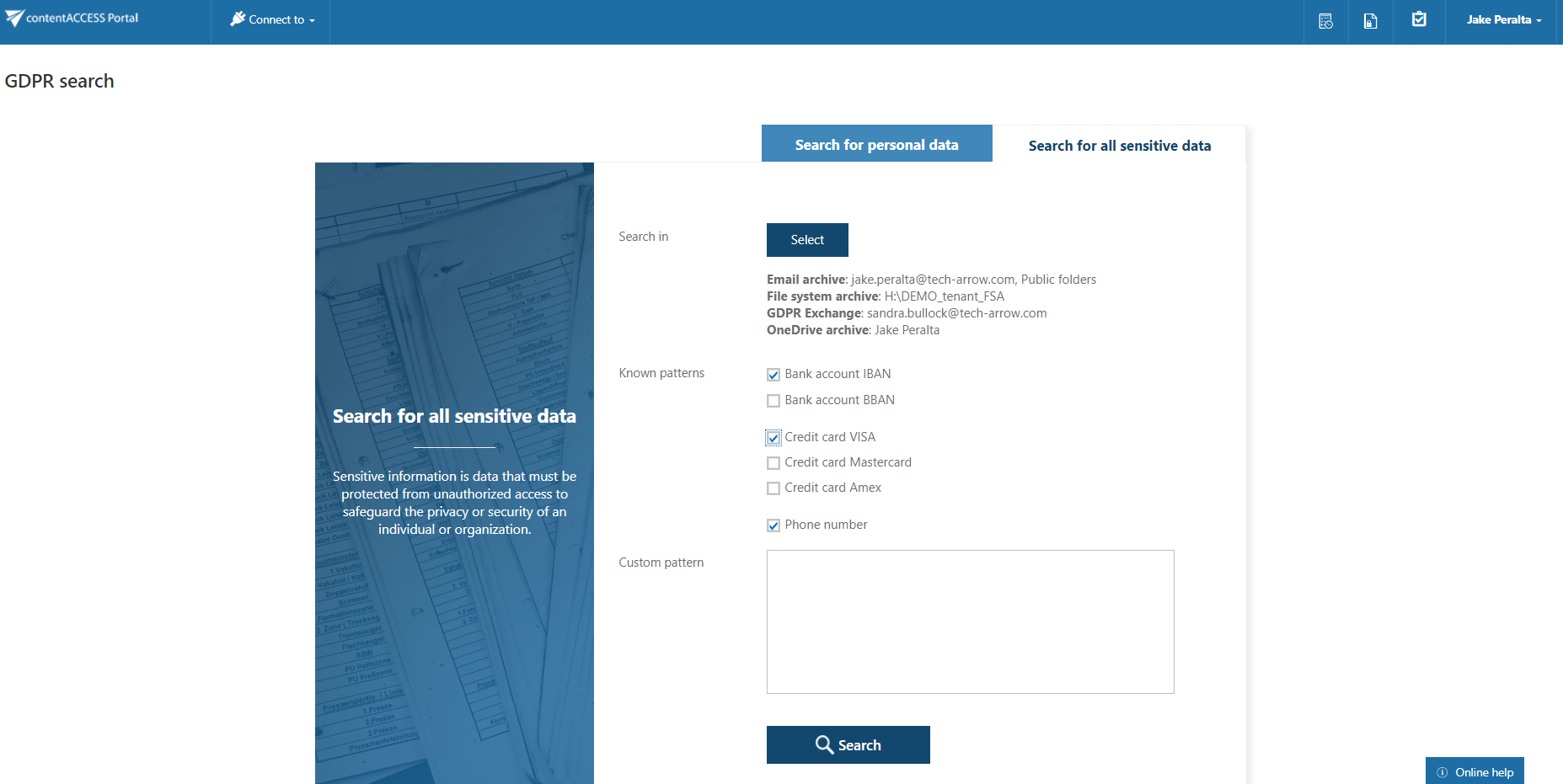
The search results are displayed. The same actions available for Quick search and Advanced search results can be performed, including:
- Export
- Create report
- Legal hold
- Mark for delete
- Create periodical search
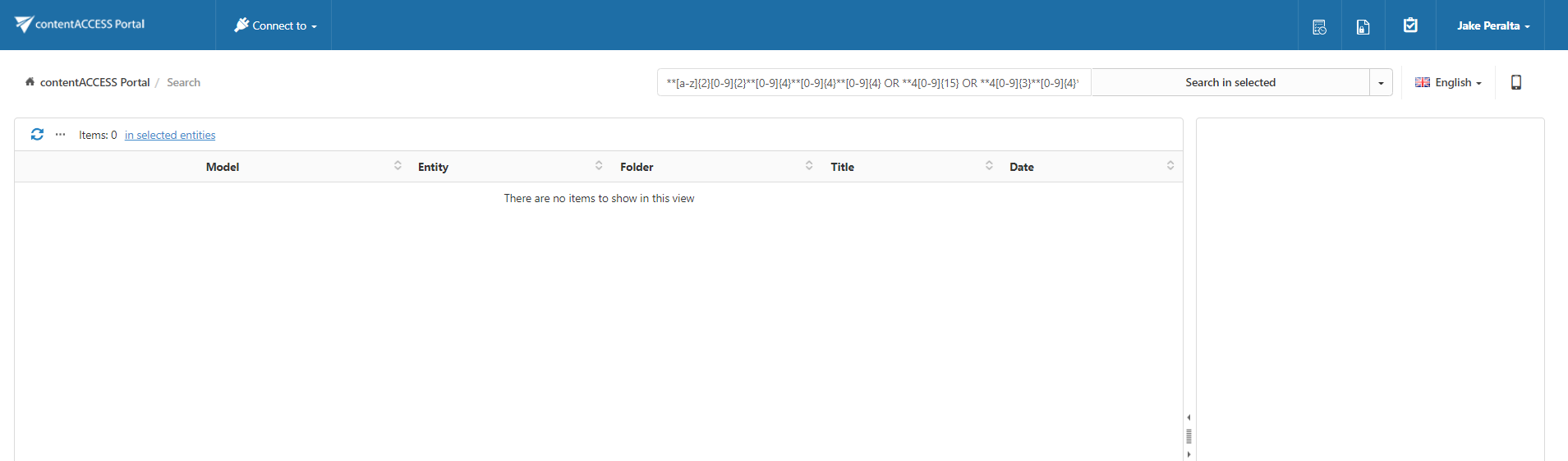
Note: If Enable hit highlighting is enabled in Central Administration, the located words are highlighted in yellow.